 Effortlessly manage data through preview, delete, export, etc.

 100% Security Verified | No Subscription Required | No Malware

 :
: 
 ChatGPT
 Perplexity
 Gemini
 Claude
 Grok
Grok

Every time I hit Join on a video call, it either freezes, the audio cuts out, or I get a “network too unstable” message—yet normal browsing still works.
Forum user
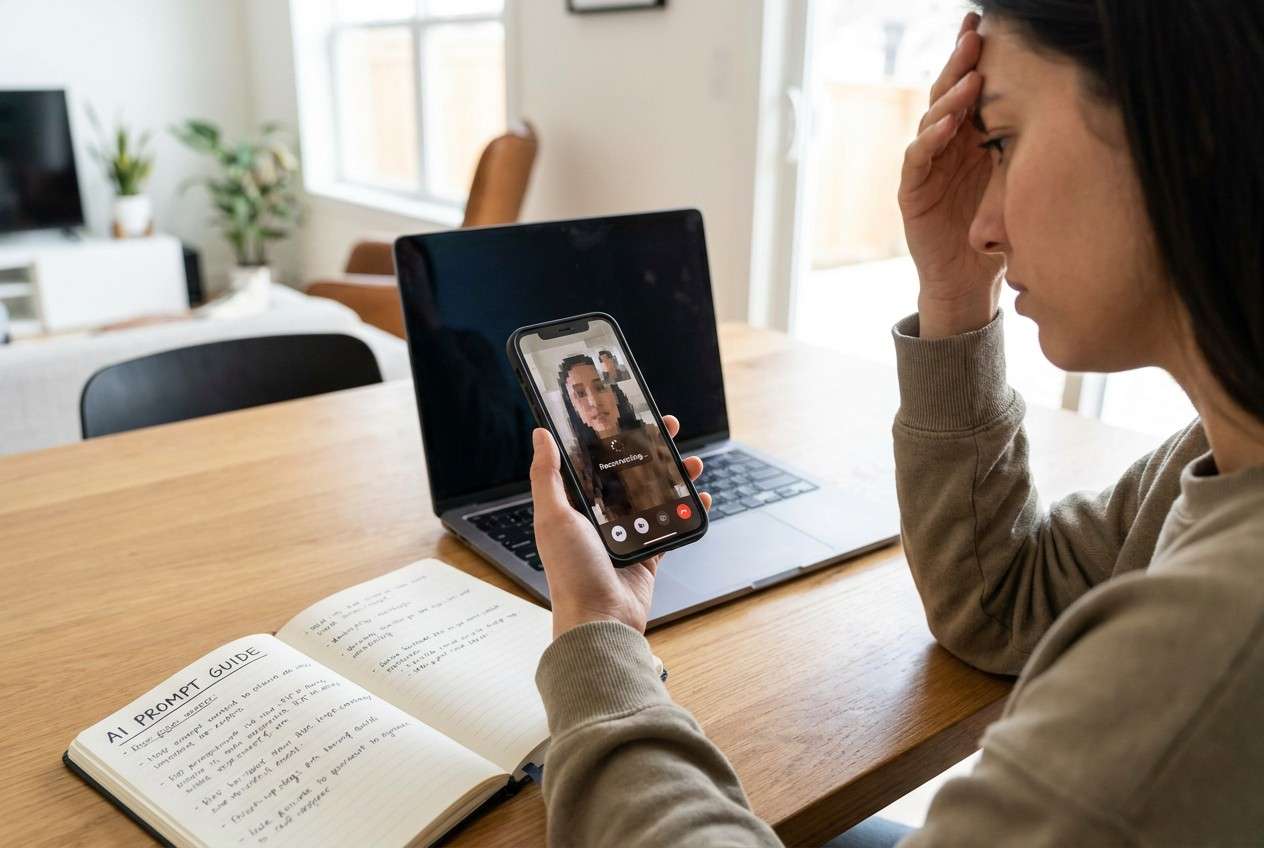
Video calls can suddenly become unusable when your phone keeps showing “network too unstable,” freezing, dropping audio, or failing to connect—often right after you tap Join or Start Video in WhatsApp, Zoom, or Meet. This can happen on Android devices and even on an iPhone 13 or iPhone 14, and it’s not always clear whether the call app or the connection is at fault.
AI can help you describe the symptoms precisely, narrow likely causes (Wi‑Fi vs mobile data vs app vs device), and identify low-risk checks based on what changed right before the problem started.
AI can’t measure your signal quality or change your network conditions, and repeated trial-and-error (resetting settings, reinstalling apps, toggling system options) can waste time or disrupt saved networks—so keep actions minimal until you’re confident in the cause.
In this article
- Why the “network too unstable” warning happens
- What it means for real-time video
- Common triggers
- A typical failure pattern
- Before you prompt the AI
- AI prompts to diagnose safely
- When to stop troubleshooting (avoid risky steps)
- Use screen mirroring to finish the call with fewer disruptions
- Recommended tool & downloads
Part 1. Why phone network too unstable for video calls happens and what it means
This usually means your connection can’t maintain the steady upload + low jitter that real-time video needs, even if basic browsing still works. It may happen after switching from Wi‑Fi to mobile data, enabling a VPN, moving rooms, or immediately after an OS/app update.
A common pattern: you start a call, the preview works, then video becomes blocky, audio cuts, and the app warns about an unstable network. Nothing changes after several minutes, so it’s unclear whether the phone is still trying to stabilize or the call is already failing.
Treat it as a diagnosis problem first: identify whether the instability is coming from the network (signal, congestion, router), the app (permissions, background limits), or the device (data saver, overheating, aggressive battery controls).
1-1. Before You Prompt the AI
Capture a few facts first so the AI can narrow causes quickly:
- Phone model and OS version
- Call app name + version (if known)
- Connection type (Wi‑Fi, 4G/5G, hotspot)
- Where it fails (home Wi‑Fi, office Wi‑Fi, outdoors, moving car)
- What changed right before it started (update, new router, VPN, travel)
- Exact warning text and what still works (web browsing, uploads, other apps)
Part 2. Using AI prompts to diagnose phone network too unstable for video calls safely
2-1. Level 1: Basic Prompt
My phone shows “network too unstable” during video calls. Ask me the minimum questions needed to identify whether the cause is Wi‑Fi, mobile data, the call app, or a phone setting—and suggest only low-risk checks first.
2-2. Level 2: Advanced Prompt
Diagnose my “phone network too unstable for video calls” issue.
1) List the top 5 likely causes and rank them by probability.
2) For each cause, suggest one low-risk test that won’t erase data.
3) Flag any step that could disrupt saved networks, accounts, or work VPN settings.
4) End with a short decision: “most likely network-side” vs “most likely device/app-side.”
2-3. Level 3: Evidence Prompt
Act as a triage assistant for unstable video calls. Use my evidence to narrow root cause and propose a safe test plan.
Evidence
- Phone model: (e.g., Galaxy S23 / iPhone 14)
- OS version: (e.g., Android 14 / iOS 17.x)
- Call app: (e.g., WhatsApp / Zoom / Google Meet)
- Connection: (Wi‑Fi / 4G / 5G / hotspot)
- Network environment: (home router / office Wi‑Fi / public Wi‑Fi)
- Signal indicators: (bars, Wi‑Fi strength, “5G” vs “LTE”)
- What exactly happens: (video freezes after 30 seconds, audio robotic, disconnects)
- Error text: (exact wording)
- What changed before this started: (update, new router, VPN, travel)
- Tests already tried: (toggle airplane mode, switch Wi‑Fi/mobile, restart)
Output format
A) Most likely category (network / app / device setting / ISP or carrier) with reasoning
B) 3 safest tests in order (and what result would confirm/deny)
C) 2 “avoid for now” actions that are high-disruption
D) What additional evidence would change your conclusion
2-4. Prompt Refinement
Use these follow-ups to make the AI’s diagnosis more reliable:
What two questions are you missing that would most change your ranking?
Separate possibilities into Wi‑Fi router issues vs ISP/carrier issues vs phone settings vs call app limits.
Rank causes again, but this time assume the problem happens only on one Wi‑Fi network.
What single observation (speed test upload, ping spikes, packet loss, VPN on/off) is most diagnostic here?
Give me a lowest-risk test plan that takes under 10 minutes and doesn’t require resets.
Which symptoms suggest congestion/jitter rather than weak signal?
2-5. AI Output vs Reality
AI is best at reasoning from patterns; real networks still need real-world verification.
| What AI can infer | What you still must verify |
|---|---|
| Whether symptoms match jitter/congestion vs weak signal | Actual stability in your location at call time |
| Whether a setting (VPN, data saver) commonly disrupts calls | Whether that setting is enabled on your device |
| Whether the issue looks app-specific | Whether other call apps fail the same way |
| A safe order of tests to reduce disruption | The outcome of each test on your network |
AI can help you avoid random resets, but execution depends on what your phone, router, and carrier are doing in that moment.
Part 3. When to stop troubleshooting phone network too unstable for video calls and avoid risks
Stop and shift strategy if you hit any of these signals:
- The issue happens across multiple networks and multiple call apps (suggests deeper device/OS or account policy factors).
- You’re about to do reset network settings but you don’t have Wi‑Fi/VPN credentials handy.
- The phone becomes hot, laggy, or rapidly drains battery during calls (stability may worsen and tests become unreliable).
- Calls are for work/medical/time-sensitive needs and repeated testing is causing missed meetings.
Once you’ve narrowed the likely cause, it’s safer to move from diagnosis to a practical setup that helps you complete the call with fewer moving parts.
Part 4. Phone network too unstable for video calls: fix or resolve it safely with Dr.Fone
If your diagnosis suggests the network is inconsistent but you still need to stay on the call, mirroring your Android screen to a PC can help you keep the phone positioned where reception is best (near the router or a strong-signal spot) while you interact from a larger screen. At this stage, Wondershare Dr.Fone Basic - Screen Mirroring becomes relevant as the execution tool to mirror what’s on your phone to your computer so you can continue the call workflow with less juggling and fewer accidental disconnections.
Reference guide: https://drfone.wondershare.com/guide/screen-mirror-android.html
-
Step 1 Open Screen Mirroring in Dr.Fone Basic
Launch the mirroring feature on your PC so you can prepare everything before starting the call.

-
Step 2 Connect your Android to the PC
Connect using the method supported in the guide, and keep the connection stable to avoid interruptions during mirroring.

-
Step 3 Start “Mirror Android Screen to PC”
Begin mirroring and confirm you can see and control the call app interface clearly from the computer.

-
Step 4 Place the phone in the best-signal location
Put the phone near the router or a known strong-signal spot while you manage the call from the mirrored view.

-
Step 5 Re-join the video call and keep changes minimal
Re-join and avoid toggling VPN/data saver mid-call unless your AI diagnosis specifically points there.
Part 5. Recommended tool & downloads (for a lower-interruption call setup)
If you already confirmed the root cause is likely network-side (signal, congestion, router/ISP variability), the goal is often to reduce “hands-on phone handling” during the call. Screen mirroring is a practical execution setup: keep the phone in the strongest reception spot while you manage the call interface on a larger PC screen.
 Easily manage data through preview, delete, export, etc.
- Transfer all data between devices.
- Robust backup solutions for reliable data protection.
- Mirror screens to PC for meetings, teaching, and control.

Keep your troubleshooting “low disruption”: don’t reset network settings mid-meeting, don’t keep reinstalling apps during a time-sensitive call, and don’t change multiple variables at once. Use AI to choose the single safest test, then use a stable physical setup to complete the call while you collect better evidence (which network, which location, which app, which time-of-day).




Conclusion
Use AI to turn vague “unstable network” symptoms into a ranked shortlist of likely causes and a low-risk test plan, then hand off execution to a practical setup—like mirroring your Android screen to a PC with Dr.Fone—so you can complete the call with fewer disruptions while you continue investigating the underlying network conditions.
FAQ
-
Why does my phone say the network is unstable only during video calls?
Video calls need steady upload and low jitter; a connection can feel “fast” for browsing but still fail real-time media. -
How can I tell if the issue is Wi‑Fi or my carrier?
Test the same call on a different network type (Wi‑Fi vs mobile data) in the same location; if only one fails, the cause is likely network-side. -
Does switching to 5 GHz Wi‑Fi help unstable video calls?
Sometimes, because 5 GHz can reduce interference at short range; but it can also be weaker through walls, so results depend on distance and obstacles. -
Will resetting network settings fix “network too unstable” warnings?
It can help if corrupted network configs are involved, but it’s disruptive (you may lose saved Wi‑Fi and VPN settings), so treat it as a later step. -
Can screen mirroring improve my network stability?
Mirroring doesn’t change network quality, but it can make it easier to keep the phone in the best reception spot while you operate the call from a PC.
 Add Wondershare Dr.Fone as a preferred source on Google





