 Effortlessly manage data through preview, delete, export, etc.

 100% Security Verified | No Subscription Required | No Malware

 :
: 
 ChatGPT
 Perplexity
 Gemini
 Claude
 Grok
Grok

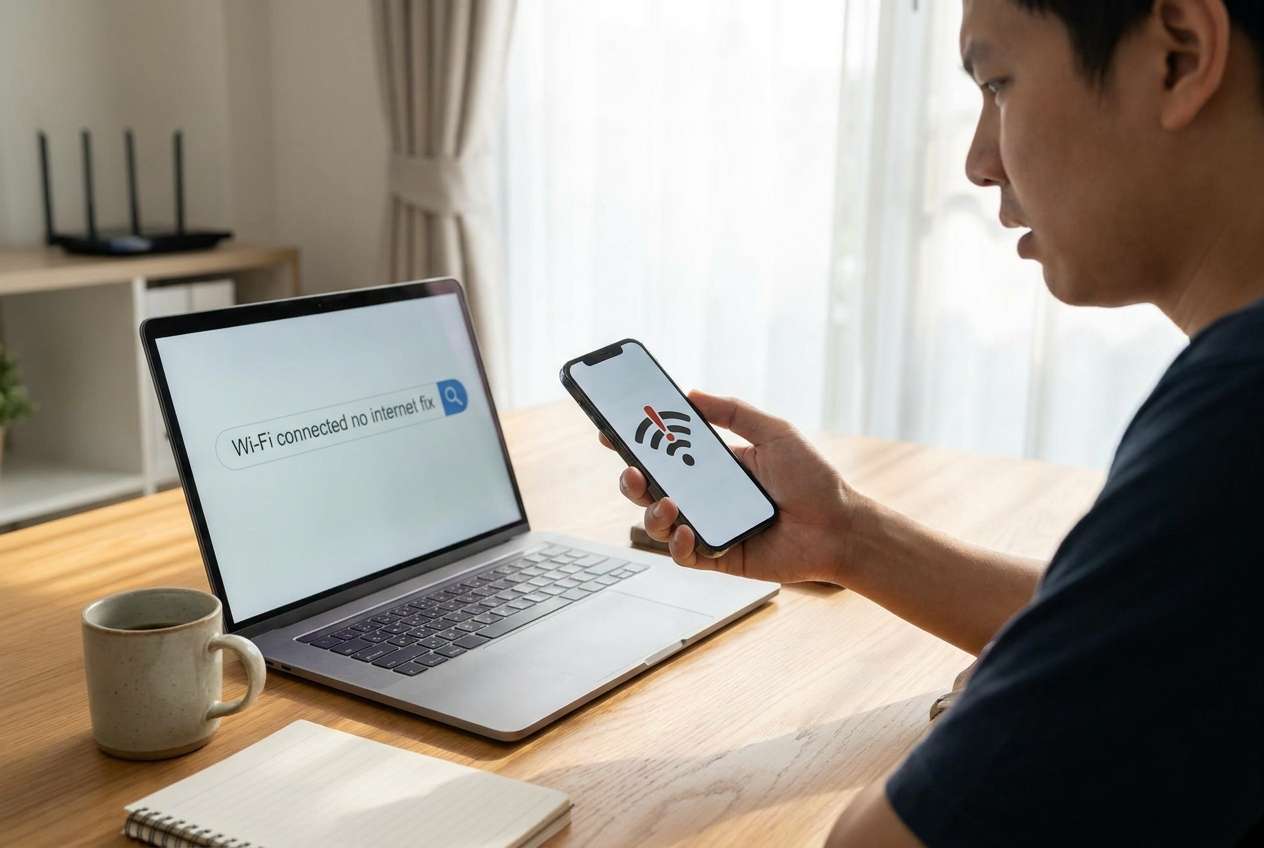
My phone shows it’s connected to Wi‑Fi, but nothing loads and apps keep saying “no internet.” The Wi‑Fi icon looks normal, so I don’t know if it’s my phone or the network.
Reddit user, r/Android
Your phone shows it’s connected to Wi‑Fi, but apps say “no internet,” pages won’t load, and messages stall. This often happens right after you tap Connect on a new network, or after a router restart—on anything from an iPhone 14 to a typical Android handset. It’s confusing because the Wi‑Fi icon looks “normal,” yet nothing changes after several minutes.
AI (like ChatGPT or Gemini) can help you interpret symptoms, narrow likely causes (router vs ISP vs DNS vs phone settings), and decide what to test next without guessing.
AI still can’t see your network in real time, and trial‑and‑error resets can create new problems (like losing saved VPN settings, captive portal access, or work profiles). Use prompts to plan low‑risk checks first.
In this article
- Part 1. Why phone connected to Wi‑Fi but no internet happens and what it means
- What “Connected” vs “Internet” really means
- Common causes that still show the Wi‑Fi icon
- Clues that point to phone-side vs network-side issues
- Before you prompt the AI
- Part 2. Using AI prompts to diagnose Wi‑Fi connected but no internet safely
- Part 3. When to stop troubleshooting Wi‑Fi has no internet access and avoid risks
- Part 4. Mirror Android screen to PC when Wi‑Fi has no internet
- Part 5. Product recommendation: use Dr.Fone Basic to mirror and document evidence
Part 1. Why phone connected to Wi‑Fi but no internet happens and what it means
1-1. What “Connected” vs “Internet” really means
“Connected” only means your phone successfully joined the Wi‑Fi network (local link). “Internet” means that network can reach the wider web through DNS and a working WAN/ISP connection. Either side can fail while the Wi‑Fi icon still appears.
1-2. Common causes that still show the Wi‑Fi icon
Common patterns include: the router has no upstream connection, DNS is blocked, a captive portal hasn’t been completed, your phone got an invalid IP, or a VPN/private DNS setting is intercepting traffic.
1-3. Clues that point to phone-side vs network-side issues
On some networks, other devices work while your phone doesn’t—this points to a phone-side configuration or MAC/randomization behavior.
If it started after switching networks, enabling a VPN, or changing router settings, treat that action as the primary clue—even if the phone insists it’s “Connected.”
1-4. Before you prompt the AI
Collect a few facts first so the AI can reason from evidence rather than guesses:
- Phone model + OS version
- Where it happens (home, office, hotel, café)
- Whether other devices on the same Wi‑Fi have internet
- Any recent changes (router reboot, VPN on/off, “Private DNS,” OS update)
- Error wording (e.g., “Connected without internet,” “DNS_PROBE_FINISHED,” “Sign in to Wi‑Fi”)
- IP details if available (IP address, gateway, DNS)
Part 2. Using AI prompts to diagnose Wi‑Fi connected but no internet safely
2-1. Level 1: Basic Prompt
My phone shows Wi‑Fi connected but there’s no internet. Ask me the minimum questions needed to identify whether the issue is the router/ISP, DNS, captive portal, or my phone settings, and then give the safest first 5 checks.
2-2. Level 2: Advanced Prompt
Diagnose “Wi‑Fi connected but no internet” using a ranked list of likely causes.
Context: [Android/iPhone], location [home/office/public], other devices internet? [yes/no].
Constraints: prioritize low-risk steps first; avoid factory resets; explain what each step proves/ruled-out.
Output:
1) Top 5 causes ranked with probability
2) 6-step test plan (each step: what to do, what result means, next branch)
3) What NOT to change yet (risk warnings)
2-3. Level 3: Evidence Prompt
Act as a connectivity triage assistant. Use the evidence below to find the most likely cause of “connected to Wi‑Fi but no internet,” and propose the lowest-risk next steps.
Evidence:
- Phone model: (e.g., iPhone 14 / Samsung Galaxy S22)
- OS version: (e.g., iOS 17.5 / Android 14)
- Network type: (home router / office / hotel / hotspot)
- Other devices on same Wi‑Fi have internet: (yes/no/unknown)
- Error message text: (exact wording)
- Captive portal prompt appears: (yes/no)
- VPN status: (on/off/unknown) + app name if known
- Private DNS / DNS profile: (off / automatic / custom + value)
- IP settings: (DHCP/static)
- IP address + gateway: (e.g., 192.168.1.23 / 192.168.1.1)
- DNS servers shown: (e.g., 8.8.8.8 or router IP)
- Time it started + what I did right before: (e.g., router reboot, tapped “Install,” changed Wi‑Fi, toggled airplane mode)
Output format:
A) Most likely root cause (1 sentence)
B) 3 alternative causes (with quick discriminating tests)
C) Step-by-step plan with stop points to avoid making things worse
2-4. Prompt Refinement
If the AI’s first answer feels generic, tighten it with targeted follow-ups:
What 3 questions would change your top-ranked cause the most, and why?
Separate possibilities into: router/ISP, DNS/captive portal, phone settings, and account/security restrictions—then rank within each category.
Based on my evidence, which single test gives the highest information gain with the lowest risk?
Tell me exactly what screenshots or values (IP, gateway, DNS, error text) would confirm or falsify your top 2 causes.
2-5. AI Output vs Reality
AI can map symptoms to likely causes, but your device and network will decide what’s actually true.
| AI suggests | What you should verify in reality |
|---|---|
| “It’s probably the ISP outage.” | Check if other devices on the same router also have no internet. |
| “It’s DNS-related.” | Test if some apps work while browsing fails, or if changing DNS changes results. |
| “It’s a captive portal.” | Look for a “Sign in to Wi‑Fi” prompt or try loading a plain HTTP page. |
| “It’s a phone configuration issue.” | Compare behavior on another Wi‑Fi/hotspot and review VPN/Private DNS. |
AI helps you choose what to check and what results mean; the actual fixes (router changes, phone toggles, reconnect flows) still require hands-on execution.
Part 3. When to stop troubleshooting Wi‑Fi has no internet access and avoid risks
Stop and reassess when your next step is likely to cause data loss, policy issues, or longer downtime.
- You’re about to reset network settings, remove VPN/work profiles, or forget critical enterprise Wi‑Fi credentials without backups.
- The network is managed (office/school/hotel), and changing router/DNS settings could violate policy or break other users.
- You see security warnings (certificate prompts), suspicious captive portals, or repeated login loops that suggest a hostile network.
- You’ve repeated basic checks (toggle Wi‑Fi/airplane, reboot phone/router, try another network) with no change and no new evidence.
Once you’ve narrowed the likely cause with AI, shift from guessing to controlled execution—capturing what you see and applying only the specific change that matches your diagnosis.
Part 4. Mirror Android screen to PC when Wi‑Fi has no internet
If your Android is stuck in a “connected but no internet” state, screen mirroring can help you see and control the phone from a PC while you verify settings (VPN, Private DNS, IP details), capture screenshots for support, or keep working on local tasks even when internet is down.
At this stage, Dr.Fone Basic - Screen Mirroring is relevant because it provides a practical way to mirror the Android display to your computer so you can execute the exact checks your AI diagnosis recommends—without juggling tiny menus or losing context during re-connect attempts.
-
Step 1 Launch Screen Mirroring on PC
Open Dr.Fone Basic and choose the Screen Mirroring option so you can keep the phone’s network screens visible during testing.

-
Step 2 Connect the Android device
Connect your Android to the PC (USB is often steadier when the network is unreliable), and allow required permissions carefully to avoid denying the prompt you’ll need for mirroring.

-
Step 3 Start mirroring and keep Settings open
Begin mirroring, then keep Android Settings → Network & Internet → Wi‑Fi visible while you toggle only one variable at a time (e.g., VPN off, Private DNS automatic), so you can attribute results correctly.

-
Step 4 Confirm the device is mirrored and collect evidence
Take screenshots of the Wi‑Fi details page (IP, gateway, DNS, “Connected without internet” text) and paste those exact values back into your AI prompt for a tighter diagnosis.

If pairing fails, follow the official mirroring flow and troubleshooting steps: https://drfone.wondershare.com/guide/screen-mirror-android.html

Part 5. Product recommendation: use Dr.Fone Basic to mirror and document evidence
When you’re diagnosing “Wi‑Fi connected but no internet,” mirroring your Android to a PC can make it much easier to keep Settings visible, capture IP/DNS values accurately, and repeat one change at a time without losing your place in menus.
 Easily manage data through preview, delete, export, etc.
- Transfer all data between devices.
- Robust backup solutions for reliable data protection.
- Mirror screens to PC for meetings, teaching, and control.

Use mirroring to keep the Wi‑Fi details page open while you confirm key evidence (error wording, captive portal prompts, VPN/Private DNS status, and IP/gateway/DNS values). Then feed those exact observations into your AI prompt so the next round of troubleshooting is tighter and lower risk.




Conclusion
Use AI to turn “Wi‑Fi connected but no internet” into a short list of likely causes and a low-risk test plan, then move to controlled, hands-on execution. If you’re troubleshooting on Android, mirroring to a PC can help you verify settings, capture evidence, and apply only the changes that match your diagnosis.
FAQ
-
Why does my phone say Wi‑Fi connected but no internet?
Because joining Wi‑Fi only confirms a local connection to the router/access point; internet also requires working DNS and a functioning upstream (ISP/WAN) path. -
How can I tell if it’s my phone or the router?
Check whether other devices on the same Wi‑Fi can browse; then try your phone on a different network (like a hotspot). That split test usually isolates phone-side vs network-side issues. -
Can a VPN or Private DNS cause “no internet” even on good Wi‑Fi?
Yes. A VPN outage, blocked VPN protocol, or misconfigured Private DNS can prevent resolution/routing while Wi‑Fi remains connected. -
Why does it work on mobile data but not on Wi‑Fi?
Mobile data uses a different DNS and routing path; if only Wi‑Fi fails, the issue is often router/ISP/DNS/captive portal, or a Wi‑Fi-specific phone setting. -
How does Android screen mirroring help with Wi‑Fi troubleshooting?
It helps you keep network settings, error messages, and IP/DNS details visible on a larger screen and capture evidence consistently while you apply one change at a time.
 Add Wondershare Dr.Fone as a preferred source on Google





