 Effortlessly manage data through preview, delete, export, etc.

 100% Security Verified | No Subscription Required | No Malware

 :
: 
 ChatGPT
 Perplexity
 Gemini
 Claude
 Grok
Grok

Hotspot worked fine before, then after the update the toggle turns off by itself and my laptop says “Connected, no internet.” I don’t know what setting changed.
Samsung Community user
Mobile hotspot issues on a Samsung phone often show up right after you tap “Turn on Mobile Hotspot” or after a One UI update: the toggle turns off, connected devices get “Connected, no internet,” or nothing appears in the Wi‑Fi list. After several minutes, nothing changes and it’s unclear whether the phone is still negotiating a connection.
AI (like ChatGPT or Gemini) can help you sort symptoms, narrow likely causes, and decide what to check next—without randomly changing settings that create new problems. It’s especially useful for comparing “carrier limit vs. phone setting vs. client device issue.”
AI can’t see your carrier provisioning, your exact Samsung firmware state, or the real network environment, so trial-and-error can waste time or cause lockouts. Use prompts to stay low-risk, then hand off execution to a practical tool when you need clearer visibility and control.
In this article
- Why Samsung mobile hotspot fails (what it means)
- Common symptoms after toggling or updates
- The three layers that can block tethering
- How comparing devices helps isolate the cause
- What to collect before you ask AI
- AI prompts to diagnose safely
- When to stop troubleshooting (avoid risks)
- Mirror Android screen to PC with Dr.Fone
- Conclusion
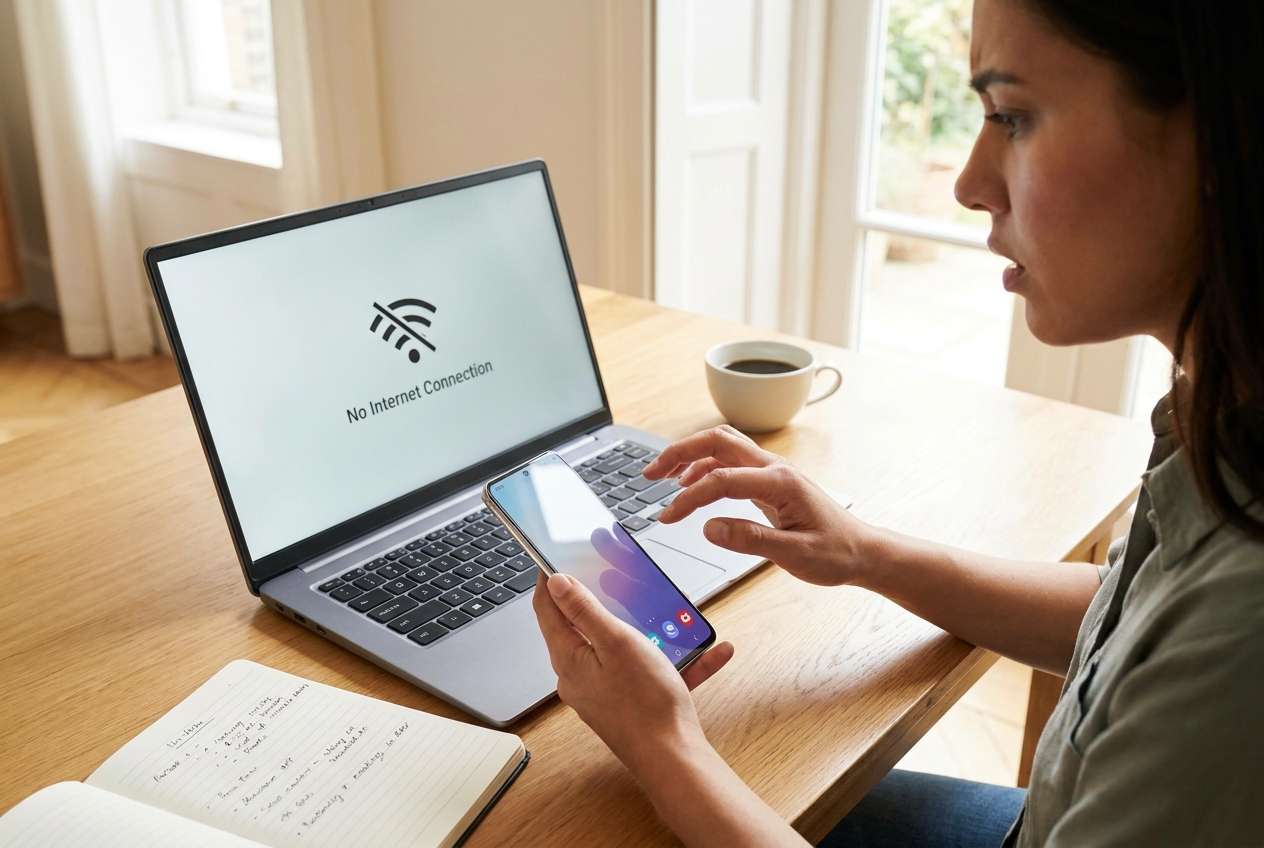
Part 1. Why mobile hotspot not working on samsung phone happens and what it means
A common pattern: on a Galaxy device (for example, a Galaxy S22 or Galaxy A54), hotspot worked before, then after you toggled it on—sometimes right after tapping Install Now for an update—clients can’t get internet or the hotspot shuts off immediately. You may also see Samsung warnings like “check your mobile network” or “authentication error.”
This usually means one of three layers is blocking tethering: carrier/account provisioning, phone network configuration, or Wi‑Fi sharing compatibility (2.4 GHz vs 5 GHz, security mode, DHCP). It can also be a simple “data not actually working” situation that looks like a hotspot problem.
If you’re comparing behavior with another device (even an iPhone 13 or iPhone 14 on the same SIM plan), differences can help isolate whether this is a plan restriction or a Samsung-specific setting conflict.
1-1. Before You Prompt the AI
Collect these details first so the AI can narrow causes fast:
- Samsung model + Android/One UI version
- Carrier + plan type (postpaid/prepaid/business)
- What changed right before the issue (update, SIM swap, VPN install, reset)
- Hotspot symptom (toggle turns off, no SSID, connected/no internet, slow)
- Client device type (Windows laptop, iPad, another Android)
- Whether mobile data works on the phone itself
- Any error messages (exact wording if possible)
Part 2. Using AI prompts to diagnose Samsung hotspot issues safely
2-1. Level 1: Basic Prompt
My Samsung phone’s mobile hotspot isn’t working. The symptom is: [describe: toggle turns off / devices connect but no internet / hotspot not visible]. Mobile data on the phone: [works/doesn’t work]. Carrier: [carrier]. What are the top 5 most likely causes and the lowest-risk checks I should do first, without resetting my phone?
2-2. Level 2: Advanced Prompt
Diagnose this Samsung hotspot problem and rank likely causes with a short reason for each.
Device: [model], Android/One UI: [version]
Trigger: [after update / after enabling power saving / after SIM change]
Symptom: [details]
Phone data works: [yes/no]
Client device: [Windows/macOS/Android/iOS]
What I already tried: [list]
Output format:
1) Most likely causes (ranked)
2) Low-risk checks first (no resets)
3) Medium-risk changes (tell me the risk)
4) Stop/avoid steps if there’s a data-loss or lockout risk
2-3. Level 3: Evidence Prompt
Act like a troubleshooting analyst. Build a diagnosis tree for my Samsung mobile hotspot issue and tell me what evidence would confirm or eliminate each branch.
Phone model: (e.g., Galaxy S22)
Android/One UI: (e.g., Android 14 / One UI 6)
Carrier + country/region: (e.g., Verizon US)
Plan notes: (e.g., prepaid, family plan, corporate)
SIM type: (e.g., physical SIM / eSIM)
Mobile data status: (e.g., web works on phone, speed test OK)
Hotspot status: (e.g., toggle turns off after 5 seconds)
Hotspot band/security: (e.g., 2.4 GHz, WPA2)
Client device + OS: (e.g., Windows 11 laptop)
Client symptom: (e.g., connects, no internet, self-assigned IP)
VPN/Private DNS/Work profile: (e.g., VPN on, Private DNS set)
Power saving/data saver: (e.g., enabled)
Errors shown: (paste exact text)
Then provide:
- Top 3 hypotheses with confidence
- Minimum-change test plan (steps that are reversible)
- What not to change yet (to avoid making it worse)
2-4. Prompt Refinement
If the AI answer feels broad, tighten it with follow-ups:
What one question would most reduce uncertainty here, and why?
Separate causes into carrier/provisioning, Samsung settings, and client device categories.
Rank the causes again assuming: mobile data works on the phone but clients have no internet.
What’s the single strongest piece of evidence to confirm tethering is blocked by my plan?
Which settings changes are reversible, and which ones risk breaking VPN/work profiles?
2-5. AI Output vs Reality
AI can suggest likely explanations, but your phone and network decide what’s true:
| AI output (what it might conclude) | Reality check (what you verify) |
|---|---|
| “Carrier is blocking tethering” | Confirm via carrier account features, plan terms, or hotspot usage indicators |
| “Hotspot band/security mismatch” | Test 2.4 GHz vs 5 GHz and WPA2 compatibility with your client device |
| “Phone data is unstable” | Run a quick data test on the phone itself (web + speed test) before hotspot tests |
| “A VPN/Private DNS is interfering” | Toggle VPN/Private DNS off temporarily and retest hotspot behavior |
AI helps you choose what to test and in what order; execution still depends on accurately changing settings, observing results, and keeping changes reversible.
Part 3. When to stop Samsung hotspot troubleshooting and avoid risks
Stop and reassess if you hit any of these:
- The hotspot toggle keeps turning off and the phone starts overheating or rapidly draining battery.
- You see signs your account may be restricted (e.g., repeated provisioning/authentication errors) and changes aren’t helping.
- Your phone’s mobile data stops working entirely after changes you made.
- You’re about to do factory reset or deep resets without a clear, evidence-based reason.
Once you’ve used AI to narrow the likely cause, the next step is executing checks carefully—especially if you need a clearer view of settings and on-screen messages while you test changes.
Part 4. Mirror Android screen to PC with Dr.Fone
If your Samsung hotspot isn’t working, you often need to flip multiple settings (band, security, VPN/Private DNS, data saver) and capture exactly what changes when clients attempt to connect. Dr.Fone Basic - Screen Mirroring is relevant at this stage because it lets you mirror your Android screen to a PC so you can observe the hotspot status and prompts more clearly while you run the low-risk tests you and the AI selected.
 Easily manage data through preview, delete, export, etc.
- Transfer all data between devices.
- Robust backup solutions for reliable data protection.
- Mirror screens to PC for meetings, teaching, and control.

Follow the official mirroring guide as you set it up: https://drfone.wondershare.com/guide/screen-mirror-android.html
-
Step 1 Prepare the phone for testing
Open Hotspot settings and keep them visible while you test, avoiding unrelated changes that add variables.

-
Step 2 Start Android screen mirroring to PC
Launch screen mirroring and connect your Samsung device so you can watch toggles, pop-ups, and status changes in real time.

-
Step 3 Run one test per hypothesis
Change only one item at a time (for example, switch 5 GHz to 2.4 GHz), then immediately retest client connection to keep results attributable.

-
Step 4 Capture evidence for escalation
Record the exact error text and the moment the hotspot drops so you can share consistent proof with your carrier/IT or compare against AI’s decision tree.

-
Step 5 Revert to the last known-good state
Undo the specific setting you changed if it didn’t help, so you don’t accumulate conflicts across VPN, DNS, and power/data restrictions.




Conclusion
Use AI to translate your exact hotspot symptom into a ranked list of likely causes and a reversible test plan, then use Dr.Fone screen mirroring to execute those checks with clearer visibility and cleaner evidence collection—without turning the process into random, high-risk trial-and-error.
FAQ
-
Why does my Samsung hotspot connect but say “no internet” on my laptop?
Usually the phone’s mobile data isn’t routing to tethering (plan restriction, VPN/Private DNS interference, or APN/provisioning mismatch), or the client got a bad IP/DNS lease.
-
Why does the mobile hotspot toggle turn off by itself on Samsung?
Common causes include power/data restrictions, overheating protection, software bugs after an update, or a provisioning check failing and disabling tethering automatically.
-
Does hotspot require mobile data to work on the phone first?
Yes—if the phone itself can’t access the internet over cellular data, hotspot clients typically won’t either.
-
What hotspot band should I use: 2.4 GHz or 5 GHz?
2.4 GHz is more compatible and travels farther; 5 GHz can be faster but may fail with older clients or certain regional/channel constraints.
-
Can a VPN or Private DNS break mobile hotspot on Samsung?
It can—some VPNs or DNS configurations interfere with routing or DNS resolution for tethered devices, so testing with them temporarily disabled is a useful, reversible check.
 Add Wondershare Dr.Fone as a preferred source on Google





