 Effortlessly manage data through preview, delete, export, etc.

 100% Security Verified | No Subscription Required | No Malware

 :
: 
 ChatGPT
 Perplexity
 Gemini
 Claude
 Grok
Grok

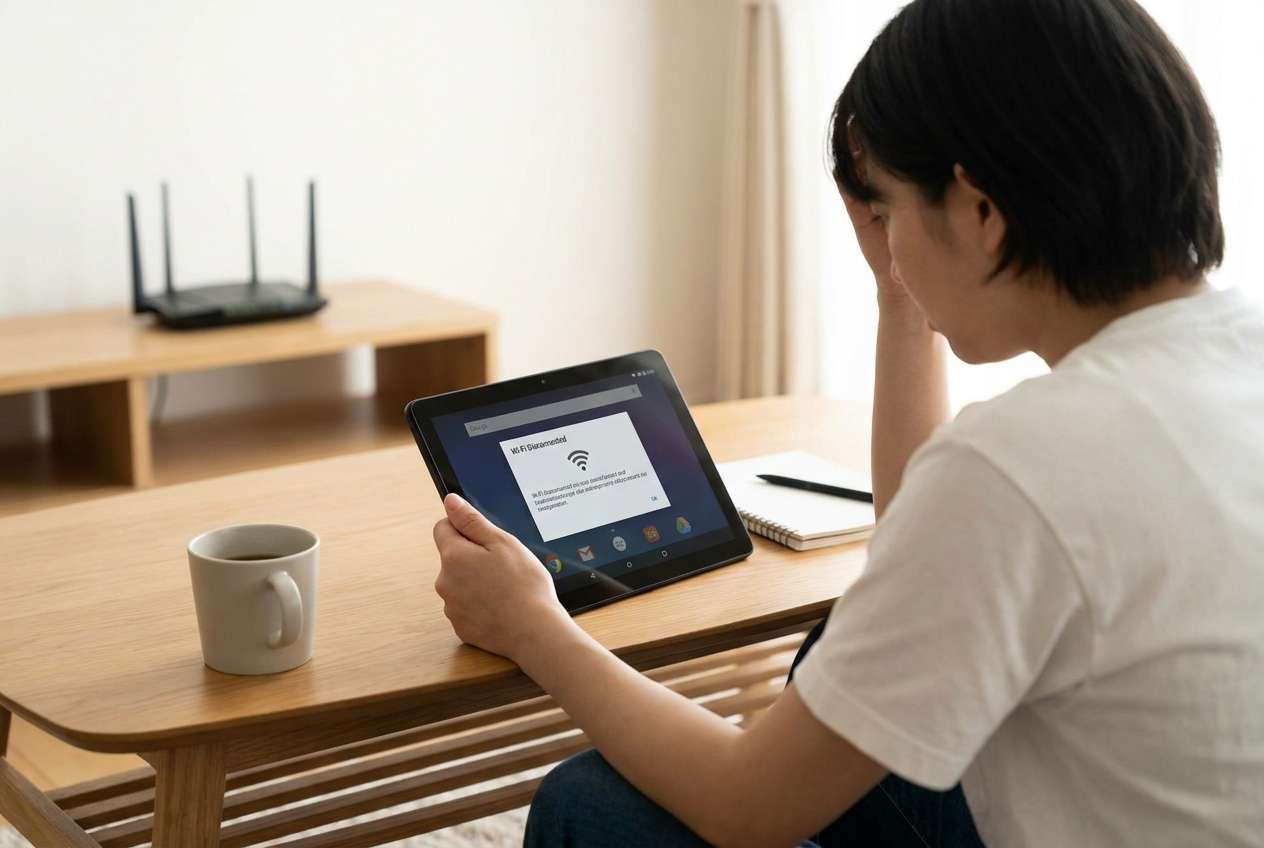
My Android tablet stays connected for a bit, then Wi‑Fi drops and reconnects every few minutes. Streaming and downloads keep failing and I can’t tell what’s actually causing it.
Reddit user, r/AndroidQuestions
Your Android tablet keeps dropping Wi‑Fi—sometimes every few minutes—so streaming, downloads, and screen mirroring won’t stay stable. This often shows up on devices like a Samsung Galaxy Tab S8 or Lenovo Tab P11, especially after tapping Install on a system update or after a restart.
AI (like ChatGPT or Gemini) can help you sort symptoms, narrow likely causes (router vs tablet vs network policy), and decide what evidence to check next—without jumping into risky “try everything” changes.
AI can’t see your tablet, your router, or your environment, and trial‑and‑error can accidentally reset networks, break VPN/work profiles, or hide the real pattern. Use prompts to get a cautious diagnosis plan, then use a tool to carry out the steps consistently.
1. Treat the disconnect pattern as the clue.
If it drops only on one network, suspect router/network rules; if it drops everywhere, suspect tablet settings, OS update effects, or hardware.
2. Use AI to rank causes and propose low-risk confirming tests.
Ask for the minimum questions, then request “what each check would prove” so you don’t make random changes.
3. Execute changes one variable at a time and document results.
Collect specific evidence from Wi‑Fi status pages (band, IP/DHCP behavior, Private DNS/VPN, MAC type) so the AI can refine rankings accurately.
In this article
- Part 1. Why Android tablet Wi‑Fi keeps disconnecting (what it indicates)
- Signal & compatibility factors
- Tablet settings & software factors
- Router/network policy factors
- How the “pattern” changes the meaning
- Part 2. Using AI prompts to diagnose Wi‑Fi drops
- Part 3. Prompt refinement + AI output vs reality checks
- Part 4. When to stop troubleshooting intermittent Wi‑Fi
- Part 5. Mirror an Android tablet to PC while resolving Wi‑Fi disconnects with Dr.Fone
Part 1. Why Android tablet Wi‑Fi keeps disconnecting and what it indicates
When an Android tablet repeatedly disconnects from Wi‑Fi, the cause is usually one of three buckets: signal/compatibility (band, channel, distance), tablet settings/software (battery optimizations, saved network conflicts, OS bugs), or router/network rules (DHCP lease, MAC randomization behavior, captive portals, parental controls).
The “meaning” comes from the pattern. If it drops only on one network, the router or network rules are more likely. If it drops on every network, the tablet’s settings, OS update, or hardware becomes more likely.
A common frustration is that nothing visibly changes: the Wi‑Fi icon flips on and off, or it says “Connected, no internet,” and it’s unclear whether the tablet is still negotiating the connection or fully disconnecting.
1-1. Before you prompt the AI
Capture a few basics first so the AI can reason from facts, not guesses:
- Tablet brand/model and Android version
- When it started (e.g., right after an update, new router, new location)
- Does it happen on one Wi‑Fi or all Wi‑Fi networks?
- 2.4 GHz vs 5 GHz vs 6 GHz behavior (if available)
- Any VPN, work profile/MDM, ad‑block DNS, or “Private DNS” enabled
- Battery saver/adaptive battery status
- Rough distance to router and whether other devices drop too
Part 2. Using AI prompts to diagnose Wi‑Fi drops on Android tablets
2-1. Level 1: Basic prompt
My Android tablet Wi‑Fi keeps disconnecting. Ask me the minimum questions needed to narrow the cause, then give the safest 5 checks to try first (no factory reset). Include what each check would prove.
2-2. Level 2: Advanced prompt
Diagnose intermittent Wi‑Fi disconnects on my Android tablet using a risk-aware approach.
Context:
- Tablet model + Android version:
- Started after (update/router change/new location):
- Disconnect pattern (every X minutes / only when screen off / only when moving rooms):
- Happens on (one network or multiple):
- 2.4/5/6 GHz differences:
- VPN / Private DNS / work profile:
- Router model (if known) and whether other devices drop:
Task:
1) Rank the top 6 likely causes from most to least likely.
2) For each cause, list the single best confirming test and the lowest-risk fix.
3) Flag steps that could remove saved networks, change security settings, or disrupt work/MDM access.
2-3. Level 3: Evidence prompt
Act like a troubleshooting analyst. Use my evidence to identify the most likely cause of repeated Wi‑Fi drops and propose a minimal-change plan.
Device & OS
- Tablet model: (e.g., Galaxy Tab S8)
- Android version + security patch month:
- Battery saver / adaptive battery: (On/Off)
Network environment
- Router/ISP: (brand/model if known)
- Network type: (home / school / hotel / workplace)
- Bands tried: (2.4 GHz / 5 GHz / 6 GHz)
- Distance/obstacles: (same room / one wall away)
Symptoms
- Exact message: (e.g., “Connected, no internet”, “Saved”, “Obtaining IP address”)
- When it drops: (screen off / during video calls / random)
- Frequency: (every 2–10 minutes / once an hour)
- Other devices affected: (yes/no)
Settings that may matter
- Private DNS setting:
- VPN or security app:
- MAC address type for this network (randomized / phone MAC):
- “Auto reconnect” / “Switch to mobile data” options (if present):
What I already tried (and results)
- Restarted tablet/router:
- Forgot & rejoined network:
- Reset network settings:
Output required:
- Most likely cause + why
- 3 confirming tests in order
- 3 lowest-risk next steps
- What evidence would change your conclusion
Part 3. Prompt refinement + AI output vs reality checks
3-1. Prompt refinement follow-ups
Use these follow‑ups to force clearer reasoning and better next steps:
“What’s the single missing detail that would most change your ranking? Ask only that.”
“Separate causes into: tablet software, router/network policy, signal/interference, and hardware.”
“Rank the causes again assuming: (A) it happens only when the screen is off, then (B) it happens even with screen on.”
“List the top 5 pieces of evidence I should collect from Android Wi‑Fi settings (status pages, MAC type, IP details) and what each would indicate.”
“Give a minimal plan that changes only one variable at a time, and tell me what result confirms/denies each hypothesis.”
3-2. AI output vs reality
AI suggestions are hypotheses; your environment decides what’s true:
| AI says | Reality check you should do |
|---|---|
| “It’s likely battery optimization.” | Verify if disconnects happen mainly when the screen is off or in idle. |
| “It’s a router DHCP/lease issue.” | Test the tablet on a different network/hotspot to see if the issue follows the tablet. |
| “It’s band/channel interference.” | Compare stability on 2.4 GHz vs 5 GHz at the same distance. |
| “It’s Private DNS/VPN.” | Toggle one setting at a time and note whether the symptom changes immediately. |
AI can help you choose the safest next test and interpret results, but it can’t apply settings, observe signal quality in your room, or guarantee the same outcome on your router—execution still matters.
Part 4. When to stop troubleshooting intermittent Wi‑Fi on Android tablet
If your Wi‑Fi drops keep happening, stop experimenting when the “fixes” start increasing risk faster than clarity.
- You’re about to do a factory reset, bootloader steps, or install unofficial firmware just to test Wi‑Fi.
- The tablet is managed (school/work MDM), and changes may lock you out of required apps or certificates.
- You can’t reproduce results because too many settings were changed at once (no clear baseline anymore).
- The tablet is overheating, swelling, or the Wi‑Fi toggle greys out/crashes repeatedly (possible hardware or OS integrity issue).
Once the likely cause is narrowed, shift from guessing to controlled execution—collect evidence, apply one change at a time, and keep your workflow running while you test.
Part 5. Mirror an Android tablet to PC while resolving Wi‑Fi disconnects with Dr.Fone
When Wi‑Fi keeps dropping, it’s harder to follow a diagnosis plan, capture what changes, or stay productive while you test settings. Dr.Fone Basic - Screen Mirroring helps you mirror your Android tablet to a PC so you can observe disconnect events in real time, document what happens, and adjust settings more comfortably—especially if you use a stable USB connection that doesn’t depend on the flaky Wi‑Fi session.
 Easily manage data through preview, delete, export, etc.
- Transfer all data between devices.
- Robust backup solutions for reliable data protection.
- Mirror screens to PC for meetings, teaching, and control.

You can then apply the AI’s low‑risk steps (like checking band behavior, verifying Private DNS/VPN status, or confirming IP details) with fewer interruptions and clearer notes. For setup details, follow the on-page guidance in the official screen mirroring guide.
-
Step 1 Connect tablet to PC
Use a reliable USB cable to keep the session stable even if Wi‑Fi drops mid-test.

-
Step 2 Start Screen Mirroring
Open Dr.Fone and enable Mirror Android Screen to PC so you can watch Wi‑Fi status changes while navigating settings.

-
Step 3 Run one controlled test
Apply only one AI-suggested change (e.g., toggle Private DNS or switch to 2.4 GHz) and observe whether disconnect timing changes.

-
Step 4 Record evidence as you go
Note exact timestamps/messages (e.g., “Obtaining IP address”) so the AI can refine the cause ranking accurately.




Conclusion
Use AI to convert “Wi‑Fi keeps disconnecting” into a ranked list of plausible causes, the minimum evidence to collect, and low‑risk tests that confirm or deny each hypothesis; then use a practical execution setup—like mirroring your Android tablet to a PC with Dr.Fone—to apply changes consistently and document results without being derailed by the disconnects.
FAQ
-
Why does my Android tablet Wi‑Fi keep disconnecting only when the screen turns off?
That pattern often points to battery optimization or sleep Wi‑Fi behavior; confirm by disabling battery saver temporarily and checking any Wi‑Fi sleep settings (if available). -
Why does Wi‑Fi disconnect on my tablet but not on my phone?
It can be tablet-specific settings (Private DNS/VPN), band compatibility, or driver/OS issues; testing the tablet on a different network helps separate router vs tablet causes. -
Does forgetting the Wi‑Fi network delete anything important?
It removes the saved password and network-specific settings; it won’t erase apps/files, but it can disrupt enterprise networks that require certificates. -
How can I tell if it’s a router problem or a tablet problem?
If the tablet drops on multiple unrelated networks (home + hotspot), the tablet is more likely; if it drops only on one router, focus on router settings, band/channel, and DHCP behavior. -
Can screen mirroring help when Wi‑Fi is unstable?
Yes—mirroring over USB can keep your view/control stable while you check Wi‑Fi details and apply one change at a time without losing context during drops.
 Add Wondershare Dr.Fone as a preferred source on Google





