 Effortlessly manage data through preview, delete, export, etc.

 100% Security Verified | No Subscription Required | No Malware

 :
: 
 ChatGPT
 Perplexity
 Gemini
 Claude
 Grok
Grok

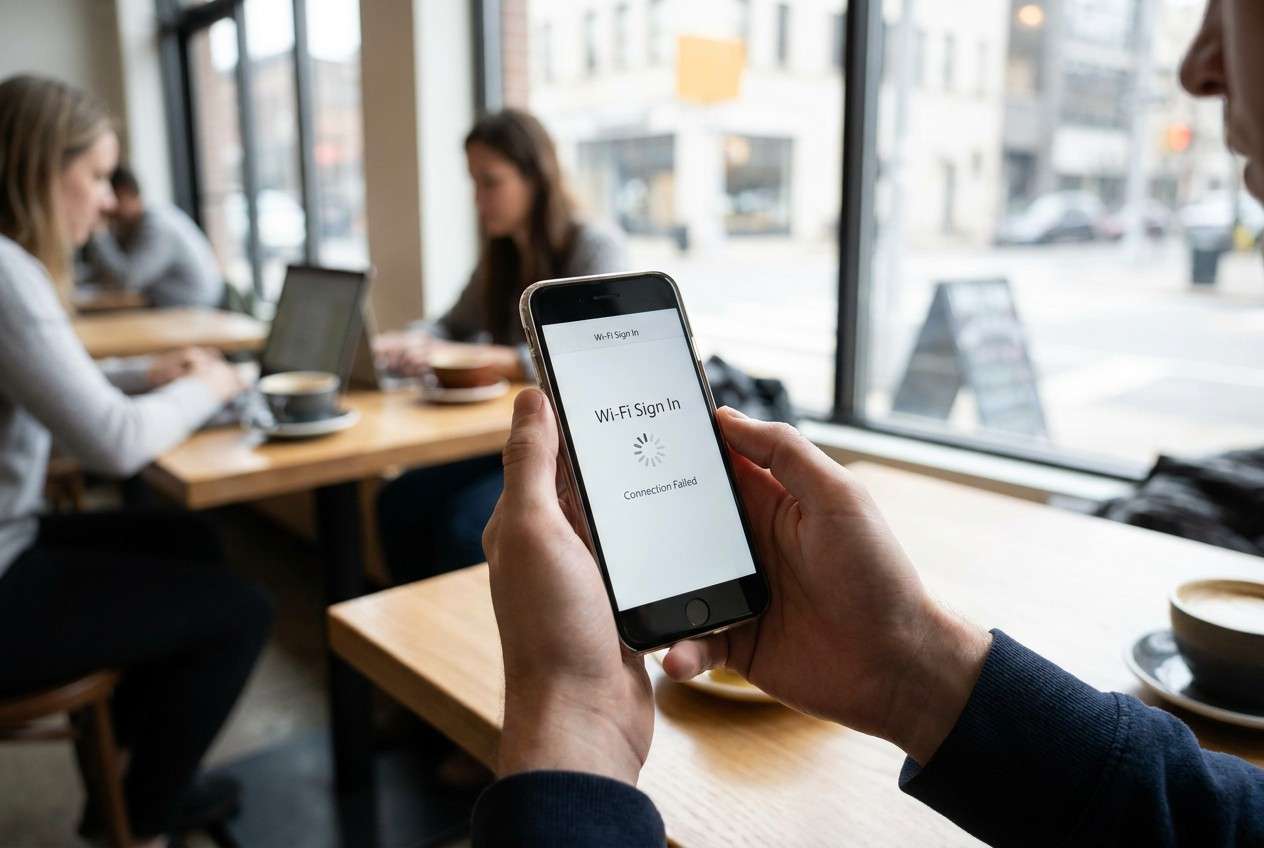
I connect to public Wi‑Fi, the login page flashes (or never shows), and my phone keeps looping on “Sign in required” even though Wi‑Fi says it’s connected.
Forum user
Public Wi‑Fi sign-in can fail in a frustrating loop: you join the network, a login page flashes (or never appears), and the phone keeps saying “Sign in required.” This often happens right after you tap Connect or Sign in, and nothing changes even after several minutes.
AI (like ChatGPT or Gemini) can help you sort symptoms, narrow likely causes (captive portal, DNS, VPN, clock issues, network policies), and choose low-risk next steps based on what you observe.
AI can’t verify the hotspot’s backend, your carrier path, or venue restrictions—and repeated trial-and-error (resetting network settings, toggling random VPN/DNS apps) can create new problems or wipe saved networks unnecessarily.
In this article
- Part 1. Why phone cannot finish public Wi‑Fi sign in happens and what it means
- What the message usually indicates
- Common triggers that break captive portals
- What to collect before asking AI
- How to choose the safest next step
- Part 2. Using AI prompts to diagnose captive portal sign‑in failures
- Part 3. When to stop troubleshooting public Wi‑Fi sign‑in and avoid risks
- Part 4. Mirror Android screen to PC to complete Wi‑Fi sign in
- Part 5. Product recommendation: use screen mirroring to complete sign‑in with better visibility
1. Treat it as a captive-portal redirect problem first.
If Wi‑Fi shows connected but internet is blocked, the portal may not be opening/loading/finalizing. Your next step depends on which stage fails.
2. Use AI to ask fewer, better questions—then test low-risk items.
Provide device/OS, whether others can sign in, and whether VPN/Private DNS is enabled so the AI can rank likely causes and suggest safe tests before “reset everything.”
3. Stop when steps become risky or suspicious.
Avoid unknown helper apps, certificates/profiles, or unrelated credential requests; if multiple devices fail, it may be venue-side.
Part 1. Why phone cannot finish public Wi‑Fi sign in happens and what it means
“Phone cannot finish public Wi‑Fi sign in” usually points to a captive portal flow that isn’t completing: the network wants you to accept terms, enter a room code, or pass a check—but the redirect page won’t load or won’t finalize. This can occur on an iPhone 13/iPhone 14 or Android, but the “looks connected, can’t use internet” pattern is similar.
Common triggers include: the portal pop-up not appearing, the portal page opening but failing after you tap Continue, an HTTPS redirect being blocked, or the Wi‑Fi showing “Connected” while traffic is still walled off. Sometimes the phone silently uses a private DNS/VPN profile that breaks the portal.
The key meaning: you may not have a “Wi‑Fi problem” so much as a login/redirect problem—and the right next step depends on whether the portal is failing to open, failing to load, or failing to complete.
1-1. Before You Prompt the AI
Collect a few quick details first so the AI can reason from evidence:
- Your phone model + OS version
- Whether the sign-in page appears automatically or only in a browser
- Whether other devices can sign in on the same Wi‑Fi
- Whether VPN/Private DNS/ad-blocker is enabled
- Exact error text (if any) and what app/browser you used
Part 2. Using AI prompts to diagnose captive portal sign‑in failures
2-1. Level 1: Basic Prompt
My phone cannot finish public Wi‑Fi sign in. Ask me the minimum questions needed to identify whether this is a captive portal issue, DNS/VPN issue, clock/certificate issue, or a venue-side restriction, then give the safest next steps in order.
2-2. Level 2: Advanced Prompt
Diagnose why my public Wi‑Fi sign-in won’t finish using a ranked list of likely causes with risk levels (low/medium/high).
Constraints: avoid steps that erase data; avoid “reset everything” until the end.
Output:
1) Top 5 causes ranked by probability
2) For each cause: what evidence would confirm it, and one low-risk test
3) A safe decision tree: what to try first, second, third
2-3. Level 3: Evidence Prompt
Help me troubleshoot a public Wi‑Fi captive portal sign-in that won’t complete. Use my evidence to narrow causes and propose low-risk actions only.
Device:
- Phone model: (e.g., iPhone 14 / Samsung Galaxy S23)
- OS version:
- Browser used for sign-in: (e.g., Safari / Chrome)
- Time/date set to automatic?: (yes/no)
Wi‑Fi details:
- Venue type: (hotel/airport/cafe/hospital)
- Network name (SSID):
- Security type: (open/WPA2)
- Does a sign-in pop-up appear automatically?: (yes/no)
- If I open http://neverssl.com does it redirect to a portal?: (yes/no/unknown)
Symptoms:
- What happens after tapping “Connect/Sign in”:
- Error message or code (paste exact text):
- Does Wi‑Fi show “Connected” but internet doesn’t work?: (yes/no)
- Can other devices sign in on the same Wi‑Fi?: (yes/no/unknown)
Network modifiers:
- VPN enabled?: (yes/no)
- Private DNS / DNS profile / ad-blocker?: (yes/no/unknown)
- iCloud Private Relay / similar enabled?: (yes/no/unknown)
What I already tried (in order):
1)
2)
3)
Goal:
- I only need basic web access / or I need a specific app to work:
2-4. Prompt Refinement
Use these follow-ups to make the AI’s diagnosis more precise:
What 5 questions are you missing that would most change your diagnosis? Ask them one by one.
Separate the possible causes into: (A) phone settings, (B) browser/redirect behavior, (C) venue Wi‑Fi policy, (D) account/terms completion issues.
Rank the top 3 causes again after considering that other devices CAN/CANNOT sign in on the same Wi‑Fi.
What single observation would best distinguish “portal page blocked” vs “portal completed but internet still blocked”?
Give me a lowest-risk-first checklist that avoids deleting saved networks unless absolutely necessary.
2-5. AI Output vs Reality
AI can suggest what’s likely—but your phone and the hotspot decide what’s true in the moment.
| AI Suggestion | What You Should Verify in Real Life |
|---|---|
| “It’s probably a captive portal redirect issue.” | Does opening a plain HTTP site (like neverssl.com) trigger the portal reliably? |
| “Turn off VPN/Private DNS.” | Confirm they’re actually off (some profiles stay active via system settings). |
| “Forget the network and rejoin.” | Check if you’ll lose required saved credentials or enterprise configs. |
| “It might be venue-side restrictions.” | Ask if the venue limits devices, requires a room number, or blocks certain apps. |
AI narrows possibilities and proposes safe tests; completing sign-in and validating connectivity still requires doing the steps on the device (and sometimes interacting with the portal UI directly).
Part 3. When to stop troubleshooting public Wi‑Fi sign‑in and avoid risks
Stop experimenting when the next step increases risk more than it increases clarity:
- You’re about to install unknown “Wi‑Fi helper” apps or accept suspicious certificates/profiles to “make it work.”
- You need to remove MDM/work profiles, wipe network settings, or delete VPN profiles you don’t understand.
- The portal asks for sensitive data that doesn’t match the venue context (IDs, banking logins, unexpected OTP requests).
- Multiple devices fail on the same hotspot and staff confirm an outage or system maintenance.
Once you’ve identified the most likely cause (portal UI not loading vs modifiers like VPN/DNS vs venue policy), it’s time to execute the cleanest, lowest-risk action path.
Part 4. Mirror Android screen to PC to complete Wi‑Fi sign in
If your Android phone can’t finish the public Wi‑Fi sign-in because the captive portal is glitchy, hard to interact with, or keeps dismissing, mirroring the screen to a PC can make the portal easier to see, click through, and document. At this stage, Dr.Fone Basic - Screen Mirroring is relevant because it helps you carry out the sign-in attempts with better visibility and fewer mis-taps—especially when the portal uses small buttons, pop-ups, or confusing redirects. You can also capture what the portal is doing (or not doing) and feed that back into your AI diagnosis.
-
Step 1 Open Dr.Fone Screen Mirroring
Launch the mirroring module on your PC and keep your phone unlocked so prompts are visible.

-
Step 2 Connect your Android for mirroring
Follow the on-screen connection method; avoid enabling unknown drivers/tools outside the official flow.

-
Step 3 Trigger the captive portal on-screen
On the mirrored display, re-open Wi‑Fi details and tap Sign in (or open a plain HTTP site) to force the portal.

-
Step 4 Complete the login carefully
Use the larger view to accept terms or enter required info, and stop if the portal requests unrelated sensitive data.

-
Step 5 Capture the exact failure state
If it still won’t finish, record the error text/step where it fails and reuse it in your AI prompt for tighter diagnosis.

Part 5. Product recommendation: use screen mirroring to complete sign‑in with better visibility
When a captive portal is hard to interact with (tiny buttons, pop-ups that dismiss, confusing redirects), completing the sign-in on a larger mirrored view can reduce mis-taps and make it easier to capture the exact point of failure for your next AI prompt.
 Easily manage data through preview, delete, export, etc.
- Transfer all data between devices.
- Robust backup solutions for reliable data protection.
- Mirror screens to PC for meetings, teaching, and control.

Practical use case for public Wi‑Fi loops: mirror your Android screen, open Wi‑Fi details, tap Sign in, and complete the portal on a clearer view. If the portal still fails, you’ll have cleaner evidence (exact text, where it stalls) to paste into your Level 3 Evidence Prompt.




Conclusion
AI helps you interpret the “cannot finish sign in” pattern, rank the most likely causes, and choose low-risk tests; once you know what you’re trying to validate, tools like Dr.Fone screen mirroring help you execute the sign-in attempts with clearer visibility and cleaner evidence for the next diagnostic step.
FAQ
-
Why does my phone keep saying “Sign in required” even after I accepted the terms?
Some portals don’t finalize the session until a redirect completes; VPN/Private DNS, blocked pop-ups, or time/certificate mismatches can interrupt that last step.
-
What website can I open to force the Wi‑Fi login page to appear?
A plain HTTP page (not HTTPS) often triggers captive portals; many people use
http://neverssl.comfor this purpose. -
Should I forget the Wi‑Fi network to fix public sign-in loops?
It can help clear a stuck portal session, but it’s best used after lower-risk checks (VPN/Private DNS off, toggle Wi‑Fi, try HTTP redirect) because you’ll lose saved settings for that network.
-
Can a VPN or ad-blocker prevent public Wi‑Fi sign in from completing?
Yes. VPNs, Private DNS, and content blockers can break the portal redirect or block required scripts, leading to a loop or blank page.
-
Is it safe to enter personal credentials into a public Wi‑Fi portal?
Only enter information that matches the venue’s normal process (like room number at a hotel); avoid portals asking for unrelated sensitive details or installing profiles/certificates.
 Add Wondershare Dr.Fone as a preferred source on Google





