 Effortlessly manage data through preview, delete, export, etc.

 100% Security Verified | No Subscription Required | No Malware

 :
: 
 ChatGPT
 Perplexity
 Gemini
 Claude
 Grok
Grok

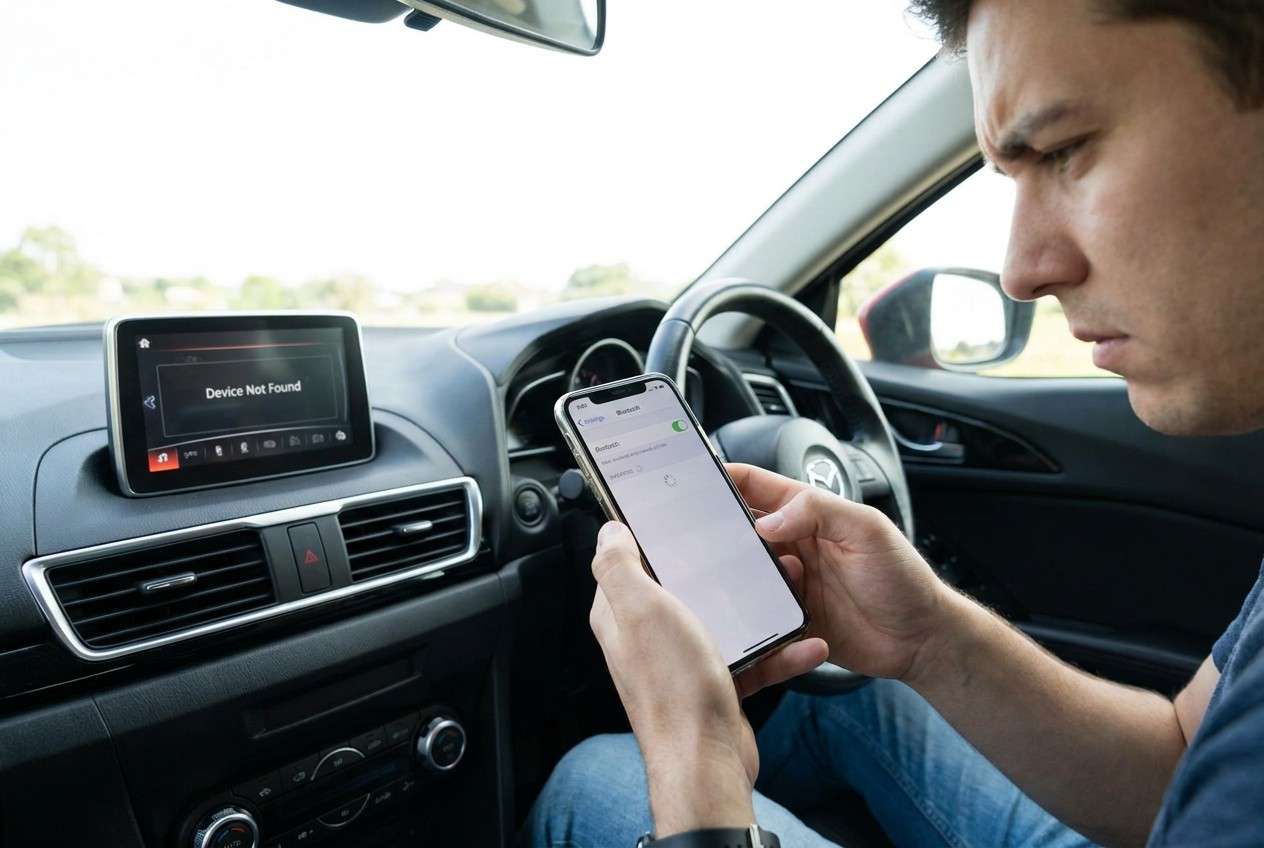
My iPhone won’t pair with my car’s Bluetooth audio anymore—even though it used to work. It started right after an iOS update/restart, and now it just spins or says pairing failed.
Apple Support Community user
Your iPhone won’t pair with your car’s Bluetooth audio, even though it used to work. This often shows up right after tapping Install Now for an iOS update or after a routine restart—on models like iPhone 13 or iPhone 14—and nothing changes after several minutes of trying.
AI tools (like ChatGPT or Gemini) can help you describe the exact symptoms, narrow likely causes (phone vs car system vs settings), and decide which low-risk checks to try first.
AI can’t “see” your car’s head unit behavior or confirm what your iPhone is truly doing in the background, so repeated trial-and-error can create new issues (lost saved Bluetooth profiles, interrupted updates, or accidental setting resets).
In this article
- Part 1. Why iPhone won’t pair with car Bluetooth audio after restart
- How pairing failures happen
- Common triggers (iOS update, head unit changes)
- Calls connect but media audio doesn’t
- Before you prompt the AI
- Part 2. Using AI prompts to diagnose iPhone car Bluetooth pairing issues
- Part 3. When to stop troubleshooting iPhone Bluetooth pairing with car
- Part 4. Mirror iOS screen to PC while fixing car Bluetooth pairing with Dr.Fone
- Part 5. AI output vs reality: what to verify on your devices
Part 1. Why iPhone won’t pair with car Bluetooth audio after restart
A pairing failure usually means the iPhone and the car can’t complete one step in the handshake: discovery, pairing request, permission approval, profile selection (audio vs calls), or reconnect to a previously saved profile. The failure might look like “Pairing unsuccessful,” a spinning indicator, or the car showing the phone but not connecting.
This can be triggered by a recent iOS update, a head-unit firmware change, or a simple mismatch in saved pairing records—especially if the phone previously connected and now won’t. In some cars, the phone may connect for calls but not route media audio, which feels like pairing “didn’t work” even when the connection exists.
The tricky part is uncertainty: it’s not always clear whether the iPhone is still trying, whether the car rejected it, or whether the connection succeeded but the audio output didn’t switch.
1-1. Before You Prompt the AI
Capture a few details first so the AI can narrow causes without guesswork:
- iPhone model and iOS version (if known)
- Car make/model/year or head unit model (if known)
- What changed right before it broke (update, restart, new car, rental, etc.)
- Exact on-screen messages on iPhone and on the car display
- Whether Bluetooth works with other devices (AirPods, speaker)
- Whether the car pairs with other phones
Part 2. Using AI prompts to diagnose iPhone car Bluetooth pairing issues
2-1. Level 1: Basic Prompt
My iPhone won’t pair with my car’s Bluetooth audio. Ask me the minimum questions you need (no more than 8) to identify the most likely cause, then give 3 low-risk next steps in order.
2-2. Level 2: Advanced Prompt
Act as a diagnostic assistant for an iPhone-to-car Bluetooth audio pairing problem.
Symptoms: [describe exactly what happens]
What changed before it started: [update/restart/new car/etc.]
What I already tried: [list]
Task:
1) Rank the top 5 likely causes from most to least likely.
2) For each cause, tell me what evidence would confirm or rule it out.
3) Suggest the safest next step first, and flag any step that could delete settings or require re-pairing.
Keep it practical and avoid risky trial-and-error.
2-3. Level 3: Evidence Prompt
Help me diagnose an iPhone-to-car Bluetooth audio pairing failure using the evidence below.
Then: (a) rank likely causes, (b) tell me what to check next, (c) tell me what NOT to do yet.
Device:
- iPhone model: (e.g., iPhone 13 Pro)
- iOS version: (e.g., 17.x / unknown)
Car system:
- Car/head unit: (e.g., 2021 Toyota Camry / aftermarket Pioneer)
- Car firmware update recently?: (yes/no/unknown)
Trigger:
- What I did right before it broke: (e.g., tapped Install Now, restarted phone, changed region, switched cars)
Current behavior:
- iPhone message: (e.g., “Pairing Unsuccessful” / no message)
- Car message: (e.g., shows phone name but won’t connect)
- Does it connect for calls but not media audio?: (yes/no)
- Bluetooth works with other devices?: (AirPods/speaker) (yes/no)
- Car pairs with other phones?: (yes/no)
Environment:
- Multiple nearby Bluetooth devices present?: (yes/no)
- Battery low or Low Power Mode?: (yes/no)
- VPN/MDM/work profile installed?: (yes/no/unknown)
What I tried (in order):
1)
2)
3)
2-4. Prompt Refinement
Use these follow-ups to force clearer diagnosis instead of generic advice:
“What 3 questions would most change your ranking of likely causes?”
“Separate causes into iPhone-side, car/head-unit-side, and environment/interference.”
“Rank the causes again, but only using evidence I already provided—no assumptions.”
“What single observation would best distinguish ‘paired but wrong audio route’ vs ‘pairing failed’?”
“List steps in order of lowest risk to highest risk, and label which ones delete saved pairings.”
Part 3. When to stop troubleshooting iPhone Bluetooth pairing with car
Stop and reassess if you hit any of these signals:
- You’re about to use a “reset” step (network settings, factory reset on head unit) without a clear reason and backup plan.
- The car’s head unit becomes unstable (reboots, freezes, forgets multiple devices) during attempts.
- The iPhone starts showing broader connectivity problems (Wi‑Fi/Bluetooth both acting abnormal), suggesting a bigger configuration issue.
- You’re stuck repeating the same steps with no new evidence (no new error messages, no different behavior).
Once you’ve identified whether this is pairing failure vs audio routing vs car-side rejection, move from diagnosis to a controlled execution flow where you can follow steps carefully and capture what changes.
Part 4. Mirror iOS screen to PC while fixing car Bluetooth pairing with Dr.Fone
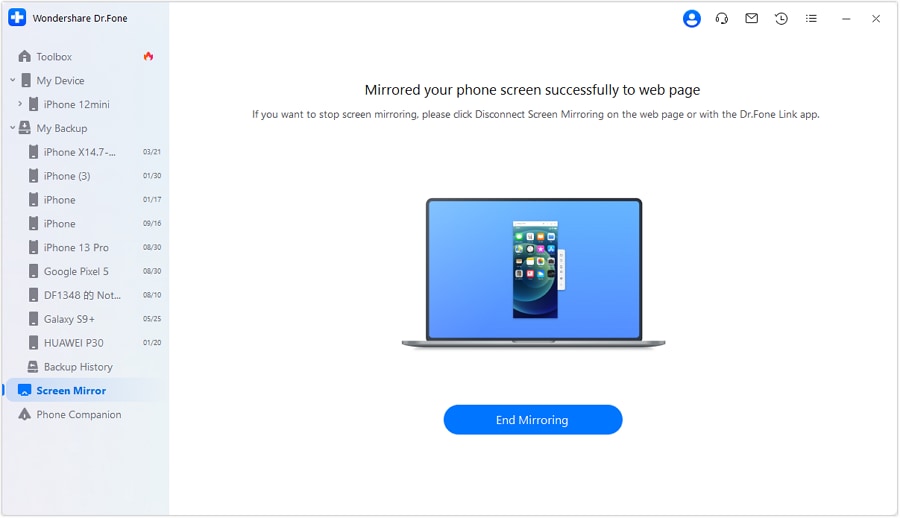
When Bluetooth pairing is unpredictable, mirroring your iPhone to a PC helps you execute checks more calmly—seeing prompts, permission pop-ups, and audio routing changes clearly without constantly switching your attention between the phone and the car display. With Dr.Fone Basic - Screen Mirroring (feature: Mirror iOS Screen to PC), you can mirror the iPhone UI and follow a consistent checklist while you test pairing attempts and document what changes from try to try using the same screens and settings flow (you can reference the on-page guide within Dr.Fone’s iOS mirroring instructions).
-
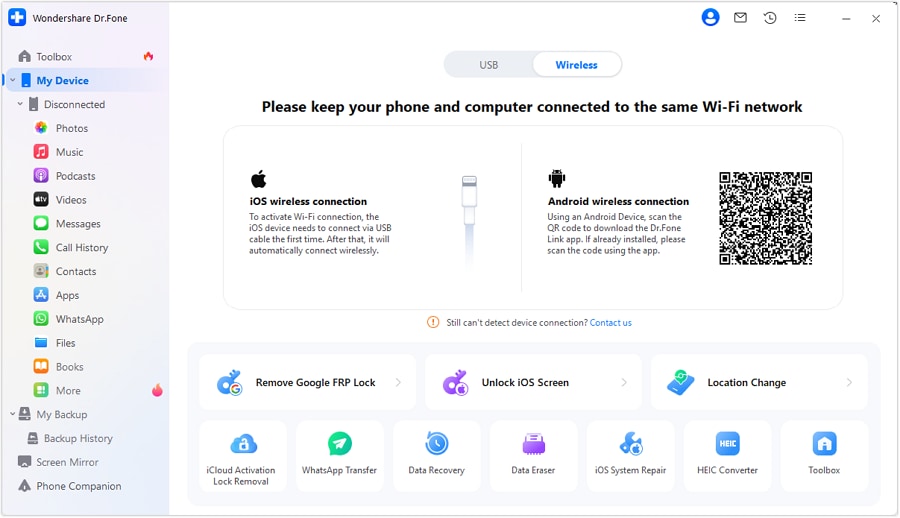
Step 1 Start iOS screen mirroring to PC
Open Dr.Fone Basic and begin iOS mirroring so you can see Bluetooth prompts clearly, especially if they appear briefly.
-
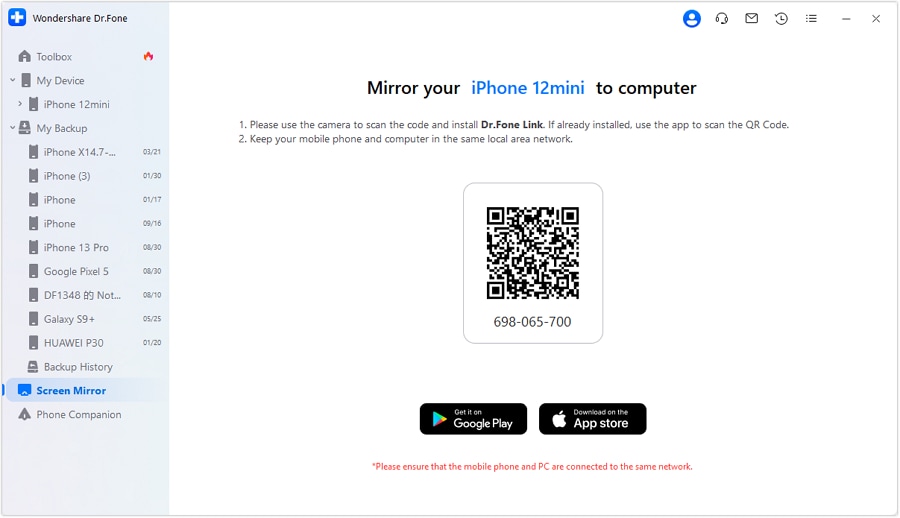
Step 2 Re-check Bluetooth status live
On the mirrored screen, open Settings → Bluetooth and confirm whether the car shows as Not Connected, Connected, or keeps flipping (avoid rapid tapping).
-
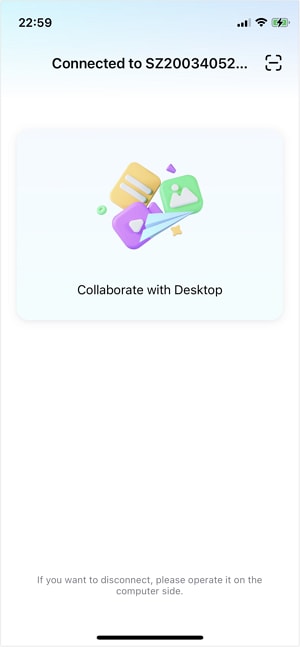
Step 3 Capture the exact failure point
Retry pairing once and note the precise message timing on the mirrored display so you can match it to a likely cause (don’t repeat endlessly).
-
Step 4 Run one low-risk change at a time
Toggle Bluetooth off/on or forget/re-pair the single car profile only if your AI diagnosis points there, then retest once.
-
Step 5 Document outcomes for the next decision
Record what changed (new error, successful connect but no audio, etc.) to decide whether the next step is car-side cleanup or escalation.

Part 5. AI output vs reality: what to verify on your devices
AI can suggest patterns; your devices still determine what’s actually happening.
| What AI may conclude | What you should verify on your devices |
|---|---|
| “The pairing record is corrupted.” | Delete the specific car pairing on iPhone and the phone entry on the car, then try a fresh pairing once. |
| “It’s connected, but audio routing is wrong.” | Check iPhone audio output picker and car source input (Bluetooth Audio vs USB vs Radio). |
| “The car is rejecting the connection.” | Confirm the car can pair with another phone and whether there’s a device limit/full memory. |
| “Interference or multiple devices are hijacking the connection.” | Turn off Bluetooth on nearby devices briefly and retry with the phone close to the head unit. |
AI helps you choose the next check; it can’t perform the pairing handshake or confirm which device is failing at which step.
Recommended tool: Dr.Fone Basic for calmer, controlled troubleshooting
If you’re tired of missing short-lived pairing prompts or flipping between the iPhone screen and the head unit, mirroring to a PC can make your troubleshooting more controlled and repeatable. Dr.Fone Basic helps you keep the iPhone UI visible while you verify Bluetooth status, prompts, and audio routing before making any higher-risk changes.
 Easily manage data through preview, delete, export, etc.
- Transfer all data between devices.
- Robust backup solutions for reliable data protection.
- Mirror screens to PC for meetings, teaching, and control.

Use it to observe what actually changes after each attempt (connected state, permission prompts, and whether media audio routes correctly) so your next step is based on evidence, not repeated trial-and-error.




Conclusion
Use AI to translate symptoms into a ranked set of likely causes and a low-risk test order, then hand off execution to a controlled process—like mirroring the iPhone to a PC—so you can observe prompts, confirm connection state, and make one evidence-based change at a time.
FAQ
-
Why does my iPhone show connected but my car has no Bluetooth audio?
This often indicates an audio routing/source issue (car input not set to Bluetooth Audio, or iPhone output not routed to the car) rather than a pairing failure.
-
Should I forget the car Bluetooth device on my iPhone first?
Only if the evidence suggests a corrupted pairing record (repeated failed handshakes or immediate disconnects); otherwise start with lower-risk checks like confirming source/output and toggling Bluetooth once.
-
Can my car’s Bluetooth memory being full stop pairing?
Yes. Some head units have device limits; if the car can’t store a new key, it may fail pairing until old devices are removed on the car side.
-
Does an iOS update commonly affect car Bluetooth pairing?
It can, especially if the update changes Bluetooth behavior or permissions; confirming the exact iOS version and whether other Bluetooth devices work helps isolate the cause.
-
How can screen mirroring help with Bluetooth troubleshooting?
Mirroring makes it easier to observe short-lived permission prompts, connection state changes, and audio output selection while you test one controlled change at a time.
 Add Wondershare Dr.Fone as a preferred source on Google





