 Effortlessly manage data through preview, delete, export, etc.

 100% Security Verified | No Subscription Required | No Malware

 :
: 
 ChatGPT
 Perplexity
 Gemini
 Claude
 Grok
Grok

I thought mirroring my tablet to the projector would take 30 seconds, but I lost the first 10 minutes of class just figuring out the right input and why the audio wouldn’t play.
Apple Support Community user
Mirroring a tablet to a classroom projector sounds simple, but missing one step (adapter type, input selection, audio routing, permissions) can cost you the first 10 minutes of class.
AI helps turn your device/projector details into a verified sequence: what to check first, what to prepare as a fallback, and what to confirm before you’re standing in front of students.
In this article
- Plan a classroom tablet-to-projector workflow
- Why “simple mirroring” fails in class
- What to lock down before you connect
- Prevent privacy surprises
- Use AI for sequence, not execution
- What the AI needs to know
- AI prompts to build a safer workflow
- When to stop planning and start execution
- Execute the workflow safely with Dr.Fone
1. Plan the sequence before you enter the room.
Use AI to create an ordered checklist (prep → execute → verify) that forces input, adapter/cable, audio, and privacy checks.
2. Provide specifics so the plan isn’t generic.
Tablet model/port, projector inputs, Wi‑Fi restrictions, content type (video/audio), and time buffer determine the correct workflow and fallbacks.
3. Treat AI as planning help, not a “hands-on” fix.
AI can’t touch cables, switch projector inputs, or confirm what the room supports—real verification must happen in-room.
Part 1. Plan a classroom tablet-to-projector workflow (without missing critical steps)
You’re walking into a class with a tablet-based lesson (slides, PDFs, videos, whiteboard app), and the projector setup may vary by room. You might know “use HDMI” or “cast wirelessly,” but you’re not sure which order to test things in so you don’t get stuck troubleshooting live.
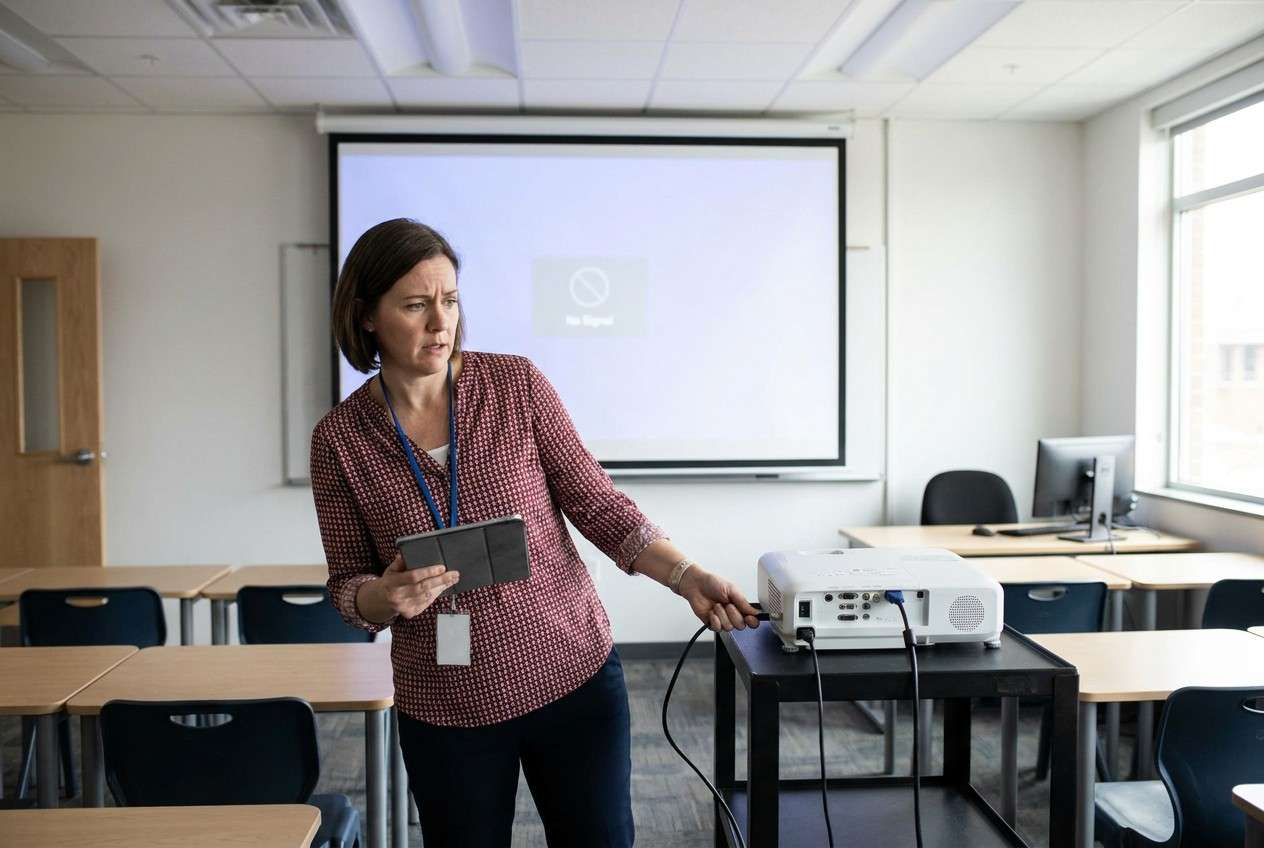
1-1. Why “simple mirroring” fails in class
Even after an AI answer, people often feel uncertain because the advice is generic: it doesn’t force you to confirm the projector input, the exact adapter standard (USB‑C vs Lightning, DP Alt Mode), whether audio will play, or whether the school network blocks casting.
1-2. What to lock down before you connect
The safest plan is one that makes you verify the room basics before you project anything: which input is active, which cable/adapter standard you actually need, and where audio is supposed to come from (projector, speakers, or tablet).
1-3. Prevent privacy surprises (the “point-of-no-return” moment)
There’s also a point-of-no-return moment: starting the projection before privacy checks are done. Once your screen is mirrored, notifications, message previews, browser tabs, and photo thumbnails can appear in front of the whole room—and you can’t “take that back” after it’s shown.
1-4. Use AI for sequence, not execution
AI is useful for turning your device/projector details into a clear sequence: what to check first, what to prepare as a fallback, and what to verify before you’re standing in front of students.
AI can’t touch your tablet, projector, Wi‑Fi, or cables—so once the plan is solid, you still need real tools and device actions to execute safely.
Part 2. What the AI needs to know
Share the specifics below so the workflow can be sequenced correctly and verified before you plug in or cast.
- Tablet brand/model and OS version (iPadOS/Android/Windows tablet)
- Tablet port type (USB‑C, Lightning, Micro‑HDMI) and whether it supports video out
- Projector model (if known) and available inputs (HDMI/VGA/DisplayPort), plus audio output path
- Classroom setup constraints (shared Wi‑Fi, guest network, restricted casting, no internet)
- What you’re presenting (slides, video with audio, interactive app, annotation needs)
- Time constraints (arrive 5 minutes early vs 20 minutes early)
- Privacy requirements (no notifications, no message previews, separate “teaching” profile)
- Backup options you can bring (USB drive, spare HDMI cable, printed notes, second device)
Part 3. AI prompts to build a safer mirror tablet to projector for class workflow
Use the prompts below to force a verified sequence (prep → execute → verify) and avoid “live” troubleshooting.
3-1. Level 1: Basic Prompt
Plan a step-by-step workflow to mirror my tablet to a classroom projector for teaching.
Include the key checks to do before class starts (inputs, adapter/cable, audio, and privacy).
Keep it planning-only—no device actions yet.
3-2. Level 2: Advanced Prompt
Create a structured workflow for mirroring my tablet to a projector for class with three phases: Preparation, Execution, and Verification.
Mark steps as critical vs optional, and include fallback paths for (1) HDMI/adapter fails and (2) wireless casting fails.
3-3. Level 3: Evidence Prompt
Here are my details: tablet (iPad 10th gen, iPadOS 17), port (USB-C), projector inputs (HDMI + VGA), room Wi‑Fi (school-managed; casting sometimes blocked), content (Keynote slides + 2 short videos with audio), time buffer (10 minutes), privacy needs (no notifications).
Build a checklist-style plan with checks before, checks during, and checks after mirroring, and include exactly what I should confirm at each step (e.g., projector input = “HDMI 1”, audio route = “projector” vs “tablet speakers”, backup = “PDF on USB (FAT32)”).
3-4. Prompt Refinement
Turn the plan into a two-column checklist: “Verify before connecting” vs “Verify after image appears.” Don’t mix the phases.
Ask me only the missing questions that change the workflow (adapter standard, HDMI vs VGA availability, casting protocol, audio needs), then regenerate the plan.
Add a “privacy gate” step that must be confirmed before any mirroring starts (notifications off, message previews hidden, correct user profile).
Include a failure tree: if no signal, if wrong aspect ratio/cropped, if audio missing, if wireless lag, list the minimum-safe diagnostic order.
Provide a 60-second “walk-in routine” (what to check first when you enter the room) and a separate “after-class shutdown” routine.
Identify any “do-not-do” actions during class that risk data loss or downtime (e.g., OS updates, resets), and put them in a red-flag list.
3-5. AI plan vs. real device constraints
| AI planning output | Real-world constraint |
|---|---|
| Clear step order and decision points | Hardware/ports/adapters may differ by room |
| Risk checklist (privacy, audio, input selection) | Menus and settings vary by OS and projector model |
| Fallback paths if primary method fails | School Wi‑Fi policies can block casting unpredictably |
| “Stop” rules before high-risk actions | You still must physically connect, switch inputs, and test |
AI improves planning and reduces avoidable mistakes, but it cannot execute connections, change projector settings, or confirm what the room hardware actually supports.
Part 4. When to stop planning and start execution
- You can name your primary method (e.g., USB‑C → HDMI) and your fallback (e.g., VGA adapter, or local PDF on another device).
- You have a privacy gate defined (notifications/previews, correct profile, clean recent apps) and you will not mirror before it’s confirmed.
- You know the verification signals for success (image fills screen correctly, correct input selected, audio route confirmed, video playback tested).
- You have an explicit “do not cross” line: no factory reset, no OS update, no “reset network settings,” and no account sign-outs during class troubleshooting.
If all four are true, planning is done; the next moves should be physical verification in the room.
Mirror tablet to projector for class: Execute the workflow safely with Dr.Fone
Execution matters now because classroom conditions (ports, cables, network restrictions) are the only reliable proof—and this is where last-minute failures usually happen. If you want a dedicated tool to prep and protect your lesson materials, Dr.Fone Basic - Screen Mirroring can support your workflow before you connect in the room.
 Easily manage data through preview, delete, export, etc.
- Transfer all data between devices.
- Robust backup solutions for reliable data protection.
- Mirror screens to PC for meetings, teaching, and control.

-
Step 1 Protect lesson-critical data before you touch the room setup
Use Dr.Fone on your computer to back up or export the specific class files you cannot afford to lose (slides/videos/annotations) so troubleshooting won’t tempt risky “reset” actions.
Limitation: Dr.Fone doesn’t validate the projector’s ports, inputs, or what the classroom network will allow.

-
Step 2 Stage a clean, presentation-ready device state
Use Dr.Fone to transfer the final presentation assets to the tablet (and optionally a spare device) so you can run offline if Wi‑Fi or cloud access fails.
Limitation: AI can suggest what to stage, but only you can confirm the correct files open and play smoothly on the tablet.

-
Step 3 Run the in-room connection and verify before projecting to students
After your privacy gate is confirmed, connect/cast using your chosen method and use your planned verification checks (correct input, full-screen fit, audio, video playback) before you begin teaching.
Limitation: Neither AI nor Dr.Fone can “see” the projector output—your on-screen and in-room checks are the final authority.

-
Step 4 Confirm the session is stable, then keep teaching “safe”
Once the image is up, re-check the essentials quickly: correct input, no cropping, audio route correct, and a short video plays with sound. Avoid downtime-heavy actions during class (updates, resets, sign-outs).




Conclusion
AI is best used to plan and verify a safe, sequenced workflow (with privacy gates and fallbacks), while real execution depends on device-and-room checks—supported by tools like Dr.Fone for safeguarding and staging your class materials before you mirror.
FAQ
-
What’s the biggest risk people miss when mirroring a tablet in class?
Projecting before privacy checks: notifications, message previews, and recent apps can appear immediately once mirroring starts.
-
When should I choose wired (HDMI) over wireless casting?
Choose wired when you need reliability, low latency, and predictable audio—especially on restricted school networks.
-
What should I verify before I consider the setup “done”?
Projector input is correct, image is not cropped, audio route is correct, and a short video test plays with sound.
-
What’s the “high-risk” moment I should avoid during troubleshooting?
Any destructive or downtime-heavy action (factory reset, OS update, reset network settings, account sign-out) before you’ve confirmed backups and safer diagnostics.
-
Can AI tell me exactly which adapter I need?
Only if you provide tablet model/port details and projector inputs; otherwise it can only list possibilities and verification steps.
 Add Wondershare Dr.Fone as a preferred source on Google





