 Effortlessly manage data through preview, delete, export, etc.

 100% Security Verified | No Subscription Required | No Malware

 :
: 
 ChatGPT
 Perplexity
 Gemini
 Claude
 Grok
Grok

My phone connects to my hotspot and shows “Connected,” but nothing loads—no websites, no apps, no messages. It looks like Wi‑Fi works, but the internet is basically dead.
Reddit user, r/techsupport
Your phone or laptop connects to a hotspot, shows “Connected,” but nothing loads—no websites, apps, or messages. This often happens right after you toggled Personal Hotspot on, joined the network, or restarted the device (for example, an iPhone 13 or iPhone 14 connects, yet pages keep timing out), and it’s unclear whether anything is actually working in the background.
AI can help you interpret symptoms, narrow likely causes (carrier limits, DNS, APN, routing, captive portals), and decide what to test first with minimal risk. You can use tools like ChatGPT or Gemini to turn messy details into a clean decision tree.
AI can’t verify your carrier plan, change your router stack, or confirm what your hotspot is truly doing on the network. Trial-and-error changes can also create new problems (like losing APN settings, burning through data, or breaking VPN/work profiles), so keep prompts focused and steps reversible.
In this article
- Part 1. Why devices connect to hotspot but no internet works happens and what it means
- What “Connected but no internet” usually means
- Common triggers
- Where the failure can occur (upstream/midstream/downstream)
- Before you prompt the AI: what to gather
- Part 2. Using AI prompts to diagnose hotspot connected but no internet safely
- Part 3. When to stop troubleshooting hotspot no internet and avoid risks
- Part 4. Devices connect to hotspot but no internet works: resolve it safely with Dr.Fone screen mirroring
- Conclusion
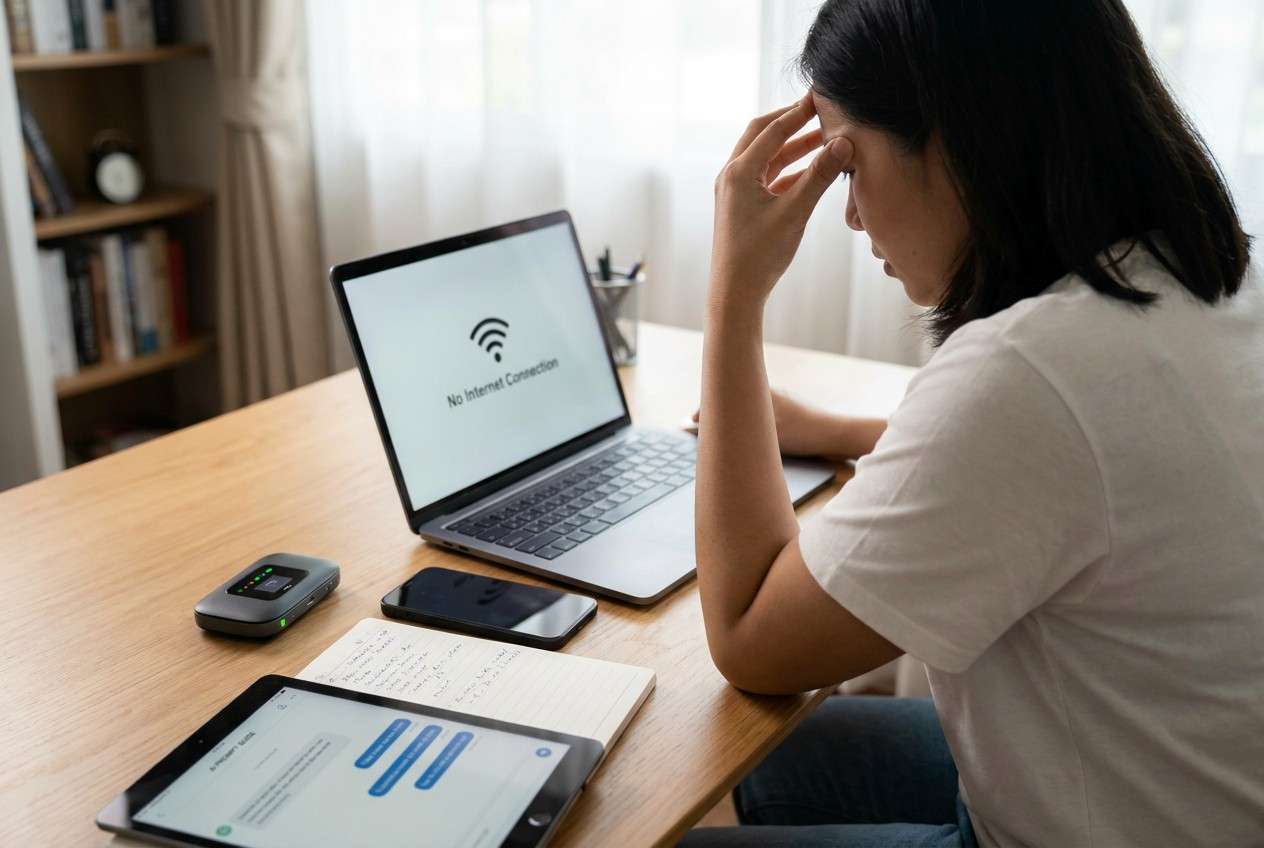
Part 1. Why devices connect to hotspot but no internet works happens and what it means
This issue usually means the Wi‑Fi link is fine (your device can join the hotspot), but the path to the internet is blocked or misrouted. In practice, the hotspot device may not have mobile data, may be restricted by the carrier, or may be sharing data in a way the client device can’t use.
A common trigger is enabling hotspot after a plan change, switching SIM/eSIM, turning on VPN, enabling Low Data Mode/Data Saver, or moving between LTE/5G coverage. You might see “Connected, no internet,” “Obtaining IP address,” or apps that spin forever even after several minutes.
The uncertainty is the hard part: it looks like a Wi‑Fi problem, but the failure can be upstream (cellular data), midstream (NAT/routing), or downstream (DNS on the connected device).
1-1. Before You Prompt the AI
Gather a few specifics first so the AI can separate “connected” from “internet-routable”:
- Hotspot source device type and OS version (phone/tablet)
- Connected device type and OS version (phone/laptop/tablet)
- Whether the hotspot source has working cellular internet on its own
- Any VPN, ad-block DNS, Private DNS, iCloud Private Relay, or work profile enabled
- What error you see (e.g., “No Internet,” “DNS_PROBE_FINISHED,” apps time out)
- Carrier/plan notes (e.g., hotspot add-on, data cap, throttling)
Part 2. Using AI prompts to diagnose hotspot connected but no internet safely
2-1. Level 1: Basic Prompt
My device connects to a hotspot but there’s no internet. Ask me the minimum questions needed to determine whether the cause is (1) hotspot source cellular data, (2) carrier hotspot restriction, (3) DNS/VPN/private relay, or (4) IP/routing on the connected device. Then give me the safest first 5 checks in order.
2-2. Level 2: Advanced Prompt
Diagnose “connected to hotspot but no internet” using a ranked hypothesis list.
Constraints: prioritize low-risk, reversible steps; avoid anything that could wipe settings or consume lots of data.
For each likely cause, provide: what evidence would confirm it, what single test to run, and what outcome means “move to next cause.”
End with a short decision rule: when I should stop and contact carrier/IT support.
2-3. Level 3: Evidence Prompt
Help me troubleshoot “connected to hotspot but no internet” using the evidence below.
Hotspot source device: (e.g., Android phone / iPhone)
Hotspot source model: (e.g., Galaxy S22 / iPhone 13 Pro)
Hotspot source OS version:
Carrier + plan notes: (e.g., prepaid, hotspot add-on unknown, data cap reached)
Does the hotspot source have internet itself over cellular right now? (Yes/No)
Connected client device: (e.g., Windows 11 laptop / iPad / Android phone)
Client OS version:
What exactly fails: (websites only / apps only / everything)
Error text: (e.g., “Connected, no internet,” “DNS_PROBE_FINISHED”)
VPN/Private DNS/Private Relay on either device: (On/Off/Unsure)
IP details if visible: (client IP like 192.168.x.x, gateway shown, DNS shown)
What changed right before it broke: (e.g., enabled VPN, updated OS, switched SIM/eSIM)
Tasks:
1) Rank the top 5 likely causes with brief reasoning.
2) Provide a safest-first checklist with stop points.
3) Tell me what single screenshot or setting page would be most useful to confirm the top cause.
2-4. Prompt Refinement
Use these follow-ups to force clarity and reduce guesswork:
“What are the 3 questions you still need answered to distinguish carrier restriction vs DNS vs routing?”
“Separate causes into hotspot-source problems vs client-device problems, and rank each list.”
“If the hotspot source can browse the web on cellular but clients cannot, what does that imply? Rank the most likely explanations.”
“What one piece of evidence (setting, screenshot, or test) would most strongly confirm your #1 hypothesis?”
“Give me a minimal-change test plan that avoids resetting network settings unless it’s the last resort.”
2-5. AI Output vs Reality
AI can suggest the most likely culprits, but real networks can behave differently depending on carriers, policies, and device firmware.
| AI diagnosis output | What to verify in reality |
|---|---|
| “It’s a DNS issue” | Test with a different DNS/Private DNS setting and see if IP connectivity works (ping/try multiple apps). |
| “Carrier blocks tethering” | Confirm hotspot entitlement, plan limits, and whether tethering works on any client device. |
| “VPN is interfering” | Check VPN/Relay on both hotspot and client, and test with them fully off. |
| “IP/routing problem” | Confirm the client gets a valid IP/gateway and can reach the hotspot device, not just connect. |
AI helps you choose the next safest test; it can’t “see” your carrier provisioning, enforceable hotspot policies, or whether the radio link is stable—those require on-device checks and sometimes carrier-side confirmation.
Part 3. When to stop troubleshooting hotspot no internet and avoid risks
Stop early when continuing could cause more disruption than insight—especially if you’re on a work profile, metered plan, or traveling with limited access.
- You suspect a carrier hotspot restriction (plan/tethering blocked, sudden throttling) and repeated tests don’t change anything.
- The hotspot source device has no cellular internet itself (so sharing can’t work) and coverage/account status is unclear.
- You’re about to try high-impact steps (network reset, APN edits you didn’t record, removing MDM/work profiles).
- The issue involves enterprise VPN/MDM and changing settings could lock you out of work apps or compliance.
Once you’ve used AI to narrow the likely category, it’s time to execute the safest checks consistently on the actual device—without losing visibility of what’s happening on-screen.
Part 4. Devices connect to hotspot but no internet works: resolve it safely with Dr.Fone screen mirroring
When the hotspot “connects but no internet” problem requires careful setting checks (VPN/Private DNS/APN/hotspot options) or you need to document what the phone shows, mirroring your Android screen to a PC can make troubleshooting more controlled and readable. Dr.Fone Basic - Screen Mirroring is useful at this stage because it helps you view the exact toggles, error messages, and network status while you follow the AI’s checklist or share evidence with support—without guessing what changed on the device. If you need setup specifics, follow the instructions in Wondershare’s Android screen mirroring guide.
 Easily manage data through preview, delete, export, etc.
- Transfer all data between devices.
- Robust backup solutions for reliable data protection.
- Mirror screens to PC for meetings, teaching, and control.

-
Step 1 Start Android screen mirroring to PC
Open Dr.Fone Basic and connect your Android device to mirror the screen, keeping the connection stable so you don’t miss intermittent status changes.

-
Step 2 Capture the “connected but no internet” evidence
Navigate to Wi‑Fi/hotspot status, VPN/Private DNS pages, and note any warnings; avoid toggling multiple settings at once so you can attribute cause and effect.

-
Step 3 Run one change at a time from the AI checklist
Apply only the next lowest-risk test (for example, disable VPN on the client device, then re-test), and revert if it doesn’t change the outcome.

-
Step 4 Confirm results with two independent checks
After each change, test both a browser and one app (or a simple reachability check) to avoid mistaking “DNS fixed” for “internet fixed.”

-
Step 5 Package screenshots for carrier/IT support
Save the key screens (plan/cellular status, hotspot settings, error text) to speed up escalation without repeating disruptive steps.




Conclusion
Use AI to turn “connected but no internet” into a ranked set of likely causes and a low-risk testing order, then hand off to execution by verifying settings and collecting clear on-screen evidence—where Android screen mirroring to a PC with Dr.Fone can help you validate each change and document results consistently.
FAQ
-
Why does my device say “Connected” but still have no internet on the hotspot?
“Connected” only means the Wi‑Fi link to the hotspot is established; internet access can still fail due to cellular data being down, carrier tethering restrictions, VPN/DNS interception, or routing/IP issues. -
If the hotspot phone can browse the internet, why can’t connected devices?
That often points to tethering being blocked/limited by the carrier, VPN/Private DNS settings affecting tethered traffic, or a client-side DNS/routing problem—rather than a total cellular outage. -
Does changing DNS help when hotspot internet doesn’t work?
Sometimes, but only if the failure is DNS-specific; if the client can’t reach anything by IP either, DNS changes won’t help and you should focus on routing, VPN, or carrier restrictions. -
Should I reset network settings to fix hotspot no internet?
Only after low-risk checks fail, because resets can remove saved Wi‑Fi networks, VPN profiles, and APN/custom settings; use AI to confirm it’s a last-resort step based on your evidence. -
Can screen mirroring help with hotspot troubleshooting?
Yes—mirroring helps you verify exactly which settings are on/off and capture error messages and status indicators clearly while you apply one controlled change at a time.
 Add Wondershare Dr.Fone as a preferred source on Google





