 Effortlessly manage data through preview, delete, export, etc.

 100% Security Verified | No Subscription Required | No Malware

 :
: 
 ChatGPT
 Perplexity
 Gemini
 Claude
 Grok
Grok

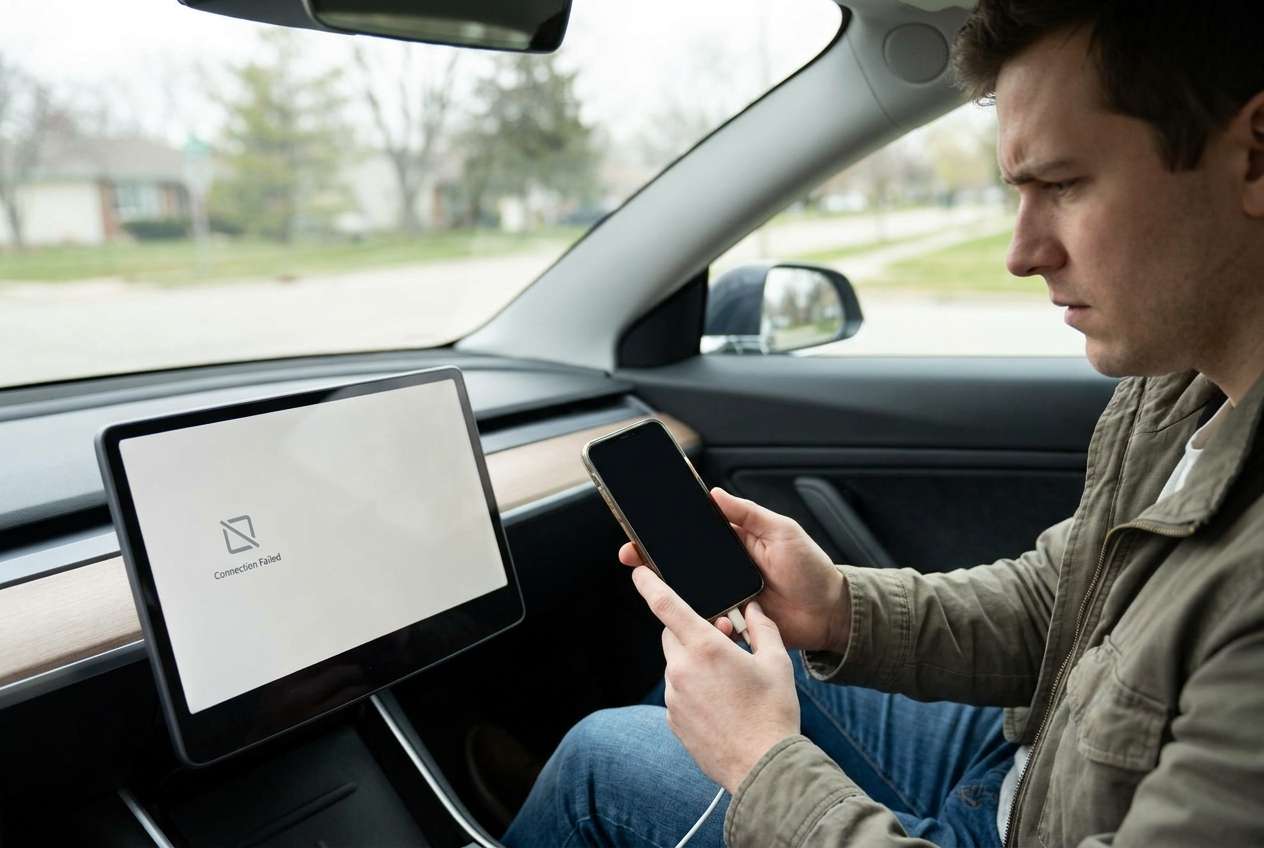
CarPlay worked fine until I updated my iPhone—now it just sits on “Connecting” and never shows up. I don’t know if it’s the cable, my phone settings, or the car.
Apple Support Community user
CarPlay can suddenly stop working right after an iOS update—often after you tapped Install Now and the phone restarted—leaving your car screen blank, stuck on “Connecting,” or not detecting the iPhone at all (for example on an iPhone 13 or iPhone 14). It can feel like nothing changes even after several minutes, so it’s unclear whether the phone, cable, or car is the problem.
AI (like ChatGPT or Gemini) can help you triage symptoms, narrow likely causes, and decide what to test first with low-risk steps—without guessing randomly.
AI can’t verify your exact car head unit behavior or perform actions on the device, and trial-and-error changes (resetting networks, deleting vehicles, reinstalling profiles) can create new issues if you do them in the wrong order.
In this article
- Why CarPlay stops working after an iPhone update
- Common causes after updates
- Typical “it broke right after Install Now” pattern
- Why random resets are risky
- Before you prompt the AI
- Using AI prompts to diagnose post-update CarPlay issues
- When to stop troubleshooting and avoid risks
- Resolve it safely with iPhone screen mirroring
- Conclusion
Part 1. Why carplay stopped working after iphone update happens and what it means
After an iOS update, CarPlay failures are commonly caused by permission resets, connectivity handoff problems (Bluetooth/Wi‑Fi/USB), or CarPlay pairing records getting out of sync between the iPhone and the car. Some cars are also sensitive to small protocol changes introduced by updates.
Your trigger is usually consistent: the iPhone updated overnight or after you pressed Install Now, then on the next drive CarPlay won’t launch, won’t recognize the device, or disconnects quickly. You might still see charging, but no CarPlay prompt appears.
The tricky part is uncertainty: the issue can look identical whether it’s a USB cable/data path, an iPhone setting, or the car’s stored CarPlay profile—so a structured diagnosis is safer than random resets.
1-1. Before You Prompt the AI
Gather a few facts first so the AI can narrow causes quickly:
- iPhone model + iOS version
- Car make/model/year + head unit type (wired CarPlay vs wireless)
- Connection type (USB only, wireless only, or both)
- Exact symptom (no prompt, loops “connecting,” black screen, disconnects)
- What changed besides the update (new cable, new car, new VPN/MDM, etc.)
Part 2. Using AI prompts to diagnose CarPlay not working after an update
2-1. Level 1: Basic Prompt
My CarPlay stopped working right after an iOS update. Ask me the minimum questions needed to identify whether this is likely (1) a USB/cable issue, (2) Bluetooth/Wi‑Fi pairing issue, (3) an iPhone settings/permission issue, or (4) a car head unit issue. Then give the safest first 5 checks in order.
2-2. Level 2: Advanced Prompt
Diagnose my post-update CarPlay issue using a ranked hypothesis list.
Requirements:
- Rank the top 5 likely causes with probabilities and brief reasoning.
- Separate “safe checks” vs “higher-risk steps” (anything that could erase pairings, reset network settings, or change car profiles).
- Ask up to 8 targeted questions first if needed.
- Output a step-by-step test plan that minimizes data loss and avoids unnecessary resets.
2-3. Level 3: Evidence Prompt
Use this evidence to triage my CarPlay failure after an iOS update and tell me what to test next.
Device & software
- iPhone model: (e.g., iPhone 13 Pro)
- iOS version: (e.g., iOS 17.5.1)
- CarPlay type: (wired / wireless)
Car & connection
- Car make/model/year: (e.g., Honda Civic 2021)
- Head unit notes: (OEM / aftermarket; brand if known)
- Cable brand/age (if wired): (e.g., Apple cable 6 months)
Symptoms
- What I see on iPhone: (e.g., no “Allow CarPlay” prompt)
- What I see on car screen: (e.g., “Device not supported” / “Connecting…”)
- Does charging work over USB? (yes/no)
- Does Bluetooth audio work? (yes/no)
- Does it fail only on this car or multiple cars? (one/multiple)
What I already tried
- Reboot iPhone / reboot head unit: (yes/no)
- Forget car in iPhone CarPlay settings: (yes/no)
- Forget iPhone in car settings: (yes/no)
- Toggle Siri / Bluetooth / Wi‑Fi: (yes/no)
Constraints
- I want to avoid: (network reset / deleting pairings / factory reset)
Output: (1) likely cause categories, (2) 3 safest tests, (3) what evidence would confirm each cause, (4) what NOT to do yet.
2-4. Prompt Refinement
If the AI answers too broadly, tighten it with follow-ups:
What 3 questions would most reduce uncertainty in this specific case?
Rank the causes again, but separate iPhone-side vs car-side vs cable/wireless interference.
Which single observation would best distinguish a data-cable failure from a permissions/pairing failure?
List the exact iPhone settings screens I should verify, and what values would be suspicious.
Give me a decision tree: if X happens, do Y; if not, do Z—without resetting network settings.
2-5. AI Output vs Reality
AI can guide decisions, but it can’t observe your exact environment in real time:
| What AI can infer | What you must verify |
|---|---|
| Common post-update CarPlay failure patterns | Your car’s head unit behavior and menus |
| Likely causes from symptoms and history | Whether your specific USB cable carries data reliably |
| Low-risk check order to reduce guesswork | Whether prompts/permissions appear on your iPhone |
| When a reset is justified vs premature | Real outcomes after each test step |
AI closes the reasoning gap; execution still depends on what you see on the iPhone and the car—so you need a reliable way to view and confirm iPhone-side settings and prompts.
Part 3. When to stop troubleshooting CarPlay after iOS update and avoid risks
Stop escalating when the next step is likely to create more disruption than insight.
- You’re about to do Reset Network Settings without first confirming whether the problem is wired-only, wireless-only, or car-specific.
- The car head unit starts behaving erratically (reboots, freezes), suggesting a car-side issue you can’t validate safely from the phone.
- You rely on existing Bluetooth/Wi‑Fi pairings (work devices, medical devices) and further resets would cause significant re-setup.
- The iPhone shows broader connectivity problems (Bluetooth/Wi‑Fi instability beyond CarPlay), suggesting a larger iOS/network state issue.
Once you’ve used AI to narrow the most likely category, the next step is careful execution—checking iPhone-side prompts, permissions, and settings without blindly wiping connections.
Part 4. Carplay stopped working after iphone update: resolve it safely with Dr.Fone screen mirroring
When CarPlay fails after an update, many of the most useful checks are on the iPhone (CarPlay permissions, Siri status, Bluetooth/Wi‑Fi toggles, and whether prompts appear). Dr.Fone Basic - Screen Mirroring helps you mirror your iOS screen to a PC, so you can review those iPhone-side details clearly, capture what you see, and follow the AI’s test plan consistently—without relying on quick taps in the car or missing a one-time permission prompt.
 Easily manage data through preview, delete, export, etc.
- Transfer all data between devices.
- Robust backup solutions for reliable data protection.
- Mirror screens to PC for meetings, teaching, and control.

-
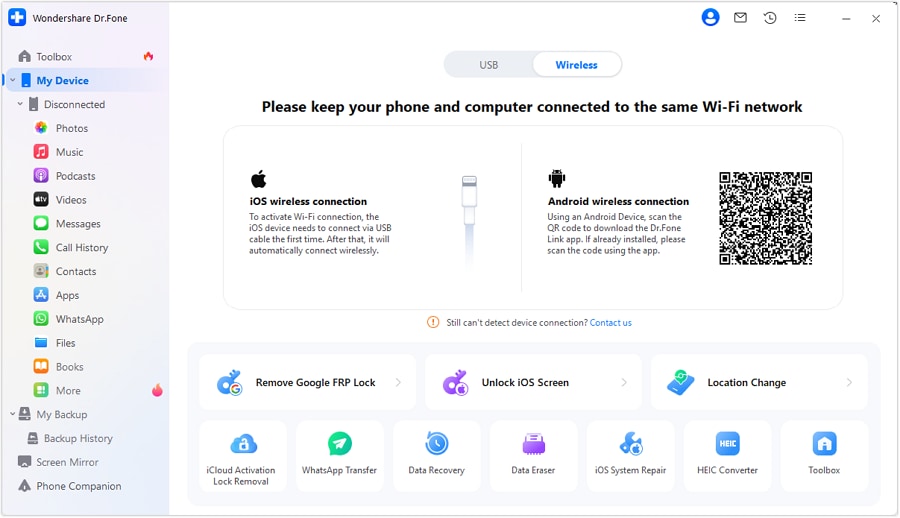
Step 1 Start iOS screen mirroring on your PC
Open Dr.Fone Basic – Screen Mirroring and choose Mirror iOS Screen to PC, keeping the iPhone unlocked so prompts can appear.
-
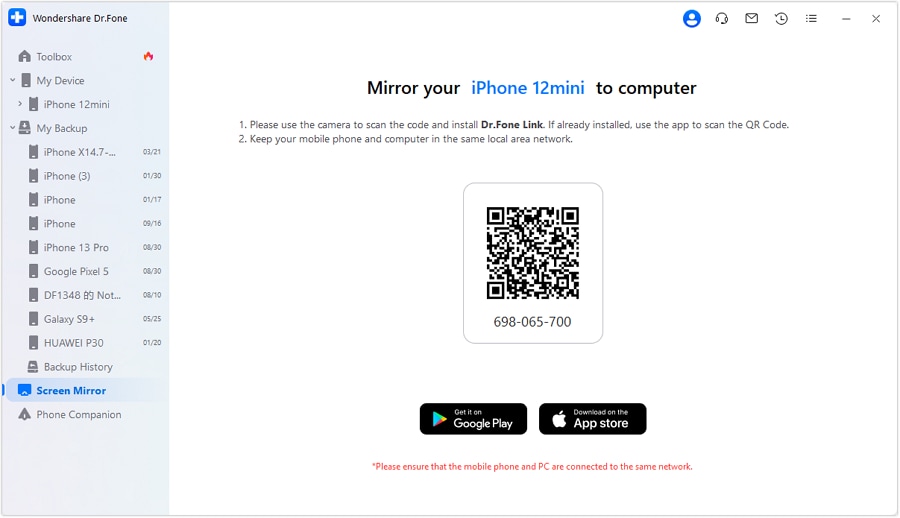
Step 2 Connect and confirm the mirrored view is stable
Complete the connection method shown in the tool, and wait until the iPhone display is visible on the PC (avoid switching apps repeatedly during setup).
-
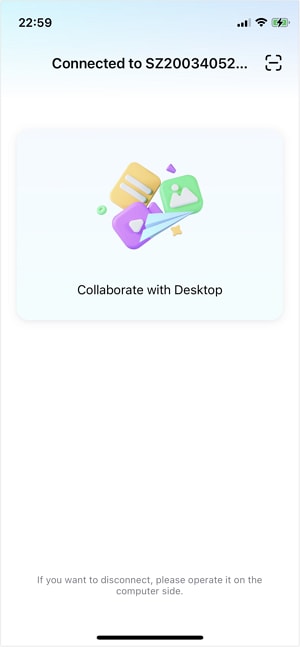
Step 3 Verify CarPlay-related iPhone settings on the mirrored screen
Navigate on iPhone to the relevant settings (CarPlay entry, Siri, Bluetooth/Wi‑Fi) and compare them against the AI’s “safe checks” list before deleting any pairings.
-
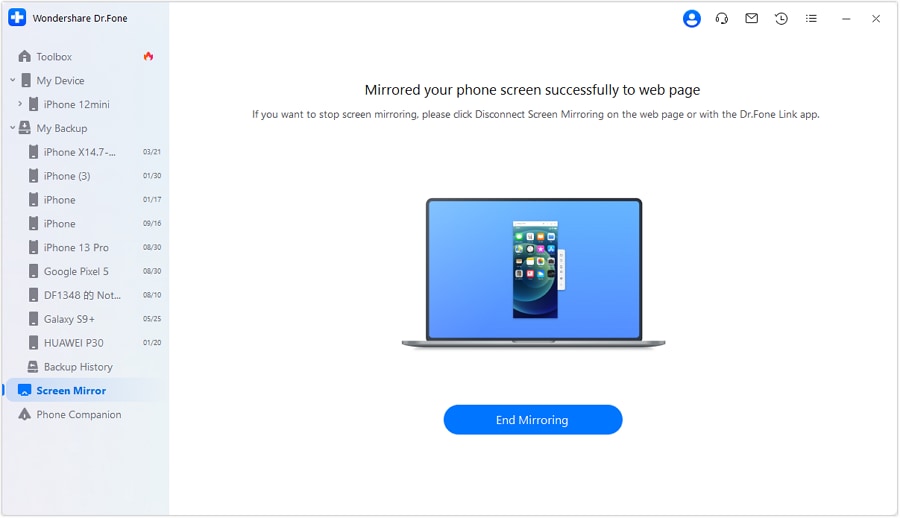
Step 4 Capture evidence for the next AI turn
Record the exact wording of errors/prompts you see (and when they appear) so the AI can rank causes more accurately.
-
Step 5 Re-test the car connection after only one change at a time
Apply a single low-risk change, then re-test CarPlay so you can attribute outcomes to one variable instead of guessing.




Conclusion
Use AI to structure the diagnosis—clarify the symptom pattern, rank likely causes, and pick the safest next checks—then hand off execution to a practical workflow where you can clearly verify iPhone-side settings and prompts via Dr.Fone screen mirroring before taking higher-risk steps.
FAQ
-
Why did CarPlay stop working immediately after an iOS update?
Updates can reset permissions, affect Bluetooth/Wi‑Fi handoff behavior, or desync stored CarPlay pairing records between the iPhone and the car. -
How can I tell if it’s a USB cable problem or an iOS setting problem?
If charging works but CarPlay never appears, it can still be a data-path issue; testing with a known data-capable cable and checking whether the iPhone shows any CarPlay prompt helps separate the two. -
Should I use Reset Network Settings to fix CarPlay?
Only after lower-risk checks fail and you’ve confirmed the issue is iPhone-side across multiple cars/cables, because it wipes Wi‑Fi networks and Bluetooth pairings. -
Why does CarPlay connect sometimes and then disconnect?
Intermittent disconnects often point to unstable USB data contact, wireless interference, or an unstable head unit session—your tests should isolate wired vs wireless behavior first. -
How does screen mirroring help when CarPlay isn’t working?
It makes iPhone-side prompts, settings, and error messages easier to see and document, which improves diagnosis and prevents repeated guesswork in the car.
 Add Wondershare Dr.Fone as a preferred source on Google





