 Effortlessly manage data through preview, delete, export, etc.

 100% Security Verified | No Subscription Required | No Malware

 :
: 
 ChatGPT
 Perplexity
 Gemini
 Claude
 Grok
Grok

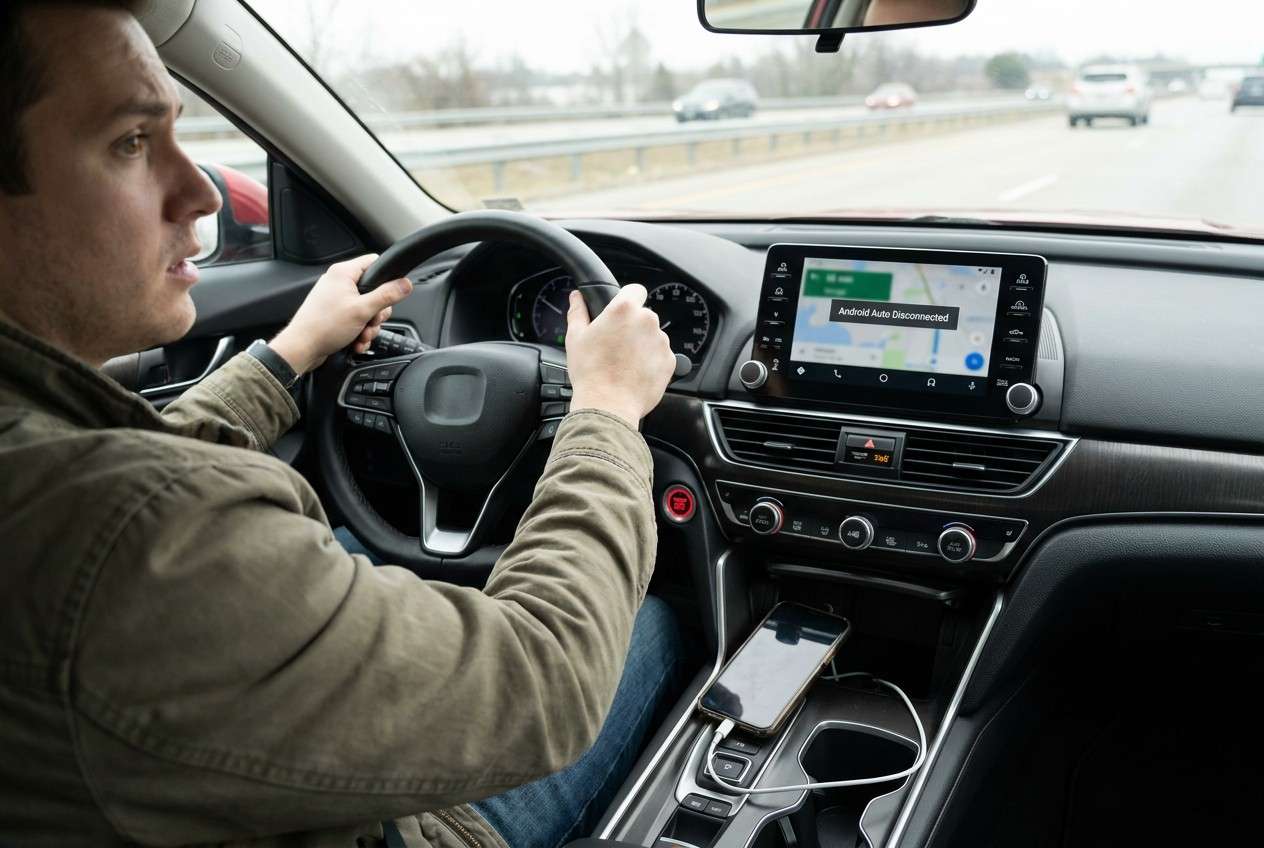
Android Auto disconnects randomly while driving, even though my phone looks “connected” and the cable seems fine. It often starts right after I plug in or restart—then nothing changes after several minutes, and I can’t tell if it’s stabilizing or failing silently.
Forum user
AI (like ChatGPT or Gemini) can help you describe the symptoms precisely, narrow likely causes (cable/USB port, power saving, app conflicts, head unit quirks), and decide which low-risk checks to try first.
AI can’t observe your car, cable, or phone behavior in real time, and trial-and-error while driving adds safety risk. The goal is to diagnose calmly, collect evidence, and only then apply the safest next step.
In this article
- Part 1. Why Android Auto disconnects randomly while driving happens
- Symptoms and common patterns
- Why it happens (most likely causes)
- How to think about “connection stability”
- Before you prompt the AI
- Part 2. Using AI prompts to diagnose Android Auto connection drops
- Part 3. When to stop troubleshooting Android Auto disconnects
- Part 4. Mirror Android to PC to capture Android Auto disconnect evidence with Dr.Fone
- Part 5. Recommended tool for safer evidence capture (parked only)
Part 1. Why Android Auto disconnects randomly while driving happens
1-1. Symptoms and common patterns
Random disconnects often start right after you plug in, start the car, or resume after a restart. A common pattern: on a Samsung Galaxy S23 or Pixel 7, you connect after tapping “Allow”/“Start” on the car screen, it works for a few minutes, then disconnects and reconnects in a loop.
Sometimes the phone keeps charging but Android Auto vanishes, which makes it unclear whether the issue is the cable, the USB port, or software.
1-2. Why it happens (most likely causes)
Usually, “random disconnects” mean the USB data link drops briefly or Android Auto gets interrupted by power management, permissions, background restrictions, or a conflicting app. It can also be the head unit resetting the USB session when the car hits bumps, changes power state, or switches audio sources.
1-3. How to think about “connection stability”
Treat it as a “connection stability” problem first, not a single app crash—because different causes can produce similar symptoms (disconnect, black screen, frozen UI, no audio, or repeated reconnects).
1-4. Before you prompt the AI
Gather a few specifics first so the AI can narrow causes quickly:
- Phone model + Android version (e.g., Pixel 7, Android 14)
- Car make/model/year + head unit brand (if known)
- Connection type (USB cable vs wireless Android Auto)
- Exact symptom pattern (drops every X minutes, only on bumps, only on calls)
- Recent changes (system update, new cable, new apps, battery settings changes)
- Whether the phone still charges when disconnect happens
Part 2. Using AI prompts to diagnose Android Auto connection drops
2-1. Level 1: Basic Prompt
My Android Auto disconnects randomly while driving. Ask me the minimum questions needed to narrow this down to the top 3 likely causes, then give the safest tests to try **only while parked**.
2-2. Level 2: Advanced Prompt
Act as a diagnostic assistant for Android Auto disconnects. Based on my answers, **rank** the most likely causes from 1–5 and label each as **low / medium / high risk** to test.
Constraints: avoid steps that could cause data loss or require driving tests. Prefer checks like cable/port verification, app settings review, battery optimization exclusions, and permission checks.
Start by asking no more than 8 questions.
2-3. Level 3: Evidence Prompt
Help me diagnose recurring Android Auto disconnects using evidence.
**Device:** (e.g., Samsung Galaxy S23)
**Android version:** (e.g., Android 14)
**Android Auto app version:** (if known)
**Car/head unit:** (e.g., 2021 Honda Civic)
**Connection type:** (USB / wireless)
**Cable/adapter:** (brand/length; new or old)
**USB port used:** (main port vs secondary)
**Symptom timeline:** (disconnects after 2–5 minutes; reconnect loop; only on bumps)
**What still works:** (charging continues? audio continues? phone screen freezes?)
**Recent changes:** (OS update, new apps, battery saver enabled)
**Battery/optimization settings:** (optimized / unrestricted for Android Auto & Google Play services)
**Permissions:** (location, phone, notifications)
**Any error messages:** (exact wording)
Output:
1) Top 5 likely causes with brief reasoning
2) The single most informative test for each cause (parked only)
3) What evidence would confirm/deny each cause
4) A “stop now” section if any step risks safety or data
2-4. Prompt Refinement
Use these follow-ups to tighten the diagnosis:
What 3 questions am I missing that would change your ranking the most?
Separate likely causes into: **hardware**, **Android settings**, **Android Auto app**, **car/head unit**.
Rank causes again assuming: it disconnects mainly on road bumps, but charging stays on.
What specific evidence should I capture (screens, logs, timestamps) to prove whether it’s cable vs power management?
Which changes should I revert first if this started right after an update or installing a new app?
2-5. AI Output vs Reality
AI can help you reason, but it won’t see what your setup is doing moment-to-moment. Use AI to choose the most informative checks; execution still depends on what you can reliably observe and reproduce without driving risk.
| What AI may conclude | What you should verify in reality |
|---|---|
| “It’s probably the cable” | Test a known-good data cable and a different USB port (while parked). |
| “It’s battery optimization” | Confirm Android Auto/Google apps are set to unrestricted and not sleeping. |
| “It’s a head unit compatibility issue” | Check whether disconnects correlate with car UI changes, audio source switching, or firmware updates. |
| “It’s an app conflict” | Reproduce the issue with recently installed apps disabled (parked) and note the difference. |
Part 3. When to stop troubleshooting Android Auto disconnects
Stop and reassess if you hit any of these:
- Disconnects happen so frequently that you’re tempted to interact with the phone while driving.
- The phone overheats, reboots, or rapidly drains battery during connection attempts.
- The car screen freezes or becomes unresponsive in a way that affects core controls.
- You can’t reproduce the issue while parked, so your “tests” would require driving to confirm.
Once you’ve narrowed the likely cause, shift from guessing to capturing clear evidence (what drops first, what stays connected, what the phone shows) so the next action is targeted and low-risk.
Part 4. Mirror Android to PC to capture Android Auto disconnect evidence with Dr.Fone
When Android Auto drops mid-session, the hardest part is proving what happened on the phone (permission pop-up, battery restriction, app crash, reconnect loop) at the exact moment it disconnected. Dr.Fone Basic - Screen Mirroring helps by letting you mirror your Android screen to a PC, so you can observe and document the phone-side behavior while you test connections only while parked, then share clearer details for diagnosis.
If you need the full click-path, follow the instructions in the Dr.Fone screen mirroring guide on Wondershare’s site.
4-1. Steps (Dr.Fone Basic – Screen Mirroring)
-
Step 1 Set up mirroring on your PC
Open Dr.Fone and choose Screen Mirroring so you can monitor the phone without repeatedly picking it up.

-
Step 2 Connect your Android phone
Follow the on-screen pairing method, and avoid changing developer/network settings you don’t understand during pairing.

-
Step 3 Reproduce the disconnect while parked
Start Android Auto and wait for the failure while watching for permission prompts, battery warnings, or reconnect loops on the mirrored screen.

-
Step 4 Record the key moments
Capture timestamps, visible alerts, and the exact sequence (connect → prompt → drop) so the AI can map symptoms to causes.

-
Step 5 Compare two controlled tests
Repeat once with a different cable/USB port or with battery optimization disabled for Android Auto apps to see what changes.

Part 5. Recommended tool for safer evidence capture (parked only)
If you’re trying to pinpoint whether the disconnect starts on the phone side (permissions, battery restrictions, crashes) or the car side (USB session reset), mirroring your screen to a computer can make the “moment of failure” easier to observe and document without repeatedly handling the phone.
 Easily manage data through preview, delete, export, etc.
- Transfer all data between devices.
- Robust backup solutions for reliable data protection.
- Mirror screens to PC for meetings, teaching, and control.

After you capture what the phone shows (prompts, warnings, reconnect loops) and log the timing, you can feed those specifics into your AI prompt (Part 2) to get a more accurate ranking of likely causes and a safer, parked-only test plan.




Conclusion
AI can help you turn “Android Auto disconnects randomly while driving” into a ranked shortlist of likely causes and the safest parked-only checks, while screen mirroring helps you capture clear on-phone evidence so your next step is based on what actually happened, not guesswork.
FAQ
-
Why does Android Auto disconnect randomly while charging still works?
Charging can continue even when USB data drops; this often points to cable quality, port contact issues, or the head unit resetting the data session. -
Can battery saver cause Android Auto to disconnect?
Yes. Aggressive battery optimization can restrict background activity for Android Auto or related Google services, causing intermittent drops. -
Is it safer to test Android Auto disconnects while parked?
Yes. Many “fix attempts” require looking at prompts/permissions, which is unsafe while driving and can skew results due to distraction. -
What evidence is most useful to capture during a disconnect?
The phone’s on-screen prompts, exact time of disconnect, whether audio continues, and whether the phone shows “USB controlled by” or permission dialogs. -
Does wireless Android Auto disconnect for different reasons than USB?
Often yes. Wireless adds Wi‑Fi/Bluetooth stability factors, interference, and power management differences compared to a pure USB data link.
 Add Wondershare Dr.Fone as a preferred source on Google





