 Effortlessly manage data through preview, delete, export, etc.

 100% Security Verified | No Subscription Required | No Malware

 :
: 
 ChatGPT
 Perplexity
 Gemini
 Claude
 Grok
Grok

CarPlay worked yesterday, but after an iOS update it won’t connect (or it connects and drops). I can’t tell if it’s my cable, my iPhone, or the car system.
Reddit user, r/CarPlay
CarPlay issues can feel random: it worked yesterday, then after you tapped Install Now for iOS or restarted your iPhone (e.g., iPhone 13 or iPhone 14), it suddenly won’t connect, drops audio, or won’t show apps. After several minutes, nothing changes, and it’s unclear whether the phone, cable, or car is the real problem.
AI can help you sort symptoms into likely buckets (cable/port, iPhone settings, iOS glitches, car head unit behavior) and suggest low-risk checks in a sensible order—but it can’t verify hardware condition for you. The goal is careful narrowing, then choosing the right next step.
In this article
- How to tell if CarPlay problems come from the cable or the car system
- Typical “cable vs car” patterns
- Why the trigger matters
- Why it’s hard to tell
- Before you prompt the AI
- AI prompts to diagnose whether CarPlay is caused by the cable or car system
- AI output vs reality: what to trust
- When to stop diagnosing CarPlay cable vs car system and avoid risks
- Validate the cause safely with screen mirroring
Part 1. How to tell if CarPlay problems come from the cable or the car system
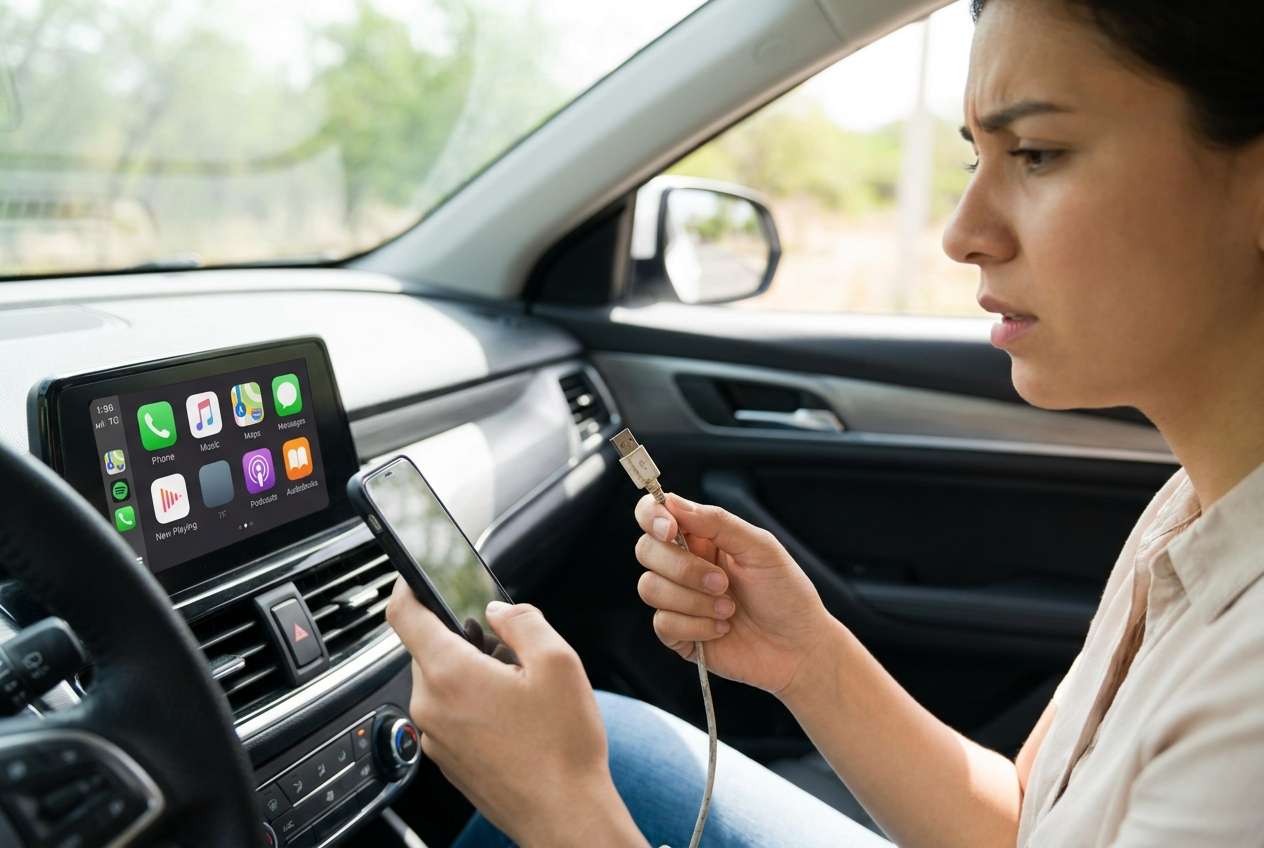
A “cable vs car system” CarPlay problem usually shows up as inconsistent behavior: the same iPhone works in one car but not another, or it only connects when the cable is held a certain way. Sometimes the phone charges but CarPlay doesn’t launch, which can point to data-pin, port, or head unit negotiation issues rather than power.
1-1. Typical “cable vs car” patterns
Look for repeatable patterns: repeated connect/disconnect loops, “Accessory not supported,” audio cutting out, or CarPlay appearing briefly and then disappearing. These can be caused by either side, which is why cross-checking matters.
1-2. Why the trigger matters
The trigger matters. If the issue started right after an iOS update, a car infotainment update, or switching to a different cable/adapter, you can often narrow it quickly.
1-3. Why it’s hard to tell
Uncertainty is normal because multiple things fail in similar ways: a flaky Lightning/USB-C cable can mimic a picky head unit, and a car USB port can deliver power while failing data. Your goal is to capture what’s consistent across attempts.
1-4. Before you prompt the AI
Collect the basics first so the AI can reason from evidence, not guesses:
- iPhone model and iOS version
- Car make/model/year and head unit type (OEM/aftermarket)
- Wired CarPlay or wireless CarPlay (if both, which fails)
- Cable/adapter type (Apple/OEM/MFi/USB-A/USB-C) and approximate age
- What changed right before it started (update, new cable, new car, reset)
- Exact symptom pattern (never connects / connects then drops / charges only)
Part 2. AI prompts to diagnose whether CarPlay is caused by the cable or car system
2-1. Level 1: Basic Prompt
My iPhone won’t reliably connect to CarPlay. Ask me the minimum set of questions to decide whether the most likely cause is (1) the cable/adapter, (2) the car USB port/head unit, or (3) my iPhone settings/iOS. Then give a low-risk test order that avoids resets.
2-2. Level 2: Advanced Prompt
Act like a diagnostic assistant. Based on my answers, rank the top 5 likely causes of my CarPlay issue with probabilities. Separate them into: Cable/adapter, Car USB port, Head unit software, iPhone settings, iOS bug. For each cause, list: (a) supporting evidence I might see, (b) one low-risk test, (c) what NOT to do yet to avoid making it worse.
2-3. Level 3: Evidence Prompt
Diagnose my CarPlay problem as “cable vs car system vs iPhone.” Use the details below and return:
1) a ranked cause list with reasoning,
2) the 3 most decisive tests I can do in 10 minutes,
3) what evidence would change your mind,
4) a stop/hand-off point where I should avoid further trial-and-error.
Details:
- iPhone model: (e.g., iPhone 13 Pro)
- iOS version: (e.g., iOS 17.5)
- Car make/model/year: (e.g., 2021 Honda Civic)
- Head unit type: (OEM / aftermarket; brand if known)
- CarPlay type: (wired / wireless)
- Connection path: (USB-A, USB-C, Lightning, USB-C, adapters)
- Cable brand/certification: (Apple/MFi/unknown)
- What changed recently: (e.g., iOS update, new cable, infotainment update)
- Symptom pattern: (never connects / connects then drops / charges only / audio only)
- Error messages: (exact text if any)
- Other phones tested in this car: (yes/no + result)
- This iPhone tested in another car: (yes/no + result)
- Basic settings tried: (CarPlay forgotten, Bluetooth toggled, VPN off, etc.)
- Time/temperature factor: (worse when hot? only after long drive?)
2-4. Prompt Refinement
If the AI answer feels broad, push it to become testable:
“What are the 3 missing questions you need to distinguish a bad cable from a failing car USB port?”
“Re-rank the causes assuming the iPhone charges but CarPlay never launches—what changes?”
“Separate my symptoms into power issue vs data issue vs handshake/software issue and map each to likely sources.”
“What single observation would be the strongest evidence it’s the car system (not the cable)?”
“List tests that do not require forgetting CarPlay, resetting network settings, or updating firmware yet.”
Part 3. AI output vs reality: what to trust
AI can recommend a clean logic path, but real-world behavior can be inconsistent. Use AI to choose the next lowest-risk test based on evidence, and rely on physical cross-checks (different cable, different USB port, different car/phone) to confirm the root cause.
| AI Output | Reality Check |
|---|---|
| “If it charges, the cable is fine.” | Charging can work while data pins or shielding fail, so CarPlay can still break. |
| “Forget CarPlay and re-pair first.” | Re-pairing can remove a working configuration and add confusion if the root cause is hardware. |
| “Update iOS/head unit to fix it.” | Updates can help, but they can also introduce variables and aren’t the safest first test. |
| “It’s definitely the head unit.” | Without cross-testing another cable/phone/port, “definitely” is usually too strong. |
Part 4. When to stop diagnosing CarPlay cable vs car system and avoid risks
Stop troubleshooting and pause if you hit any of the following:
- CarPlay failures appear alongside overheating, rapid battery drain, or repeated iPhone restarts
- You’re about to do factory resets (head unit reset, iPhone erase) without strong evidence
- The car display becomes unresponsive or stuck in a reboot loop after repeated reconnect attempts
- You can reproduce the issue in a way that suggests hardware damage (loose port, bent connector, intermittent power)
Once you’ve narrowed the likely category (cable/port/head unit vs iPhone/software), move from “figuring out what it is” to capturing clear proof and executing the next safe step.
Part 5. Validate the cause safely with screen mirroring
When CarPlay is inconsistent, a practical next move is to observe and document what your iPhone is doing during connection attempts—without juggling the phone in the car. Dr.Fone Basic - Screen Mirroring can help by mirroring your iOS screen to a PC so you can clearly see prompts, confirm settings paths, and record a clean sequence to compare against what the AI expects.
Product recommendation: use Dr.Fone screen mirroring to capture clean evidence
If you’re using AI to narrow “cable vs car system,” mirroring makes your evidence more reliable before you change settings or buy new hardware. It can help you catch brief permission pop-ups, Bluetooth/Wi‑Fi changes, Focus modes, and other on-screen details that are easy to miss during a failed CarPlay attempt.
 Easily manage data through preview, delete, export, etc.
- Transfer all data between devices.
- Robust backup solutions for reliable data protection.
- Mirror screens to PC for meetings, teaching, and control.

-
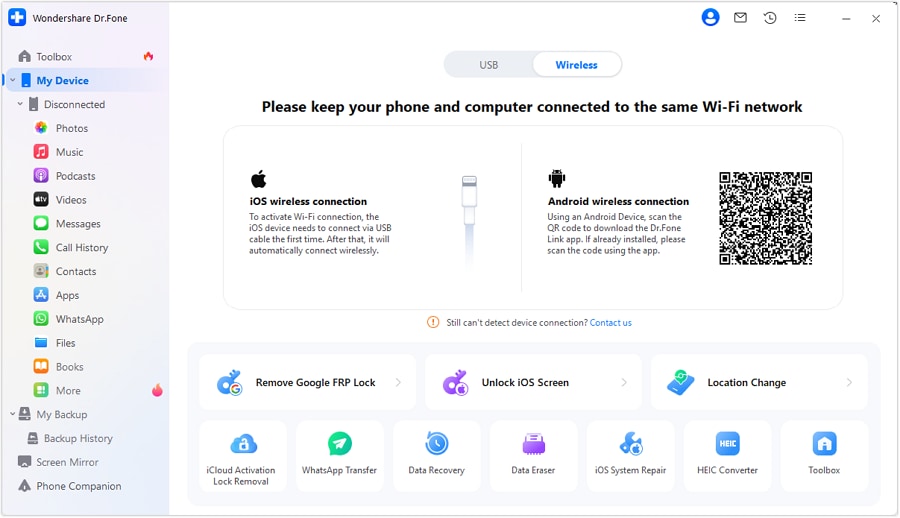
Step 1 Start iOS mirroring to a PC
Open Dr.Fone’s iOS screen mirroring and connect your iPhone using the method shown on-screen, avoiding unknown adapters if you suspect a cable issue.
-
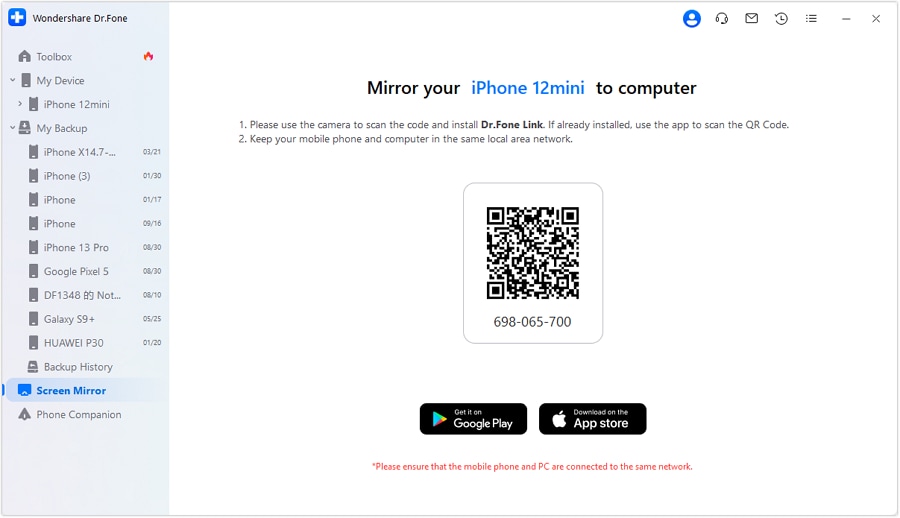
Step 2 Recreate the CarPlay attempt while mirrored
With the iPhone screen visible on PC, repeat the exact plug-in or wireless connection steps so you can catch brief permission pop-ups or toggles changing.
-
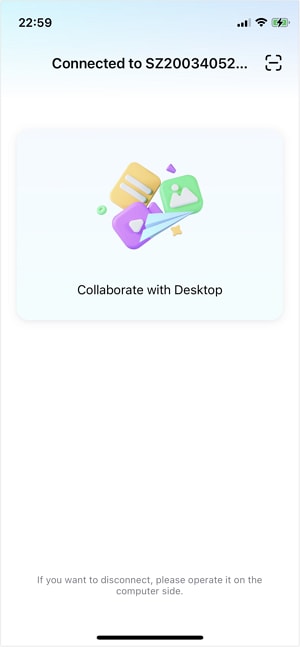
Step 3 Verify key iOS settings live
Navigate (while mirrored) to CarPlay permissions, Siri settings, and Bluetooth/Wi‑Fi states to confirm what’s actually enabled before you retest.
-
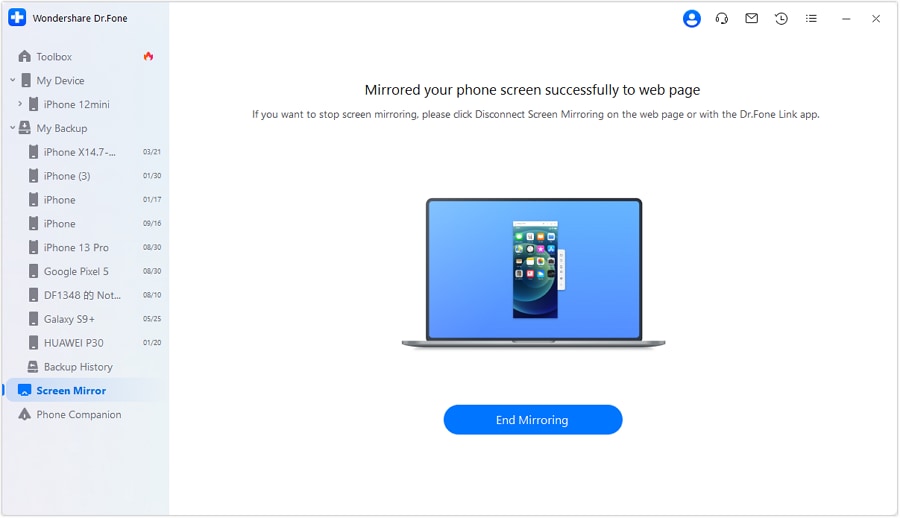
Step 4 Capture a short recording of the symptom
Record a 30–60 second clip showing the moment it fails (connect/disconnect, prompts, audio switch), which makes AI follow-up prompts much more precise.
-
Step 5 Compare evidence across tests
After swapping only one variable (different cable or different car USB port), repeat the same mirrored steps to see what changes and what stays consistent.




Conclusion
AI is useful for turning messy CarPlay symptoms into a ranked set of likely causes and a low-risk test order, but it can’t confirm hardware behavior on its own. Once you have a hypothesis, mirroring your iPhone screen to a PC with Dr.Fone helps you capture clean evidence and apply the next step with fewer guesses.
FAQ
-
Can a CarPlay cable charge the iPhone but still fail data?
Yes. Power delivery can work while data lines are unstable or the connector fit is loose, which can prevent CarPlay from launching or cause frequent disconnects. -
How do I know if the problem is the car USB port instead of the cable?
If multiple known-good cables behave the same in that one port, or another phone also fails there, the car port/head unit becomes more likely than the cable. -
Does “Accessory not supported” always mean the cable is bad?
Not always. It can also appear with adapter incompatibility, head unit handshake issues, debris in the port, or a temporary iOS communication fault. -
Should I forget the car in CarPlay settings as a first step?
Usually not first. It can remove a working pairing and add variables; it’s better after quick cross-tests (different cable/port/phone) point toward a configuration problem. -
How can screen mirroring help with a CarPlay diagnosis?
Mirroring helps you spot short-lived prompts, permission requests, or setting changes during the connection attempt, and it lets you record consistent evidence for AI follow-up questions.
 Add Wondershare Dr.Fone as a preferred source on Google





