 Effortlessly manage data through preview, delete, export, etc.

 100% Security Verified | No Subscription Required | No Malware

 :
: 
 ChatGPT
 Perplexity
 Gemini
 Claude
 Grok
Grok

My CarPlay keeps dropping audio, lagging, or reconnecting over and over—especially after I updated iOS or paired a new head unit. I can’t tell if wired or wireless is the real problem.
Apple Support Community user
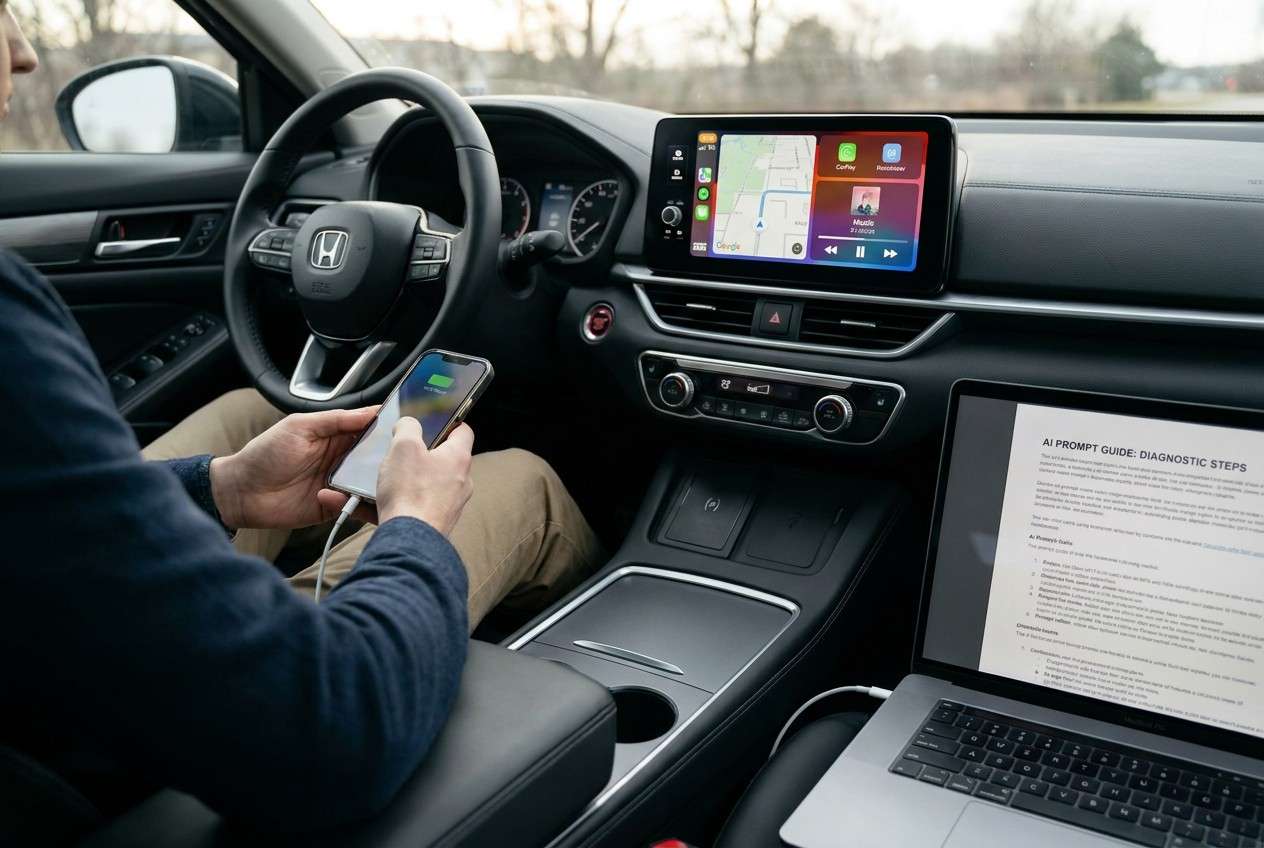
CarPlay that drops audio, lags, won’t connect, or keeps reconnecting can make a simple commute feel unpredictable—especially if it started right after you paired a new head unit, updated iOS, or tapped “Use CarPlay” on the car screen.
AI (like ChatGPT or Gemini) can help you compare wired vs wireless CarPlay based on your exact symptoms, narrow likely causes (cable, port, Wi‑Fi/Bluetooth interference, car firmware, iOS settings), and propose low‑risk checks in the right order.
AI can’t verify your car’s hardware limitations or “see” what your iPhone is doing in real time. Repeated trial‑and‑error (random resets, toggling settings, re‑pairing constantly) can waste time or create new pairing conflicts—so keep changes minimal and track what you try.
In this article
- Part 1. Why you should use wired or wireless CarPlay happens and what it means
- What the question usually signals
- Common triggers that start the issue
- Why it feels “connected” but still fails
- Before you prompt the AI
- Part 2. Using AI prompts to diagnose should i use wired or wireless carplay safely
- Part 3. When to stop troubleshooting wired vs wireless CarPlay and avoid risks
- Part 4. Mirror iPhone screen to troubleshoot CarPlay with Dr.Fone
- Conclusion
Part 1. Why you should use wired or wireless CarPlay happens and what it means
1-1. What the question usually signals
If you’re asking whether you should use wired or wireless CarPlay, it usually means something isn’t consistent: wireless connects but stutters, wired is stable but inconvenient, or one mode stopped working after an iOS update on an iPhone 13 or iPhone 14.
1-2. Common triggers that start the issue
Common triggers include switching cars, changing cables, enabling wireless CarPlay for the first time, updating iOS, or restarting the phone and finding the car no longer recognizes it.
The symptom may look like “CarPlay available” but nothing launches, or the screen loops between connecting/disconnecting.
1-3. Why it feels “connected” but still fails
It’s also normal to feel unsure: it may look connected, yet nothing changes after several minutes—so it’s unclear whether the phone, the car, or the connection method is the real bottleneck.
1-4. Before you prompt the AI
Collect a few details first so the AI can narrow causes quickly:
- iPhone model + iOS version
- Car make/model/year + head unit brand (if known)
- Wired or wireless (or both) and what “fails” (audio, maps, calls, connect)
- Cable type/brand and whether other cables behave differently
- Whether Bluetooth and Wi‑Fi are both enabled
- What changed right before the issue (update, new car, new cable, new phone)
Part 2. Using AI prompts to diagnose should i use wired or wireless carplay safely
2-1. Level 1: Basic Prompt
I’m trying to decide whether to use wired or wireless CarPlay. Here’s what happens: [describe symptoms]. My iPhone is [model/iOS], my car is [make/model/year]. Ask me the minimum questions needed, then recommend wired vs wireless for reliability and explain why.
2-2. Level 2: Advanced Prompt
Diagnose my CarPlay reliability issue and help me choose wired vs wireless.
Context: iPhone [model/iOS], car/head unit [details].
Symptoms: [dropouts/lag/not detected/reconnect loop/etc.].
What changed recently: [update/new cable/new car/etc.].
Constraints: I want the lowest-risk steps first; avoid actions that may erase settings unless necessary.
Output required:
1) Rank the top 5 likely causes (with confidence %).
2) For each cause, give 1–2 tests that don’t risk data loss.
3) Based on the tests, tell me when wired is the better choice vs when wireless is the better choice.
2-3. Level 3: Evidence Prompt
Act like a diagnostic assistant for CarPlay reliability and mode choice (wired vs wireless). Use only the evidence I provide and clearly label assumptions.
Device info
- iPhone model: (e.g., iPhone 13 Pro)
- iOS version: (e.g., iOS 17.5)
- Car make/model/year: (e.g., 2022 Honda Civic)
- Head unit / infotainment: (if known)
Connection details
- Wired works? (yes/no/intermittent)
- Wireless works? (yes/no/intermittent)
- Cable type: (USB-A to Lightning / USB-C to Lightning / USB-C to USB-C)
- Port used in car: (front USB, console USB, etc.)
Symptoms (pick all that apply)
- Connect/disconnect loop
- Audio crackle or delay
- Maps lag or freezes
- Calls drop or mic issues
- CarPlay not detected
Environment
- Other Bluetooth devices connected? (watch, earbuds)
- Wi‑Fi hotspots in use? (car hotspot, phone hotspot)
- Does it fail in specific locations only?
What I already tried
- (e.g., reboot iPhone, “Forget This Car”, different cable)
Task
1) Separate likely causes into: iPhone-side, car/head-unit-side, cable/port-side, interference.
2) Rank causes with reasoning tied to my symptoms.
3) Give a lowest-risk test plan (max 8 steps).
4) Decide: wired vs wireless for my case, with a clear recommendation and fallback plan.
2-4. Prompt Refinement
Use these follow-ups to tighten the diagnosis without adding random steps:
What 3 questions would change your recommendation the most? Ask them one by one.
Split the causes into iPhone settings vs car infotainment vs cable/port vs radio interference, and rank each category separately.
Which single observation would best confirm a cable/port problem vs a wireless interference problem?
Based on my answers, update the probability ranking and remove any causes that no longer fit.
List the safest tests first and mark any step that may reset pairings or require re‑setup.
2-5. AI Output vs Reality
AI can guide your reasoning, but real devices still decide the outcome.
| AI suggests | Reality check you should do |
|---|---|
| “It’s probably the cable” | Try a known-good data cable and a different car USB port if available |
| “It’s wireless interference” | Test in a different area and disconnect other Bluetooth devices temporarily |
| “It’s an iOS setting/pairing issue” | Confirm whether the car sees CarPlay under its device list, not just on the iPhone |
| “Wired is always more stable” | Some cars have flaky USB ports; wireless may be steadier in that specific vehicle |
AI outputs are hypotheses based on patterns; execution still depends on what your iPhone and car actually do step-by-step, so treat each test as evidence collection rather than a guaranteed solution.
Part 3. When to stop troubleshooting wired vs wireless CarPlay and avoid risks
Stop and avoid compounding the problem if you see these signals:
- You’re repeating “Forget This Car” / re-pairing loops and the behavior is getting worse or less predictable.
- Wired CarPlay fails across multiple known-good cables and multiple ports, suggesting a deeper head-unit/port issue.
- Wireless CarPlay fails only after you change multiple settings at once (you can’t tell what caused what).
- The car infotainment system starts crashing/rebooting or other features break (camera, radio, Bluetooth calls).
Once you’ve narrowed the likely cause, it’s more effective to switch from diagnosis to controlled execution—capturing what happens on-screen and testing one change at a time.
Part 4. Mirror iPhone screen to troubleshoot CarPlay with Dr.Fone
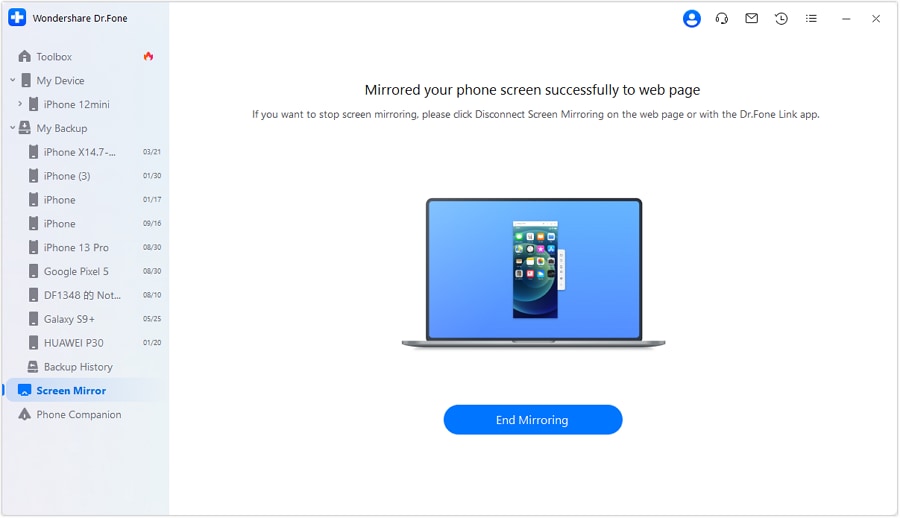
If you’re stuck deciding between wired and wireless because the behavior is inconsistent, mirroring your iPhone to a PC can help you observe and document what iOS is doing during connection attempts (prompts, toggles, reconnect loops) while you run a clean test plan. Dr.Fone Basic - Screen Mirroring is relevant at this stage because it provides a practical way to mirror your iOS screen to a computer so you can track settings changes and connection behavior more carefully, then apply the decision you reached (wired for stability, or wireless for convenience) with fewer repeated resets. You can follow the product’s iOS mirroring guide as you set it up.
 Easily manage data through preview, delete, export, etc.
- Transfer all data between devices.
- Robust backup solutions for reliable data protection.
- Mirror screens to PC for meetings, teaching, and control.

-
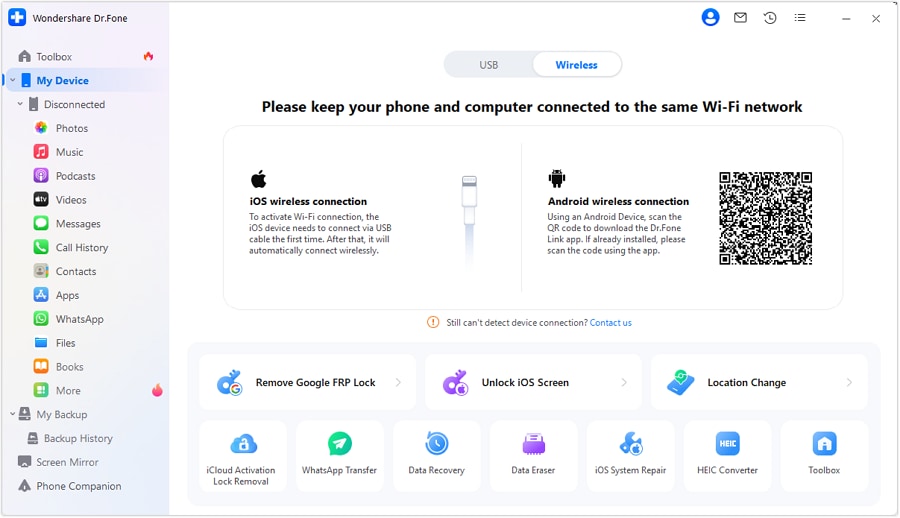
Step 1 Start iOS screen mirroring on your PC
Open Dr.Fone’s mirroring tool and begin iPhone mirroring so you can watch every iOS prompt while testing (avoid changing multiple settings at once).
-
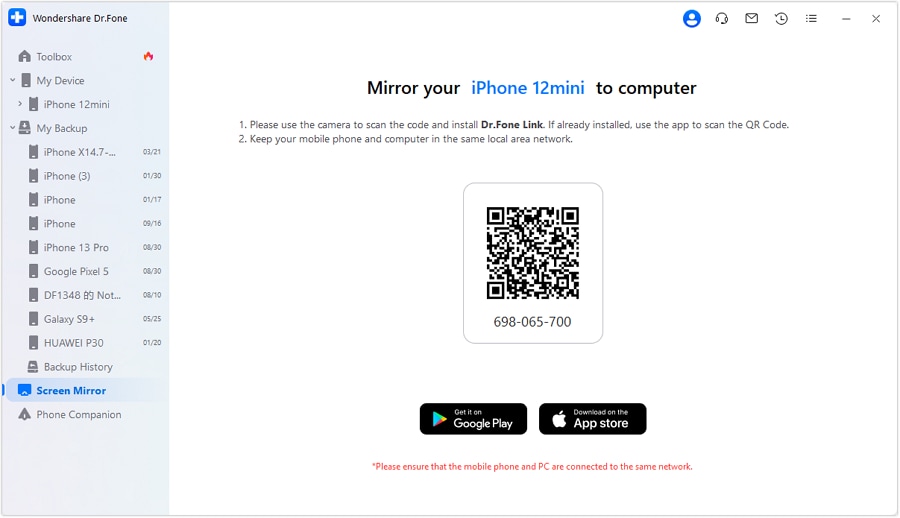
Step 2 Record your baseline behavior
With the mirrored screen visible, attempt CarPlay once (wired or wireless) and note exactly where it fails (permission prompt, connect loop, app launch, audio route).
-
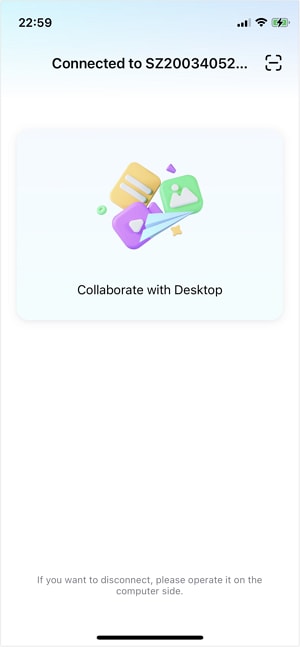
Step 3 Run one controlled test per attempt
Change only one variable (different cable, different USB port, Bluetooth off/on, Wi‑Fi off/on) and retry so you can attribute cause correctly.
-
Step 4 Compare wired vs wireless using the same route and apps
Test the same apps (Maps + Music + Calls) for 5–10 minutes per mode to judge stability rather than “connect success.”




Conclusion
AI helps you frame the decision (wired vs wireless) as a testable diagnosis—ranking likely causes and suggesting low-risk checks—while Dr.Fone Screen Mirroring supports the execution phase by letting you observe, document, and compare behaviors cleanly before you settle on the most reliable CarPlay mode for your setup.
FAQ
-
Is wired CarPlay always more reliable than wireless?
Often, but not always—wired can be limited by cable quality or a worn car USB port, while wireless can be affected by interference or head-unit firmware. -
Why does wireless CarPlay connect but lag or stutter?
Common contributors include crowded Wi‑Fi/Bluetooth environments, multiple active Bluetooth devices, car hotspot behavior, or head-unit performance limits. -
Why does wired CarPlay charge but not show CarPlay?
Charging can work even when data doesn’t—this points to a cable that’s power-only/defective, a data issue on the port, or a head-unit recognition problem. -
Should I disable Bluetooth or Wi‑Fi to test CarPlay issues?
For troubleshooting, yes—temporarily toggling them (one at a time) helps separate wireless interference/pairing problems from cable/port problems. -
What’s the simplest way to choose between wired and wireless CarPlay?
Pick the mode that stays stable in a 5–10 minute test using your real apps (Maps + audio + calls), then keep that mode consistent until you confirm the root cause.
 Add Wondershare Dr.Fone as a preferred source on Google





