 Effortlessly manage data through preview, delete, export, etc.

 100% Security Verified | No Subscription Required | No Malware

 :
: 
 ChatGPT
 Perplexity
 Gemini
 Claude
 Grok
Grok

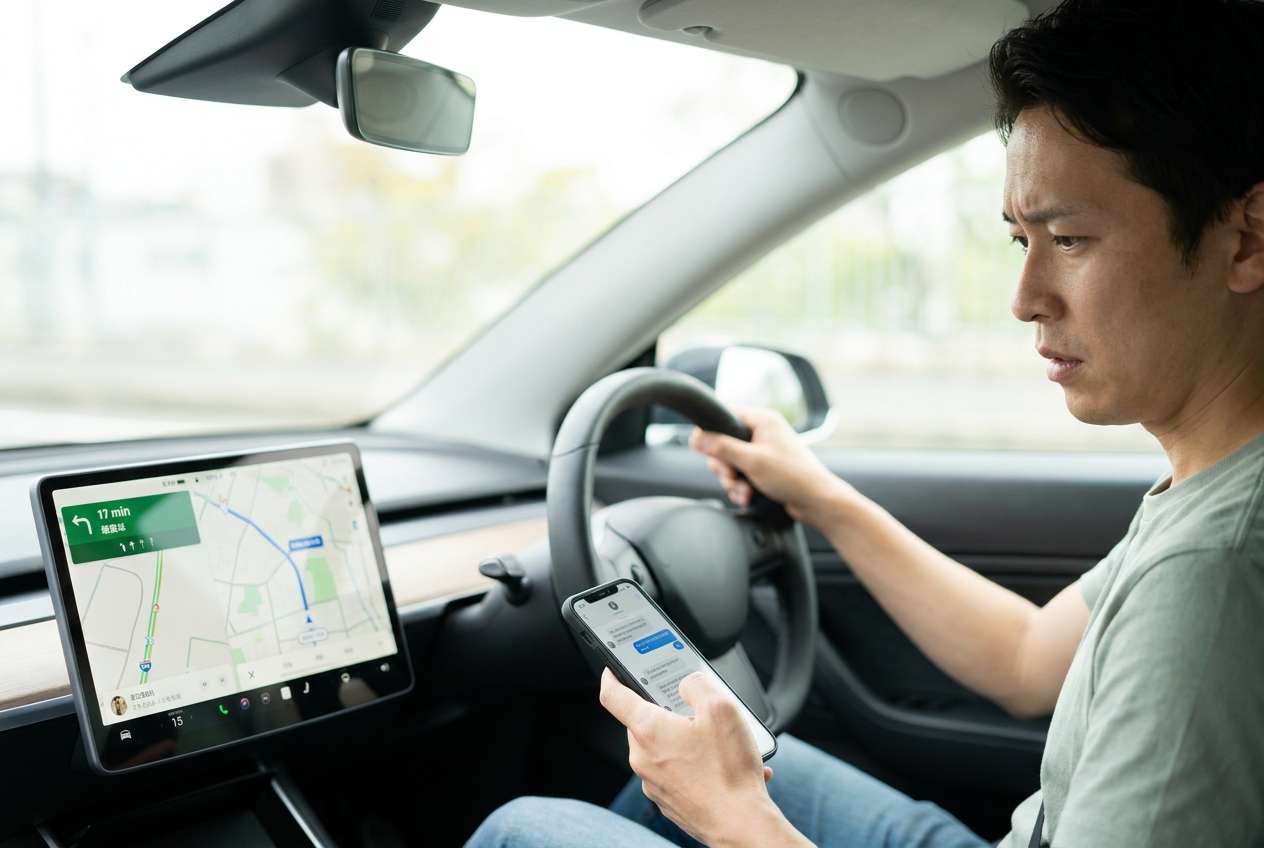
CarPlay shows Maps fine, but there’s absolutely no sound—music, navigation voice, calls, even Siri. The screen works, so I don’t know what’s actually broken.
Apple Support Community user
When CarPlay shows Maps normally but audio is missing (music, calls, navigation voice, Siri), it usually means the display link is working while the audio path is failing—often after tapping Allow, switching connection modes, or an iOS update/restart.
This guide gives you copy/paste AI prompts to sort symptoms into likely cause buckets (routing/volume, app voice settings, Bluetooth/CarPlay handoff, or head unit issues), then shows a safe, evidence-based way to run checks in the right order.
In this article
- Part 1. Why CarPlay has maps but no audio happens and what it means
- Display vs audio signal path
- Common triggers
- What “missing audio” usually indicates
- Before you prompt the AI
- Part 2. Using AI prompts to diagnose CarPlay audio missing while maps works safely
- Part 3. When to stop troubleshooting CarPlay no audio and avoid risks
- Part 4. AI output vs reality: what AI can suggest vs what you must verify
- Part 5. CarPlay has maps but no audio: resolve it safely with Dr.Fone screen mirroring
Part 1. Why CarPlay has maps but no audio happens and what it means
When CarPlay has maps but no audio, the display link is working (screen/UI data), but the audio path is failing somewhere between the iPhone, the car head unit, and the active app. That usually points to audio routing, mute/volume states, voice guidance settings, or a handoff conflict (Bluetooth vs USB vs wireless CarPlay).
This can start right after a “normal” trigger: you plugged in USB, approved a CarPlay permission pop-up, switched from Bluetooth to CarPlay, or installed an iOS update and the phone rebooted. From the driver’s seat it can feel like “it’s connected, so audio should work,” yet nothing changes after several minutes.
Meaning-wise: treat it as a signal-path problem, not a “CarPlay is totally broken” problem. The fastest progress usually comes from identifying which audio type is missing (music vs calls vs navigation voice vs Siri) and whether the iPhone thinks it’s outputting audio to CarPlay or to a different target.
1-1. Before You Prompt the AI
Collect these details first so the AI can separate routing vs settings vs app issues:
- iPhone model + iOS version
- Car make/model + head unit (if known)
- Wired CarPlay or wireless CarPlay
- What’s silent: media / calls / Siri / navigation voice
- Which apps involved (Apple Maps, Google Maps, Spotify, etc.)
- Any recent change (update, new cable, new car profile, reset)
Part 2. Using AI prompts to diagnose CarPlay audio missing while maps works safely
2-1. Level 1: Basic Prompt
My CarPlay shows Maps but I get no audio. Ask me the minimum questions needed to identify whether this is (1) audio routing/volume, (2) app settings (navigation voice), (3) Bluetooth/CarPlay handoff, or (4) car head unit issue. Then give me the lowest-risk checks first.
2-2. Level 2: Advanced Prompt
Diagnose this CarPlay issue: Maps display works, but audio is missing.
Task: Rank the top 5 most likely causes with confidence, and for each cause list (a) what evidence would confirm it, (b) the safest next step, and (c) what to avoid to prevent making it worse.
Constraints: Start with no-reset, no-data-loss steps; separate iPhone-side vs car-side vs app-side causes.
2-3. Level 3: Evidence Prompt
Act as a diagnostic assistant for a CarPlay “maps works, no audio” problem. Use only my facts and ask for anything missing.
Device details
- iPhone model: (e.g., iPhone 13 Pro)
- iOS version: (e.g., iOS 17.5)
- CarPlay type: (wired / wireless)
- Car make/model/year: (e.g., Toyota Camry 2022)
- Head unit brand: (if known)
Symptoms
- What has no audio: (music / calls / Siri / navigation voice)
- Does the iPhone show “CarPlay” as the output route? (yes/no/unknown)
- Volume behavior: (volume slider moves / stuck / changes but no sound)
- Any icon states: (mute, focus, silent mode, Do Not Disturb While Driving)
Context
- What changed right before this started: (iOS update, new cable, new car, new app, restart)
- Apps affected: (e.g., Apple Maps voice, Spotify, phone calls)
Goal
- I want the safest step-by-step checks, with decision points, and a shortlist of the most likely causes.
2-4. Prompt Refinement
Use these follow-ups to force clarity and reduce guesswork:
What questions would you ask to determine whether this is media-only vs all audio types failing?
Separate causes into iPhone settings, CarPlay routing, specific app settings, and car head unit—no overlap.
Rank the causes again, but only using evidence I already provided; list what evidence is missing.
Give me a 3-step test that distinguishes Bluetooth conflict from wired CarPlay routing without resetting anything.
What single observation would be most decisive here (one setting screen or one behavior)?
Part 3. When to stop troubleshooting CarPlay no audio and avoid risks
Stop and switch to a safer, more controlled approach if:
- Audio loss becomes inconsistent or spreads (e.g., calls start failing too), making results hard to trust
- You’re tempted to do broad resets (network settings, head unit factory reset) without confirming routing/app evidence
- The issue appears only while driving and you can’t safely observe settings and prompts
- You’ve repeated the same reconnect/restart loop with no new evidence gained
Once you’ve narrowed the likely category (routing vs app vs car), the next step is to capture clear evidence and perform controlled checks—so you don’t “fix” the wrong layer.
Part 4. AI output vs reality: what AI can suggest vs what you must verify
AI can guide reasoning, but it can’t confirm states inside your car or press buttons for you:
| What AI can suggest | What you must verify in reality |
|---|---|
| Likely cause ranking (routing vs app vs car) | Whether the iPhone’s audio route is actually set to CarPlay |
| Safe check order to avoid unnecessary resets | Whether the car head unit is muted, on the right source, or lowering volume per-channel |
| App-specific hypotheses (e.g., navigation voice disabled) | Whether that app’s voice guidance and volume are enabled in the app UI |
| A minimal “decision tree” of tests | The outcome of each test while connected to your specific car |
AI reduces wasted steps by structuring the investigation; execution still depends on accurately observing what the iPhone and car are doing in the moment.
Part 5. CarPlay has maps but no audio: resolve it safely with Dr.Fone screen mirroring
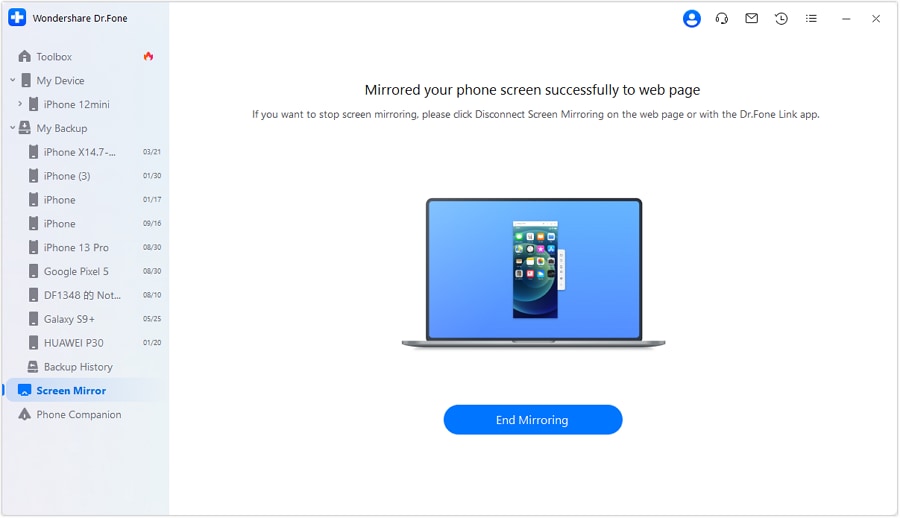
When the symptom is “CarPlay display works but sound doesn’t,” your best leverage is often seeing exactly what the iPhone is doing (audio route, volume overlay, app voice settings) while you test changes. Dr.Fone Basic - Screen Mirroring helps by letting you mirror your iOS screen to a PC, so you can review settings calmly, document what changes when you connect/disconnect CarPlay, and share accurate screenshots with support if needed.
 Easily manage data through preview, delete, export, etc.
- Transfer all data between devices.
- Robust backup solutions for reliable data protection.
- Mirror screens to PC for meetings, teaching, and control.

It’s especially useful when the car environment makes it hard to observe the iPhone UI quickly. Follow the iOS mirroring flow described in the Dr.Fone screen mirroring guide, then run the checks below in a controlled order.
-
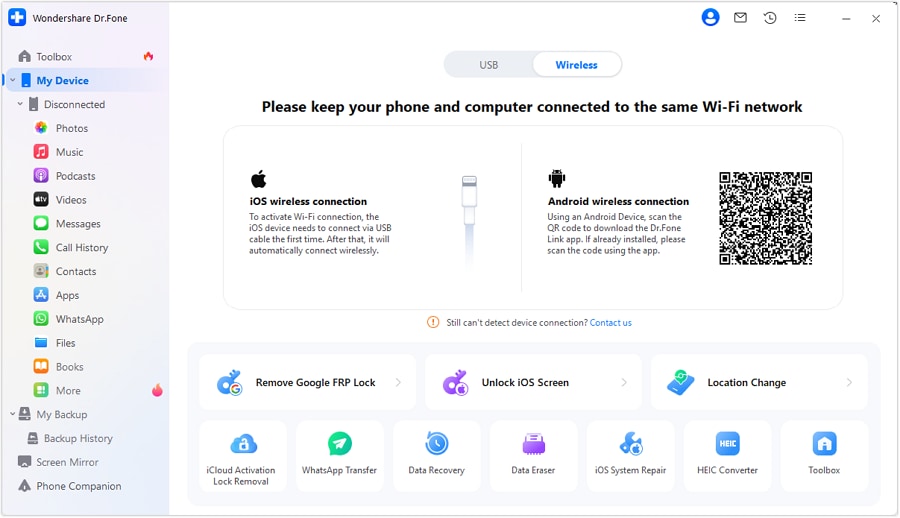
Step 1 Start iOS screen mirroring to your PC
Use Dr.Fone to mirror your iPhone screen to the computer so you can observe audio route/volume changes precisely (avoid doing this while driving).
-
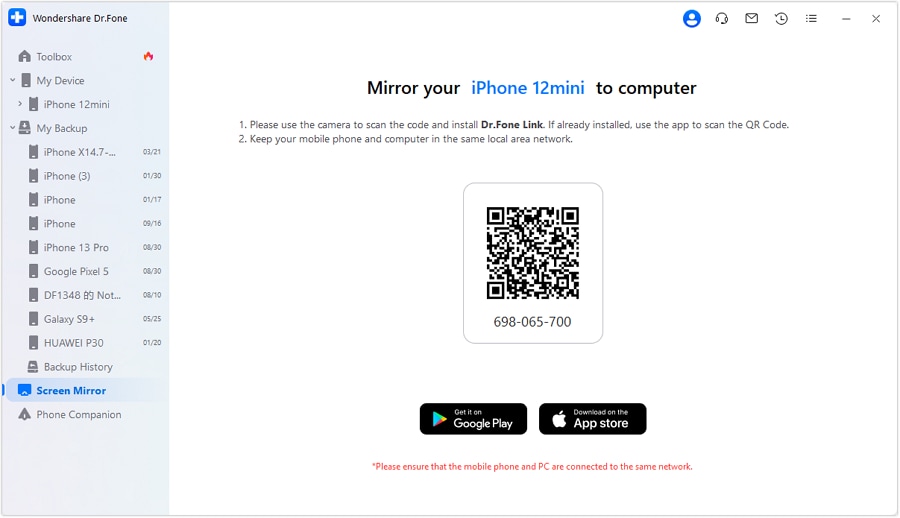
Step 2 Verify the iPhone audio output route
Open Control Center and confirm whether audio is routed to CarPlay or unexpectedly to Bluetooth/phone speaker, then note exactly what it shows before and after connecting.
-
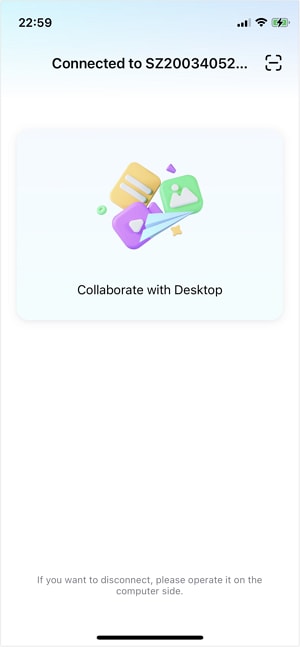
Step 3 Reproduce the issue with one audio type at a time
Test (a) music, then (b) navigation voice, then (c) Siri/calls, changing only one variable per test to avoid confusing results.
-
Step 4 Capture evidence for the most likely branch
Take screenshots (route, app voice settings, volume overlay) so you can compare outcomes across reconnects and avoid repeating guesses.
-
Step 5 Apply the targeted fix on the correct layer
Use your AI-ranked cause list to apply only the relevant adjustment (app voice guidance, car source/volume, or connection mode), avoiding broad resets unless the evidence points there.




Conclusion
Use AI to structure the diagnosis—identify what type of audio is missing, rank likely causes, and choose low-risk checks—then hand off to Dr.Fone screen mirroring to observe the iPhone’s real-time routing and settings during controlled tests, so your next action is based on evidence rather than trial-and-error.
FAQ
-
Why does CarPlay show Maps but navigation voice is silent?
Often the UI link is fine but the app’s voice guidance is off, set to alerts-only, or playing at a different “guidance volume” level than media.
-
Can Bluetooth cause CarPlay audio to disappear even when the screen works?
Yes—some setups keep a competing Bluetooth audio route that can steal sound while the CarPlay display continues working.
-
Is this usually an iPhone problem or a car head unit problem?
It can be either; the fastest way to tell is whether any audio type works (calls vs music vs Siri) and what audio route the iPhone reports.
-
Should I reset network settings to fix CarPlay no audio?
Only after you’ve confirmed routing/app settings and you have repeatable evidence; it’s a broad change that may not address car-side mute/source issues.
-
How does screen mirroring help with CarPlay audio troubleshooting?
It helps you reliably observe and record the iPhone’s route, volume, and app settings while you run controlled tests, so you stop guessing.
 Add Wondershare Dr.Fone as a preferred source on Google





