 Effortlessly manage data through preview, delete, export, etc.

 100% Security Verified | No Subscription Required | No Malware

 :
: 
 ChatGPT
 Perplexity
 Gemini
 Claude
 Grok
Grok

My phone charges when I plug it into the car, but Android Auto never starts. The car just says “Connect a compatible device” and nothing else happens.
Reddit user, r/AndroidAuto
Android Auto can suddenly stop working when your phone isn’t recognized by the car—often right after plugging in a USB cable, approving a permission prompt, or restarting after an update. You might see “USB device not supported,” “Connect a compatible device,” or nothing at all, and it’s unclear whether the connection is even attempting to start.
AI (like ChatGPT or Gemini) can help you describe the symptoms precisely, narrow likely causes (cable, USB mode, permissions, head unit compatibility), and choose the lowest-risk next step based on what you already tried.
AI can’t verify your exact hardware state or run tests inside your car, and trial-and-error can create new issues (changing developer options, clearing data, or triggering lockouts). Use AI to plan safely, then use practical tools for execution.
In this article
- Part 1. Why Android Auto phone not recognized by car happens and what it means
- What the “not recognized” symptom means
- Common triggers (cable, USB prompt, updates)
- Software-side blocks to consider
- Before you prompt the AI
- Part 2. Using AI prompts to diagnose Android Auto not connecting safely
- Part 3. When to stop Android Auto troubleshooting and avoid risks
- Part 4. Verify Android Auto behavior using Dr.Fone screen mirroring
- Part 5. Recommended tool setup for consistent testing and documentation
Part 1. Why android auto phone not recognized by car happens and what it means
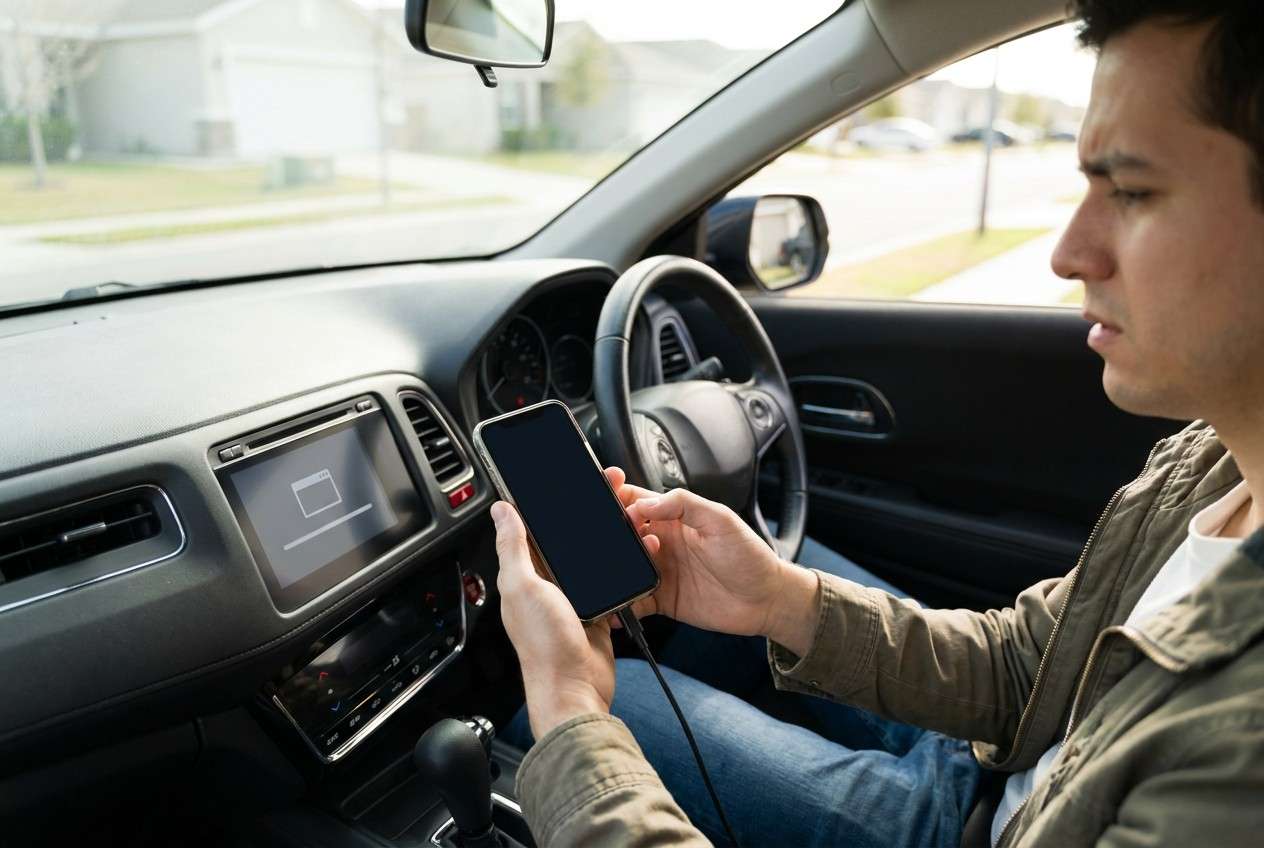
1-1. What the “not recognized” symptom usually means
This usually means the car’s head unit didn’t complete a stable USB data handshake with the phone.
1-2. Common triggers (cable, USB mode, recent prompts/updates)
It can be as simple as a charge-only cable, the wrong USB mode (charging vs file transfer), or a flaky port—especially if the problem started right after you tapped Allow on a USB prompt or after an Android Auto / system update.
1-3. Software-side blocks (apps, services, restrictions, head unit state)
It can also indicate a software-side block: Android Auto app state, Google Play services issues, battery optimization killing background processes, or the car’s head unit needing a reset/firmware update. On some setups, even the “default USB configuration” setting can decide whether data ever negotiates.
Real-world context matters: a Samsung Galaxy S23 or Pixel 7 may behave differently by cable type and Android version; and if you’re comparing with an iPhone 14 on the same car USB port (CarPlay), that can hint whether the port itself is unreliable. From your perspective, nothing changes after several minutes—no prompt, no Android Auto screen, no error.
1-4. Before you prompt the AI
Collect a few basics first so the AI can rule things in/out quickly:
- Phone model + Android version
- Car make/model/year + infotainment/head unit type (if known)
- Wired or wireless Android Auto (and which you’re trying)
- Exact on-screen messages (phone and car)
- What changed right before it broke (update, new cable, new car, reset)
- Whether charging works when plugged in
Part 2. Using AI prompts to diagnose Android Auto not connecting safely
2-1. Level 1: Basic Prompt
My Android Auto is not working because my phone is not recognized by my car. Ask me the minimum questions needed to diagnose it safely (no risky steps yet), then give me the top 3 likely causes and the safest next step to test each cause.
2-2. Level 2: Advanced Prompt
Diagnose “Android Auto phone not recognized by car” as a decision tree.
Requirements:
1) Rank causes by likelihood for my symptoms.
2) For each cause, give one low-risk test and what result would confirm/deny it.
3) Flag any step that could cause data loss, lockouts, or resets as “higher risk” and give an alternative.
Start by asking only the questions that change the ranking.
2-3. Level 3: Evidence Prompt
You are helping me triage an Android Auto connection failure. Use my evidence to narrow root cause, then propose the safest test plan.
Evidence
- Phone model: (e.g., Samsung Galaxy S23)
- Android version: (e.g., Android 14)
- Android Auto version: (if known)
- Connection type: (wired USB / wireless)
- Cable type/brand: (OEM / third-party / unknown)
- Does the phone charge when connected?: (yes/no)
- Does the car show any prompt/error?: (exact text)
- Does the phone show a USB prompt or notification?: (exact text)
- Default USB setting currently: (charging / file transfer / Android Auto / don’t know)
- Other phones tested in the same car/port?: (yes/no + result)
- Same phone tested in another car?: (yes/no + result)
- What changed before it broke?: (update, new cable, permission change, reset)
- Steps already tried: (list)
Output format
1) Most likely cause (with reasoning tied to evidence)
2) Second and third likely causes
3) Safe test plan (3–6 steps, lowest risk first)
4) Stop signals (when to stop and avoid making it worse)
2-4. Prompt Refinement (follow-ups for more specific answers)
If the AI answer feels generic, force it to become specific with these follow-ups:
What 3 questions would most change your likelihood ranking, and why?
Separate causes into: cable/port, phone settings, Android Auto app state, car head unit—then rank within each bucket.
List the single piece of evidence that best distinguishes ‘bad cable’ vs ‘USB mode/permission’ vs ‘car compatibility.’
Given that charging works but data doesn’t, how does that change your diagnosis?
Propose a test that avoids developer options and avoids clearing app data—what can I try first?
2-5. AI Output vs Reality
Use this table to sanity-check what the AI suggests before you act:
| What AI may conclude | What to verify in reality |
|---|---|
| “It’s the USB cable” | Confirm it’s a known data-capable cable and test a second cable/port. |
| “It’s permissions/USB mode” | Check whether the phone shows a USB notification and whether Android Auto appears in connected devices. |
| “It’s an Android Auto app issue” | Verify Android Auto, Google Play services, and related permissions aren’t restricted by battery optimization. |
| “It’s the car head unit” | Confirm whether other phones work on the same port and whether the head unit needs a reboot/update. |
AI can help you choose the right next test and avoid random toggles, but it can’t physically validate your cable, port, or head unit behavior—execution still depends on what you can observe and test.
Part 3. When to stop Android Auto troubleshooting and avoid risks
Stop early when the next “idea” is likely to create side effects that are harder than the original problem.
- You’re about to factory reset the phone or head unit without having isolated cable/port vs software first.
- You’re considering developer options changes you don’t understand (USB debugging, default USB configuration) with no rollback plan.
- You see repeated connection loops, overheating, or rapid battery drain during connection attempts.
- You can’t reproduce the issue consistently and each attempt changes multiple variables at once (new cable + new port + new settings).
Once AI has helped you narrow the most likely cause and define a low-risk test plan, hand off the execution to a practical workflow that helps you observe what’s happening on the phone in real time.
Part 4. Verify Android Auto behavior using Dr.Fone screen mirroring
When your car won’t recognize the phone, one of the safest ways to reduce guesswork is to watch the phone’s Android Auto prompts, USB notifications, and permission dialogs on a larger screen while you test one change at a time. Dr.Fone Basic - Screen Mirroring is relevant at this stage because it helps you observe and document what the phone is doing during connection attempts—without immediately jumping to higher-risk resets. You can follow the mirrored-view workflow described in the Dr.Fone screen mirroring guide to keep tests consistent and easier to compare.
-
Step 1 Start Android screen mirroring
Open Dr.Fone Basic – Screen Mirroring and connect your Android to your PC, keeping the connection method consistent so you don’t mix variables mid-test.

-
Step 2 Reproduce the connection attempt
With the phone screen mirrored, plug into the car USB port and watch for USB mode banners, permission prompts, or Android Auto launch attempts.

-
Step 3 Capture the exact error text
Record the precise wording shown on the phone/car (and the moment it appears) so your AI diagnosis can rank causes using real evidence.

-
Step 4 Test one variable at a time
Swap only one factor per attempt (different cable or different port or one setting) to avoid false conclusions.


Part 5. Recommended tool setup for consistent testing and documentation
If you want a more controlled workflow while diagnosing “phone not recognized,” using a PC-based mirrored view can make your AI prompts more accurate (because you can capture exact banners, prompts, and timing) and reduce random trial-and-error during connection attempts.
 Easily manage data through preview, delete, export, etc.
- Transfer all data between devices.
- Robust backup solutions for reliable data protection.
- Mirror screens to PC for meetings, teaching, and control.

Keep your testing consistent: try the same cable/port combination for one run, record what appears on-screen, then change only one variable (another cable, another port, or one relevant setting) on the next run. This makes it much easier for AI to rank likely causes using real evidence instead of guesses.




Conclusion
Use AI to turn vague symptoms into a ranked set of likely causes and a low-risk test plan, then use a practical execution setup—like mirroring your Android screen to a PC—to observe prompts and errors consistently and confirm what’s actually happening during Android Auto connection attempts.
FAQ
-
Why does my phone charge but Android Auto isn’t recognized?
Charging can work on cables/ports that don’t reliably support data; it can also happen when the phone stays in “charging only” USB mode. -
Which USB setting affects Android Auto recognition the most?
The phone’s USB connection mode and any “default USB configuration” setting can affect whether the car sees a data device versus a charging device. -
Can Android Auto updates cause the car not to recognize my phone?
Yes—updates can change permissions, background restrictions, or compatibility behavior, which is why capturing exact prompts/errors helps narrow the cause. -
How do I tell if it’s the car head unit or my phone?
Test a second known-working phone on the same car/port and test your phone in another car if possible; this isolates which side is failing. -
Is it risky to clear Android Auto app data to fix recognition?
It can remove settings, car profiles, and permissions; it’s better as a later step after you’ve ruled out cable/port and USB-mode issues.
 Add Wondershare Dr.Fone as a preferred source on Google





