 Effortlessly manage data through preview, delete, export, etc.

 100% Security Verified | No Subscription Required | No Malware

 :
: 
 ChatGPT
 Perplexity
 Gemini
 Claude
 Grok
Grok

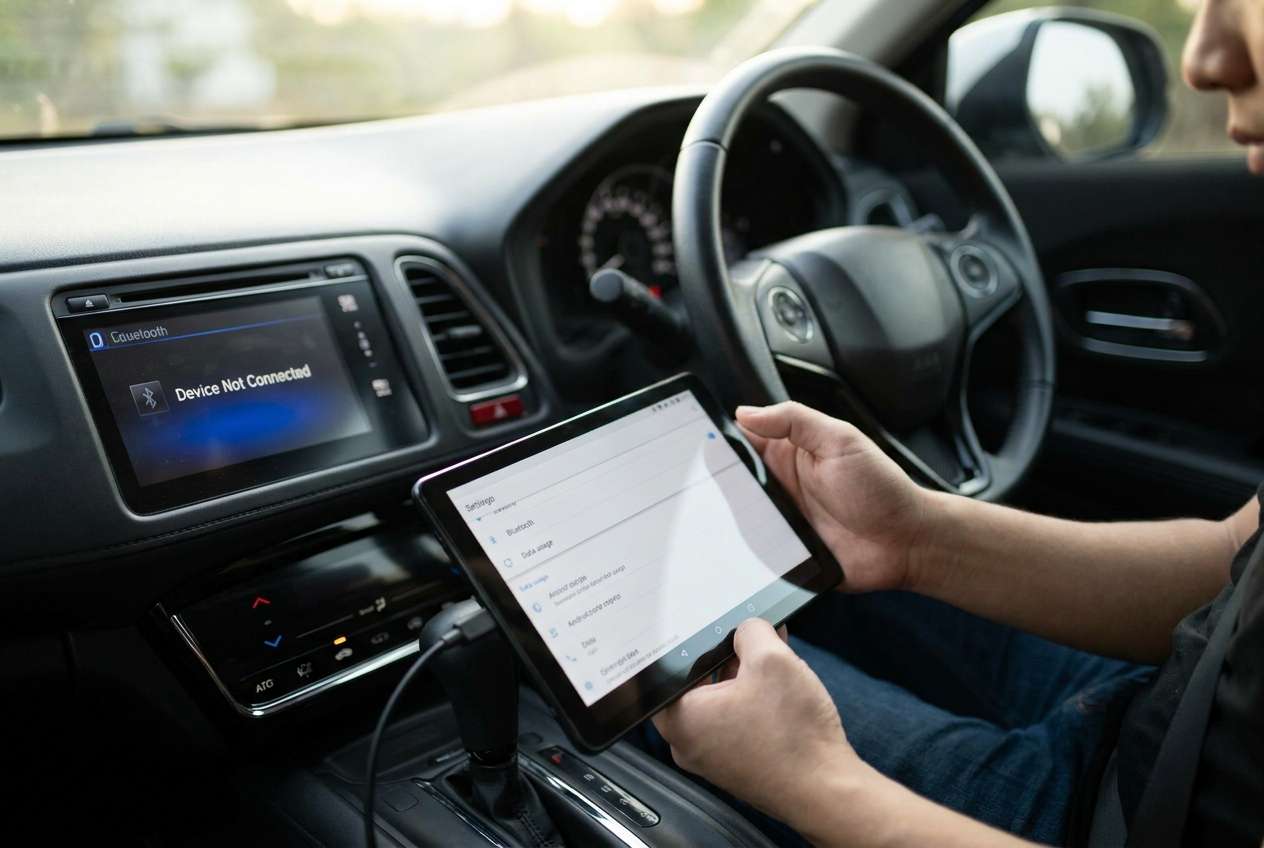
My car’s Bluetooth keeps failing with my Android tablet—pairing drops, audio won’t play, and it reconnects over and over. It started right after I turned on hotspot and accepted a pairing request.
Reddit user, r/AndroidAuto
Your Android tablet has data, but the car’s Bluetooth setup is unreliable—pairing fails, audio won’t play, calls sound wrong, or the head unit keeps reconnecting. This often happens right after you enable hotspot, accept a pairing request, or restart the tablet.
AI (like ChatGPT or Gemini) can help you describe symptoms clearly, narrow likely causes (profile mismatch, hotspot interference, permissions, head unit limits), and decide which checks are low-risk to try first.
AI can’t see your exact tablet/car state, and trial-and-error changes (network resets, developer options, firmware flashes) can create new problems or wipe saved connections—so it’s best to prompt for a diagnosis plan before touching settings.
In this article
- Part 1. Why Android tablet data and Bluetooth in-car setup issues happen
- What the symptoms usually mean
- Common hidden causes (profiles, permissions, hotspot)
- Before you prompt the AI: collect evidence
- What to test first vs what to avoid
- Part 2. Using AI prompts to diagnose safely
- Part 3. Prompt refinement: get a narrower answer
- Part 4. AI output vs reality: what to verify
- Part 5. Fix or resolve it safely with Dr.Fone
Part 1. Why android tablet data and bluetooth in car setup happens and what it means
1-1. Why it happens in real use
If you’re using a tablet such as a Samsung Galaxy Tab S8 or Lenovo Tab P11, it’s common to run data (SIM or hotspot) while also pairing Bluetooth for calls or media. Right after turning on hotspot or connecting to the car, the tablet may show “Connected” but audio doesn’t route to the car, or the head unit repeatedly drops the link.
1-2. What it usually means
What this usually means: the tablet and car are negotiating different Bluetooth “profiles” (A2DP media, HFP calls, PBAP contacts), or the car is rejecting a permission/codec combination. Sometimes the issue is not Bluetooth itself—Wi‑Fi/hotspot behavior, battery optimization, or an Android permission toggle can interrupt connection stability.
From the driver seat, it can feel like “nothing changes after several minutes,” and it’s unclear whether the tablet is still trying to connect, stuck on a stale pairing, or being blocked by a setting you can’t see.
1-3. Before you prompt the AI
Collect these details first so the AI can reason from evidence:
- Tablet brand/model and Android version
- Car make/model/year (or head unit model)
- What you were doing right before it started (enabled hotspot, accepted pairing, updated apps, rebooted)
- What works vs. fails (calls, music, contacts sync, steering wheel controls)
- Exact on-screen messages (tablet + head unit)
- Whether other phones work with the same car Bluetooth
Part 2. Using AI prompts to diagnose android tablet data and bluetooth in car setup safely
2-1. Level 1: Basic Prompt
My Android tablet has mobile data, but my car Bluetooth setup isn’t working reliably. After I [describe the last action], the tablet shows [connected/pairing failed/etc.], and the car shows [message]. Please list the most likely causes (top 5) and the lowest-risk checks I should try first without resetting everything.
2-2. Level 2: Advanced Prompt
Diagnose my “android tablet data and bluetooth in car setup” issue using a ranked approach.
Symptoms: [drops connection / no audio / calls only / media only / can’t pair]
Environment: [tablet model + Android version], [car/head unit model], hotspot on/off, Wi‑Fi on/off
Constraints: I want to avoid data loss and avoid resetting network settings unless necessary.
Task:
1) Rank likely causes from most to least probable.
2) For each cause, propose one low-risk test and what result would confirm/deny it.
3) Flag any steps that might erase pairings, wipe settings, or affect other devices.
2-3. Level 3: Evidence Prompt
Act like a diagnostic assistant. Use only the info I provide and ask clarifying questions when needed.
Tablet model: (e.g., Samsung Galaxy Tab S8)
Android version: (e.g., Android 13)
Car/head unit: (e.g., 2021 Toyota Corolla / aftermarket Sony XAV-AXxxxx)
Connection goal: (media audio / calls / both)
What changed right before it broke: (e.g., enabled hotspot, paired a new device, system update)
Tablet status text: (e.g., “Connected for calls”)
Car status text: (e.g., “Phone not responding”)
Bluetooth profiles available/toggled: (A2DP / HFP / PBAP if visible)
Hotspot/Wi‑Fi state: (hotspot on/off, Wi‑Fi on/off)
Battery optimization: (on/off for Bluetooth/system UI apps if known)
Other devices test: (e.g., my phone connects fine / another phone also fails)
Output format:
- Most likely cause (with reasoning tied to my evidence)
- 3 low-risk tests in order (each with expected outcome)
- “Do not do yet” list (anything risky or destructive)
Part 3. Prompt Refinement
If the first AI answer is too broad, narrow it with follow-ups:
What 3 questions do you need answered to decide between a car-side limit vs a tablet-side setting?
Separate causes into: Bluetooth profile mismatch, permissions/contacts, hotspot/Wi‑Fi interference, car head unit compatibility.
Rank the causes again assuming: other phones connect to the car normally, but this tablet fails.
What single piece of evidence (one setting screen or one status line) would most strongly confirm the top cause?
Give me a minimal-change test plan that avoids network reset, developer options, and factory reset.
Part 4. AI Output vs Reality
AI can suggest a plan, but real devices may behave differently across car models, Android builds, and head unit firmware.
| AI output (what it may say) | Reality check (what to verify) |
|---|---|
| “It’s likely a Bluetooth profile issue.” | Confirm whether calls work but media doesn’t (or the reverse), and whether “Connected for calls/audio” appears. |
| “Clear Bluetooth cache or reset connections.” | That can erase pairings; try non-destructive toggles/tests before wiping saved devices. |
| “Hotspot is interfering with connectivity.” | Check whether the issue only happens when hotspot is on, and whether Wi‑Fi scanning is enabled. |
| “Your car head unit may not support the codec/profile.” | Test with another device and note whether the head unit offers separate toggles for calls vs media. |
AI helps you choose the safest next check, but it can’t perform the on-device actions or confirm what your tablet UI shows in the moment—execution still depends on what you can reliably see and change.
Part 4-1. When to stop troubleshooting and avoid risks
Stop and reassess if you hit any of these signals:
- You’re about to use Network reset / Reset Wi‑Fi, mobile & Bluetooth without being sure it’s necessary.
- The head unit starts behaving worse (new errors, can’t pair any device, constant reboot loops).
- You’re changing Developer options / Bluetooth AVRCP version / codecs without a clear test-and-confirm plan.
- You need stable connectivity urgently (navigation/calls) and repeated experiments are creating distraction or inconsistent results.
Once you’ve used AI to narrow the most likely cause and pick a minimal test plan, the next step is executing those checks carefully—ideally with a clear view of the tablet’s screens so you don’t miss a toggle or permission prompt.
Part 5. Android tablet data and bluetooth in car setup: fix or resolve it safely with Dr.Fone
When your car Bluetooth and tablet data setup feels inconsistent, the fastest way to execute a careful diagnosis plan is often seeing the tablet’s exact prompts, profile toggles, and permission dialogs on a larger screen. Dr.Fone Basic - Screen Mirroring (feature: Mirror Android Screen to PC) helps you mirror your Android tablet to a PC so you can follow the AI’s checklist precisely, capture what changed, and avoid repeating risky resets just because a small in-car UI is easy to miss. You can reference the flow in Wondershare’s screen mirroring guide as you mirror and verify each setting step-by-step.
 Easily manage data through preview, delete, export, etc.
- Transfer all data between devices.
- Robust backup solutions for reliable data protection.
- Mirror screens to PC for meetings, teaching, and control.

Steps (execution with Dr.Fone):
-
Step 1 Open Screen Mirroring on your PC
Launch Dr.Fone Basic and choose Android screen mirroring so you can view the tablet UI clearly before changing any connectivity settings.

-
Step 2 Connect the tablet and follow the on-screen pairing method
Use the method shown in the mirroring flow, and avoid enabling unfamiliar debugging options unless you understand the security tradeoff.

-
Step 3 Replay the AI’s “lowest-risk tests” exactly
With the tablet mirrored, toggle only one variable at a time (e.g., media audio toggle, hotspot off/on, Bluetooth reconnect) so you can attribute any change to a single action.

-
Step 4 Capture evidence for a second AI pass
Take screenshots of Bluetooth device details, permission prompts, and connection status so the AI can re-rank causes based on what you actually observe.

-
Step 5 Confirm stability before driving
Validate calls and media while parked, since repeated pairing attempts and menu navigation are distracting and can produce inconsistent results mid-drive.




Conclusion
AI is best used here to translate your symptoms into a ranked list of likely causes and a low-risk test plan, while tools like Dr.Fone Basic screen mirroring help you execute those checks carefully by giving you a clear, reviewable view of the tablet’s on-screen evidence.
FAQ
-
Why does my tablet show “Bluetooth connected” but my car has no audio?
Often the connection is limited to a specific profile (calls vs media), or the car is connected but the audio output/route is not set to the head unit; AI can help you identify which profile evidence to check first. -
Can hotspot or Wi‑Fi affect car Bluetooth on an Android tablet?
Yes—some setups behave differently when hotspot is enabled or when Wi‑Fi scanning stays on; confirm with an A/B test (hotspot off vs on) before changing anything else. -
Will “Reset Wi‑Fi, mobile & Bluetooth” delete my saved pairings?
Typically yes; it can remove Bluetooth pairings and network settings, so treat it as a higher-risk step and only do it after lower-risk tests fail. -
What details should I give AI to diagnose my car Bluetooth problem faster?
Tablet model/Android version, car/head unit model, what changed right before the issue, what works vs fails (calls/media), and the exact status text on both devices. -
How does mirroring help with a Bluetooth diagnosis if Bluetooth isn’t working?
Mirroring doesn’t depend on car Bluetooth; it helps you see and document tablet settings, prompts, and toggles accurately so you can execute the AI’s test plan without missing key evidence.
 Add Wondershare Dr.Fone as a preferred source on Google





