 Effortlessly manage data through preview, delete, export, etc.

 100% Security Verified | No Subscription Required | No Malware

 :
: 
 ChatGPT
 Perplexity
 Gemini
 Claude
 Grok
Grok

I thought mirroring my phone to my laptop would be “plug and play,” but right before the meeting I got hit with unexpected permission pop-ups, audio issues, and notifications showing up on screen.
Reddit user, r/techsupport
Mirroring a phone to a PC for a demo or meeting sounds simple, but missing one step (permissions, audio routing, cable/driver readiness, or Do Not Disturb) can derail the session.
In this article
- How to plan mirroring for demos and meetings without missing critical steps
- Choose wired vs wireless for your environment
- Lock the sequence: connect, permissions, audio, and test
- Prevent “point of no return” privacy mistakes
- Rehearse quickly before the meeting starts
- What the AI needs to know
- Using AI prompts to build a safer workflow
- When to stop planning and start execution
- Execute the workflow safely with Dr.Fone
Part 1. How to Plan mirror phone to pc for demos and meetings Without Missing Critical Steps
You’re about to present an app, prototype, or walkthrough from your phone to a room display or a video call on your PC. You may not know whether you should go wired or wireless, whether audio needs to be shared, or which permissions will pop up mid-demo.
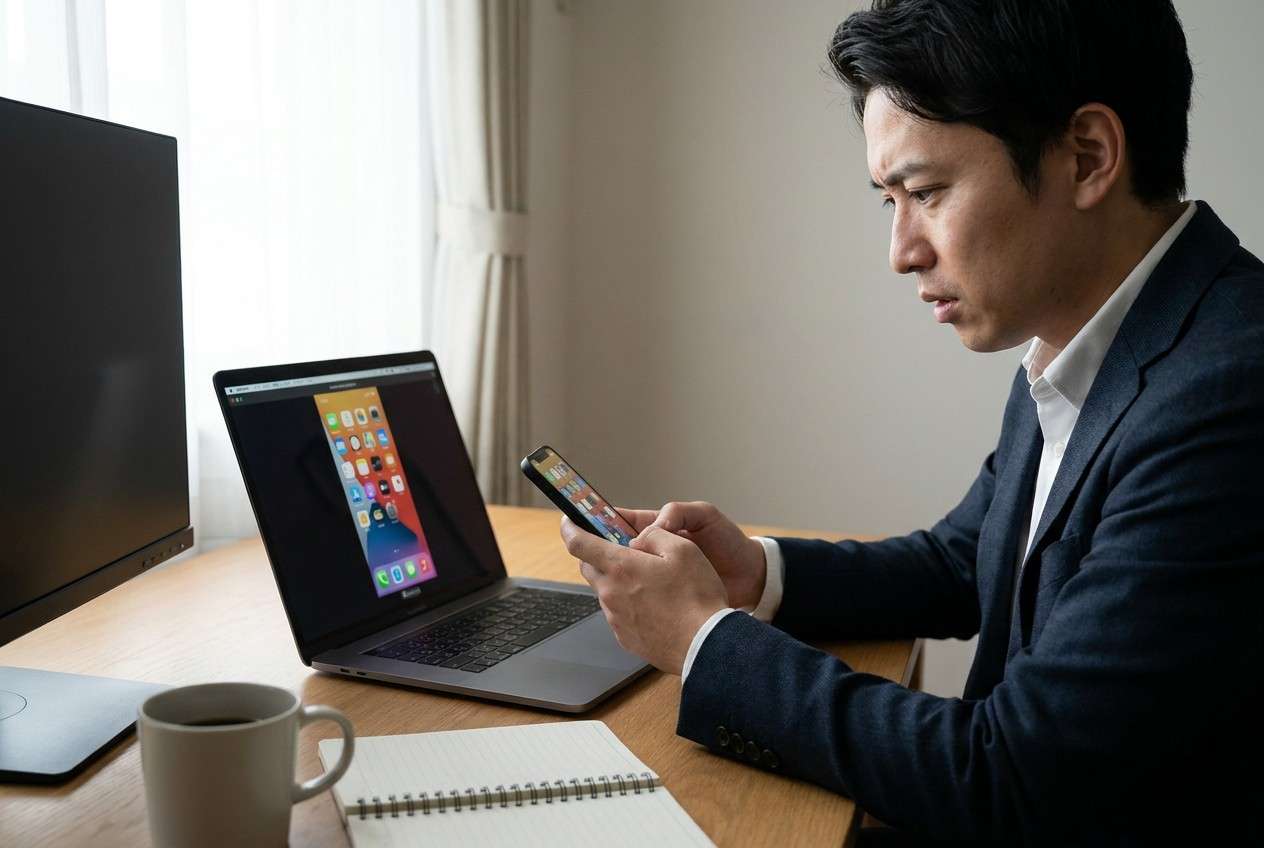
Even after getting an AI answer like “use a cable” or “enable casting,” the uncertainty is usually about sequence: when to connect, when to enable USB debugging (if needed), when to grant screen-capture permissions, and when to test audio and latency.
There’s also a concrete point of no return: if you start the demo and approve the wrong prompt (e.g., granting broad screen recording access or accidentally showing notifications), you can’t “undo” what the audience already saw—so verification must be complete before the meeting starts.
Part 2. What the AI Needs to Know
Share your setup details so the plan can be specific and testable.
- Phone OS and model (e.g., Android 14 / Pixel 7, or iOS 17 / iPhone 13)
- PC OS and hardware (Windows 11/macOS, single or dual monitors, GPU if relevant)
- Meeting context (in-person projector, Zoom/Teams/Meet screen share, recording on/off)
- Network constraints (corporate Wi‑Fi restrictions, guest Wi‑Fi, hotspot allowed or not)
- Preferred connection type (wired allowed? USB-C to USB-A? Lightning? adapters available?)
- Audio needs (phone audio to room speakers? PC mic only? avoid echo?)
- App sensitivity (notifications risk, confidential content, need to hide personal info)
- Latency tolerance (interactive demo vs passive viewing)
- Power constraints (battery level, charging allowed during mirroring)
- Any locked-down policies (MDM-managed phone, admin rights on PC)
Part 3. Using AI Prompts to Build a Safer mirror phone to pc for demos and meetings Workflow
Use the prompts below to make AI produce an ordered plan with checkpoints before you touch anything live.
3-1. Level 1: Basic Prompt
I need a step-by-step plan to mirror my phone to my PC for a live demo, with the fewest failure points. Ask me only the key questions you need, then give a short workflow with a pre-demo checklist and a quick test plan.
3-2. Level 2: Advanced Prompt
Design a mirroring workflow for a phone-to-PC demo with three phases: Preparation, Execution, and Verification.
In each phase, mark items as critical vs optional, include a fallback path (wired vs wireless), and list the most likely failure points with the fastest fix for each.
3-3. Level 3: Evidence Prompt
Create a “no-surprises” mirroring plan for my setup: Phone (Android 14, Pixel 7), PC (Windows 11 laptop), meeting app (Teams), audience (in-person + screen share), network (corporate Wi‑Fi may block casting).
Include: checks before connecting, checks during first connection (permissions/prompts), and checks after mirroring is live (audio, latency, resolution, notification privacy).
Provide a 5-minute rehearsal script and a stop/go gate before the meeting starts.
3-4. Prompt Refinement
Output the workflow as a table with columns: Step, Goal, What I should see, If not, do this, Risk if skipped.
Separate “privacy hardening” from “connectivity,” and include a Do Not Cross section listing actions I must not take once the meeting has started.
Ask me to confirm exactly where the audience will see content (projector, Teams share, recording) and then tailor the verification steps to that path only.
Include a minimal fallback that works with no Wi‑Fi and no admin rights on the PC, and specify what I must test the day before.
3-5. AI Plan vs. Real Device Constraints
| Planning item | AI can help with | Real-world constraint | What you must verify on devices |
|---|---|---|---|
| Connection choice (wired/wireless) | Compare tradeoffs and propose fallback | Ports, adapters, policies vary | Cable/adapter works; casting not blocked |
| Permission/notification risk | Identify risky prompts and privacy steps | Prompts differ by OS/app versions | Exact prompts shown; DND + notification settings |
| Audio routing | Suggest echo-safe setup | PC/meeting app routing is finicky | Audience hears correct source; no feedback |
| Stability rehearsal | Provide a test script | Network/driver issues are situational | 5–10 min sustained mirror without drops |
AI improves planning and reduces avoidable mistakes, but it cannot connect devices, approve prompts, or prove stability—only real testing can.
Part 4. When to Stop Planning mirror phone to pc for demos and meetings and Start Execution
- You have one primary path (wired or wireless) and one fallback, and you know exactly when to switch.
- You’ve listed every on-screen permission/prompt you expect and how you’ll respond to each.
- You’ve defined what “success” looks like (video, audio, latency, privacy) and how you’ll verify it in under 2 minutes.
- You’ve identified the irreversible moment: starting the meeting/recording or showing the phone screen to the audience before privacy checks are complete.
If those are true, planning is done and the remaining risk is only in real-device execution.
Part 5. Mirror phone to pc for demos and meetings: Execute the Workflow Safely with Dr.Fone
Execution now matters because mirroring fails most often on first contact: cables, permissions, audio routing, and “what the audience can see” are only confirmable live. If you want a practical way to run the mirroring portion of the plan, Dr.Fone Basic - Screen Mirroring can help you move from checklist to real output on your PC.
 Easily manage data through preview, delete, export, etc.
- Transfer all data between devices.
- Robust backup solutions for reliable data protection.
- Mirror screens to PC for meetings, teaching, and control.

-
Step 1 Prep the environment and privacy
Set Do Not Disturb, close sensitive apps/tabs, confirm what will be visible (phone screen, PC screen share, recording), then open only the demo content.
Limitation: AI can’t confirm your notification settings, your recent apps, or what your meeting software will capture.

-
Step 2 Start mirroring from your PC
Open Dr.Fone on your PC and initiate phone-to-PC mirroring, keeping your primary path and fallback path in mind (for example, switching methods if the first option fails).
Limitation: AI cannot perform the connection, handle drivers/OS prompts, or guarantee compatibility across every device/OS combination.

-
Step 3 Connect the phone and handle on-device prompts carefully
Follow the on-device prompts for screen capture/mirroring permissions carefully, and stop immediately if you see unexpected permission scopes or the wrong screen appears.
Limitation: AI can’t access your devices, approve permissions, install drivers, or verify that the PC actually receives stable video/audio.

-
Step 4 Verify live output before the audience sees it
Confirm the mirrored image is stable (no drops), readable (resolution/scale), and privacy-safe (no banners), then do a 60–120 second rehearsal including audio if needed.
Limitation: AI can’t observe latency, frame drops, or whether Teams/Zoom is sharing the intended window/source.




Conclusion
Use AI to design a tight workflow with checkpoints and a clear stop/go gate, then use Dr.Fone to perform the actual mirroring and validate stability and privacy on real devices before the demo starts.
FAQ
-
What’s the biggest risk when mirroring for a meeting?
Accidentally showing notifications or sensitive content, or discovering audio/latency problems after the audience can already see the screen. -
What’s the “point of no return” I should avoid until verification is done?
Starting the meeting share/recording or turning to face the room display before you’ve confirmed the mirrored output and privacy settings. -
Should I choose wired or wireless mirroring for demos?
Wired is usually more stable and predictable; wireless is more flexible but more sensitive to network restrictions and latency. Plan both and decide based on your environment. -
How do I prevent audio echo during a demo?
Use one audio path only (either phone audio routed to PC/room or keep phone audio local), and rehearse with the exact meeting setup you’ll use. -
Can AI tell me exactly which permission prompts will appear on my phone?
No—prompts vary by OS version, device, and app. AI can list common prompts and risks, but you must verify on the device.
 Add Wondershare Dr.Fone as a preferred source on Google





