 Effortlessly manage data through preview, delete, export, etc.

 100% Security Verified | No Subscription Required | No Malware

 :
: 
 ChatGPT
 Perplexity
 Gemini
 Claude
 Grok
Grok

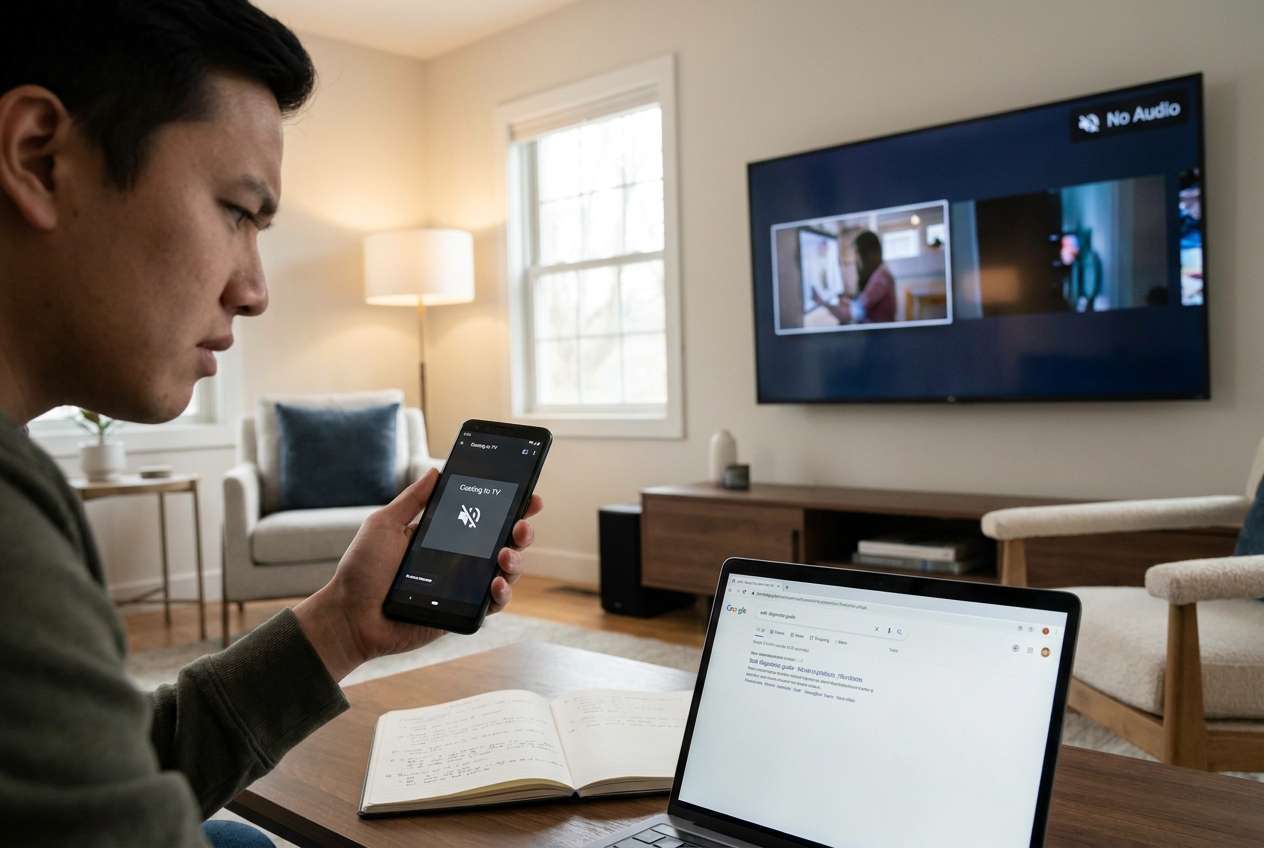
I can cast my Android screen but there’s no sound. Video is fine, but audio won’t play.
Forum user
Casting your Android screen with no sound is usually a workflow problem, not a single-toggle problem—and missing one step can send you in circles or make you “fix” the wrong device.
AI is useful here because it can map a clean sequence (phone → cast method → receiver → app audio rules) and tell you what to verify before you change anything.
AI can’t access your phone, your TV/PC settings, or confirm what your devices are actually doing in real time, so the execution still needs real tools and on-device checks.
In this article
- How to plan “Android screen cast has no sound” without missing critical steps
- Identify the cast type first
- Check routing vs receiver audio path
- Isolate “all apps” vs “specific app”
- Avoid irreversible changes too early
- What the AI needs to know
- Using AI prompts to build a safer workflow
- AI plan vs. real device constraints
- When to stop planning and start execution
Part 1. How to Plan android screen cast has no sound Without Missing Critical Steps
You’re casting from an Android phone to a TV, Chromecast, smart display, or a PC receiver, and the picture is fine—but there’s no audio. Sometimes the volume slider moves but nothing plays; sometimes only certain apps are silent (Netflix/YouTube/Zoom), and sometimes the TV plays sound from its own apps but not from the cast.
After searching, you get conflicting advice: “turn up media volume,” “disable Bluetooth,” “use Smart View,” “use HDMI,” “change codec,” “toggle Do Not Disturb,” etc. The uncertainty is usually about sequence: which device to check first, what “cast type” you’re using, and how to isolate whether audio is blocked at the phone, the transport, or the receiver.
One concrete point-of-no-return moment: a factory reset on the TV/Chromecast, or clearing data/uninstalling the casting app without first recording your current settings and reproducing the issue in a controlled test—because you can lose logins, pairing, and configuration with no guarantee it fixes audio.
Part 2. What the AI Needs to Know
Answer these so the AI can build a precise, low-risk checklist instead of generic tips:
- Your casting method (Google Cast from an app / “Cast screen” / Miracast / Samsung Smart View / USB-C to HDMI / third-party receiver app on PC)
- Sender phone model + Android version (e.g., Galaxy S23 on Android 14)
- Receiver device type (Chromecast, Android TV, Roku, Fire TV, smart TV brand/model, Windows PC app, Mac receiver)
- Where audio is missing (all apps vs only specific apps; system sounds vs media vs call audio)
- Whether the receiver plays other audio normally (TV apps, other devices via HDMI, etc.)
- Current audio routing on phone (Bluetooth earbuds connected, hearing aid mode, USB DAC, “Media output” target)
- Network setup (same Wi‑Fi SSID? guest network? VPN on phone?)
- Any recent changes (OS update, new router, new soundbar, new Bluetooth device)
- Whether you use a soundbar/AVR (ARC/eARC, HDMI-CEC, optical) and its input mode
- Your constraints (can you use a cable temporarily? can you test another receiver?)
Part 3. Using AI Prompts to Build a Safer android screen cast has no sound Workflow
Use the prompts below to force a clear sequence and verification gates before you touch anything irreversible.
3-1. Level 1: Basic Prompt
I can cast my Android screen but there’s no sound. Build a step-by-step troubleshooting plan that starts with non-destructive checks and isolates whether the problem is on the phone, the casting method, or the receiving device. Include what I should observe at each step before moving on.
3-2. Level 2: Advanced Prompt
Create a structured workflow for “Android screen cast has no sound” with three sections: Preparation, Execution, and Verification.
In each section, mark steps as critical vs optional, and include decision points (if X happens, do Y; if not, do Z). Avoid factory resets and app data wipes unless you add a clear “stop and confirm” gate first.
3-3. Level 3: Evidence Prompt
I’m using (Galaxy S22, Android 14) casting to (Chromecast with Google TV) over (home Wi‑Fi 5 GHz). Video casts fine, but no audio from any app, and TV volume works for TV apps. Bluetooth is (off), VPN is (off), and the TV uses a (soundbar over ARC).
Build a checklist with checks before, checks during, and checks after, and tell me exactly what to record (e.g., “Media output shows (TV name)”, “phone media volume at (70%)”, “TV input set to (HDMI 1)”, “soundbar input shows (TV ARC)”). Also list the top 5 most likely causes given this setup and how to confirm each without resetting anything.
3-4. Prompt Refinement
Give me a flowchart-style sequence with only yes/no questions that leads to one of 4 root causes: phone routing, cast method limitation, receiver audio path, app/content restriction.
Separate “no sound in YouTube only” vs “no sound in all apps” and tell me which steps differ and why.
Add a “stop before irreversible changes” section listing actions like clearing app data, unpairing devices, factory reset—plus what evidence I must collect first.
Provide a minimal test protocol using two apps (e.g., YouTube + a local video file player) and one alternate receiver (e.g., Bluetooth speaker or wired headset) to triangulate the audio path.
Part 4. AI Plan vs. Real Device Constraints
| Planning item (AI) | What AI can do | Real-world constraint | What you must verify on-device |
|---|---|---|---|
| Identify cast type and likely audio behavior | Map typical behavior per method | Your device may label options differently | Exact cast option name you used (“Cast screen” vs “Cast”) |
| Build a non-destructive test sequence | Order steps to reduce backtracking | Some menus are brand/OS-specific | Where “Media output” and volume routing actually point |
| Propose receiver-side audio checks | Suggest ARC/CEC/input checks | Soundbar/TV firmware varies | Current TV input + soundbar input + ARC/eARC state |
| Define “stop” gates before risky actions | Highlight irreversible moments | You may be tempted to reset quickly | Evidence captured (screenshots/settings) before changes |
AI improves planning, but cannot execute: it can’t see your menus, confirm which device is selected for audio, or test playback. Treat the plan as a controlled script you follow on real hardware.
Part 5. When to Stop Planning android screen cast has no sound and Start Execution
- You can name the exact cast method and receiver, and reproduce the issue on demand.
- You have a quick baseline test ready (one known-good app + one alternate audio output).
- You’ve written down current audio routing and receiver audio path (TV input, soundbar mode, ARC/eARC).
- You’ve defined a “no reset yet” rule until verification evidence is collected.
Once those are true, you’re no longer guessing—you’re ready to run the workflow in a controlled way.
Product recommendation: Android screen cast has no sound—Execute the workflow safely
Execution now matters because the fix depends on what your devices actually do when you change routing, permissions, or connection mode—and you need repeatable tests after each change. If you want a dedicated execution layer to help you mirror, manage, and retest in a repeatable way, start with Dr.Fone Basic - Screen Mirroring.
 Easily manage data through preview, delete, export, etc.
- Transfer all data between devices.
- Robust backup solutions for reliable data protection.
- Mirror screens to PC for meetings, teaching, and control.

-
Step 1 Establish a controlled baseline test
Run a 60-second test using one consistent media source and confirm phone media volume, receiver volume, and the current “media output” target before changing anything.

Limitation: AI cannot confirm what your phone/TV is outputting; you must observe the actual routing and sound behavior.
-
Step 2 Re-initiate the session in a repeatable way
Start a fresh mirroring/casting session so you can compare “before vs after” outcomes consistently across tests.

Limitation: Menu names and connection flows vary by phone/receiver; use the exact option name you selected and keep it consistent for each retest.
-
Step 3 Apply one change at a time and retest immediately
Perform only one device-side change per test cycle (routing, connection mode, re-connecting the receiver, etc.), then rerun the same 60-second baseline test so you can attribute the result.

Limitation: Tools can help you execute actions, but they can’t decide which change is safest without the verification signals you collect.
-
Step 4 Verify end-state and lock in the working configuration
After audio returns, retest with a second app and document the final working setup (cast method, receiver, audio path) so it’s easier to recover after updates or reconnections.

Limitation: AI can suggest what to document, but only you can confirm stability across apps/devices in your environment.




Conclusion
Use AI to build a strict sequence with verification gates and a “no irreversible changes yet” rule; then use real tools like Dr.Fone to carry out the device-side execution and confirm the fix with repeatable tests.
FAQ
-
Why do I get video but no sound when casting my Android screen?
Because audio can be routed separately from video (phone output target, Bluetooth routing, receiver input/ARC path), and some cast methods or apps handle audio differently. -
How do I tell if it’s an app restriction (DRM) vs a device setting?
If YouTube/system sounds work but a specific streaming app is silent, suspect app/content restrictions or protected playback rules; if everything is silent, suspect routing or receiver audio path. -
What should I verify before clearing app data or factory resetting anything?
Repro steps, cast method name, phone “media output” target, Bluetooth status, receiver input/soundbar mode, and results from at least two different apps. -
When should I test with a cable or alternate receiver?
Early—if you can. A wired headset/Bluetooth speaker test confirms the phone can produce audio; an alternate receiver (another TV/speaker) isolates whether the receiver chain is the problem. -
Can AI tell me the exact toggle to change on my device?
Not reliably. Menu names and behaviors vary by Android version, manufacturer skin, and receiver firmware—AI can only provide a structured search and verification plan.
 Add Wondershare Dr.Fone as a preferred source on Google





