 Effortlessly manage data through preview, delete, export, etc.

 100% Security Verified | No Subscription Required | No Malware

 :
: 
 ChatGPT
 Perplexity
 Gemini
 Claude
 Grok
Grok

I can mirror my iPhone to the TV, but the audio is either delayed, dropping out, or sometimes it plays from the phone instead of the TV. I feel like every “fix” I try makes something else worse.
Reddit user, r/appleTV
Mirroring an iPhone to a TV is easy to start—but it’s also easy to miss one small setting that causes audio delay, dropouts, or silent playback.
AI can help you map the right sequence (network → devices → audio route → mirroring method) so you don’t troubleshoot randomly or change the wrong thing first.
AI can’t actually test your Wi‑Fi, confirm TV audio handshakes, or run device actions—so once the plan is verified, you’ll still need real tools and your devices to execute safely.
In this article
- How to plan without missing critical steps
- Why “random troubleshooting” fails
- Verify order: network → devices → audio route → method
- What not to reset too early
- What “done” looks like before execution
- What the AI needs to know
- Using AI prompts to build a safer workflow
- When to stop planning and start execution
- Execute the workflow safely with Dr.Fone
Part 1. How to Plan mirror iphone to tv with stable audio Without Missing Critical Steps
You’re trying to mirror for a call, a class, a workout, or a movie—and the picture shows up, but the audio stutters, lags behind, or plays from the wrong device (TV vs. phone vs. soundbar). You get conflicting advice: “use AirPlay,” “use HDMI,” “change audio output,” “reset everything.”
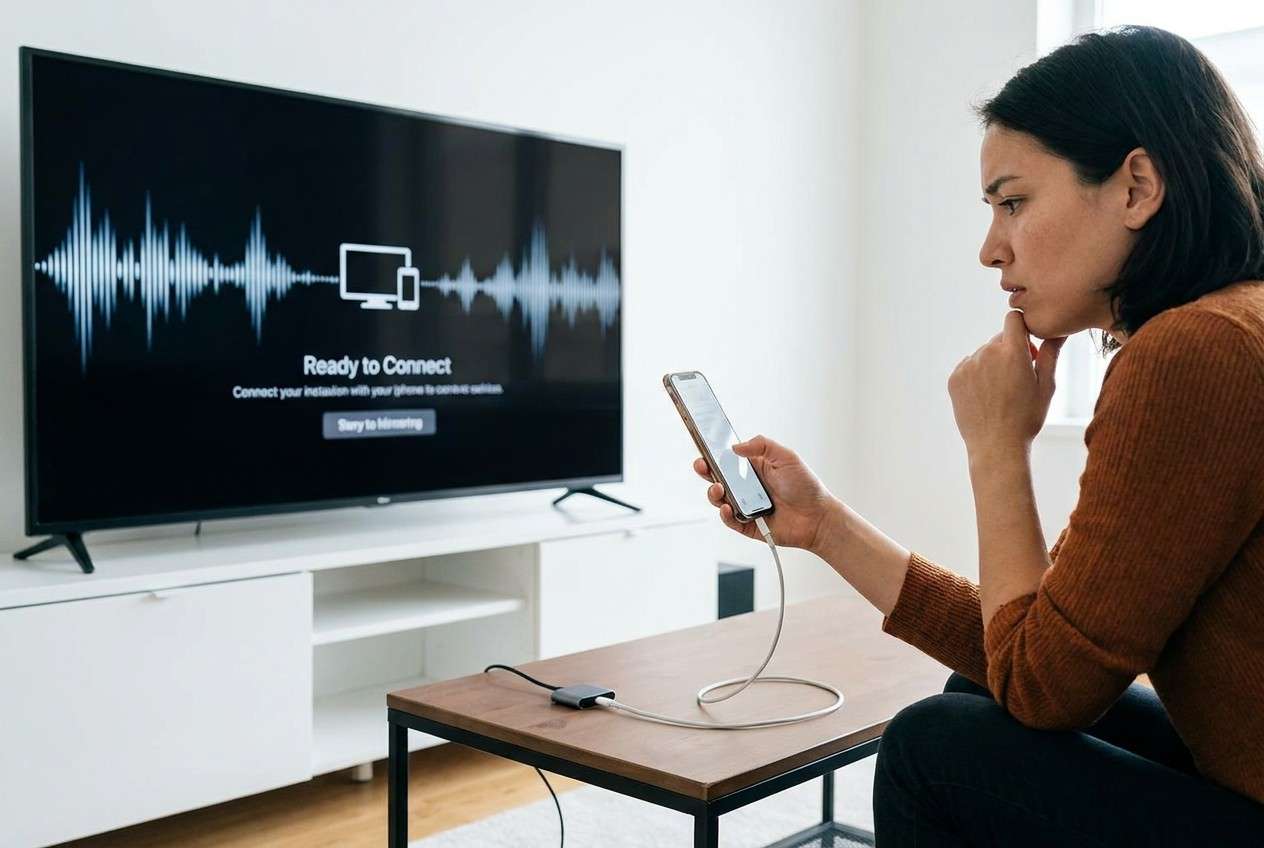
The uncertainty usually isn’t what to do—it’s when to do it and how to verify each step worked before moving on. Without a clear sequence, you can waste time toggling settings that don’t apply to your setup.
There’s also a concrete point-of-no-return moment people jump to too early: factory-resetting the TV/Apple TV, or erasing network profiles / settings on the iPhone. Don’t reach those until you’ve verified the simpler causes (Wi‑Fi band, output device, HDMI path, TV audio mode, and app-specific behavior).
Part 2. What the AI Needs to Know
Share your setup details so the workflow can be sequenced correctly and validated step-by-step.
- iPhone model and iOS version
- TV brand/model and year (and whether it supports AirPlay 2)
- How you’re mirroring: AirPlay to Apple TV, AirPlay to smart TV, HDMI adapter, or third‑party receiver
- Current audio path: TV speakers, soundbar, AVR (ARC/eARC), Bluetooth headphones, HomePod, etc.
- Network details: router model (if known), 2.4 GHz vs 5 GHz, distance, and whether other devices stream fine
- What “unstable audio” means for you: lag, dropouts, silence, distorted sound, or audio coming from the wrong device
- Whether the issue happens in all apps or only specific apps (YouTube, Photos, Netflix, Zoom, etc.)
- Any “last changes” before it started (iOS update, new router, new soundbar, new HDMI cable)
Part 3. Using AI Prompts to Build a Safer mirror iphone to tv with stable audio Workflow
Use the prompts below to make the AI produce a verification-driven sequence (not a pile of tips).
3-1. Level 1: Basic Prompt
I need a step-by-step plan to mirror my iPhone to my TV with stable audio.
Ask me only the minimum questions needed, then give a sequence with quick checks after each step so I can stop when it’s fixed.
3-2. Level 2: Advanced Prompt
Build me a structured workflow to mirror iPhone to TV with stable audio using my setup.
Separate it into Preparation, Execution, and Verification, and label steps as Critical vs Optional.
Include “stop conditions” (what result proves the step worked) and a short rollback note if a step makes things worse.
3-3. Level 3: Evidence Prompt
Here’s my context: iPhone (iPhone 13, iOS 17.5), TV (LG CX), audio (soundbar via eARC), mirroring method (AirPlay to Apple TV 4K), Wi‑Fi (5 GHz, same SSID, router in next room).
Problem: audio drops out every 20–30 seconds and sometimes plays on the iPhone instead of the TV.
Create a plan with checks before mirroring (network/audio routing), checks during mirroring (latency/dropout isolation), and checks after changes (confirm what output device is active).
Include a “do not do yet” list (e.g., factory reset, erase settings) until prerequisites are verified.
3-4. Prompt Refinement
Give me a decision tree with if/then branches for: AirPlay to Apple TV vs AirPlay to TV vs HDMI adapter, and include the specific verification signal for each branch.
List the top 5 causes of unstable audio in my setup, then map each cause to one test and one fix, in that order.
Write the workflow so each step ends with a measurable check (e.g., “play a 60‑second clip; confirm zero dropouts and audio stays on TV/soundbar”).
Identify any steps that change settings permanently (or are hard to undo), and move them to the very end with a “final confirmation” checklist.
Ask me exactly 7 questions max, prioritized, and explain briefly how each answer changes the plan.
3-5. AI Plan vs. Real Device Constraints
| Planning element | What AI can do | What real devices/tools must do |
|---|---|---|
| Choose the correct mirroring path | Infer best method from your hardware and goals | Actually initiate AirPlay/HDMI and observe real behavior |
| Reduce audio dropouts | Suggest likely causes and test order | Validate Wi‑Fi interference, router behavior, and TV/soundbar handshakes |
| Prevent risky “reset everything” moves | Put irreversible steps behind verification gates | Confirm whether resets are necessary and acceptable for your environment |
| Create pass/fail checks | Define quick tests and success criteria | Run the tests and confirm results in your room, on your network |
AI improves planning and sequencing, but it cannot execute the mirroring, measure latency, or confirm which device is truly outputting audio in real time.
Part 4. When to Stop Planning mirror iphone to tv with stable audio and Start Execution
- You’ve identified your exact mirroring method (AirPlay to Apple TV, AirPlay to TV, or HDMI) and your audio output path (TV speakers vs ARC/eARC soundbar vs AVR).
- You have a short list of critical checks to run first (Wi‑Fi band, Bluetooth off, correct audio output selected, cables/ports if HDMI).
- You have defined pass/fail verification (e.g., a 60–120 second playback test with zero dropouts and correct audio destination).
- You have explicitly deferred “point of no return” actions (factory reset TV/Apple TV, erase iPhone, wipe network settings) until all prior checks fail.
If those are true, you’re no longer missing clarity—you’re ready to run the workflow and collect results.
Part 5. Mirror iphone to tv with stable audio: Execute the Workflow Safely with Dr.Fone
If you’re ready to execute (not just plan), Dr.Fone Basic - Screen Mirroring can help on the iPhone-side of the workflow—especially when stability issues may involve OS glitches, corrupted settings, or background conflicts that planning alone can’t confirm.
 Easily manage data through preview, delete, export, etc.
- Transfer all data between devices.
- Robust backup solutions for reliable data protection.
- Mirror screens to PC for meetings, teaching, and control.

Execution matters because you still need consistent, real-world verification: the same test clip, the same app, and the same duration, so you can tell whether a single change improved dropouts/lag or made routing worse.
-
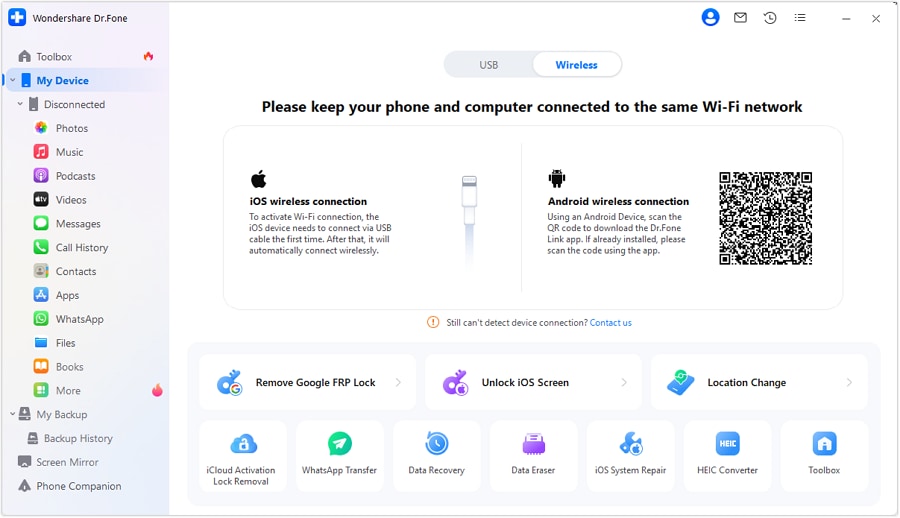
Step 1 Connect your iPhone to Dr.Fone and keep your baseline stable
Before deeper changes, connect your device so you can proceed with iPhone-side actions more safely (for example, creating a backup before risky resets or maintenance steps).
-
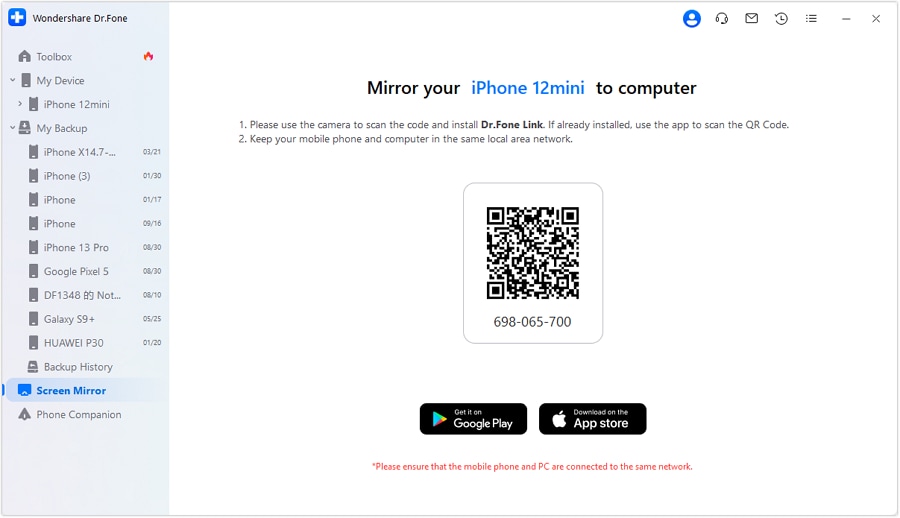
Step 2 Open Screen Mirroring and prepare to mirror
Start the screen mirroring feature so you can run your planned test (same clip/app) and observe whether audio stays on the TV/soundbar without dropouts.
-
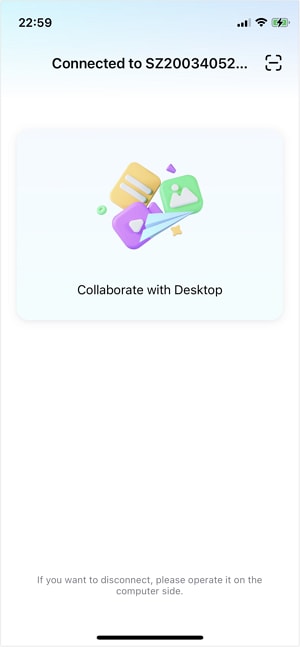
Step 3 Pair your iPhone and begin mirroring
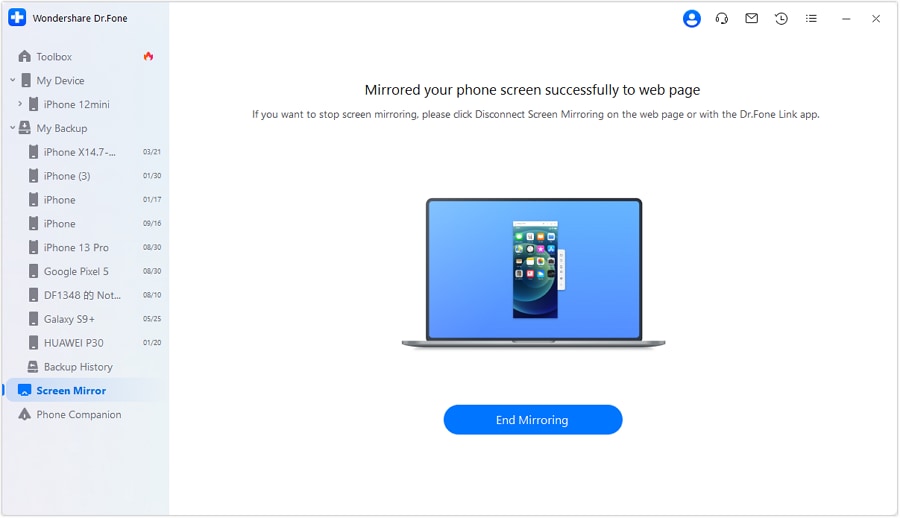
Follow the on-screen pairing flow, then start mirroring. As soon as mirroring begins, run your measurable check (for example, a 60–120 second playback test).
-
Step 4 Re-test and stop before irreversible actions
Re-run the exact same test after each change (one variable at a time). Only consider “point of no return” actions (like factory resets or erasing settings) after all prior verification gates fail.




Conclusion
Use AI to design a verification-first sequence and postpone irreversible moves; then use real tools and your devices to execute—Dr.Fone can handle iPhone-side execution steps after the plan is clear, while you validate stability with consistent, measurable tests.
FAQ
-
What’s the fastest way to isolate whether the problem is iPhone, network, or TV/audio gear?
Use one controlled test: same short clip, same app, same volume, same distance to router—then change only one variable (e.g., switch from soundbar to TV speakers) and re-test.
-
Why does audio sometimes play from the iPhone instead of the TV?
Because the audio output route may still be set to the iPhone (or Bluetooth), or the TV/receiver handshake briefly fails and iOS falls back to local output.
-
When is “Reset Network Settings” too risky?
It’s risky when you don’t have Wi‑Fi credentials or managed/VPN profiles handy; it’s not a first step. Put it behind simpler verification (Wi‑Fi band, Bluetooth off, reboot order, output selection).
-
Do I need HDMI to get stable audio?
Not always. HDMI can reduce wireless variability, but it introduces its own failure points (adapter quality, HDMI port, ARC/eARC modes). Choose it based on your gear and your test results.
-
Can AI tell me the exact setting that will fix it?
AI can propose the most likely setting and the order to test, but it can’t confirm your environment’s interference, firmware behavior, or audio handshakes without your real-world test results.
 Add Wondershare Dr.Fone as a preferred source on Google





