 Recover photos, messages, WhatsApp, and more — no backup
needed.


 100% Security Verified | No Subscription Required | No Malware


 :

 ChatGPT
 Perplexity
 Gemini
 Claude
 Grok
The computer problem has returned, and the Kik conversation explaining the fix is gone. You remember an error screenshot and several suggestions, but not which change actually worked. If you deleted that exchange on your Xiaomi 15 Pro, repeating every remembered suggestion can waste time or change a working setting unnecessarily.
Dr.Fone - Data Recovery (Android) provides a way to look for the actual diagnostic exchange without an earlier chat backup. When you need to recover deleted Kik messages on Xiaomi 15 Pro, its Windows-only Advanced Recovery mode can scan supported Kik app data, preview the available messages and attachments, and save selected results to a PC. Read the original problem, attempted fix and follow-up together before deciding what information is relevant now.
In this article
Before you start
Use the Xiaomi 15 Pro configuration that is listed
The confirmed Xiaomi 15 Pro entry specifies Android 15 and Kernel 6.6.77. Preserve both conditions; do not substitute another Xiaomi model's unrestricted-Android record or assume that a different operating-system version has the same support. Compare the phone's actual software information and ask Dr.Fone support about any mismatch before making changes.
Protect the existing Kik installation
Keep the original Xiaomi 15 Pro signed in with Kik installed. Logging out, uninstalling or clearing Kik storage can remove local messages and is not a recovery step. Avoid phone-cleanup experiments and unnecessary downloads while looking for the missing exchange. Kik does not offer a built-in chat cloud restoration that makes such changes harmless.
Prepare Windows access without improvising Root steps
Use a Windows computer, a reliable USB data cable and a folder for recovered results. Follow the product's connection and access prompts. Do not unlock the bootloader, flash firmware or reset the phone to pursue this guide; the precise Root mechanism and its data-loss implications are not established here. Recovery depends on available scan results and saves selected data to the PC, not back into Kik.
Separate recovering advice from applying it
Note a distinctive error phrase, the helper's name and whether you need text, a screenshot or both. Recovering an old instruction does not verify that it is suitable for the current computer problem. First preserve and read the exchange; assess any proposed technical action separately with an appropriate reliable source.
Check retained diagnostic material before a Kik recovery scan
Find an existing error screenshot or troubleshooting record without altering the phone that may still hold deleted Kik data.
Step 1 Compare surviving records with the symptom you remember
Read any relevant Kik text still present and inspect screenshots or notes you previously saved elsewhere. Check the actual error wording and the surrounding explanation. A screenshot of an error records the problem; it does not, by itself, record the solution.
Step 2 Ask the helper for the retained exchange and follow-up
If the other person still has the conversation, ask for the relevant messages including your response after trying a suggestion. Distinguish an original retained message from a new recommendation they make today. You do not need to reproduce the problem or execute old commands just to identify the missing information.
- Saved files and participant copies are retained-data checks, not restoration of the deleted Kik conversation on your phone.
- If the needed advice is absent, use the app-data scan below rather than clearing storage, reinstalling Kik or treating a generic Android backup as a known chat backup.
Which part of the troubleshooting exchange did you find?
| Available record | Useful information | Interpretation before reuse |
|---|---|---|
| Error text or a screenshot | The symptom discussed at the time | Match the full wording rather than only a familiar code fragment. |
| A proposed setting change | What someone suggested trying | A suggestion is not proof that you tried it or that it solved the problem. |
| Your report after an attempted change | The outcome you actually described | Read whether the symptom disappeared, changed or remained. |
| A later correction or reversal | Why earlier advice was changed | Do not reuse an earlier suggestion while omitting its available correction. |
Common problems and fixes
The preview finds several possible fixes but no clear outcome
Save the relevant proposals with their available context and look for the response after each one. If the confirming follow-up is not found, treat the result as recovered advice rather than a verified successful fix. Do not run every suggestion merely because it appears in the preview.
An error screenshot is readable, but the code in the text looks incomplete
Read each source as it is actually presented. Inspect available Kik Attachments for the full screenshot and compare it with the conversation. Preserve both if useful; do not fill in missing characters from memory or assume two similar codes represent the same fault.
Advanced Recovery is unavailable for the connected Xiaomi 15 Pro
Confirm that you are using Windows and compare the actual phone information with Android 15 and Kernel 6.6.77 in the listed entry. Follow displayed detection instructions and provide any mismatch to Dr.Fone support. Do not downgrade, flash or reset the phone to force the recovery option to appear.
How to use Dr.Fone - Data Recovery (Android)
Dr.Fone - Data Recovery (Android) gives supported Xiaomi 15 Pro users a focused way to look for a deleted Kik diagnostic exchange. Its Windows-only Advanced Recovery mode scans Kik app data without requiring an earlier backup, previews the conversations found and lets you check Kik Attachments when attachment results exist. Saving selected records to a PC makes it easier to consult the error, proposed action and recorded outcome together, instead of relying on an isolated remembered instruction.
- App-focused scanning looks for available Kik messages beyond a separately saved screenshot of the original error.
- Conversation preview helps identify the distinction between a suggested action, an attempted action and a reported result.
- Selective PC recovery keeps the useful exchange and available images together as reference material without saving every unrelated conversation.
 Scan Android phones and tablets directly.
- Preview and recover only what you want.
- Supports WhatsApp, photos, videos, contacts, and more.
- Works with 6000+ Android devices.

Follow the official Advanced Recovery workflow
Step 1 Open the Android Advanced Recovery workflow
Launch Dr.Fone on Windows and navigate to Toolbox > Data Recovery. Select Android > Recover Android Data, choose Advanced Recovery and click Start Scan. Connect the Xiaomi 15 Pro using a USB cable when prompted and follow the instructions until it is detected.

Step 2 Select Kik for the app-data scan
Choose Kik from the available categories and click Start Scan. If you need WhatsApp or WhatsApp Business data as well, run either of those separately from Kik and the other categories according to the official selection rule.

Step 3 Wait with the Xiaomi 15 Pro connected
Let the scan continue while the device remains connected. If you need to end scanning, click Cancel before removing the USB cable. If the phone is temporarily unresponsive after scanning or recovery, restart it as instructed on the screen.

Step 4 Preview the diagnostic conversation and available screenshots
Choose Kik in the results sidebar to read the conversations found. Look for the error description and available responses about what happened next, using search or filters where available. Open Kik Attachments separately when attachment results are present, review relevant images and select the records you want to recover.
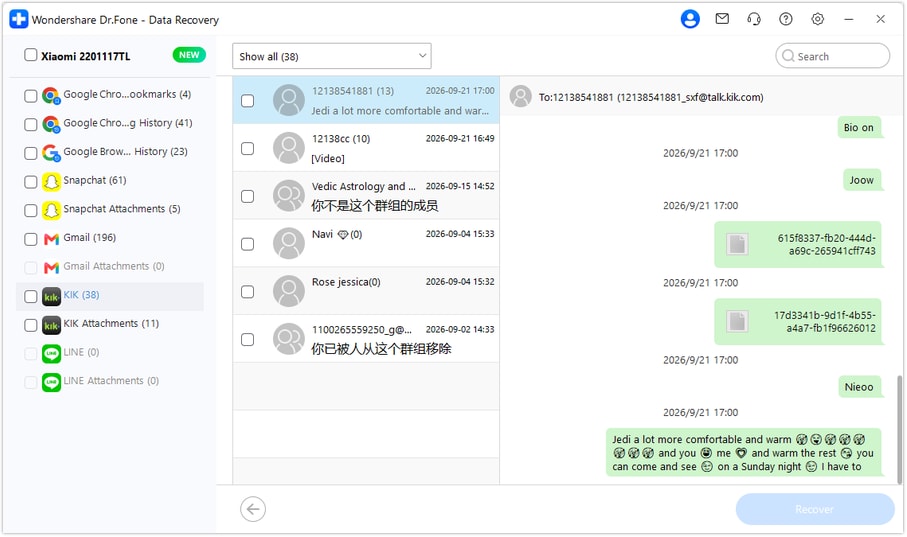
Step 5 Recover selected records to a PC folder
Click Recover and follow the on-screen prompts to select a computer folder. Save the chosen records and open the output to inspect the useful text and attachments. Recovery in this mode is to the PC, not directly into the Kik conversation on your phone.




Conclusion
A useful troubleshooting record contains more than an error code: it shows what was suggested and what happened afterward. Dr.Fone - Data Recovery (Android) helps supported Xiaomi 15 Pro users look for deleted Kik messages, preview the diagnostic context and save selected conversations or available screenshots to a PC. Download Dr.Fone for Windows and start the guided Kik recovery workflow to retrieve the reference material you need.
FAQ
1. Can I recover deleted Kik messages on Xiaomi 15 Pro without a backup?
Dr.Fone - Data Recovery (Android) offers a device-scan route for supported Xiaomi 15 Pro configurations. Use Advanced Recovery on Windows, select Kik and inspect the results before saving selected records to a PC. No earlier Kik backup is required, but the particular messages must be discoverable.2. Does the Xiaomi 15 Pro entry include Android 15?
Yes. The confirmed record specifically lists Xiaomi 15 Pro with Android 15 and Kernel 6.6.77. It should not be reduced to the older generic Android 9-13 baseline or expanded to an unlisted version or another model.3. Can Dr.Fone determine which recovered troubleshooting instruction fixed the issue?
It previews records found by the scan; it does not diagnose the computer or verify a repair. Read your actual follow-up messages to see what result was recorded. If no outcome was found, keep the advice as a reference rather than treating it as a confirmed fix.4. Can I recover deleted Kik photos showing an error screen?
Check Kik Attachments when available in the results and inspect the actual image. A useful screenshot can be saved to your PC even when the associated explanation is missing. Finding a picture does not establish that the text conversation was recovered.5. Should I change phone settings or root it manually if the scan cannot start?
Follow only the displayed product connection and access instructions, and ask support to check the exact configuration. This guide does not establish a manual Root procedure or its data-loss behavior. Do not use bootloader unlocking, flashing or a reset as recovery experiments.
 Add Wondershare Dr.Fone as a preferred source on Google





