 Recover photos, messages, WhatsApp, and more — no backup
needed.


 100% Security Verified | No Subscription Required | No Malware


 :

 ChatGPT
 Perplexity
 Gemini
 Claude
 Grok
A collaborator sent the spreadsheet formula in Kik, followed by a correction to the range it should use. After the conversation disappears, the worksheet still shows a number, but not necessarily the formula or the correction you were trying to preserve. Rebuilding it from the displayed result is not the same as retrieving what your collaborator actually wrote.
Dr.Fone - Data Recovery (Android) gives you a focused route to look for deleted Kik messages on Samsung Galaxy Z Fold 5 without a backup. Its Windows-only Advanced Recovery mode lets you preview found conversations and available attachments, then save the relevant records to your PC. That makes it easier to keep exact source text separate from a formula you might write afresh.
In this article
Before you start
Use the Galaxy Z Fold 5 entry, not a newer Fold's condition
The confirmed support record names Samsung Galaxy Z Fold 5 with Kernel 5.15. No Android-version restriction is listed for this model. Record the displayed model and software information, retain the supplied Kernel condition and do not infer support from the Fold name alone. If the configuration differs or the mode is not offered, ask Dr.Fone support without installing a different firmware.
Protect the phone's remaining Kik data
Keep the original phone's Kik installation, login and local storage intact. Logging out, uninstalling, clearing storage, resetting or downgrading are not recovery steps. Kik has no built-in chat-cloud restoration option for a deleted formula discussion. Do not expect a contact list or a general phone backup to supply the missing message text.
Prepare Windows and identify the spreadsheet context
Use a Windows PC, a stable USB data cable and a destination folder. Note the workbook or task name and any sheet, cell or correction you genuinely remember. Follow the product's on-screen access instructions, not a generic Root or bootloader tutorial. Only data found by the scan can be saved, and the recovered output goes to PC rather than into Kik or a workbook.
Check retained formula text before rebuilding anything
Finding an existing record while preserving the distinction between historical instructions and the current worksheet.
Step 1 Read the surviving Kik discussion
Open the relevant conversation if it remains accessible. Look for actual formula text and the messages saying which sheet, cell or range it concerned. A short correction such as 'exclude the last row' is useful only with the original context; do not attach it to a different calculation just because the topic looks similar.
Step 2 Inspect an existing workbook or saved image separately
If you already have the workbook, inspect what is actually present in the relevant cell using that application's normal viewing controls. Keep the current formula or value separate from the missing Kik instruction. Open any previously saved screenshot and check whether it displays formula text, only a result, or only part of the relevant range.
Step 3 Ask for the actual saved exchange or file
If a willing collaborator still holds the original messages or a previously shared file, request that retained copy with its correction context. A newly supplied working formula can help you move forward, but label it as a new contribution. It does not show the exact historical wording unless the original source survives.
- Existing workbook cells, saved screenshots and participant-held messages are independent retained sources, not restoration of the deleted Kik conversation.
- Do not overwrite a useful existing file merely to make it agree with a partial recovered message. Keep the original source and any later working copy distinct.
Which part of the formula discussion did you actually recover?
| Found material | Useful review | Keep this distinction |
|---|---|---|
| Complete formula text | Preserve the visible punctuation, references and accompanying sheet or cell explanation. | Exact source text is different from a formula you have newly corrected or reformatted. |
| Range-change message | Find the original range and whether the change applies to one cell or a broader instruction. | A found correction does not supply an absent starting formula. |
| Screenshot of a number | Check whether the image also shows the formula or merely a displayed result. | A result does not uniquely identify the formula that produced it. |
| Workbook found as an attachment | Inspect its actual contents and any message identifying its role. | The file may be an earlier example, not the version the collaborator later approved. |
Common problems and fixes
The recovered formula is cut off or has an unreadable character
Keep the incomplete source unchanged and look for another found message, a readable attachment or an existing collaborator-held copy. Do not fill missing characters from a screenshot's result. If you create a new formula for today's worksheet, save it separately and describe it as new work rather than recovered text.
The preview finds a correction but not the original formula
Read nearby available messages for the sheet, cell and scope of the correction. Preserve the correction as useful evidence of what was discussed, but do not assume a particular range or calculation. Check the existing workbook independently; a current formula can be a separate source without being the deleted instruction.
Two versions use different references or punctuation
Check whether the source calls one an example, a copied version or an explicit replacement. Preserve the literal differences, including any visible dollar signs or separators, without silently normalizing them. The scan does not evaluate formulas or decide which version is correct in a particular spreadsheet application.
How to use Dr.Fone - Data Recovery (Android)
Dr.Fone - Data Recovery (Android) helps you look for the actual Kik discussion behind a spreadsheet change. On a supported Galaxy Z Fold 5, its Windows-only Advanced Recovery mode scans selected app records, lets you review conversation results and available attachments, and saves your chosen items to PC without an existing chat backup. You can preserve the found formula wording and correction context instead of treating a remembered output number as the original instruction.
- Kik app-data scanning provides a focused route to search for deleted instruction messages rather than only files already present in a workbook folder.
- Conversation preview lets you inspect the found formula, sheet reference and correction before deciding which records to save.
- Separate available attachment review and selective PC saving help you keep useful screenshots or files alongside the relevant exchange.
 Scan Android phones and tablets directly.
- Preview and recover only what you want.
- Supports WhatsApp, photos, videos, contacts, and more.
- Works with 6000+ Android devices.

Follow the official Advanced Recovery workflow
Step 1 Connect the Fold 5 through Advanced Recovery
On Windows, launch Dr.Fone and open Toolbox > Data Recovery. Choose Android > Recover Android Data, select Advanced Recovery and click Start Scan. Connect the supported Galaxy Z Fold 5 with a USB cable when prompted and follow the displayed instructions until detection completes.

Step 2 Select Kik app data to scan
Choose Kik from the available categories and click Start Scan. If you also need WhatsApp or WhatsApp Business data, run each separately from the other categories as the official guide requires. Inspect Kik results for this formula discussion.

Step 3 Wait while the selected data is scanned
Keep the Fold 5 connected throughout scanning. If you must interrupt it, click Cancel before disconnecting the cable. Should the phone be temporarily unresponsive after scanning or recovery, use the restart instructions shown by the product.

Step 4 Preview Kik text and any relevant attachments
Open Kik in the results sidebar and review the conversations found. Use search or filters where available, then read the actual formula text and correction context before selecting records. If attachment results are available, open Kik Attachments separately to inspect and select useful images or files.
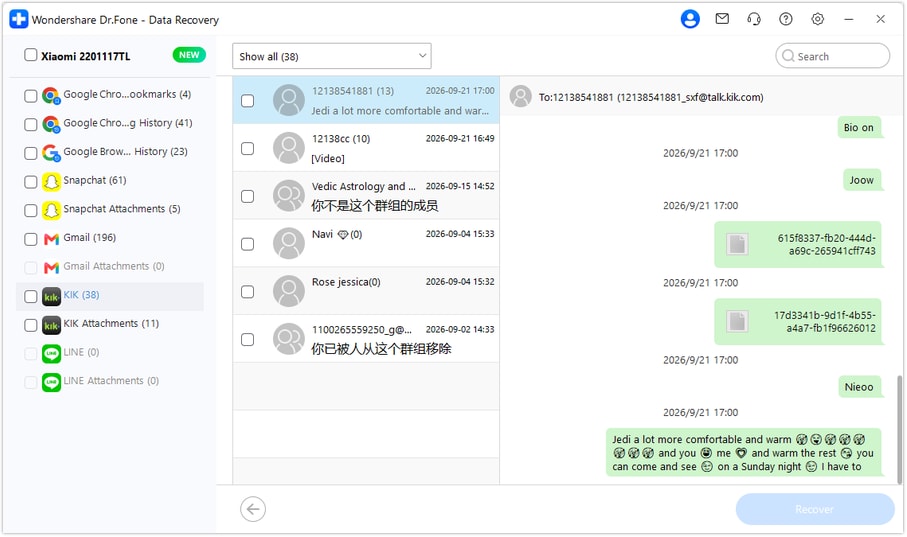
Step 5 Recover the selected records to a PC folder
Click Recover, choose the destination folder through the displayed prompts and save your selection. Open the saved output and verify the useful text and readable files. This stores a separate PC copy; it does not import messages into Kik or change formulas in a spreadsheet.




Conclusion
A useful formula record includes its exact wording and the explanation of what it applies to. Dr.Fone - Data Recovery (Android) gives supported Galaxy Z Fold 5 users a focused Kik scan, conversation and attachment review, and selective saving to PC. Download Dr.Fone for Windows and start the guided recovery workflow to preserve the formula discussion and reference files you can use.
FAQ
1. Can I recover deleted Kik messages on Galaxy Z Fold 5 without a backup?
Dr.Fone - Data Recovery (Android) offers a Windows Advanced Recovery route for supported Galaxy Z Fold 5 configurations without a prior chat backup. Scan Kik, preview the found data and save the selected messages and available attachments to PC. It does not guarantee that every deleted line remains discoverable.2. Can Dr.Fone reconstruct a formula from a screenshot of its answer?
No. This workflow retrieves available Kik records and attachments, not formulas inferred from output values. A found screenshot can be a useful reference, but preserve any actual formula text separately and do not label a newly written formula as recovered.3. What if the workbook attachment and the message disagree?
Read any found wording that identifies an example, a replacement or a later correction. Keep both sources and their actual differences. The scan does not determine the intended workbook version or automatically apply the instruction.4. Can I recover deleted Kik photos of the formula?
When attachment results are found, inspect Kik Attachments separately and save useful readable images. Check whether each image includes the full formula and its context; a cropped image or displayed number may preserve only part of what you need.5. Does the Fold 5 need a particular Android version for this support entry?
The confirmed Galaxy Z Fold 5 record lists Kernel 5.15 and no Android-version restriction for this exact model. Keep the Kernel condition; do not extend the entry to other Fold models or change firmware to force a match. Advanced Recovery is a Windows workflow with selected results saved to PC.
 Add Wondershare Dr.Fone as a preferred source on Google





