 Recover photos, messages, WhatsApp, and more — no backup
needed.


 100% Security Verified | No Subscription Required | No Malware


 :

 ChatGPT
 Perplexity
 Gemini
 Claude
 Grok
A friend explained a keyboard shortcut in Kik, including which application it was for and whether the keys should be held together or pressed in sequence. Now the conversation is gone, and a screenshot of the keyboard is not enough to recover the instruction. Trying the wrong remembered shortcut may simply trigger a different action.
To recover deleted Kik messages on Samsung Galaxy Z Fold 6 without a backup, Dr.Fone - Data Recovery (Android) gives you an app-focused scan and a preview of the records found. Its Windows-only Advanced Recovery mode can help you preserve useful message wording and available reference images on your PC. Focus on the actual instruction so you can keep the keys, application and important qualifications together.
In this article
Before you start
Keep the Fold 6 support condition intact
The confirmed device entry is Samsung Galaxy Z Fold 6, Kernel 6.1.145; no Android-version restriction is listed for this model. Compare your phone's displayed model and software information with that entry. A neighboring Fold model is not interchangeable, and the entry is not a tested guarantee for arbitrary firmware. If the product does not offer Advanced Recovery, ask Dr.Fone support about the displayed configuration instead of flashing or downgrading the device.
Keep local Kik history in place
Use the phone that originally held the conversation and retain its current Kik installation and login. Do not log out, reinstall, clear app storage or reset the phone to try to recover messages. Kik does not offer a built-in chat-cloud restoration route. An older missing instruction and a recently visible reply should be treated as separate pieces of local history; do not assume a fixed retention count or time window.
Prepare the scan and define the missing instruction
Prepare a Windows computer, a USB data cable and a destination folder. Note the application, computer platform and action discussed if you remember them. Follow Dr.Fone's on-screen access instructions only; the supplied evidence does not establish a generic Root or bootloader procedure to perform yourself. The scan can save only available results to PC, not fill missing keystrokes or apply a recovered setting.
Look for an existing copy of the shortcut explanation
Recovering the useful information from retained sources before scanning for deleted Kik records.
Step 1 Inspect the messages still visible in Kik
Open the relevant conversation if it remains accessible on the original phone. Read any surviving explanation, especially the application name and the action being discussed. A short reply such as 'use the second one' needs the actual earlier options; a keyboard photo does not supply them.
Step 2 Check saved screenshots or notes you already have
Open any previously saved screenshot or note containing the instruction. See whether it shows the full key names, the action and the relevant platform. If you inspect a current shortcut setting on a computer you control, treat it as the present configuration, not proof of what the deleted Kik message said.
Step 3 Request the actual retained message from the sender
If the sender is willing and still has the exchange, ask for the original instruction and nearby qualifications. A newly suggested shortcut may solve today's task, but it should be kept separate from a copy of the historical message. You can use the scan below when the old wording itself is what you need.
- These checks use existing messages and files; they do not restore a deleted thread on the Fold 6.
- No Kik Archive, Trash or chat-backup menu is needed or assumed.
Read a recovered shortcut instruction in its actual context
| What you find | What to inspect manually | Useful result |
|---|---|---|
| A list of key names | Does the found wording say to hold them together, press them in sequence or use an alternative? | Preserve the complete instruction rather than guessing from punctuation alone. |
| A shortcut and an action name | Check the named application, platform and any focused panel mentioned. | A record of where that instruction was intended to apply. |
| A remapping screenshot | Read the visible action and assigned keys; check whether it is a proposal or a reported setting. | A reference to the displayed mapping, not automatic configuration recovery. |
| A later message saying the shortcut did not work | Look for a correction or a stated change of context. | Keep the outcome with the original suggestion rather than presenting it as verified advice. |
Common problems and fixes
The keys are readable but the application is missing
Inspect the available surrounding exchange for the action, application or platform. If that context is not found, save the wording as an incomplete instruction. Do not present it as a universal system shortcut or try it in unrelated applications merely to guess which one the sender meant.
Two messages appear to give different shortcuts
Check whether the source describes alternatives, different platforms or a later correction. Preserve the actual labels and qualifications. A remapping discussion can also describe someone's custom setup; the recovery software does not decide which instruction is valid for your current computer.
A screenshot shows the keys but cuts off the command name
Review Kik conversation results for the command wording and Kik Attachments separately for any fuller reference image found. Keep the cropped image if useful, but do not infer the missing action from the keyboard layout. An existing complete sender-held screenshot can provide a separate retained source.
How to use Dr.Fone - Data Recovery (Android)
Dr.Fone - Data Recovery (Android) offers a practical way to look for the Kik explanation behind a half-remembered shortcut. Its Windows-only Advanced Recovery mode scans selected app data on a supported Galaxy Z Fold 6, provides conversation previews and lets you save chosen results to a PC without relying on a chat backup. Reviewing the actual text and available reference attachments can help you preserve the application, keys and qualifications together.
- A focused Kik scan looks for app records that a saved-keyboard-photo check cannot replace.
- Conversation preview helps you select the found instruction and relevant replies rather than a key combination stripped of context.
- Selective PC recovery keeps the useful wording and available screenshots accessible without exporting unrelated discussions.
 Scan Android phones and tablets directly.
- Preview and recover only what you want.
- Supports WhatsApp, photos, videos, contacts, and more.
- Works with 6000+ Android devices.

Follow the official Advanced Recovery workflow
Step 1 Start the Windows Advanced Recovery route
Launch Dr.Fone and navigate to Toolbox > Data Recovery. Choose Android > Recover Android Data, select Advanced Recovery and click Start Scan. Connect the supported Galaxy Z Fold 6 by USB when prompted and complete the displayed instructions until the phone is detected.

Step 2 Choose Kik for scanning
Select Kik among the available app-data categories and click Start Scan. If you also need WhatsApp or WhatsApp Business data, scan each separately from the other categories according to the guide. Kik is the category relevant to this missing instruction.

Step 3 Keep the Fold 6 connected during the scan
Wait while Advanced Recovery scans the selected data. To stop, click Cancel before removing the USB cable. If the phone is temporarily unresponsive after scanning or recovery, restart it as instructed by the product's on-screen guidance.

Step 4 Review the found instruction and reference images
Choose Kik in the results sidebar and inspect the conversations found. Use search or filter controls where available. Select useful instruction text and surrounding replies after reading them. When attachment results exist, choose Kik Attachments separately to inspect the available screenshots and select useful references.
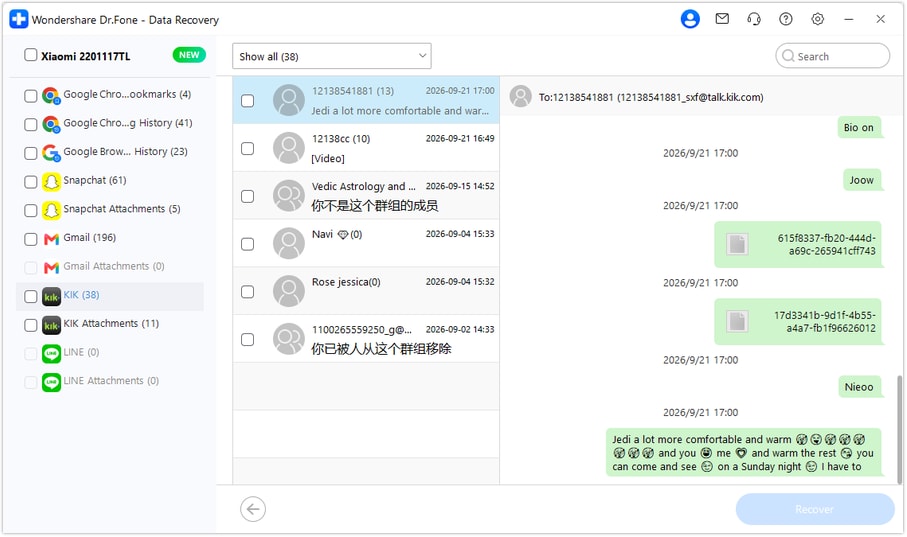
Step 5 Save selected Kik records to your computer
Click Recover, choose a folder on your PC through the displayed prompts and save the selected records. Open the saved output and check the wording and readable reference files. The recovered copy remains on the PC rather than being inserted into Kik or applied to another application's settings.




Conclusion
The missing value may be just a few words explaining where and how a shortcut works. Dr.Fone - Data Recovery (Android) helps supported Galaxy Z Fold 6 users look for those Kik instructions, inspect available reference images and save selected records to a PC. Download Dr.Fone for Windows and begin the guided scan to keep the useful explanation, not just a half-remembered key combination.
FAQ
1. Can I recover deleted Kik messages on Galaxy Z Fold 6 without a backup?
You can use Dr.Fone - Data Recovery (Android) to scan a supported Galaxy Z Fold 6 through Windows Advanced Recovery without an existing chat backup. Select Kik, inspect the found conversations and save the useful records to PC. Recovery depends on the data available to the scan.2. Can the scan tell me which keyboard shortcut the sender intended?
It lets you review the message text and attachments that are found. Read the actual command name, platform and qualifiers yourself. It does not interpret missing keystrokes, generate a shortcut or determine whether an old recommendation works in your current application.3. What if the current computer setting differs from the Kik message?
Keep both sources distinct. A current setting describes the present configuration; the found message preserves historical advice or a reported mapping. Look for an explicit correction or remapping statement rather than silently treating one as the other.4. Can I save deleted Kik photos used as shortcut references?
If the scan finds attachment data, open Kik Attachments separately and select the useful files. Review any readable reference image along with the actual available messages. A photo alone may omit which application or action was being discussed.5. Which Fold 6 condition applies, and where is the recovered data saved?
The confirmed entry for Samsung Galaxy Z Fold 6 lists Kernel 6.1.145 and no Android-version restriction for this exact model. Retain the Kernel condition and use Windows Advanced Recovery. Selected results are saved to a PC folder, not restored into the Kik conversation.
 Add Wondershare Dr.Fone as a preferred source on Google





