 Recover photos, messages, WhatsApp, and more — no backup
needed.


 100% Security Verified | No Subscription Required | No Malware


 :

 ChatGPT
 Perplexity
 Gemini
 Claude
 Grok
You still have the portrait you shared in Kik, but the message saying which edges to keep and what the smaller export was for is gone. Choosing the right photograph does not recover the missing crop instruction. If you need to recover deleted Kik messages on Google Pixel 8 Pro without a backup, look for the actual framing and output request before making a new edit.
Dr.Fone - Data Recovery (Android) offers supported Pixel 8 Pro users a way to scan local Kik app data, preview found conversations and images, and keep selected results on a PC. You can look for the missing words and inspect any available reference image instead of guessing the intended framing from a small preview.
In this article
Before you start
Check the exact Pixel 8 Pro configuration
The supplied device record lists Google Pixel 8 Pro with Android 14 and Kernel 6.1.157. Compare the model, Android version and Kernel with your phone information. This is not a general Pixel-family or every-firmware guarantee. Ask for configuration-specific product guidance if your software differs rather than changing the phone to match the record.
Preserve Kik and the remaining image copies
Keep the original Kik installation and local data intact. Do not log out, uninstall Kik, clear app storage, reset the phone or follow generic rooting or bootloader procedures for recovery. Kik has no built-in server chat-cloud restoration, and contacts surviving does not establish that local history survives. Missing older visible content is not itself proof of a manual deletion. Keep existing original images unchanged while reviewing separate copies.
Prepare Windows and a clear recovery target
Advanced Recovery is Windows-only and saves selected discoverable results to a PC, not directly into Kik. Prepare a USB data cable and a destination folder. Note the conversation and the missing request: framing, edge inclusion, proportions or export pixel dimensions. The scan does not fetch remote editing projects or bypass protected storage.
Check existing framing references before a Kik recovery scan
An original photo, an exported copy or a marked-up image may already preserve part of the missing instruction.
Step 1 Look for explicit edge and subject instructions
Read any actual saved note or marked-up reference for which part of the scene should remain. A request to keep a hand, sign or surrounding space is more specific than the identity of the portrait subject. Do not infer the intended boundary simply because a retained copy looks well composed.
Step 2 Distinguish a crop from a smaller full-frame copy
Compare the scene boundaries of copies you already have. A source may ask to remove part of the frame, or it may only ask for a smaller export while retaining the whole scene. Preserve that distinction in the actual wording; do not make a new crop just to reproduce the apparent size of a preview.
Step 3 Keep shape, pixel dimensions and use case separate
If a retained instruction states proportions or pixel dimensions, keep the exact labels and target use with it. A similarly shaped image does not establish the requested pixel dimensions, and a smaller-looking on-screen preview does not supply them. Ask a willing collaborator for their retained instruction when available; label any new editing brief as new.
- These checks inspect existing sources rather than recover deleted chat data or perform image editing.
- A surviving exported image can be useful, but it does not reproduce an absent crop request, editing history or original high-resolution file.
What recovered Kik photo instructions and images can tell you
| Available result | Useful next check | Do not infer |
|---|---|---|
| A crop request with an actual reference image | Read the named edges and retained subject area against that reference. | That a different attractive crop was the requested one. |
| A smaller export with the full scene visible | Keep it distinct from an instruction to cut away part of the frame. | That smaller pixel dimensions mean a tighter crop was requested. |
| Proportions without pixel dimensions | Save the stated shape and the target use as written. | A particular pixel count or final image quality. |
| A message with dimensions but no identified use | Inspect surrounding text for the intended version or placement. | That the same output request applies to every use of the photo. |
| Only a thumbnail, crop or text fragment | Preserve the readable partial record and note what is absent. | Missing borders, original resolution or a complete editing brief. |
Common problems and fixes
The found image has the right person but not the expected framing
Inspect the visible scene boundaries and actual request rather than accepting subject identity as a match. It may be another crop or a full-frame copy. Keep the message and uncertain image separate until a real reference connects them; recovery does not automatically pair or edit images.
You found dimensions but cannot tell whether they refer to the crop or an export
Read the surrounding available passage for the words describing proportions, pixels and intended use. Keep the exact labels. If that distinction is missing, save the partial source and obtain a new editing confirmation instead of overwriting an original image based on a guess.
Advanced Recovery is not available on the connected Pixel 8 Pro
Use the Windows version and compare the phone with the exact Android 14 and Kernel 6.1.157 support record. Follow the displayed guidance or contact product support with those details. Do not reset the device or clear Kik storage to try to unlock the recovery route.
How to use Dr.Fone - Data Recovery (Android)
Dr.Fone - Data Recovery (Android) helps you look beyond a surviving photo for the Kik instructions that made it useful. Its Windows-only Advanced Recovery workflow scans supported app data on an eligible Pixel 8 Pro, provides actual conversation and available attachment previews, and saves your chosen results to a PC. You can inspect the found request for framing and output details while selecting only the reference images you need.
- App-focused Kik scanning offers a way to look for missing messages without an earlier chat backup.
- Conversation and available attachment previews help you compare the actual editing request with readable reference material.
- Selective PC saving keeps the useful wording and found images accessible as references for your next edit.
 Scan Android phones and tablets directly.
- Preview and recover only what you want.
- Supports WhatsApp, photos, videos, contacts, and more.
- Works with 6000+ Android devices.

Follow the official Advanced Recovery workflow
Step 1 Launch Advanced Recovery and connect the Pixel 8 Pro
Open Dr.Fone on Windows and go to Toolbox > Data Recovery. Select Android > Recover Android Data, choose Advanced Recovery and click Start Scan. Connect the supported Pixel 8 Pro by USB when prompted and follow the device-detection instructions.

Step 2 Choose Kik app data to scan
Select Kik from the displayed categories and click Start Scan. The official guide requires WhatsApp and WhatsApp Business each to be scanned separately from the other categories. This exception is not a separate-selection requirement between every non-WhatsApp category.

Step 3 Wait while the phone's app data is scanned
Maintain the USB connection throughout scanning. If you need to stop, click Cancel before removing the cable. If the device is temporarily unresponsive after scanning or recovery, follow the product's on-screen restart instructions.

Step 4 Preview Kik framing requests and available photos
Choose Kik in the results sidebar to read the conversations found. Use search and filters where available, and inspect the actual framing, proportions or export wording. Select Kik Attachments separately when attachment results exist, review the relevant images and choose the records you want to save.
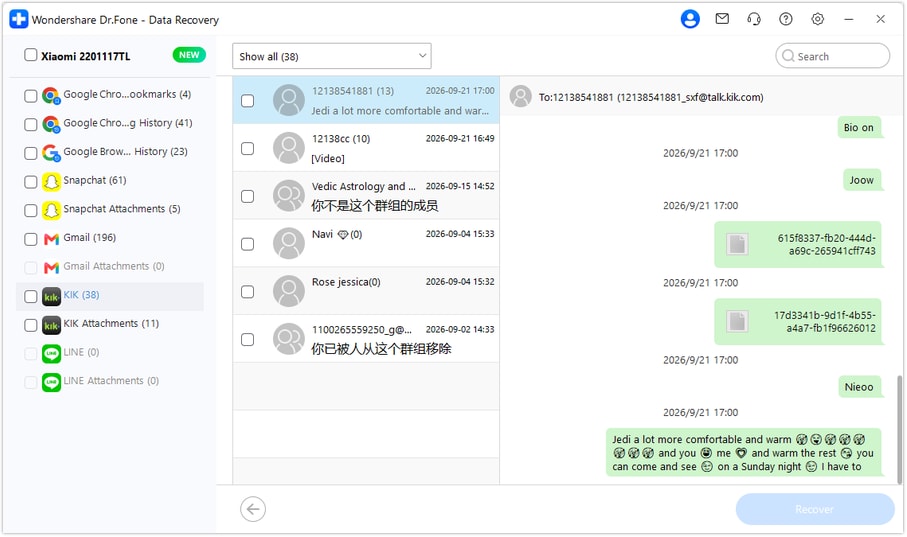
Step 5 Recover the selected records to a computer folder
Click Recover and follow the save prompts to choose a PC destination. Open the saved output and check the messages and files you selected. The recovered copies remain on the PC; this process does not import the conversation into Kik or apply edits to a photo.




Conclusion
The right framing starts with the actual request, not a guess from a surviving preview. For a supported Pixel 8 Pro, Dr.Fone - Data Recovery (Android) offers a focused Kik scan, useful conversation and image previews, and selective saving of the references you need to your PC. Download Dr.Fone for Windows and start the guided scan to look for the missing instructions and files.
FAQ
1. Can I recover deleted Kik messages on Pixel 8 Pro without a backup?
Dr.Fone - Data Recovery (Android) offers a local scan on supported configurations without relying on an earlier Kik backup. Use Advanced Recovery on Windows to select Kik, scan and preview available results, then save selected records to the PC. Recovery depends on what the scan still discovers.2. Which Pixel 8 Pro software conditions are listed?
The supplied record lists Google Pixel 8 Pro with Android 14 and Kernel 6.1.157. Match that exact model and software record rather than a different Pixel's entry. Obtain product guidance for a differing configuration without changing the phone as a recovery experiment.3. Can the scan recover deleted Kik photos or image attachments?
When attachment results are available, open Kik Attachments and inspect the files found. Review Kik conversations separately for the instructions. The existence of a preview or a cropped copy does not promise a full-resolution original or missing image borders.4. Will Dr.Fone reconstruct the requested crop or editing history?
No. It previews available records and saves selected results. The edge, shape and pixel-dimension checks are manual review of actual material, not automatic image matching, editing or reconstruction of missing instructions.5. Can I save the useful records without putting them back into Kik?
Yes. This Windows Advanced Recovery workflow saves the selected discoverable results to a computer folder. It does not write the conversation back into Kik, so you can keep a separate PC reference while leaving the existing installation intact.
 Add Wondershare Dr.Fone as a preferred source on Google





