 Recover photos, messages, WhatsApp, and more — no backup
needed.


 100% Security Verified | No Subscription Required | No Malware


 :

 ChatGPT
 Perplexity
 Gemini
 Claude
 Grok
The Kik chat containing a group's messages and shared clips is missing from your OPPO K40. When a scan presents useful records, you want to keep those results, not run into a full PC drive just as you try to save the videos.
Dr.Fone - Data Recovery (Android) provides a focused no-backup route on a supported K40: preview discoverable Kik text, inspect available photos and videos, and save only the records you need to a Windows PC. A short destination-space check can help you prepare for that final step without deleting anything from the phone.
In this article
Before you start
Match the K40's exact listed record
OPPO K40 is listed with Kernel 4.19.157 and no Android-version restriction for this named model. Keep the Kernel condition rather than assuming any OPPO firmware qualifies. Use a Windows PC and a suitable USB data cable; this Advanced Recovery workflow is Windows-only.
Preserve the phone rather than making space on it
Keep the original Kik installation, login and local storage. Do not log out, reinstall Kik, clear app storage, reset, flash firmware or unlock the bootloader to prepare for recovery. Kik has no built-in chat-cloud restoration route. A remaining contact, a recent message or a gap in older visible history does not prove that the missing exchange survives.
Choose the PC output you actually need
Identify the relevant conversation and whether photos or videos are also needed. Follow the displayed product connection and access instructions without adding Root steps. Only discoverable data can be selected and saved. The destination is a PC folder, not the phone's Kik storage; this workflow does not write the recovered chat back into the app.
Prepare the Windows destination without deleting recovery sources
This checks PC storage readiness, not whether deleted Kik data exists. It is particularly useful when you want available video attachments, and you can skip it if your destination is already prepared.
Step 1 Check available space under This PC
In Windows 11, open File Explorer and select This PC. Under Devices and drives, read the available space for the drive where you intend to save the selected recovery output. Check that specific drive, not merely whichever drive has the largest free-space figure.
Step 2 Keep the chosen destination consistent
During Dr.Fone's Recover prompts, select a computer folder on the drive you checked. If another ordinary local drive is available and offered in the folder picker, you can choose a folder there instead. Free space on a different drive does not increase the capacity of your current destination, and changing Windows' general default save location is not necessary.
Step 3 Use the real selection and save result to judge readiness
Preview first and select the relevant messages and media rather than automatically including every attachment. There is no universal free-space amount promised for a Kik recovery. If the product reports insufficient space, keep the exact message, check the actual destination again and choose an appropriate available folder through the product's prompts. Other access or save errors need their own diagnosis.
- This is a read-only PC capacity check. Do not delete phone data, empty folders, reset Windows or enable cleanup tools as part of this guide.
- Available destination capacity is not proof of a successful save, complete conversation or full recoverability. Verify the product's actual save result and the output you can open.
Separate discovery, selection and destination-space outcomes
| What you observe | What it means | Correct response |
|---|---|---|
| The checked destination drive has little available space | PC capacity may constrain saving selected results; it does not explain an absent Kik message. | Prepare an appropriate available destination before saving, without deleting local phone data. |
| A video is available in preview but not selected | There is a selection gap, not evidence of a full drive. | Select the actual wanted item before using Recover. |
| The product explicitly reports insufficient destination space | The current save attempt encountered a capacity problem. | Check the selected drive and use an appropriate available folder through the product's prompts. |
| The target exchange is not found in the completed Kik results | A different PC output folder does not create missing scan data. | Review actual available conversation and attachment results; preserve useful partial records or seek an authorized existing copy. |
Common problems and fixes
Another drive has space, but recovery still reports a full destination
Compare the folder chosen in the Recover prompts with the drive you inspected under This PC. A folder still on the original drive does not benefit from another drive's free space. If the intended available destination was selected and the error persists, preserve the message and contact Dr.Fone support rather than treating the save as complete.
There is space, but saving fails for another reason
Do not label every error as low capacity. Record the product's exact message and selected folder, and confirm whether the reported issue concerns access, connection or another condition. Keep any already saved output unchanged and ask support about an unresolved error; do not disable PC protection or reset the phone.
The saved selection has the text but not the expected clip
Check whether an actual clip was available in Kik Attachments and was selected. A message naming a video is not the video itself. If a selected, discoverable file did not save, investigate the actual save result rather than assuming a new scan or extra disk space will recreate it.
How to use Dr.Fone - Data Recovery (Android)
Dr.Fone - Data Recovery (Android) helps you turn available Kik results into a useful PC copy instead of exporting indiscriminately. Its Windows-only Advanced Recovery mode scans supported OPPO K40 app data without a previous Kik backup. Read the conversations found, inspect available photos and videos, and select the records that matter before choosing your computer destination.
- Readable Kik previews help identify the important exchange before you decide what to save.
- Available attachment previews help distinguish a useful photo or clip from unrelated media or a textual file mention.
- Selective PC recovery lets you choose relevant discovered records and use a destination appropriate for that selection.
 Scan Android phones and tablets directly.
- Preview and recover only what you want.
- Supports WhatsApp, photos, videos, contacts, and more.
- Works with 6000+ Android devices.

Follow the official Advanced Recovery workflow
Step 1 Launch Advanced Recovery and connect the K40
Open Dr.Fone on Windows and go to Toolbox > Data Recovery. Choose Android > Recover Android Data, select Advanced Recovery and click Start Scan. Connect the supported OPPO K40 by USB when prompted and follow the on-screen device instructions until it is detected.

Step 2 Select Kik and start the app-data scan
Choose Kik from the available categories and click Start Scan. WhatsApp and WhatsApp Business each need to be scanned separately from the other categories. This specific requirement does not mean Kik must be isolated from all other non-WhatsApp categories.

Step 3 Let the scan finish with the cable connected
Maintain the phone's USB connection while Advanced Recovery scans. If you need to stop, click Cancel before unplugging the cable. If the phone is temporarily unresponsive after scanning or recovery, restart it only as instructed on the product screen.

Step 4 Preview and select the Kik records you need
After scanning, choose Kik in the sidebar to read the available conversations. Use search and filters only where provided. Inspect Kik Attachments separately when attachment results exist, preview available media where supported and select the actual wanted messages and files.
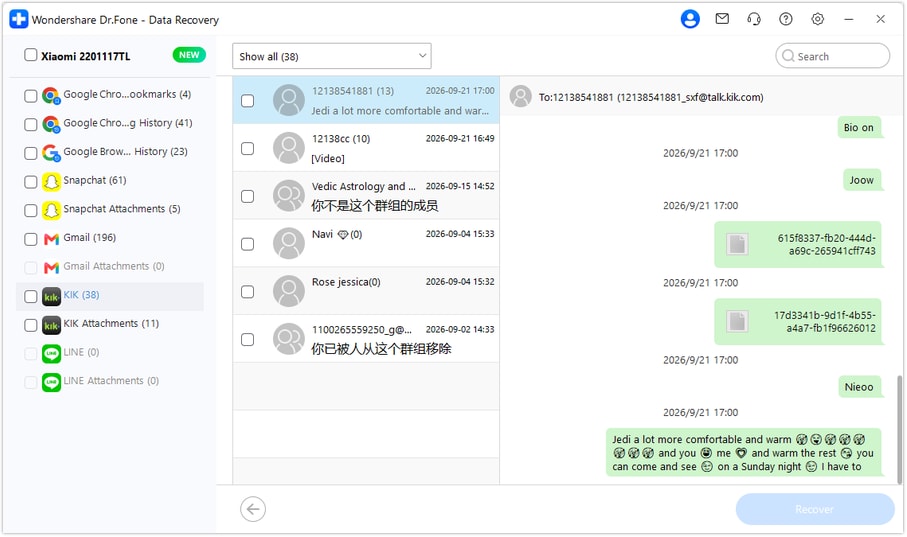
Step 5 Recover to the computer folder you prepared
Click Recover and follow the displayed prompts to choose a PC folder and save your selection. Use the destination drive you checked and inspect the actual save result and output. Selected records are saved to the PC, not restored inside Kik on the K40.




Conclusion
Dr.Fone - Data Recovery (Android) gives supported OPPO K40 users a practical way to review missing Kik conversations, preview discoverable photos and videos, and save a focused selection to a PC. Download Dr.Fone for Windows, prepare your destination folder and start the guided Kik recovery workflow for the records you want to keep.
FAQ
1. How do I recover deleted Kik messages on OPPO K40 without a backup?
Use Dr.Fone - Data Recovery (Android) on Windows with the listed K40 Kernel 4.19.157 condition. No Android-version restriction is listed for this exact model. Choose Advanced Recovery and Kik, preview the discoverable results and save your selection to a PC.2. How much free PC space does Kik recovery need?
There is no single amount established here. What you choose to save, particularly available videos, affects the output. Check the actual destination drive under Windows 11 File Explorer > This PC, select the useful records and follow the product's real save prompts and capacity messages.3. Should I clear Kik storage to make space for the recovered files?
No. Preserve the phone's local Kik data. This workflow saves selected results to your PC, not back into Kik. Clearing the app's storage is not a destination-space solution and can remove local history.4. Will choosing another drive recover messages missing from the preview?
No. Destination choice concerns saving already discoverable selected data. It does not create messages or attachments that the scan did not find. Inspect actual Kik and available Kik Attachments results separately.5. Does enough free space guarantee all my Kik videos will save?
No. Only files actually found and selected are candidates for recovery, and a successful save must be confirmed from the product and output. A capacity check does not guarantee every format, repair a damaged file or establish that a conversation is complete.
 Add Wondershare Dr.Fone as a preferred source on Google





