 Recover photos, messages, WhatsApp, and more — no backup
needed.


 100% Security Verified | No Subscription Required | No Malware


 :

 ChatGPT
 Perplexity
 Gemini
 Claude
 Grok
A friend explained a game loadout in Kik, including which items worked together and what you could substitute. Now the chat is deleted and the surviving screenshot shows only part of the setup. If you need to recover deleted Kik messages on Redmi K90 Ultra without a backup, finding the explanation can be more useful than copying a row of icons you no longer understand.
Dr.Fone - Data Recovery (Android) gives you a focused route to scan supported Kik app data, preview available messages and inspect any available shared media before saving selected records to a PC. You can look for the actual setup and its requirements, then compare the recovered advice with the game you play today.
In this article
Before you start
Confirm the Redmi K90 Ultra software entry
The supplied support record specifies Redmi K90 Ultra with Android 15 and Kernel 6.6.118. Record the model and software details displayed in settings and retain both conditions for this phone. Do not substitute a different Redmi model's Android rule or Kernel. If Advanced Recovery is not offered for the detected configuration, give the identifiers to Dr.Fone support rather than attempting to install different firmware.
Preserve the Kik source rather than changing the game
Use the phone that held the missing Kik exchange and keep its current app installation, session and storage intact. Kik has no built-in chat-cloud restoration for these records. A game's own saved progress or account does not establish that it has a copy of an external Kik conversation. Do not log out of Kik, uninstall it, clear its data or reset the phone as recovery steps.
Prepare Windows access without unverified phone modifications
Advanced Recovery is Windows-only and saves selected results to a PC, not into Kik or the game. Prepare a USB data cable and computer folder, and follow the product's displayed device-access instructions. Do not use a generic Root, bootloader-unlock or flashing tutorial; this guide does not establish a lossless Root mechanism.
Write down the setup you actually need
Note the game, character or role and any distinctive item name you remember. If you know the version or mode discussed, add it as a review clue. These notes help you recognize relevant results; they do not prove that the missing messages contained a particular recommendation.
Check surviving loadout material before scanning deleted Kik messages
Useful if you retained an image, wrote down part of the setup or can request an existing copy from the friend. These are surviving-source checks, not a backup-dependent chat restore.
Step 1 Read only what the saved image actually shows
Inspect any screenshot you already have for readable item names, character details and visible settings. Icons without labels may be ambiguous. A cropped equipment panel may omit the ability choices, mode or prerequisites discussed in text, so keep those gaps on your checklist.
Step 2 Separate game configuration from external explanation
If a configuration is still present in the game you already use, note what is currently selected without changing it just to resemble your memory. That existing setup is a current game record, not the missing Kik rationale or proof that the same setup was recommended earlier.
Step 3 Ask for the existing explanation, not only a new build
Ask the participant whether they still have the original Kik messages, including any substitutions or requirements. They may instead offer an updated recommendation, which can be useful but should be labeled as new advice. Keep old source material and a current recommendation separate.
- A game-account restore and a Kik message recovery are different tasks; do not assume one retrieves the other's records.
- The device scan below does not need a prior Kik chat backup. Saved images or participant copies remain independent retained sources.
Turn available Kik results into a usable setup reference
| What you recover | What to inspect | How to use it responsibly |
|---|---|---|
| A named equipment list | Actual item names and any stated role or mode | Keep it as the found list rather than adding remembered items |
| A requirement or substitute message | What must be available and which alternative was suggested | Preserve the condition with the recommendation |
| A loadout screenshot | Readable labels, selected options and visible omissions | Do not infer hidden choices from a partial panel |
| A message mentioning an older version | The version or timing actually stated in the record | Check current game information before assuming the advice still applies |
| Only a current in-game configuration | What is selected now | Treat it as a separate source, not a recovered Kik explanation |
Common problems and fixes
A recovered message names the setup but omits a required item
Read the surrounding available messages for a prerequisite or substitute rather than guessing a replacement. Search or filter where the interface allows it. Save the fragment as found if the missing condition is not returned; Dr.Fone does not generate a complete build from partial advice.
The recovered advice conflicts with the game's current options
Look for any version or mode stated in the actual exchange and compare it with the game you currently use. A historical message can be recovered accurately and still describe an older setup. Verify today's options through the game's current information instead of changing the recovered text.
The attachment preview contains a similar but different loadout
Compare the visible character, item labels and any surrounding message description. Do not assume every image in the conversation belongs to the same setup. If the matching explanation is absent, keep the image as a separate record rather than claiming the scan rebuilt the intended loadout.
How to use Dr.Fone - Data Recovery (Android)
Dr.Fone - Data Recovery (Android) helps you look for the Kik explanation behind a partially remembered game setup. Its Windows-only Advanced Recovery mode scans supported app data on the connected Redmi K90 Ultra, lets you preview found conversations and available attachments, and saves selected results to a PC without depending on an earlier backup.
- Conversation preview helps you locate requirements, substitutions and reasons that a screenshot alone may not contain.
- Separate Kik Attachments review lets you inspect available setup images and compare their readable details with the found text.
- Selective PC saving keeps the useful historical advice accessible for comparison with current game options.
 Scan Android phones and tablets directly.
- Preview and recover only what you want.
- Supports WhatsApp, photos, videos, contacts, and more.
- Works with 6000+ Android devices.

Follow the official Advanced Recovery workflow
Step 1 Start Advanced Recovery and connect Redmi K90 Ultra
On Windows, launch Dr.Fone and open Toolbox > Data Recovery. Select Android > Recover Android Data, choose Advanced Recovery and click Start Scan. Connect the supported Redmi K90 Ultra by USB when prompted, then follow the on-screen instructions until the device is detected.

Step 2 Select Kik for the app-data scan
Choose Kik from the available categories and click Start Scan. If you also want WhatsApp or WhatsApp Business data, scan either of those separately from Kik and the other categories according to the guide's selection rule.

Step 3 Wait while the connected phone is scanned
Leave the USB connection in place during Advanced Recovery scanning. To interrupt it, click Cancel before removing the cable. If the phone is temporarily unresponsive after scanning or recovery, restart it as directed on screen.

Step 4 Preview Kik setup advice and available attachments
Choose Kik in the results sidebar and review the conversations found. Look for actual item names and the messages explaining requirements or alternatives, using search and filters where available. Open Kik Attachments separately when attachment results exist, inspect the relevant media and select the records you want to recover.
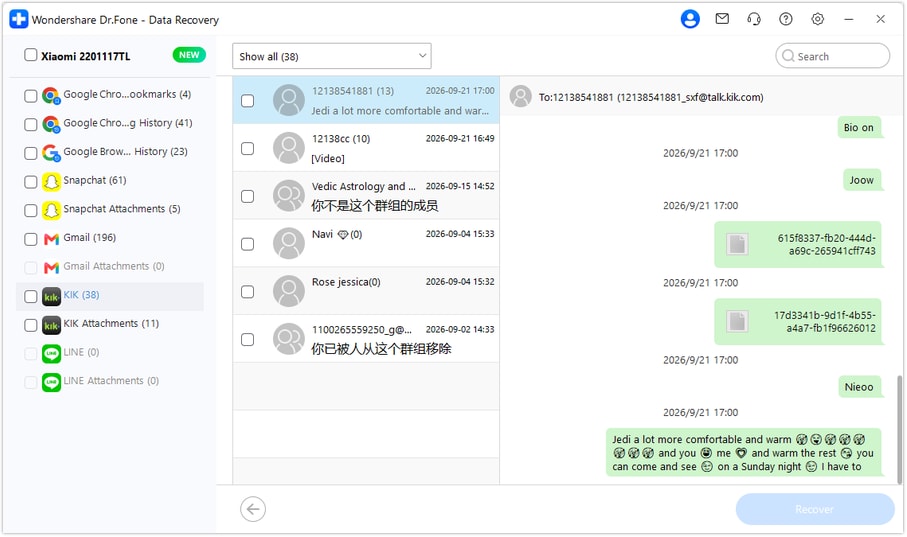
Step 5 Save selected messages and media to your PC
Click Recover and follow the prompts to choose a computer folder and save your selection. Inspect the saved output for the information you need. These are PC copies of the found records, not an import into Kik or an automatic change to the game's configuration.




Conclusion
The most useful setup record includes the explanation: what works together, what is required and what can be substituted. Dr.Fone - Data Recovery (Android) helps you look for those Kik messages, preview available shared images and save selected results to your PC. Download Dr.Fone for Windows, connect your supported Redmi K90 Ultra and start checking for the advice you want to keep.
FAQ
1. Can I recover deleted Kik messages on Redmi K90 Ultra without a backup?
Dr.Fone - Data Recovery (Android) offers a device-scan route for supported configurations without an existing Kik chat backup. The supplied Redmi K90 Ultra entry specifies Android 15 and Kernel 6.6.118. Use Advanced Recovery on Windows to preview Kik results and save selected available records to a PC.2. Can I recover deleted Kik photos of a game loadout?
Check Kik Attachments separately if the scan returns attachment data. Preview each relevant item for readable labels and the setup you need. Available images and message text may differ, so inspect both result views rather than assuming a match.3. Will restoring my game account bring back the Kik advice?
A game account or saved game configuration is not the external Kik conversation. It may preserve game-specific data, but should not be treated as a backup of the messages you sent through Kik. This guide's scan checks the connected phone's supported Kik data instead.4. Does recovering the advice mean the loadout still works now?
No. Recovery concerns the available historical record, not the present accuracy of a game recommendation. Check the version, mode and requirements actually mentioned, then compare them with current game information before using the setup.5. Can Dr.Fone fill in missing equipment or apply the setup for me?
The described workflow previews and saves found Kik records to a PC. It does not invent missing recommendations, identify unlabeled icons with certainty or configure a game. Keep recovered text separate from any new advice you obtain afterward.
 Add Wondershare Dr.Fone as a preferred source on Google





