 Recover photos, messages, WhatsApp, and more — no backup
needed.


 100% Security Verified | No Subscription Required | No Malware


 :

 ChatGPT
 Perplexity
 Gemini
 Claude
 Grok
You copied a few lines from a Kik discussion to use elsewhere, but now the conversation containing the explanation is gone from your OPPO Find N5. A surviving fragment might tell you what was said without showing the question, qualification or reply that made it useful.
Dr.Fone - Data Recovery (Android) offers a no-backup route for a supported Find N5: scan local Kik app data, read the conversations found and preview available photos, videos and attachments before choosing what to save to a PC. The optional clipboard check below is only for text you had already brought onto a Windows computer. You can skip it and go straight to the five-step recovery workflow.
In this article
Before you start
Match the Find N5 configuration
The support listing specifies OPPO Find N5 with Android 15 and Kernel 6.6.118. Use these exact conditions rather than assuming another Find model or any firmware is equivalent. Prepare a Windows PC and a reliable USB data cable; this Advanced Recovery workflow is Windows-only.
Preserve Kik on the original phone
Keep the original installation, login and local storage intact. Do not log out, reinstall Kik, clear its storage, reset the phone, flash firmware or unlock the bootloader as a recovery experiment. Kik has no built-in chat-cloud restoration route. A contact that remains visible, or a gap in older visible history, does not by itself establish that the missing messages remain available.
Choose a useful recovery target
Note the conversation and the information you need: the question before a copied answer, a qualification afterward, or the actual photo or video discussed. Follow Dr.Fone's displayed connection and access instructions without inventing Root steps. Only discoverable data can be selected; the result is a separate PC copy, not a restored thread inside Kik.
Optional: inspect text already retained in Windows clipboard history
Use this only if relevant Kik wording had previously reached this Windows PC and was copied there while clipboard history was enabled. It is not an Android-to-Windows Kik sync feature and is not required for the phone scan.
Step 1 Inspect the existing history with Windows key + V
On the PC where you previously copied the text, press Windows key + V and inspect the entries that are actually present. If Windows offers Turn on instead of showing an existing history, stop this check: enabling history now cannot collect the earlier deleted conversation.
Step 2 Preserve a relevant entry in a private document
If an entry contains useful wording, place the cursor in a private document you control, open Windows key + V and select that entry to paste it. Keep the text as found and label it as a previously copied fragment. Do not paste private history into a public chat or assume that a nearby clipboard entry came from the same Kik exchange.
Step 3 Identify what the fragment leaves out
Read the actual pasted text. An isolated answer may omit the original question, an exception or an image. Record that missing context as your target for the Kik scan. If no useful entry survives, continue directly to Dr.Fone rather than repeatedly copying new material or changing clipboard settings.
- Windows clipboard history holds a limited set of copied items, and restarting the PC clears unpinned history. Absence from this list says nothing about whether a phone scan can find Kik records.
- This check retrieves an already retained PC fragment, not deleted Android messages. No cloud clipboard sync needs to be enabled, and a clipboard image does not establish that the original Kik attachment survived.
A copied fragment and a recovered conversation answer different questions
| What is available | What you can establish | Next useful action |
|---|---|---|
| Relevant text in existing Windows clipboard history | Those copied words survived separately; their full conversational context may not have. | Preserve the fragment, then look for the actual preceding question and following replies in Kik results. |
| The needed exchange in Dr.Fone's Kik preview | The displayed wording and context are available to review in this scan. | Select the relevant records and save them to your PC. |
| A photo or video in available Kik Attachments | An actual media candidate was found, not merely mentioned in a copied sentence. | Preview it where supported and select it independently from the conversation. |
| Neither a useful clipboard entry nor the target scan result | Neither checked source supplies the missing content. | Keep any useful partial records; an authorized participant's existing copy is a separate possible source, not a guaranteed restoration. |
Common problems and fixes
Windows key + V shows nothing useful
The text may never have been copied on this PC, history may not have been enabled, or an older entry may no longer be retained. Do not enable sync or restart the computer to try to recover old entries. The no-backup Kik device scan remains the main route.
A clipboard sentence looks right but its source is uncertain
Keep it labeled as an unattributed copied fragment until actual source context supports the connection. In the Kik preview, read the surrounding messages that are genuinely available. Dr.Fone does not automatically trace a Windows clipboard entry back to its sender or reconstruct missing replies.
The words survived, but the referenced picture did not
Inspect Kik Attachments separately when the scan provides that category. A sentence describing a picture, or a pasted clipboard bitmap, is not proof that the original file was discovered. Save any useful text and actual available media as distinct results.
How to use Dr.Fone - Data Recovery (Android)
Dr.Fone - Data Recovery (Android) helps you look beyond a detached copied sentence for the conversation that gives it meaning. Its Windows-only Advanced Recovery workflow scans local Kik data on a supported OPPO Find N5 without requiring an earlier chat backup. You can read discoverable messages, inspect available photos and videos, and save selected results to a PC for a useful reference outside Kik.
- Conversation preview helps you check the actual question, answer and qualification instead of relying on a remembered fragment.
- A separate Kik Attachments view, when results are available, helps locate actual shared media rather than treating a textual mention as a file.
- Selective PC saving keeps the useful exchange and media without requiring you to export unrelated conversations.
 Scan Android phones and tablets directly.
- Preview and recover only what you want.
- Supports WhatsApp, photos, videos, contacts, and more.
- Works with 6000+ Android devices.

Follow the official Advanced Recovery workflow
Step 1 Open Advanced Recovery and connect the Find N5
Launch Dr.Fone on Windows and open Toolbox > Data Recovery. Choose Android > Recover Android Data, select Advanced Recovery and click Start Scan. Connect the supported OPPO Find N5 with a USB cable when prompted, then follow the displayed instructions until the phone is detected.

Step 2 Select Kik as the app data to scan
Choose Kik from the available app categories and click Start Scan. The Guide requires WhatsApp and WhatsApp Business to be scanned separately from the other categories; that rule does not impose a separate-scan restriction between Kik and every other non-WhatsApp category.

Step 3 Keep the phone connected during the scan
Allow Advanced Recovery to scan while the USB connection remains stable. If you need to stop, click Cancel before disconnecting. If the phone is temporarily unresponsive after scanning or recovery, follow the restart instructions actually shown on screen.

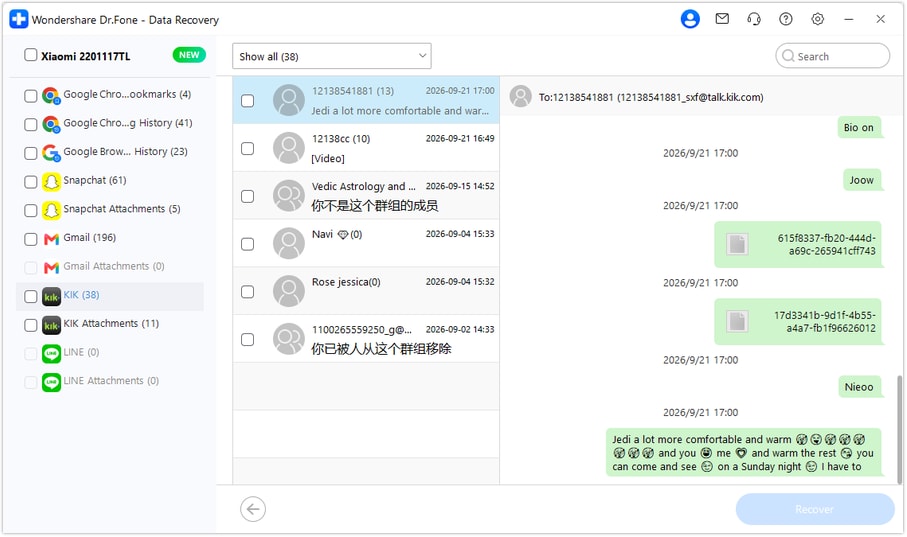
Step 4 Read the Kik conversation and inspect available media
When scanning finishes, choose Kik in the sidebar and read the available conversations for the missing context. Use search or filter controls only where offered. Open Kik Attachments separately when attachment results exist, review available photos, videos or other files, and select the records you want to keep.
Step 5 Save selected messages and attachments to your PC
Click Recover and follow the prompts to choose a computer folder and save your selection. Review the saved output and keep any older clipboard fragment labeled separately. The selected records are saved to the PC, not inserted back into the Find N5's Kik chat list.




Conclusion
For missing Kik wording on a supported OPPO Find N5, Dr.Fone - Data Recovery (Android) gives you a focused way to inspect real conversation context, preview available shared media and preserve selected records on your PC. Download Dr.Fone for Windows and start the guided Kik scan to look for the messages and files that make the exchange useful again.
FAQ
1. Can I recover deleted Kik messages on OPPO Find N5 without a backup?
Dr.Fone - Data Recovery (Android) provides a local-device scan route for the listed Find N5 Android 15 and Kernel 6.6.118 configuration. Use Advanced Recovery on Windows, select Kik, preview the data found and save selected records to a PC. It does not depend on a previous Kik cloud backup.2. Will turning on Windows clipboard history recover earlier Kik messages?
No. Clipboard history can only help here if relevant wording had already been copied on the PC and is still retained. Turning it on now does not retrieve the phone's earlier clipboard or deleted Kik history. You can skip this optional check entirely.3. Does a clipboard entry include the sender, date and full conversation?
Do not assume it does. Preserve whatever is actually in the entry and treat missing attribution or context as unresolved. Use the actual Kik scan preview to inspect available conversation content rather than automatically assigning a fragment to a person.4. Can I also recover deleted Kik photos and videos?
Inspect Kik Attachments separately when the scan finds attachment results. Preview and select actual available media; a copied description or filename is not the attachment itself. Message and media results can differ, and not every deleted file or format is guaranteed.5. Will my recovered chat reappear inside Kik?
No. This Windows Advanced Recovery workflow saves selected discoverable records to a folder on your PC. It does not restore a Kik cloud history or write the conversation back into the app.
 Add Wondershare Dr.Fone as a preferred source on Google





