 Recover photos, messages, WhatsApp, and more — no backup
needed.


 100% Security Verified | No Subscription Required | No Malware


 :

 ChatGPT
 Perplexity
 Gemini
 Claude
 Grok
The card photos are still on your phone, but the Kik exchange that said which ones you had, wanted or reserved has disappeared. A number beside a card could mean copies available, copies requested or a collector's catalogue reference. If you need to recover deleted Kik messages on Samsung Galaxy A53 5G without a backup, recovering those labels can be more useful than finding another unlabeled image.
Dr.Fone - Data Recovery (Android) lets supported A53 5G users scan for available Kik records, preview conversations and review found photos, videos or other attachments. You can save the useful records to a Windows PC and compare the actual offer with an existing collection list, keeping the exchange clear without exporting unrelated chats.
In this article
Before you start
Keep the exact A53 5G compatibility condition
Samsung Galaxy A53 5G is listed with Kernel 5.10.237; no Android-version restriction is listed for this model. Do not substitute the A36 5G record or treat the entry as support for every A-series device. Prepare a Windows computer, a USB data cable and a destination folder.
Preserve the local installation while you investigate
Keep Kik installed and logged in on the original phone. Do not log out, reinstall, clear app storage or reset the A53 5G to retrieve a deleted list. Kik has no built-in chat-cloud restoration route, and recent-message availability is not an undelete feature. Avoid unverified Root instructions, bootloader unlocking or firmware changes.
Define the historical exchange you are trying to find
Note the other participant and the collection or set involved, along with whether you need an offer, a reservation or an actual handover message. A current inventory describes what you have now, not necessarily what you owned when the exchange happened. Advanced Recovery is Windows-only, saves selected found results to a PC and does not guarantee a complete transaction history.
Separate a retained collection list from the lost Kik exchange
Start here if you already have your own collection sheet, saved card images or a participant's retained list. These references can narrow the missing information without pretending to restore the deleted thread.
Step 1 Read the list's owner and column labels
Check whose list it is and whether each section explicitly means owned, wanted, duplicate or offered. A wanted list sent by the other person does not describe your collection. Keep the original headings with the entries rather than transferring bare item numbers into a new list.
Step 2 Match item identity before considering quantity
Use the set name, item number and variant wording that are actually present in your retained source. A collector's reference number is not a copy count. If similar-looking cards have different labels, keep them distinct; do not identify a variant from a partial picture alone.
Step 3 Look for the retained exchange, not just another inventory
If a willing trading partner still has the conversation, ask for the offer and reply that identify what each person was giving or receiving. A new inventory or fresh willingness to trade can help arrange a new swap, but it does not establish that the old one was agreed or completed.
- A reserved item may still be physically present, and an item missing today may have left in a different exchange. Current possession alone does not reconstruct the deleted messages.
- Crossed-out entries need their original explanation; a mark can reflect a different change than a completed trade.
- If the offer direction or quantity is still missing, use the device-scan route below to look for the actual Kik wording.
How to interpret found Kik exchange records
| Found information | Useful distinction | Follow-up check |
|---|---|---|
| An item appears on a have list and a want list | The lists may belong to different participants | Keep each list's owner and heading with the entry. |
| An item number appears beside another number | Catalogue identity and copy quantity are different fields | Use the labels in the original message rather than assuming both numbers are counts. |
| A proposed swap with no matching acceptance | An offer is not an agreed handover | Look for the other person's actual reply or obtain a new confirmation. |
| A marked-off list or a card photo | The mark or image is a reference, not a transaction status by itself | Read the explanation and any actual collection or handover message. |
Common problems and fixes
The scan finds the right cards but not which side of the swap they were on
Review the available Kik conversation for the original offer and its speaker. Check Kik Attachments separately for labeled lists or relevant media. Keep an unlabeled photo as an image reference; do not assign it to giving or receiving just because it matches an item you remember.
Two versions of a list disagree
Keep both sources with their visible headings and context. Look for an explicit change such as a removed item, altered quantity or later reservation rather than merging the versions into a single supposedly recovered agreement. A fresh clarification remains new information.
The phone is detected but the scan cannot start
Check the Windows workflow's displayed instructions and the exact Galaxy A53 5G condition, including Kernel 5.10.237. Use Dr.Fone support for an unresolved compatibility or connection issue instead of clearing Kik or altering the phone's firmware.
How to use Dr.Fone - Data Recovery (Android)
Dr.Fone - Data Recovery (Android) offers a focused way to look for the missing Kik offer, list explanation and reply on a supported Galaxy A53 5G. Windows-only Advanced Recovery previews the conversations it finds and lets you inspect available Kik Attachments separately. Save selected chat records and useful photos, videos or files to a PC, creating a readable reference for your own comparison with retained collection lists.
- Scan Kik app data without depending on an earlier backup of the exchange.
- Preview available messages to locate list ownership, offer direction and quantity wording that an unlabeled image cannot supply.
- Select useful conversations and found attachments for PC saving instead of keeping every private discussion.
 Scan Android phones and tablets directly.
- Preview and recover only what you want.
- Supports WhatsApp, photos, videos, contacts, and more.
- Works with 6000+ Android devices.

Follow the official Advanced Recovery workflow
Step 1 Connect the A53 5G through Advanced Recovery
On Windows, launch Dr.Fone and open Toolbox > Data Recovery. Select Android > Recover Android Data, choose Advanced Recovery and click Start Scan. Connect your supported Galaxy A53 5G by USB when prompted and complete the on-screen device-detection instructions.

Step 2 Choose the Kik data category
Select Kik from the app-data choices and click Start Scan. WhatsApp and WhatsApp Business require separate scans from the other categories under the official guide; that exception does not mean all non-WhatsApp categories must be scanned individually.

Step 3 Let the scan finish with the cable connected
Keep the phone connected during scanning. If you need to stop, use Cancel before unplugging it. Should the device be temporarily unresponsive after scanning or recovery, use the restart instructions shown by the product.

Step 4 Preview the exchange and any available list images
Choose Kik in the results sidebar and review the conversations found. Use search or filters where available and select the useful exchange records. Open Kik Attachments separately when attachment results exist, and inspect any relevant photos, videos or other files before choosing them.
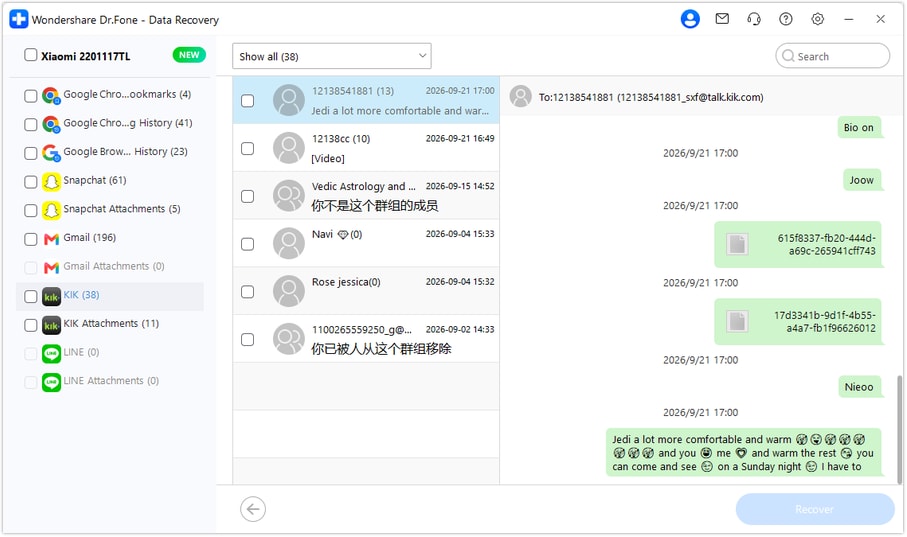
Step 5 Save the selected Kik records on your PC
Click Recover and follow the prompts to choose a computer folder and save the selected data. Check the saved records and files you chose. Recovery here means a PC copy, not restoration of the original Kik thread or an update to a collection inventory.




Conclusion
Recovering the useful part of a Kik exchange means finding whose list it was, what was offered and the reply that followed. Dr.Fone - Data Recovery (Android) brings supported Galaxy A53 5G users a targeted scan, message and attachment previews, and selective saving to a PC. Download the Windows version and start looking for the records that make your exchange understandable again.
FAQ
1. Can I recover deleted Kik messages on Samsung Galaxy A53 5G without a backup?
Dr.Fone - Data Recovery (Android) offers a Windows Advanced Recovery scan for supported configurations without requiring a previous Kik backup. Select Kik, scan the original A53 5G, preview the found records and save selected results to a PC. The scan determines what remains available.2. Can a found photo prove which cards I agreed to exchange?
A photo may show an item, but it does not by itself establish the list's owner, the direction of an offer or acceptance. Check the available message wording and headings. This workflow does not authenticate collectibles, value items or certify a completed trade.3. Can I recover deleted Kik photos and videos of the collection?
Review Kik Attachments separately when the scan finds attachment data. Select the useful media available in the results. A photo or video can be preserved even if the full exchange explanation is not found, but it should remain a separate reference.4. What support conditions apply to Samsung Galaxy A53 5G?
The confirmed model record lists Kernel 5.10.237 and no Android-version restriction for Galaxy A53 5G. This is not permission to extend the entry to other A-series models or arbitrary firmware conditions. Follow the product guidance for the phone you connect.5. Will the saved records change my Kik conversation or collection list?
No. Advanced Recovery saves the selected found data to your Windows PC. It does not insert messages back into Kik, infer which items you currently own or update an inventory. You can use the saved records as references when reviewing your own list.
 Add Wondershare Dr.Fone as a preferred source on Google





