Effortlessly manage data through preview, delete, export, etc.

 100% Security Verified | No Subscription Required | No Malware

 :
: 
 ChatGPT
 Perplexity
 Gemini
 Claude
 Grok
Grok
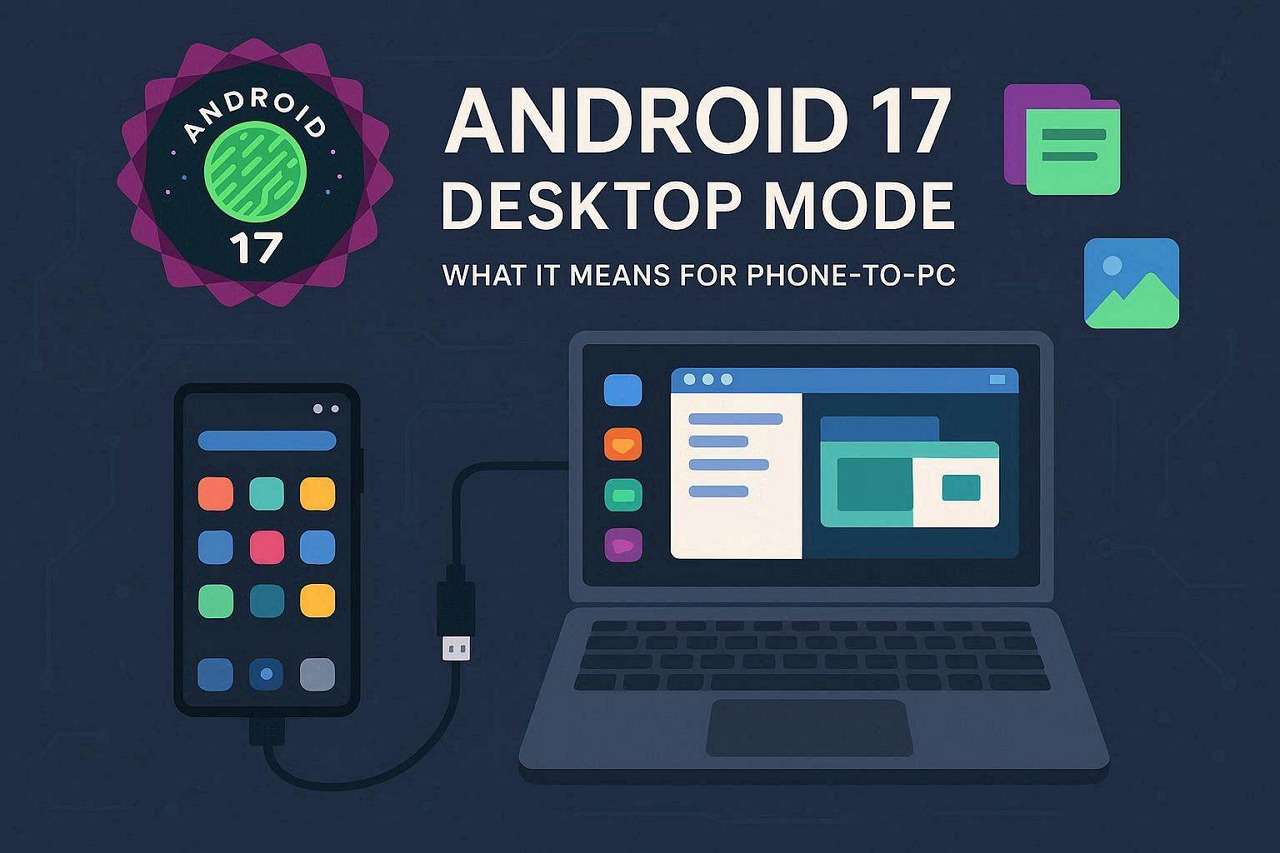
Android desktop mode lets you use your phone like a mini computer by connecting it to a large screen. Instead of the normal mobile layout, users can open apps in resizable windows, multitask more easily, and enjoy a PC-style interface. Since this feature improves phone-to-PC continuity, many users are either unaware of this or don’t know how to use it.
While the stable version of Android 17 is officially rolling out starting in mid-2026, users also question whether it will replace Samsung DeX. Hence, this detailed guide explains everything from setup to features and helpful management tools like Dr.Fone - Phone Manager (Android).
In this article
Part 1. What Is Android 17 Desktop Mode?
To get familiar with the Android 17 PC mode, this section gives all the basic details you need to know:
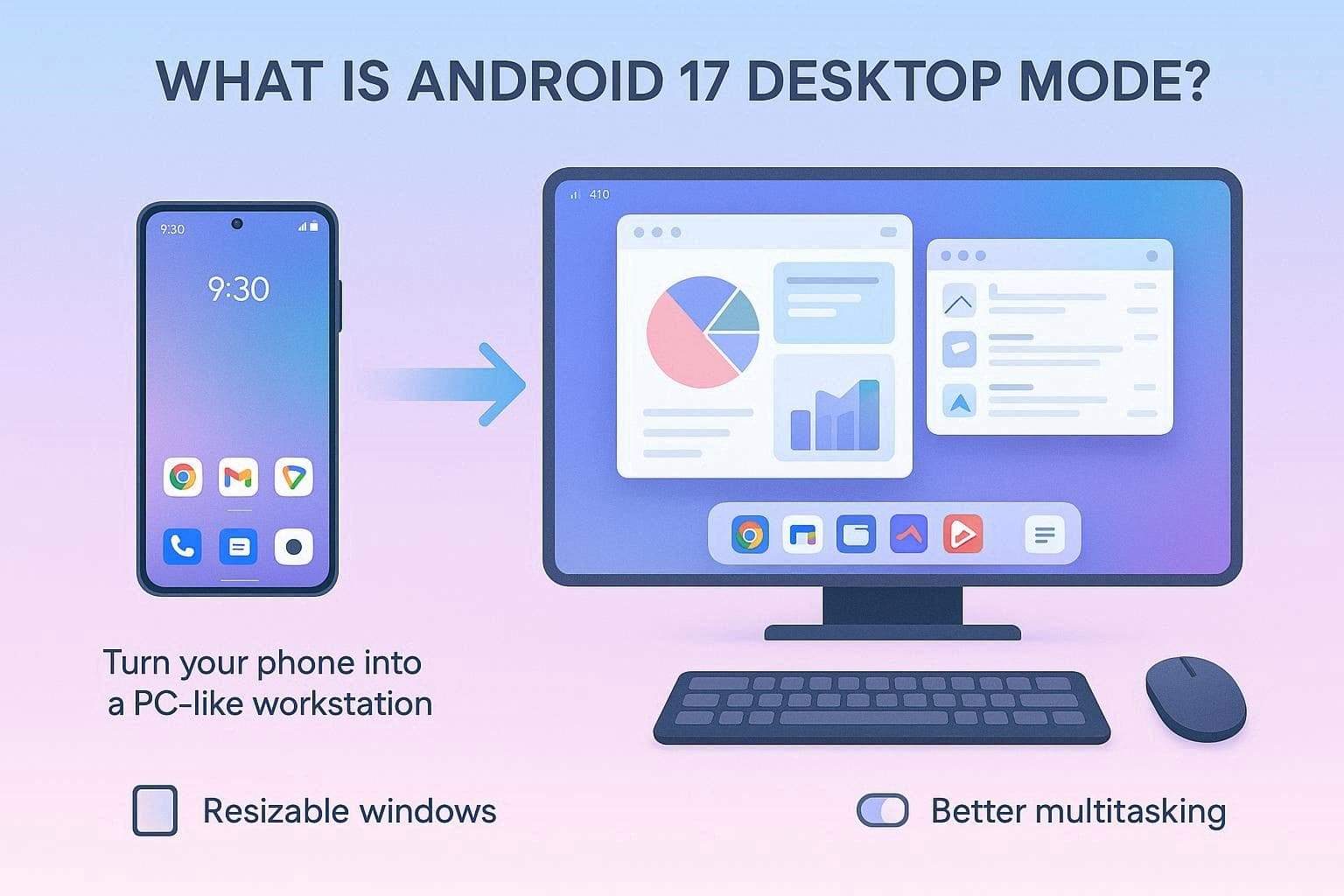
Overview of Android Desktop Mode
The Android Desktop Mode is designed to turn your phone into a workstation by projecting a full, PC-like interface. Rather than the mobile layout, users enjoy the desktop-style interface with resizable app windows, easier multitasking, and better keyboard and mouse support. Thus, this makes work and entertainment feel more like using a PC.
How It Differs from Regular Android UI
To know the difference between the Desktop Mode and regular Android UI, glance at the given table:
| Aspect | Desktop Mode (Android 17) | Regular Android UI |
|---|---|---|
| Layout | Desktop with background + free‑floating windows | Single full screen; optional split‑screen |
| Navigation | Taskbar + desktop window switcher | Gesture bar or navigation buttons, Recent apps screen |
| Window Control | Resizable, movable, overlapping app windows | Mostly fixed full screen; limited split/floating windows |
| Input Focus | Optimized for mouse + keyboard (cursor, shortcuts) | Optimized for touch; keyboard/mouse secondary |
| External Display | Dedicated desktop on monitor, phone can act as a touchpad/second screen | Often just mirrors or stretches the phone screen |
| Multitasking | Many visible apps at once, desktop‑style workflow | 1–2 apps visible; others paused in the background |
What You Can Do with Android 17 Desktop Mode
Android 17 Desktop Mode lets you run multiple apps in resizable, overlapping windows. So, before you look for the Android Dex alternative, here are some of its key features you’re going to have:
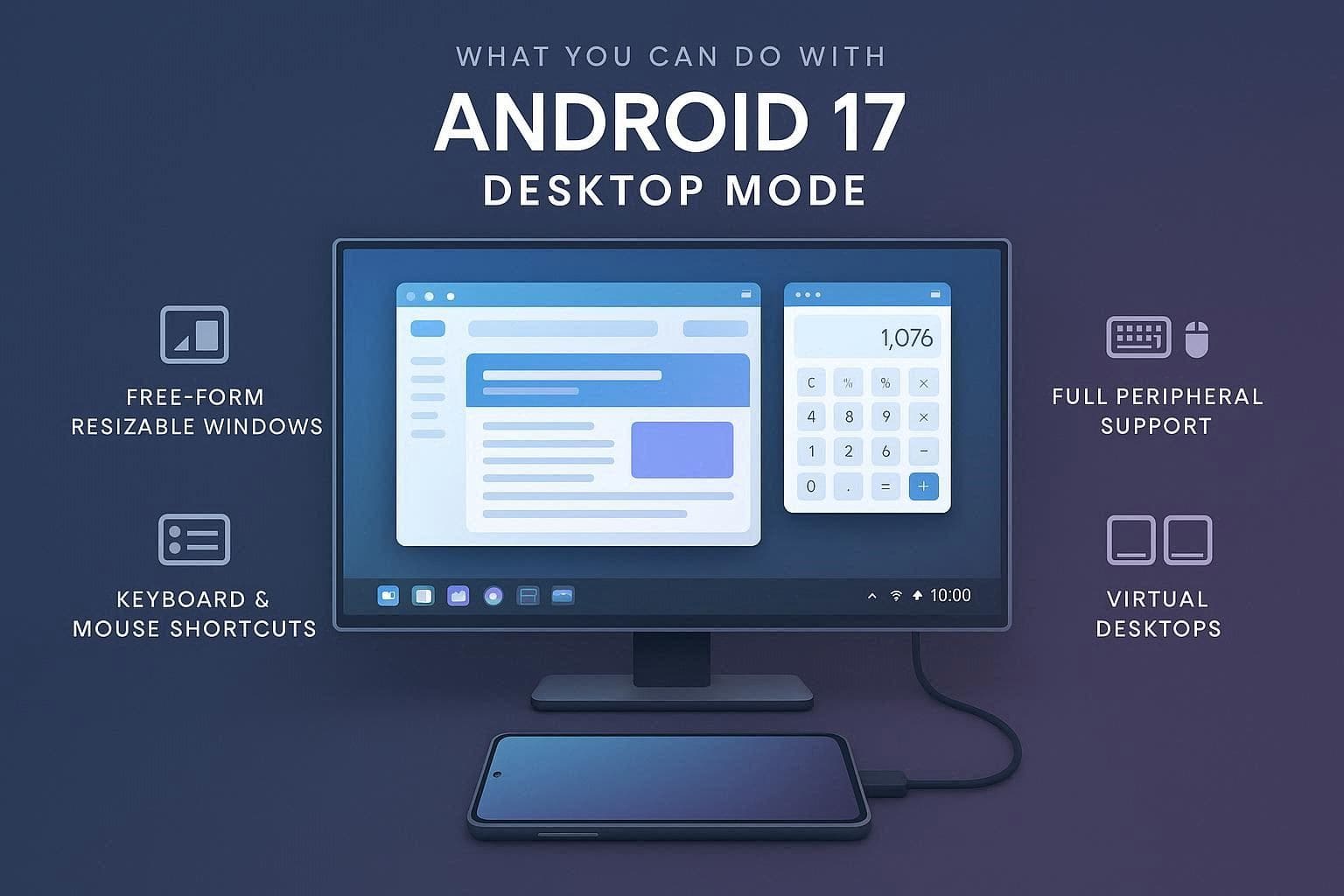
- Free-Form Window Resizing: You can resize, drag, and minimize multiple application windows on your monitor, similar to a computer, NokiaPowerUser reports. Additionally, you can snap apps to the left and right halves of the screen to multitask.
- Desktop-Style Taskbar: This mode adds a fixed taskbar at the bottom of the screen with app shortcuts, system icons, and quick access to favorite applications. The taskbar is rumored to be “dock-style” and to function like a traditional PC Start menu for easy app pinning and launching.
- Advanced Keyboard and Mouse Mapping: The system maps standard desktop shortcuts automatically, so that you can switch windows with Alt + Tab, or copy and paste with Ctrl + C/V. What's more, it natively supports right-click menu navigation in productivity apps.
- Native Peripheral Support: In addition to the Shortcuts, the Android desktop mode offers plug-and-play compatibility with standard Bluetooth and USB keyboards and mice. This includes the ability to customize cursor speed, swap buttons, and get accurate right-click contextual menus.
- Virtual Desktops: Users can create and manage multiple, independent virtual workspaces in the desktop mode. Hence, this aspect allows better organization of active tasks and open applications.
Part 2. How Android 17 Desktop Mode Works?
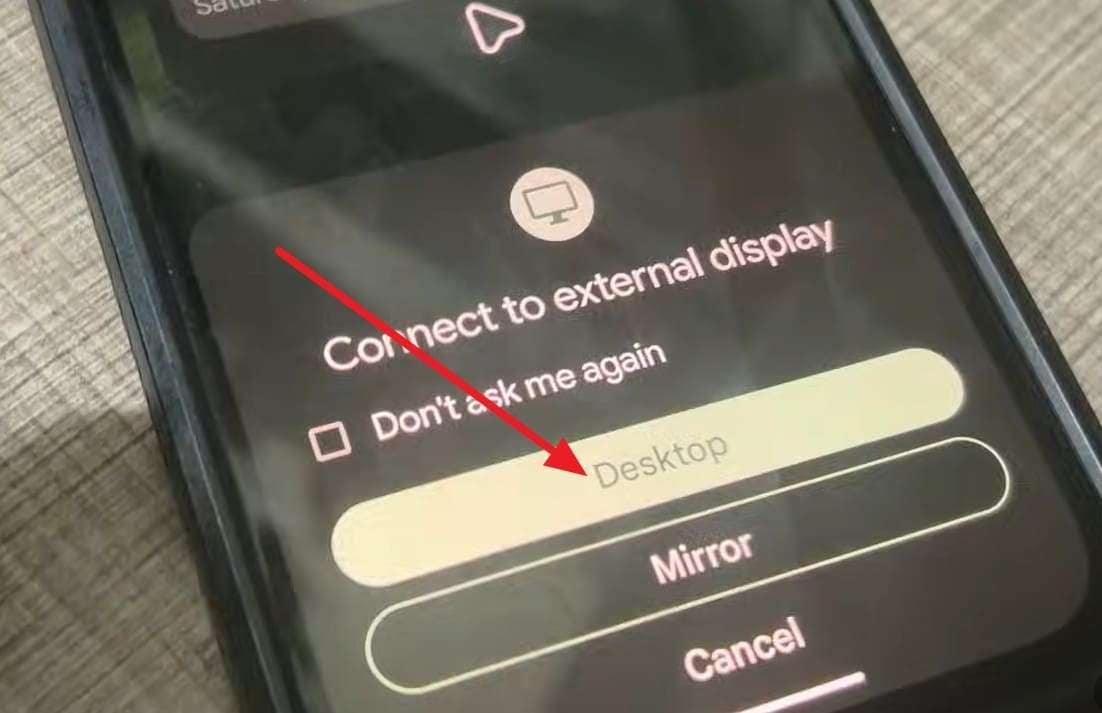
Regarding the work, you are prompted to choose between the “Desktop Mode” and “Mirror” options when connecting the device. When you opt for Desktop Mode, the monitor displays a custom desktop, just like Chrome OS, macOS, or Windows.
Instead of a mobile interface, an application can now be accessed from the bottom or center-aligned taskbar. Overall, the phone becomes the primary focus, and input from Bluetooth or USB devices, like a mouse or keyboard, is fed to the running application on the external display.
Devices and Requirements for Android 17 Desktop Mode
Note that access to the Android 17 PC mode comes with certain hardware capabilities and software configurations. Therefore, your smartphone's USB-C port must have physical hardware support for video output, such as DisplayPort Alt Mode. The report also says that standard USB-C charging cables cannot carry video signals and may not support display output.
Regarding the display, you need a standard HDMI or DisplayPort monitor, TV, or a portable lapdock, such as NexDock. As for device support, Beebom says desktop mode will be available on Google Pixel 6, 7, 8, 9, and 10 series. This list also includes Pro, Fold, and “a” variants, as well as all the recent flagship phones.
How to Enable Android 17 Desktop Mode
For users wondering how to enable and use the Android desktop mode, the detailed guide is given below:
-
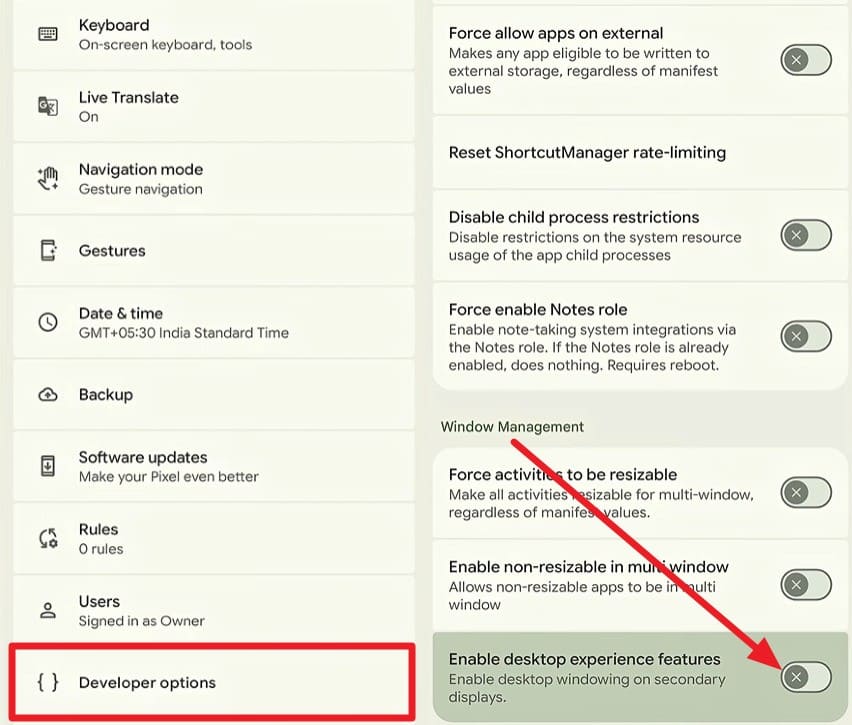
Step 1 Navigate to Settings > About Phone and touch Build Number 7 times until it says developer. Then head to the “Developer Options” section of the settings and adjust the setting to enable the “Enable Desktop Experience Feature.” Then, plug one end of your USB-C video cable into your phone and the other into the monitor, TV, or lapdock.
-
Step 2 Once prompted, pick the “Desktop Mode” from the popup menu, and your external monitor will flash and display the desktop interface.
Part 3. Is Android 17 Desktop Mode Like Samsung DeX?
When learning about the Android desktop mode, many users wonder whether the Samsung Dex is an Android Dex alternative. Actually, both modes work quite similarly, as they let you connect the phone to a monitor and use apps in resizable windows with a keyboard and mouse.
Nonetheless, the main difference is that Samsung DeX is more polished and feature-rich, while Android 17's desktop mode is newer and still improving. To further know what features of Samsung DeX beat Android 17’s desktop mode, here is a detailed table:
| Feature | Android 17 desktop mode | Samsung DeX |
|---|---|---|
| Basic Idea | Phone to desktop UI on monitor. | Same phone‑to‑PC concept. |
| Maturity | New, still rough around the edges. | Very mature, refined since 2017. |
| Desktop Feel | Blank wallpaper, no icons/widgets. | Real desktop with icons, folders, and some widgets. |
| Input | Needs a mouse/keyboard; the phone can’t serve as a touchpad yet. | The phone can act as a touchpad; it has strong keyboard/mouse support. |
| Screen Handling | Tied to the phone screen; can’t fully turn the phone screen off. | The external display works fine while the phone sleeps. |
| Audio | Often auto‑routes to monitor; fiddly to switch. | Smarter audio routing, fewer issues. |
| Connection | Mostly wired, limited devices so far. | Wired and wireless DeX; many Galaxy models. |
| Best Use | Casual work, browsing, testing the future. | Light laptop replacement for many tasks. |
Part 4. 5 Problems Users May Face with Desktop Mode
Since the Android 17 PC mode is still in development, users might encounter issues when using it, as some comments say:
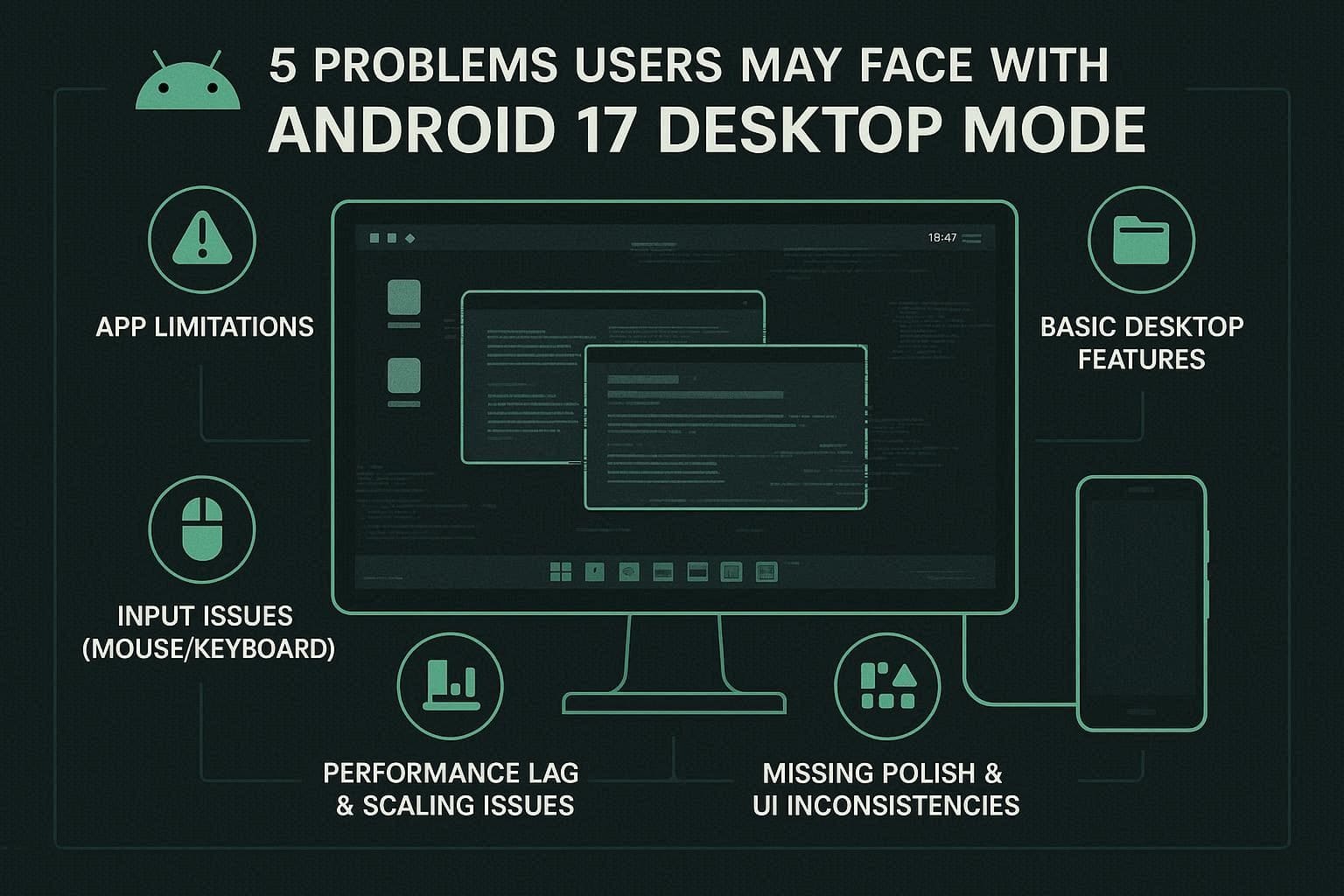

So, to further know what they can be, here are the 5 issues mentioned in detail:
- App Limits: Many Android apps still behave like phone apps in desktop mode rather than true desktop applications. Additionally, some apps may freeze, look stretched on larger screens, or keep loading mobile-style websites.
- Basic Desktop Features: Android 17 desktop mode still feels simpler than a full PC desktop environment. This means you cannot freely add shortcuts, folders, or widgets, and window snapping options are limited.
- Input Problems: Desktop mode can feel awkward without additional accessories such as a mouse or keyboard. It still lacks a properly built-in touchpad, and the settings are scattered.
- Performance Issues: Running a desktop interface from a phone can cause lag and stability problems. Additionally, users report blurry scaling, crashes, tinier UI elements on 4K displays, and 60 Hz limits.
- Missing Polish: The overall experience still lacks the smooth feel of a real desktop operating system. Windows layouts may not save properly, and some menus still behave like an enlarged phone UI.
Part 5. Use Mobile Manager Tools for a Better Desktop Experience
As the Android Dex alternative, experts say that users can use the Android phone managers. So, to understand why it is and what the best option could be, review this section.
How Phone Management Tools Help
Mobile management tools help you control and secure all phones from a single platform. Such tools provide features like backup & transfer to move data or back up important files. Additionally, you can use them to move data from iCloud and iTunes and store it in separate tabs on phones or PCs. You can also manage notifications on applications, where the desktop mode gives an app-like look rather than a true desktop experience.
With phone management tools, you can have a desktop-like experience when connecting the phones, without any enlarged media. So, as you try to move data across devices, you won’t face resolution or lag issues, unlike in Android 17's desktop mode.
Try Dr.Fone – Phone Manager Option
So, as one strong option alongside Android 17’s desktop mode, you can use Wondershare Dr.Fone to move data between Android and the computer for data management. Users can also use it to share data from iTunes to Android, where they can delete, export, and preview the data. Most of all, you can import contacts from iCloud to Android or PC and view all the phone’s notifications on a wider display.
Compared to desktop mode, it also lets you print WhatsApp and LINE chats on your PCs to secure them. Hence, you can use the Dr.Fone Link App to make a wireless connection, which desktop mode lacks. Nonetheless, the tool features smart duplicate detection to remove duplicate files across PCs and desktops. Regardless of the function one manages, the tool is intuitive and comes with weekly updates for all Android models.
 Effortlessly manage data through preview, delete, export, etc.
- Transfer all data between devices.
- Robust backup solutions for reliable data protection.
- Mirror screens to PC for meetings, teaching, and control.

Guide to Use the Phone Manager Feature of Dr.Fone
To determine whether this phone manager is really the right Android Dex alternative, let’s perform a real-world test. To that end, let’s try to manage the photos using this tool to know the accuracy, via the mentioned guide:
-
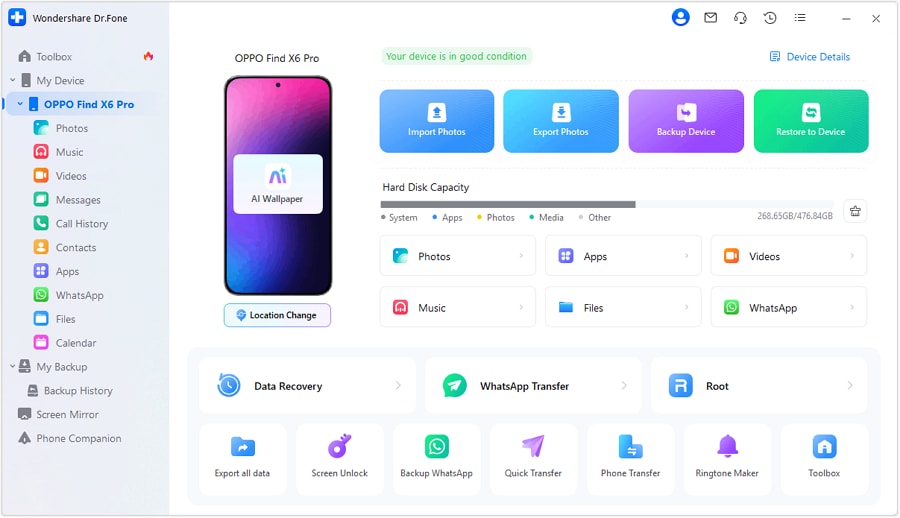
Step 1 Connect the Phone with the Tool Wirelessly
Use the Dr.Fone Link app to wirelessly connect the Android in the “My Device” section of Dr.Fone’s Toolbox.
-
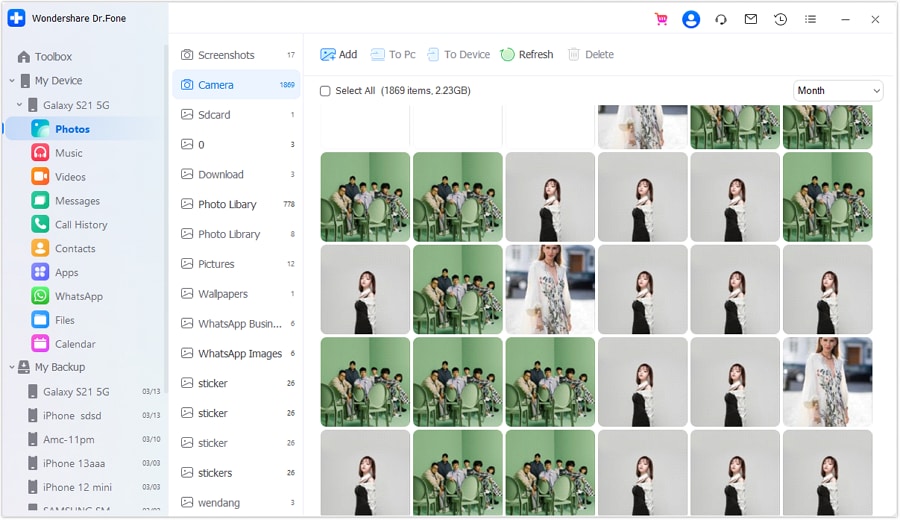
Step 2 Choose to Manage Photos Between Phone and PC
Choose the device from the left sidebar, then go to the “Photos” tab to select the media you want to manage. There, press “Add” to import the images, tap the “To PC” option to export the photos, or tap “Delete” to delete them.
-
Step 3 Preview the Shared Media Files Across Devices
Whether you import or export the image, tap on it to preview in detail.




1. Android 17 desktop mode is promising but still immature
It offers resizable windows, taskbar navigation, and keyboard/mouse support, but lacks polish, stable 4K output, and full peripheral integration compared to Samsung DeX.
2. Dr.Fone - Phone Manager fills the gaps
For smoother file management, backups, printing, and cross-device control, tools like Dr.Fone offer a more stable desktop-like experience without display or performance issues.
Conclusion
The Android desktop mode is an exciting step towards turning phones into lightweight PCs with better multitasking. Hence, this guide has explained all its key aspects and guided you on how to enable them in a few taps. Nevertheless, users have reported resolution and display issues with its Beta version, but progress is being made.
Until the stable version is released, users can use Wondershare Dr.Fone for smoother file management. The tool also makes backups, transfers, and desktop-style controls effortless and fills many current gaps.
FAQ
-
1. Does Android 17's desktop mode work wirelessly?
The Android 17 desktop mode setup currently works better with a wired USB-C connection. Hence, compared with the Samsung DeX, wireless support remains limited. -
2. Can Android desktop mode replace a laptop?
It can handle light tasks like browsing, document work, email, and media playback. However, it still cannot fully replace a window or a macOS laptop for heavy professional work. As an alternative, you can use Dr.Fone - Phone Manager to back up, transfer, delete, print, or import data from iCloud or iTunes. -
3. Do all USB-C cables support Android desktop mode?
Many USB-C cables only support charging and data transfer; you need one with video output, such as DisplayPort Alt Mode compatibility.
 Add Wondershare Dr.Fone as a preferred source on Google