 Effortlessly manage data through preview, delete, export, etc.

 100% Security Verified | No Subscription Required | No Malware

 :
: 
 ChatGPT
 Perplexity
 Gemini
 Claude
 Grok
Grok
In this article
Before you start
Samsung updates often reorganize menus, so learning how to use one ui 8.5 features is usually easier when you first verify the software build, update Samsung apps, and check whether your Galaxy model supports the option you want. This guide focuses on the most practical settings paths and the most useful One UI 8.5 changes and hidden features for everyday customization, privacy, and multitasking.
Before changing settings, make sure your phone has enough battery, a stable Wi-Fi connection, and access to Galaxy Store if you plan to install optional Samsung modules.
Check your One UI version
Open Settings > About phone > Software information and confirm that your device is running the latest available One UI 8.5 build for your model. If the update is not installed yet, go to Settings > Software update > Download and install.
Prepare your phone and account
- Charge the phone to at least 30 percent or keep it plugged in.
- Connect to Wi-Fi for system and app updates.
- Sign in to your Samsung account for Good Lock, sync features, and Galaxy Store downloads.
- Update both Galaxy Store and Play Store apps before looking for new options.
Know where Samsung moved settings
After a major update, many options are grouped under Display, Advanced features, Lock screen and AOD, Privacy and security, Camera, and Notifications. If a menu looks unfamiliar, use the search bar at the top of Settings to find the feature by name.
Confirm model and region support
Some features are limited to newer Galaxy S, Z, or selected A series phones. Others appear later by region, carrier firmware, or app version. Good Lock availability also depends on country and module rollout timing.

Method 1: Check the main One UI 8.5 features inside Settings
This method is best if you want the most visible One UI 8.5 features without installing extra apps or modules.
-
Step 1 Confirm your One UI version
Open Settings > About phone > Software information and verify that your phone shows the latest available One UI 8.5 version for your model.
-
Step 2 Review key categories after the update
Check Settings > Display, Advanced features, Lock screen and AOD, Privacy and security, and Notifications because many changed or renamed options are grouped there.
-
Step 3 Turn on useful daily features
Enable options such as edge panels, privacy alerts, notification customization, multitasking tools, and lock screen controls based on what your Galaxy phone supports.
- Display usually contains brightness, refresh rate, wallpaper, and screen behavior changes.
- Privacy and security is the main place to review permissions, alerts, and device protection tools.
- Lock screen and AOD is where Samsung keeps clock style, shortcuts, widgets, and notification display settings.
Method 2: Use hidden One UI 8.5 customization tools
This method is for users looking for deeper personalization, Labs options, and extra multitasking controls that are not always obvious after the update.
-
Step 1 Open Labs and advanced options
Go to Settings > Advanced features > Labs to check for experimental or multitasking features such as split screen improvements, pop-up behavior, or app window controls.
-
Step 2 Customize the lock screen and always on display
Navigate to Settings > Lock screen and AOD to adjust shortcuts, widgets, wallpaper behavior, clock style, and notification appearance.
-
Step 3 Install Samsung Good Lock if available
Open Galaxy Store, search for Good Lock, and install modules for home screen, lock screen, gestures, or task switching if they are available in your region.
- Good Lock adds deeper customization than the standard Settings app.
- Some hidden tools are available only on newer or higher-end Galaxy devices.
- If a Good Lock module does not appear, update Galaxy Store and check again later.
Method 3: Fix missing or moved One UI 8.5 features after updating
Use this method if you updated successfully but cannot find a feature mentioned in forums, videos, or Samsung changelogs.
-
Step 1 Update system apps and Galaxy Store modules
Open Galaxy Store and Play Store, then install all pending updates because some features depend on newer Samsung app versions rather than the system update alone.
-
Step 2 Search Settings directly
Use the search bar in Settings to look for terms such as Labs, RAM Plus, AOD, edge panels, privacy, or multitasking if Samsung changed the menu location.
-
Step 3 Check device support and regional limits
If a feature still does not appear, confirm that your Galaxy model, region, and carrier firmware support it. Some options are released in stages or limited to select devices.
- Restarting the phone after updates can help newly added options appear.
- Missing features are often caused by model limitations, not a faulty installation.
- If a camera, display, or AI feature is absent, compare your device with Samsung's supported model list.
Method comparison
If you are unsure where to start, use the table below to match the feature area with the right menu path.
| Feature area | Where to find it | What to expect |
|---|---|---|
| Display and visual changes | Settings > Display | Brightness, refresh options, wallpapers, and screen behavior updates |
| Privacy and security | Settings > Privacy and security | Permission controls, alerts, and data protection tools |
| Lock screen and AOD | Settings > Lock screen and AOD | Clock, shortcuts, widgets, notifications, and always on display customization |
| Multitasking and hidden tools | Settings > Advanced features > Labs | Split screen, pop-up view, and experimental productivity options |
| Extra customization | Galaxy Store > Good Lock | Deeper home screen, gesture, theme, and task switcher tweaks |
Common problems and fixes
These are the issues Samsung users most often face after installing One UI 8.5 and the fastest ways to handle them.
- One UI 8.5 update is not available: Go to Settings > Software update > Download and install, then check again later if your carrier or region has not released it yet.
- I cannot find a feature shown online: Search for the feature inside Settings, update Samsung apps in Galaxy Store, and confirm that your exact Galaxy model supports it.
- Good Lock modules are missing or not working: Update Good Lock and its modules from Galaxy Store, or wait for module compatibility if the plugin update is behind the One UI rollout.
- Settings look different after the update: Recheck sections like Advanced features, Lock screen and AOD, and Privacy and security because Samsung often renames or reorganizes menus.
Why this Wondershare tool may help
Most users exploring how to use one ui 8.5 features only need Samsung's built-in settings. However, if troubleshooting leads to a factory reset and your phone gets stuck on Google verification during setup, Dr.Fone - Screen Unlock (Android) may be a helpful fallback for Samsung owners dealing with FRP access issues rather than missing menus.
- It is relevant when you cannot finish setup after a reset and need access to the device again before checking One UI settings.
- It focuses on Samsung FRP-related recovery scenarios, not routine feature activation.
- It can be useful if update troubleshooting turns into a lock-related setup problem.
 Unlock Android phone in seconds.
- Remove PIN, pattern, password, fingerprint.
- Bypass Google FRP lock easily.
- Works on all Android brands & models.
- No tech skills required – user-friendly.

If your Samsung phone is locked by FRP after reset-based troubleshooting, this tool is a practical recovery option to review before trying more complicated workarounds.




How to Use Dr.Fone - Screen Unlock (Android) for how to use one ui 8.5 features?
To know whether this tool fits your case, review the matched guide steps extracted for the feature: Bypass Google FRP Lock on Samsung.
-
Step 1 Open the Screen Unlock Tool
Start by launching Wondershare Dr.Fone on your computer and connect your Samsung phone or tablet. Then, progress through Toolbox > Screen Unlock to open the specific toolkit on a new window.

-
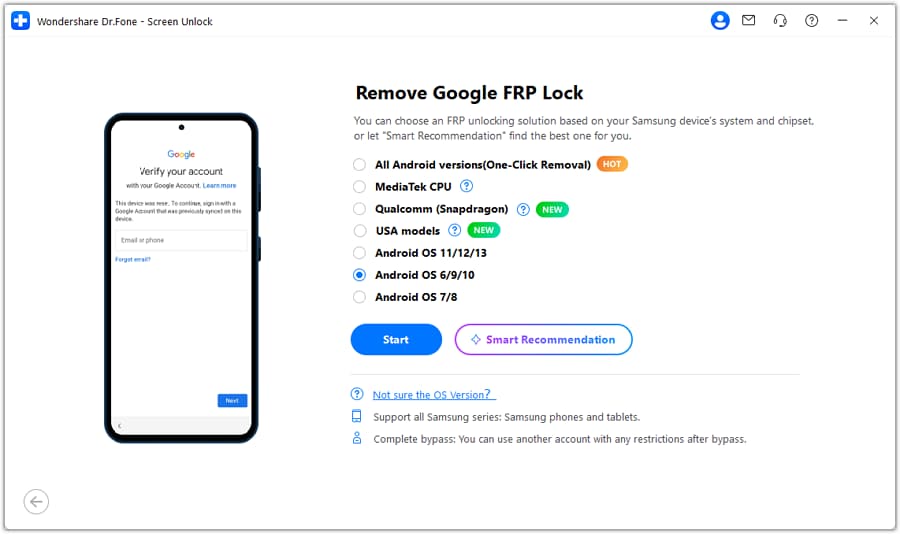
Step 2 Select Android Version
After accessing the Screen Unlock tool and opening the FRP lock function through it, lead to the screen where you have to select the Android version. Select Android OS 6/9/10 from the options and proceed by clicking Start .
-
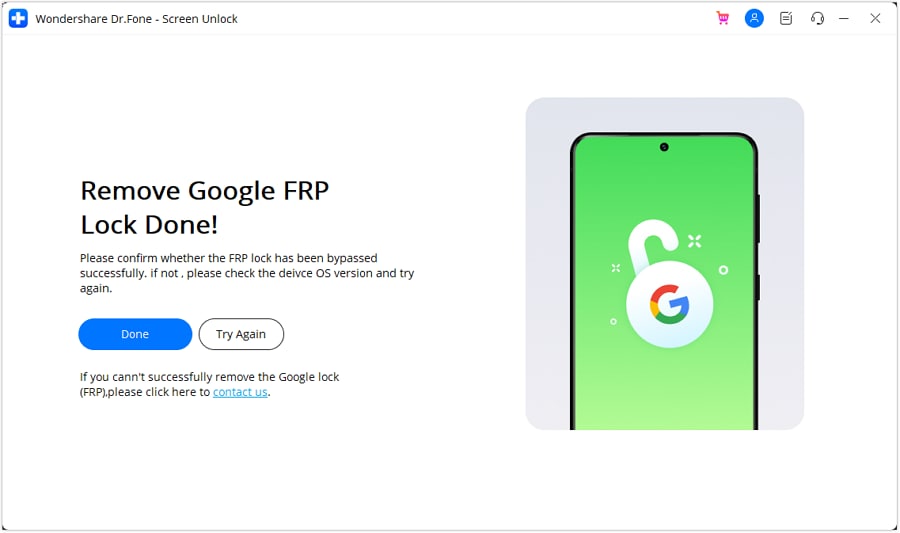
Step 3 Successfully Remove FRP Lock
The tool will now remove the FRP lock automatically. Once done, a confirmation message will appear. Click "Done" to finish. If the process fails, click "Try Again" and repeat the steps.
Conclusion
Once your Galaxy phone is updated, the fastest way to explore One UI 8.5 changes and hidden features is to check Display, Advanced features, Lock screen and AOD, Privacy and security, and Good Lock support. With the right settings path and a quick compatibility check, finding and enabling useful tools becomes much easier.
If options seem moved, renamed, or unavailable, update Samsung apps, search Settings directly, and confirm device support before assuming something is broken. That simple routine usually resolves most post-update confusion.
FAQ
-
1. What are the new features in One UI 8.5?
The most noticeable updates usually include refreshed customization options, privacy controls, lock screen tools, camera or display refinements, and multitasking improvements. The exact feature list depends on your Samsung Galaxy model and region. -
2. How do I use hidden features in One UI 8.5?
Check Settings > Advanced features > Labs, Lock screen and AOD, and the Galaxy Store for Good Lock modules. Many hidden features need to be enabled manually. -
3. Where are the One UI 8.5 settings after the update?
Most changed options are under Display, Advanced features, Lock screen and AOD, Privacy and security, Camera, and Notifications. If you cannot find one, use the Settings search bar. -
4. Which Samsung phones support One UI 8.5 features?
Support varies by model, region, and carrier firmware. Newer Galaxy S, Z, and some premium A series phones usually receive the most complete feature set. -
5. Why are some One UI 8.5 features missing on my phone?
Some features are limited by hardware, regional rollout, carrier customization, or app version. Update Samsung apps, restart the phone, and verify that the feature is supported on your exact model. -
6. How do I customize my Samsung phone after the One UI 8.5 update?
Start with Settings > Lock screen and AOD, Display, and Advanced features, then install Good Lock from Galaxy Store if it is available in your region for deeper home screen, gesture, and task-switching customization.
 Add Wondershare Dr.Fone as a preferred source on Google



