Effortlessly manage data through preview, delete, export, etc.

 100% Security Verified | No Subscription Required | No Malware

 :
: 
 ChatGPT
 Perplexity
 Gemini
 Claude
 Grok
Grok
In this article
Before you start
If you need an Android 16 Desktop Mode guide, start with compatibility first. The fastest path is usually to connect a compatible Android 16 phone to an external display, then check whether your system shows a desktop, external display, or windowed display option.
In practice, how to enable android 16 desktop mode depends on four things: phone support, Android 16 build support, USB-C video output, and the cable or dock you use.
Check phone support
Not every Android 16 phone supports desktop-style output. Some devices can only mirror the screen, while others may not send video at all through USB-C.
- Your phone should be running Android 16 or a compatible preview build.
- The USB-C port must support display output, not just charging and file transfer.
- OEM implementation matters, so menus and feature names may vary by brand.
Get the right cable or dock
A working desktop setup usually needs a video-capable USB-C to USB-C cable, USB-C to HDMI adapter, or a proper USB-C hub or dock with HDMI or DisplayPort output.
- Use accessories that explicitly mention video output support.
- Avoid charging-only hubs and low-cost adapters with unclear specs.
- If possible, test with a known-good monitor cable before changing phone settings.
Prepare your monitor and accessories
You can use a monitor or TV with HDMI, DisplayPort, or USB-C input. A Bluetooth or wired keyboard and mouse make Android desktop mode much easier to control.
- Set the monitor or TV to the correct input source.
- Keep your phone charged, especially when using a dock with peripherals.
- Pair Bluetooth input devices in advance if you want a smoother first setup.
Know the main limitations
Even on Android 16, some phones only support basic screen mirroring instead of a full desktop interface. Others may hide experimental desktop features in Developer options or not include them at all.

Method 1: Connect directly to a monitor
This is the simplest Android 16 desktop mode setup if your phone supports direct USB-C video output.
It is best for users who want the quickest way to test desktop mode on a monitor or TV.
-
Step 1 Connect the phone to the display
Use a USB-C to USB-C display cable or a USB-C to HDMI adapter connected to your monitor or TV. Give the phone a few seconds to detect the external screen.
-
Step 2 Check display-related settings
Open Settings and look under Connected devices, Display, External display, or a similar menu. If available, turn on desktop mode, windowed mode, or the external display option.
-
Step 3 Set up input devices
Pair a Bluetooth keyboard and mouse or connect them through a compatible adapter. Then test pointer control, app resizing, and multitasking on the larger screen.
This route works best when the device already has native support for Android 16 external display desktop mode.
Method 2: Use a USB-C hub or dock
A hub or dock is often the most practical choice if you want display output, charging, and accessories connected at the same time.
It is best for productivity-focused users building a more complete desktop-style setup.
-
Step 1 Choose a video-capable dock
Use a USB-C hub or docking station that clearly supports HDMI or DisplayPort output. If the hub supports only charging or data, the external display will not activate.
-
Step 2 Connect display and peripherals
Plug your monitor into the dock, then attach your keyboard, mouse, and charger if needed. After that, connect the dock to your phone and check whether the display wakes up.
-
Step 3 Adjust the desktop experience
Open the phone's display settings and look for screen layout, resolution, scaling, or app window behavior. If a desktop-style option appears, switch from simple mirroring to that mode.
If the screen mirrors only, your phone may support external display output without supporting a full desktop workspace.
Method 3: Try Developer options
This method is for advanced users whose Android 16 build may include hidden or experimental desktop-related controls.
It can help when the normal settings path does not show any usable desktop mode switch.
-
Step 1 Enable Developer options
Go to Settings > About phone and tap Build number several times. Then return to Settings and open System > Developer options.
-
Step 2 Look for desktop-related toggles
Check for options related to freeform windows, force desktop mode, external display behavior, or other desktop experience features. Enable only the settings clearly related to display multitasking.
-
Step 3 Reconnect the external display
Disconnect and reconnect your monitor, and restart the phone if needed. Then see whether the external screen now launches a desktop-like layout instead of standard mirroring.
Developer options vary widely by device and build, so some phones will not offer a stable or usable workaround.
Method comparison
The best method depends on whether your phone supports direct video output, whether you need extra ports, and whether Android 16 exposes the feature normally.
| Method | What You Need | Best Use Case | Main Limitation |
|---|---|---|---|
| Direct USB-C to display | Phone with USB-C video output and compatible cable | Quickest setup for supported phones | Fails if the phone does not support video output |
| USB-C hub or dock | Video-capable dock, monitor, and optional peripherals | Productivity setup with keyboard and mouse | Cheap hubs often do not support display output |
| Developer options workaround | Android 16 build with hidden desktop features | Testing experimental desktop support | Not available or stable on many devices |
Common problems and fixes
If Android 16 desktop mode does not appear, the cause is usually a missing hardware requirement, a hidden setting, or a cable or dock problem.
- Desktop mode is not showing in Settings: Confirm that your phone model supports external display desktop features, then update to the latest Android 16 build and check Display, Connected devices, and Developer options.
- The monitor says no signal: Replace the cable, adapter, or dock with one that explicitly supports video output. Many USB-C accessories handle power and data only.
- The phone only mirrors the screen: Look for a desktop, external display, or windowed mode switch. If none exists, the device may support mirroring only.
- Keyboard or mouse does not work: Reconnect the accessory, try Bluetooth pairing, or add external power to the dock if it is underpowered.
- TV works differently from a monitor: Check the TV input, resolution handling, and overscan settings. Some TVs behave less consistently than monitors for desktop-style layouts.
Why this Wondershare tool may help
While desktop mode itself depends on your phone and hardware, Wondershare Dr.Fone - Virtual Location can still be useful if your Android 16 Desktop Mode guide use case includes testing location-based apps on a larger screen.
It may help when you want to simulate movement, manage routes, or observe app behavior more comfortably while using an external display, keyboard, and mouse.
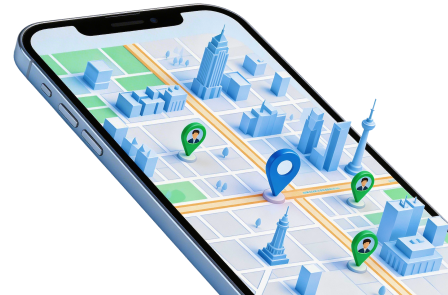
 Set your map route to simulate GPS movement.
- Set your wanted movement speed.
- HD and large map view to check location.
- Fake GPS location to anywhere.
How to Use Dr.Fone - Virtual Location for how to enable android 16 desktop mode?
To know whether this tool fits your case, review the matched guide steps extracted for the feature: Connect iOS/Android Device To Fake Locations.
-
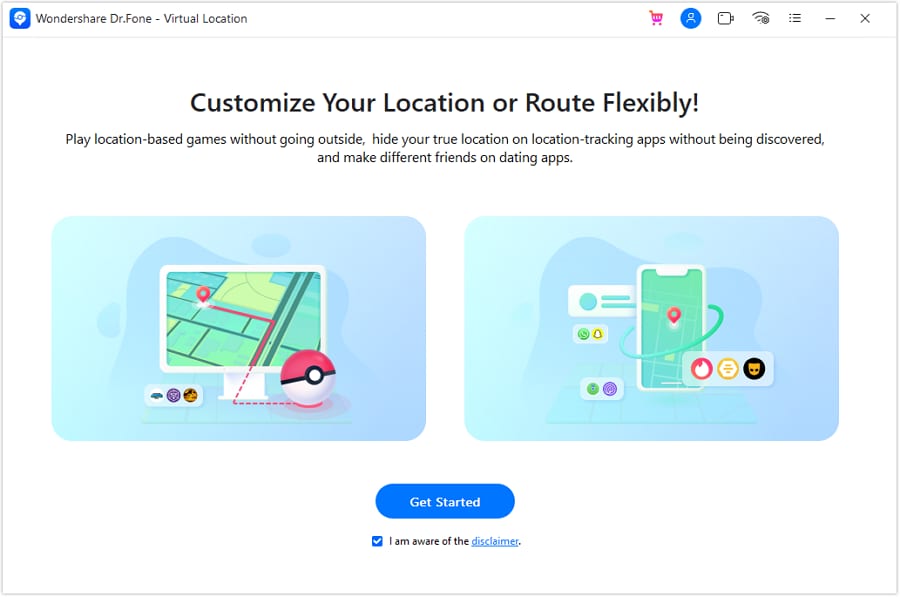
Step 1 Get Started with the Tool
Connect your iDevice with a USB cable, and launch the tool from the navigation of Toolbox > Virtual Location . As you open it, click Get Started on the window to proceed.
-
Step 2 Restart the Device
The device will prompt to restart, for which you will have to press the Restart option on the iDevice. As it restarts, unlock and select the option of Turn On against the pop-up that appears on its screen. Enter your password on the iDevice.

-
Step 3 Device Connected Successfully
The device will successfully connect, and the map will be displayed. You can click Manage Device to control or uncontrol your device. Start traveling now!

If your desktop setup is mainly for testing map-based or movement-sensitive apps, this is a soft add-on rather than a requirement for enabling desktop mode itself.




Conclusion
The best way to enable Android 16 desktop mode is to confirm support first, then use a proven cable or dock and check your display settings. If the feature does not appear, test a different adapter, monitor, or Android 16 build before assuming the option is broken.
With the right hardware, this Android 16 Desktop Mode guide should help you understand what works, what does not, and where to look when how to enable android 16 desktop mode seems harder than expected.
FAQ
-
1. How do I enable Desktop Mode on Android 16?
Connect your Android 16 phone to a monitor or TV using a USB-C cable, adapter, or dock that supports video output. Then check Settings for desktop, external display, or windowed display options. If nothing appears, the feature may not be supported on your device. -
2. Which phones support Android 16 Desktop Mode?
Support depends on the phone model, OEM software, and whether the USB-C port supports video output. Flagship devices are more likely to offer desktop-style external display features than budget phones. -
3. Do I need USB-C video output for Android 16 Desktop Mode?
Yes, in most cases you need a phone with USB-C display output support to use desktop mode on a monitor or TV. If the port handles only charging or standard data, the display will not launch. -
4. Why is Android 16 Desktop Mode not showing on my phone?
Common reasons include unsupported hardware, a hidden or unavailable toggle, a cable or dock without display support, or an Android 16 build that does not include the feature. Checking all four is the fastest way to narrow it down. -
5. Can I use Android 16 Desktop Mode with a TV or monitor?
Yes, you can use either a monitor or a TV if the connection method supports video output. Monitors usually provide a more reliable desktop-style experience, while some TVs may behave more like simple screen mirroring targets. -
6. How do I connect a keyboard and mouse in Android 16 Desktop Mode?
You can pair Bluetooth accessories directly with the phone or connect wired devices through a compatible dock or hub. If they do not respond, reconnect them or supply extra power to the dock.
 Add Wondershare Dr.Fone as a preferred source on Google