Effortlessly manage data through preview, delete, export, etc.

 100% Security Verified | No Subscription Required | No Malware

 :
: 
 ChatGPT
 Perplexity
 Gemini
 Claude
 Grok
Grok
In this article
Before you start
If your phone feels crowded, slow, or harder to manage than it should, this guide will show you how to declutter your android phone safely. If you have been searching for How to declutter your digital life on Android, the best approach is to back up first, then clean up apps, files, media, and notifications in a planned order.
Menu names can vary slightly by Android version and phone brand, but the same core cleanup process works on most devices.
Back up important data
Before deleting anything, make sure your photos, contacts, documents, and other important files are backed up to your Google account, a computer, or external storage.
- A recent backup of photos, contacts, and important files
- Access to Settings, Files, and Play Store on your Android phone
- A stable Wi-Fi connection if you plan to sync or upload data
Set aside time for cleanup
A full cleanup usually takes 15 to 20 minutes. If your phone has not been reviewed for months, give yourself extra time to check downloads, screenshots, and large media folders carefully.
Know where Android stores clutter
The biggest sources of clutter are usually unused apps, downloads, screenshots, duplicate media, app cache, and old files left in trash folders. Messaging apps and offline video or music downloads can also consume a surprising amount of storage.
Understand what is safe to remove
Temporary files, old downloads, duplicate attachments, and app cache are usually safe to clear. App data is different because it may sign you out or remove offline content. Review carefully before confirming any deletion.

Use Android storage tools for a fast cleanup
This method is best if you want the quickest way to clean up Android phone storage without opening every folder manually.
Most Android devices include a Storage, Device care, or Files section that highlights large files, junk, and space-hungry apps.
-
Step 1 Check what is using space
Open Settings and go to Storage, or Device care on some brands. Review categories such as apps, photos, videos, downloads, and trash to see what is taking up the most room.
-
Step 2 Delete obvious junk safely
Remove temporary files, old screenshots, duplicate downloads, and anything sitting in trash or recycle folders. If your phone offers suggested cleanup items, review them before confirming deletion.
-
Step 3 Clear app cache selectively
Open Settings, tap Apps, choose large apps such as browsers or social apps, and clear cache. This can help you free up space on Android phone storage without removing accounts or personal content.
- Clearing cache is usually safe.
- Deleting app data can remove offline files or sign you out.
- Built-in cleanup tools are fast, but they may not catch every duplicate file.
Remove unused apps and simplify your home screen
This method is ideal if you have too many apps, a crowded app drawer, or a home screen full of distractions.
Besides recovering storage, trimming your app list can reduce notifications and background activity.
-
Step 1 Review your least-used apps
Open Settings > Apps or check Play Store > Manage apps and device to find apps you no longer need. Games, shopping apps, old utility tools, and trial apps are good places to start.
-
Step 2 Uninstall or disable safely
Uninstall apps you added and no longer use. If a preinstalled app cannot be removed, disable it if your phone allows that so it takes up less attention and background activity.
-
Step 3 Organize your layout
Keep only your most-used apps on the main screen, group similar apps into folders, and remove widgets you never use. This is one of the simplest ways to organize apps on Android for daily use.
- Check whether an app stores important offline files before uninstalling it.
- Disabling system apps may not free much storage, but it can reduce clutter in menus and the app drawer.
Clean downloads, photos, files, and notifications
This method works well when your phone is full of duplicate files, random media, and nonstop alerts.
It takes a little more time, but it is often the best long-term fix for a messy phone.
-
Step 1 Sort your Downloads folder
Open the Files app and review Downloads first. Delete old PDFs, APK files, duplicate attachments, and documents you already saved somewhere else.
-
Step 2 Review photos and large files
Sort photos by date or size, remove blurry shots and duplicates, and move important keepers to cloud or computer storage if needed. Also look for large videos and offline media hidden in app folders.
-
Step 3 Reduce notification noise
Go to Settings > Notifications and switch off alerts from apps that are not essential. Fewer notifications make your phone feel cleaner and easier to manage every day.
- Review Gallery, Files, and cloud trash folders after deleting media.
- A short cleanup every month is easier than waiting for a low-storage warning.
Method comparison
Each cleanup method solves a different kind of clutter. If you want the best result, combine a quick storage review with manual app cleanup and a media check.
| Method | Best for | Main benefit | Watch out for |
|---|---|---|---|
| Built-in storage cleanup | Quick space recovery | Finds large files and junk fast | May not catch app-level clutter or duplicates everywhere |
| Manual app review | Removing unused apps on Android | Reduces clutter, notifications, and background use | Make sure you do not remove apps with important saved data |
| Files and notification reset | Long-term digital organization | Cleans downloads, media, and distractions together | Takes more time because you must review items carefully |
Common problems and fixes
If your storage still looks full or your phone still feels messy after cleanup, the issue is usually hidden files, leftovers in trash folders, or visual clutter rather than a lack of free space alone.
- I deleted apps but my phone storage is still almost full. Check Downloads, trash folders, offline videos, messaging media, and cloud app caches. Large files often remain outside the apps you removed.
- I am afraid of deleting important photos or documents. Back up essential items first to your Google account, a computer, or external storage. Then remove only duplicates, blurry shots, and confirmed extras.
- I cannot uninstall some apps on my Android phone. These are usually preinstalled system apps. Try disabling them in Settings > Apps so they stop appearing prominently or running in the background.
- My phone still feels messy even after freeing up space. Remove unused widgets, group apps into folders, and limit notifications so the phone becomes easier to navigate daily.
Why this Wondershare tool may help
Most users can handle cleanup with Android's built-in tools, but there is one edge case worth knowing. If you reset your device during a major cleanup and later get locked out by the screen lock or Google FRP, Dr.Fone - Screen Unlock (Android) can be a helpful fallback. It is not a decluttering tool, but it can help if your cleanup turns into an access problem after reset.
- Unlock Android phones without passcode, including PIN, pattern, password, and fingerprint
- Bypass Google FRP lock on supported Android devices after reset
- Works across major Android brands and models with guided steps
 Unlock Android phone in seconds.
- Remove PIN, pattern, password, fingerprint.
- Bypass Google FRP lock easily.
- Works on all Android brands & models.
- No tech skills required – user-friendly.

If your cleanup plan includes a factory reset and you want a recovery option in case you cannot get back in, you can learn more about Dr.Fone - Screen Unlock (Android) before proceeding.




To know whether this tool fits your case, review the matched guide steps extracted for the feature: Bypass Google FRP Lock on Android Devices.
-
Step 1 Access Screen Unlock Tool
Launch Wondershare Dr.Fone on your computer and continue to Toolbox > Screen Unlock.

-
Step 2 Choose the Brand and Send Notification
Launch Wondershare Dr.Fone and continue to Toolbox > Screen Unlock . Then select Android > Remove Google FRP Lock . Now choose the brand of the phone (Vivo/Moto/Lenovo), follow the steps to proceed to the FRP lock screen and tap Send Notification .

-
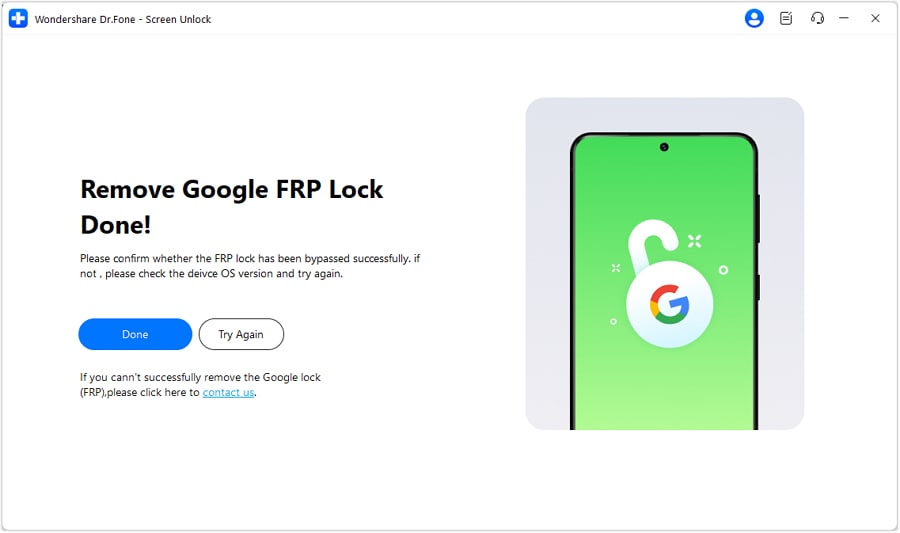
Step 3 FRP Lock Removal Complete
After completing all steps, tap Done to finish the process.
Conclusion
The safest way to keep your phone clean is to back up first, remove unused apps, clear old downloads, review large files, and simplify notifications. Once you build a monthly routine, how to declutter your android phone becomes much easier and less risky.
For most people, How to declutter your digital life on Android really means making the device simpler, faster, and less distracting every day.
FAQ
-
1. How do I declutter my Android phone without deleting important files?
Start by backing up photos, contacts, and documents. Then target low-risk items first, such as cached files, duplicate downloads, blurry photos, unused apps, and trash folders instead of deleting everything at once. -
2. What is the best way to clean up storage on an Android phone?
The best approach is to combine built-in storage tools with manual review. Check what categories use the most space, uninstall unused apps, clear downloads, remove duplicates, and empty trash folders for the biggest results. -
3. How do I remove unused apps on Android safely?
Review your least-used apps in Settings or the Play Store, then uninstall apps you no longer need. Before deleting, check whether the app contains saved offline files or important account data. -
4. How can I organize my Android apps and home screen?
Keep only your most-used apps on the first screen, place similar apps into folders, remove widgets you never use, and disable preinstalled apps that create visual clutter when possible. -
5. How do I delete duplicate files and old downloads on Android?
Open the Files app and review the Downloads folder first. Delete duplicate attachments, old PDFs, APK files, repeated images, and anything already backed up elsewhere. Then empty any trash folder that still holds deleted items. -
6. How often should I declutter my digital life on Android?
A quick cleanup once a month works well for most users. If you take lots of photos, download many files, or install apps often, do a shorter review every week to prevent clutter from building up.
 Add Wondershare Dr.Fone as a preferred source on Google