Effortlessly manage data through preview, delete, export, etc.

 100% Security Verified | No Subscription Required | No Malware

 :
: 
 ChatGPT
 Perplexity
 Gemini
 Claude
 Grok
Grok
If you are learning how to use android workstation mode, the basic idea is simple: connect a compatible Android phone or tablet to a larger display, then add a keyboard and mouse for a desktop-style workspace. This guide gives Android Workstation Mode explained in practical terms, with setup steps, compatibility checks, and fixes for common connection issues.
In this article
Before you start
Android workstation features are not universal. Some phones and tablets can open a true desktop interface on an external monitor, while others can only mirror the screen or cannot output video at all.
Before buying accessories, check the device, port, and software support so your setup has the best chance of working the first time.
What Workstation Mode does
Android Workstation Mode is a desktop-style layout that appears on a monitor when supported hardware and software are connected. Instead of showing a stretched phone screen, it may offer resizable apps, a taskbar-like area, and easier mouse and keyboard control for documents, email, browsing, and light multitasking.
What you need
- An Android phone or tablet with desktop mode or external display support
- A USB-C to HDMI adapter, docking station, or supported wireless display option
- A monitor or TV with an available HDMI input
- A Bluetooth or USB keyboard and mouse
Check compatibility first
The most important factor is not the USB-C shape alone but whether the port supports video output. That support can vary by device model, chipset, Android version, and manufacturer software.
- Look for desktop mode, PC mode, or external display features in Settings
- Check whether your USB-C port supports display output
- Use a quality dock or adapter that matches your monitor and cable
- Expect premium phones and productivity-focused tablets to have better support
Know the limits before you begin
Even when the feature works, some apps may not resize neatly or may still behave like phone apps. Wireless display is convenient, but a wired dock is usually more stable for longer sessions.

Method 1: Use a USB-C dock or HDMI adapter
This is usually the most reliable way to use Android Workstation Mode on an external monitor because it provides stable video output and can also connect accessories and charging.
It is the best choice if you want a desktop-like setup for regular work sessions.
-
Step 1 Connect the hardware
Plug your Android device into a USB-C to HDMI adapter or dock, then connect the dock to the monitor with an HDMI cable. Turn on the monitor and switch to the correct input.
-
Step 2 Add keyboard and mouse
Pair Bluetooth accessories in Android settings, or plug a keyboard and mouse into the dock if it has USB ports. This makes navigation much easier than using touch alone.
-
Step 3 Choose the desktop option
Unlock the device and look for a prompt asking whether to mirror the screen or launch a desktop-style workspace. Select the workstation or desktop option and adjust scaling if the layout looks too large or too small.
A dock is often better than a basic adapter because it can keep the phone charged while also handling video and input devices.
Method 2: Enable desktop mode from settings
Some Android devices support a desktop interface but do not open it automatically when you connect a display. In that case, you may need to enable the feature from system settings or a brand-specific menu.
This method is useful when the external monitor only mirrors your phone screen or shows no desktop prompt.
-
Step 1 Open device and display settings
Go to Settings and check areas such as Connected devices, Display, Advanced features, or external display settings. Different brands may use different names for the same feature.
-
Step 2 Turn on desktop-style mode
Look for desktop mode, PC mode, taskbar mode, or workstation mode and enable it. Some devices only show the option after a monitor is already connected.
-
Step 3 Reconnect and test
Disconnect and reconnect the cable or dock, then check whether the monitor now shows a desktop home screen instead of standard mirroring.
Tablets may handle this more smoothly than phones because their software is often better optimized for larger-screen multitasking.
Method 3: Try a wireless display setup
If you want fewer cables, a wireless display can work as a basic workstation alternative for lighter tasks. It is best for browsing, messaging, and occasional document work rather than demanding multitasking.
Depending on the device, this method may only mirror the phone instead of launching a true Android desktop mode.
-
Step 1 Connect to a supported display
Open Cast, Smart View, or Wireless Display on your Android device and connect to a compatible TV or monitor. Some setups require both devices to be on the same network.
-
Step 2 Pair input devices
Connect a Bluetooth keyboard and mouse so you can control apps more comfortably on the larger screen.
-
Step 3 Test performance
Open a few apps, move the cursor, and try basic multitasking. If lag or dropouts become distracting, switch to a wired dock setup.
Wireless setups are convenient, but they are usually less stable than a wired Android Workstation Mode external monitor connection.
Method comparison
Each setup path has a different balance of convenience, stability, and feature support. The right option depends on whether you need a true desktop interface or only a larger mirrored screen.
| Method | What you need | Main advantage | Main limitation |
|---|---|---|---|
| USB-C dock or HDMI adapter | Phone or tablet, dock or adapter, monitor, keyboard, mouse | Most stable desktop-like experience | Requires device video output support |
| Built-in desktop mode from settings | Supported Android device and external display | Can unlock the full desktop interface | Feature may be hidden or unavailable on many phones |
| Wireless display setup | Supported TV or monitor and Bluetooth accessories | Fewer cables and quick setup | More lag and often limited to mirroring |
Common problems and fixes
If your setup does not work right away, the cause is usually related to display output support, adapter compatibility, or hidden desktop settings rather than the monitor itself.
- Nothing shows on the external monitor: Confirm the monitor input is correct, the HDMI cable works, and the Android device supports USB-C video output. If possible, test with another dock or adapter.
- The phone only mirrors the screen: Check Settings for desktop mode, PC mode, or workstation options. Some devices require you to switch manually after connecting.
- Keyboard or mouse is not working: Re-pair Bluetooth accessories, replace batteries if needed, or use a powered USB dock and reconnect the peripherals.
- Apps do not resize well: Try different apps, adjust display scaling, or lower expectations for phone-first apps that are not optimized for desktop layouts.
- External display is unstable: Use a shorter HDMI cable, a better dock, and direct wired connections instead of wireless casting for work sessions.
Why this Wondershare tool may help
Most guides about Android Workstation Mode explained focus on monitors, docks, and compatibility. However, some users cannot even begin setup because the device is locked after a reset or stuck on Google account verification.
In that situation, Dr.Fone - Screen Unlock (Android) may help you regain access before you continue trying to use your phone or tablet as a workstation.
 Unlock Android phone in seconds.
- Remove PIN, pattern, password, fingerprint.
- Bypass Google FRP lock easily.
- Works on all Android brands & models.
- No tech skills required – user-friendly.

If your workstation setup is blocked by a lock screen or FRP check, this can be a practical step before returning to cables, display settings, and desktop mode testing.




How to Use Dr.Fone - Screen Unlock (Android) for how to use android workstation mode?
To know whether this tool fits your case, review the matched guide steps extracted for the feature: Bypass Google FRP Lock on Android Devices.
-
Step 1 Access Screen Unlock Tool
Launch Wondershare Dr.Fone on your computer and continue to Toolbox > Screen Unlock.

-
Step 2 Choose the Brand and Send Notification
Launch Wondershare Dr.Fone and continue to Toolbox > Screen Unlock . Then select Android > Remove Google FRP Lock . Now choose the brand of the phone (Vivo/Moto/Lenovo), follow the steps to proceed to the FRP lock screen and tap Send Notification .

-
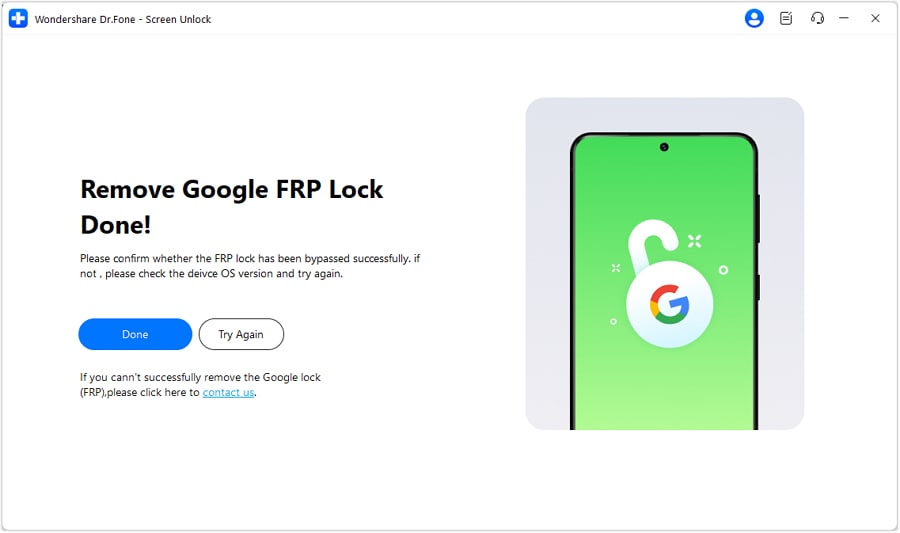
Step 3 FRP Lock Removal Complete
After completing all steps, tap Done to finish the process.
Conclusion
Once you understand Android Workstation Mode explained, the process is fairly straightforward: verify compatibility, connect the right dock or adapter, and add a keyboard and mouse. The real key to how to use android workstation mode successfully is confirming that your device supports desktop mode or USB-C video output before spending money on accessories.
When supported, an Android phone or tablet can handle email, web browsing, documents, and light multitasking surprisingly well on a larger screen. If it is unsupported, a mirrored display or tablet-first workflow may be the better alternative.
FAQ
-
1. What is Android Workstation Mode and how does it work?
It is a desktop-style interface that some Android phones and tablets can display on an external monitor. Instead of showing only a mirrored phone screen, it may provide a larger workspace with windowed apps and better keyboard and mouse support. -
2. How do I enable Android Workstation Mode on my phone?
Connect the device to a monitor with a compatible USB-C to HDMI adapter or dock, then look for a prompt to open desktop mode. If nothing appears, check Settings for options such as desktop mode, PC mode, or external display features. -
3. Which Android devices support Workstation Mode or desktop mode?
Support depends on the brand, Android version, and whether the USB-C port supports display output. Some premium phones and tablets include desktop features, while many lower-cost devices only support screen mirroring or no external display at all. -
4. Do I need a USB-C hub to use Android Workstation Mode?
Not always, but a USB-C hub or dock is usually the easiest option because it can provide HDMI output, charging, and USB ports at the same time. A simple adapter may work if you only need video output and can use Bluetooth accessories. -
5. Why is Android Workstation Mode not showing on my external monitor?
The most common reasons are lack of USB-C video output support, an incompatible adapter or dock, the wrong monitor input, or a hidden desktop mode setting. Testing another cable, dock, or monitor can help narrow down the cause. -
6. Can Android Workstation Mode replace a laptop for everyday work?
It can replace part of a laptop workflow for browsing, email, messaging, cloud documents, and light multitasking. For heavier software, advanced file handling, or apps that do not resize well, a laptop still offers a better experience.
 Add Wondershare Dr.Fone as a preferred source on Google