Effortlessly manage data through preview, delete, export, etc.

 100% Security Verified | No Subscription Required | No Malware

 :
: 
 ChatGPT
 Perplexity
 Gemini
 Claude
 Grok
Grok
In this article
Before you start
If you want PC game emulation on Android, the most important thing is setting realistic expectations. Android phones can run some older, lighter, or better-supported Windows titles well, but newer PC games often need either a very powerful phone or game streaming instead of full local emulation.
If you are learning how to emulate pc games on android, start by checking your hardware, preparing the right files, and deciding whether touch input or a controller makes more sense for the type of game you want to play.
Check your phone hardware
Your results depend heavily on chipset, GPU support, RAM, and thermal control. Mid-range phones can handle some simple or older games, while flagship devices usually have a better chance with demanding titles.
- A capable Android phone with at least 6 GB RAM is recommended.
- More free storage helps because emulator files, caches, and extracted game data can become large.
- Newer chipsets and stable GPU drivers usually improve compatibility.
- Phones that overheat quickly may throttle performance during long sessions.
Know which games work best
Not every Windows title will launch or run smoothly. In general, older 2D games, lower-spec indie titles, and lightweight classics are much more realistic targets than modern 3D releases.
- Older or lightweight Windows games are usually the best starting point.
- Games with simple graphics often work better than titles that rely on advanced DirectX features.
- Some games may open but still need extra runtime files or special compatibility settings.
Prepare legal game files and storage
Before installing anything, make sure you have your own legal copy of the game, enough storage space, and permission for the emulator to access the correct folders.
- Keep the installer or extracted game folder from your own copy.
- Use internal storage with enough free space for the emulator, game data, and cache.
- Place files in an easy-to-find folder so you can point the emulator to the correct executable.
Choose controls and avoid common risks
Touch controls can work for slower games, but many action, shooter, platformer, and driving titles feel better with a Bluetooth controller. It also helps to manage heat, battery drain, and background apps before you start.

Method 1: Use a Windows compatibility layer
This is the best option if you want to play PC games on Android directly on the phone and the game is older, lighter, or known to be compatible with Android-based Windows game tools.
A good Windows game emulator for Android should let you import your files, select rendering options, and map controls without too much manual work.
-
Step 1 Install a trusted emulator or compatibility layer
Download a reputable Windows game tool for Android from its official source, install it, and grant storage access so it can read your game folders properly.
-
Step 2 Add your game files and dependencies
Move your legal installer, extracted game folder, or portable files to internal storage. If the app supports selecting an executable file, choose the main game launcher. If the title needs extra runtime files, add them inside the emulator environment first.
-
Step 3 Configure graphics and controls
Start with low or medium settings, use the most compatible rendering backend available, and map touch controls or pair a Bluetooth controller before launch.
- Best for older Windows games and lower-spec titles.
- Works without a PC once the setup is complete.
- Compatibility varies a lot from game to game.
Method 2: Stream PC games from your computer
If local emulation is too slow, streaming is often the easiest way to run PC games on Android phone hardware without forcing the phone to handle all of the processing itself.
This method is ideal for newer or more demanding games because your computer does the heavy work while the phone acts as the display and controller endpoint.
-
Step 1 Prepare the PC and mobile streaming app
Install your preferred game streaming solution on both the computer and the Android phone, then sign in or pair the devices as required.
-
Step 2 Connect on a strong network
Use fast Wi-Fi, ideally 5 GHz or Wi-Fi 6, to reduce latency and keep the video stream stable during gameplay.
-
Step 3 Launch the game from your phone
Open the game through the mobile app, then use touch overlays or a controller while your PC handles rendering and performance.
- Best for demanding PC titles that your phone cannot emulate locally.
- Requires a computer and a strong network connection.
- Input delay depends more on network quality than on your phone GPU.
Method 3: Optimize your emulator setup
If the game already launches but does not feel smooth, a better Android PC game emulator setup can improve frame rate, reduce stutter, and make controls more usable.
This method does not solve true hardware incompatibility, but it often helps with thermal limits, memory pressure, and awkward touch layouts.
-
Step 1 Free up memory and background resources
Close unused apps, restart the phone, and reduce battery-heavy background activity before opening the emulator.
-
Step 2 Lower the rendering workload
Reduce in-game resolution, switch to a more compatible graphics backend if your emulator offers one, and disable extra visual effects.
-
Step 3 Refine controls and manage heat
Move on-screen buttons to more comfortable positions, connect a controller if supported, and take breaks or remove the phone case if heat builds up too quickly.
- Small changes can make a big difference in playability.
- Controller support often improves accuracy and comfort.
- If overheating starts quickly, streaming may be the better option.
Method comparison
Each approach has a different strength. Local compatibility layers are more convenient when they work, while streaming is better for harder-to-run games.
| Method | Best for | Main advantage | Main limitation |
|---|---|---|---|
| Windows compatibility layer | Older and lighter PC games | Runs directly on the phone without a PC | Game support varies a lot |
| PC game streaming | Modern or demanding PC titles | Better performance because the PC does the work | Requires a computer and strong network |
| Performance tuning setup | Games that already launch but stutter | Improves playability without changing games | Cannot fix true hardware incompatibility |
Common problems and fixes
Even a good PC emulator for Android games can hit compatibility limits. These are the most common blockers and the most practical fixes.
- The PC game will not open: Check whether the game needs missing runtime files, a different executable file, or a more compatible rendering backend. Some titles are simply unsupported.
- Gameplay is too slow or the phone gets hot: Lower resolution and visual settings, close background apps, shorten play sessions, and test in a cooler environment.
- Touch controls feel inaccurate: Remap the layout, enlarge important buttons, or switch to a Bluetooth controller for movement, aiming, or driving.
- There is not enough storage: Move files to internal storage with enough free space, clear unused media and apps, and avoid oversized titles that exceed your device capacity.
- The game launches but crashes later: Recheck compatibility, test another graphics backend, and verify that all game files copied correctly.
Why this Wondershare tool may help
Most of this guide is about emulator setup, but sometimes the real issue is phone access. If your Android is locked after a reset, setup interruption, or security prompt, it can block your entire gaming setup process. In that case, Dr.Fone - Screen Unlock (Android) may be worth a look.
For users dealing with lockouts rather than emulator compatibility itself, PC game emulation on Android can only continue after you regain access to the device. This tool is positioned as a soft recovery option for that separate problem.
- Unlock Android devices without a passcode so you can access the phone again.
- Remove PIN, pattern, password, or fingerprint locks when you are locked out.
- Bypass Google FRP lock on supported Android devices after a reset.
 Unlock Android phone in seconds.
- Remove PIN, pattern, password, fingerprint.
- Bypass Google FRP lock easily.
- Works on all Android brands & models.
- No tech skills required – user-friendly.

If your main problem is not emulator performance but getting back into the device safely, this can be a practical next step before trying your game setup again.




How to Use Dr.Fone - Screen Unlock (Android) for how to emulate pc games on android?
To know whether this tool fits your case, review the matched guide steps extracted for the feature: Bypass Google FRP Lock on Android Devices.
-
Step 1 Access Screen Unlock Tool
Launch Wondershare Dr.Fone on your computer and continue to Toolbox > Screen Unlock.

-
Step 2 Choose the Brand and Send Notification
Launch Wondershare Dr.Fone and continue to Toolbox > Screen Unlock . Then select Android > Remove Google FRP Lock . Now choose the brand of the phone (Vivo/Moto/Lenovo), follow the steps to proceed to the FRP lock screen and tap Send Notification .

-
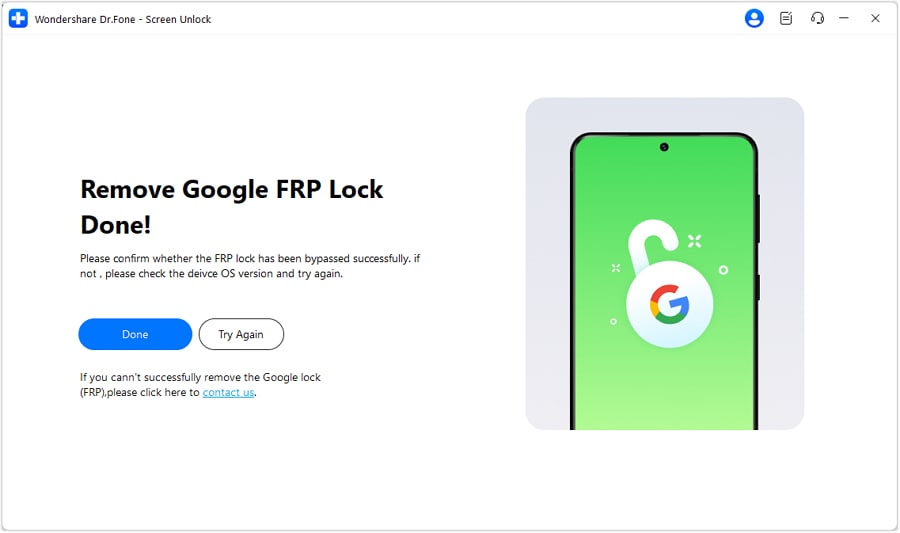
Step 3 FRP Lock Removal Complete
After completing all steps, tap Done to finish the process.
Conclusion
how to emulate pc games on android successfully usually comes down to matching the right game with the right method. If your goal is true local play, start with older or lightweight Windows titles, use legal files, and tune graphics and controls carefully.
For better PC game emulation on Android, verify your phone specs, keep enough storage free, use a controller when possible, and switch to streaming when a game is simply too demanding for local emulation.
FAQ
-
1. Can I emulate PC games on Android?
Yes. It is possible, but results depend on the game, the emulator or compatibility layer, and your phone hardware. Older and less demanding Windows games are usually the easiest to run. -
2. What is the best PC emulator for Android games?
There is no single best option for every title. The right choice depends on compatibility, ease of setup, graphics backend support, and whether you want local emulation or streaming from a computer. -
3. How do I run Windows PC games on an Android phone?
Install a trusted Windows compatibility layer or emulator, import your legal game files, allow storage access, configure graphics and controls, and then test the game with conservative settings first. -
4. Which Android phones can emulate PC games smoothly?
Phones with newer chipsets, stable GPU drivers, good cooling, and at least 6 GB RAM have a better chance. Flagship models usually perform better than entry-level or older mid-range devices. -
5. Why is my PC game not opening in an Android emulator?
Common reasons include unsupported CPU or GPU features, missing game dependencies, the wrong executable file, incompatible graphics settings, or a game that simply is not supported by that emulator. -
6. Do I need a controller to play PC games on Android?
No, but it often helps a lot. A Bluetooth controller usually gives better movement, aiming, and comfort than touch controls, especially in action, racing, and platform games.
 Add Wondershare Dr.Fone as a preferred source on Google