Effortlessly manage data through preview, delete, export, etc.

 100% Security Verified | No Subscription Required | No Malware

 :
: 
 ChatGPT
 Perplexity
 Gemini
 Claude
 Grok
Grok
In this article
Before you start
If you are learning how to use android desktop mode, start by confirming that your phone can output video to an external screen and that your cable, adapter, or dock supports display output. A compatible monitor or TV and optional keyboard and mouse will make the setup much easier.
Most desktop-style Android experiences depend on device support, not just the Android version. Some phones launch a full desktop interface, while others only mirror the phone screen.
Check phone support
Look up whether your device supports desktop mode, Samsung DeX, Motorola Ready For, PC Mode, or another brand-specific desktop feature. The most important compatibility point is USB-C video output or a supported wireless desktop connection.
- Compatible Android phone with desktop mode support
- Support for USB-C display output or wireless display
- Unlocked device so prompts and settings can appear
Prepare the right hardware
For the most reliable setup, use a monitor or TV with HDMI, a video-capable USB-C to HDMI adapter, hub, or dock, and a working HDMI cable. Bluetooth or USB keyboard and mouse are optional but very helpful for multitasking.
- Monitor or TV with HDMI or wireless display support
- USB-C to HDMI adapter, hub, or dock that supports video
- Optional keyboard and mouse for easier control
Know the common brand names
Desktop mode may not be labeled the same on every device. Samsung often uses DeX, Motorola uses Ready For, and other brands may list it under Desktop Mode, PC Mode, or Special Features in settings.
Avoid the usual setup blockers
The most common issues are simple: a phone without video output, a charge-only cable, a hidden desktop toggle, or a dock that does not work well with the monitor.

Method 1: Use a USB-C to HDMI cable or hub
This is the best option if your phone supports USB-C display output and you want the most stable desktop-style setup for work, browsing, or media.
A direct wired connection usually gives better reliability than wireless display.
-
Step 1 Confirm phone and cable support
Check that your phone supports desktop mode or external display output. Use a USB-C to HDMI adapter, hub, or dock that supports data and video, not a charge-only cable.
-
Step 2 Connect the phone to the monitor
Plug the adapter or dock into the phone, connect the HDMI cable to the monitor or TV, and switch the display to the correct HDMI input.
-
Step 3 Unlock the phone and choose desktop view
Unlock the device and look for a prompt such as Desktop Mode, DeX, or Ready For. If the phone gives you a choice, select the desktop-style interface instead of simple mirroring.
-
Step 4 Add accessories if needed
Pair a Bluetooth keyboard and mouse or connect them through the dock. A powered dock can help if you want charging and peripherals at the same time.
- Best for stability and lower lag
- Good for keyboard, mouse, and light productivity
- If the screen only mirrors, the phone may not support a full desktop interface
Method 2: Enable desktop mode from phone settings
Use this method when the phone is connected but no desktop prompt appears automatically.
Menu names vary by brand, so you may need to check more than one settings section.
-
Step 1 Open display or connected device settings
Go to Settings and check areas such as Display, Connected devices, Advanced features, or Special features.
-
Step 2 Find the desktop feature
Look for Desktop Mode, Samsung DeX, Motorola Ready For, or PC Mode. Turn it on if the feature is available but disabled.
-
Step 3 Reconnect the external display
Disconnect and reconnect the monitor after enabling the setting. Accept any prompt that asks whether you want to switch to desktop view.
-
Step 4 Adjust display settings
If the picture looks stretched, mirrored, or off-center, check resolution, display scaling, and external display options on the phone and monitor.
Method 3: Use wireless display
This method is useful if you want fewer cables and your phone and display support wireless desktop or casting features.
Keep in mind that some TVs support only screen mirroring, not a full desktop interface.
-
Step 1 Check wireless compatibility
Make sure your phone supports Cast, Smart View, Ready For, or another wireless display option that can work with your monitor, TV, or display adapter.
-
Step 2 Pair the phone with the display
Open the wireless display tool on the phone and select the compatible monitor, TV, or receiver from the list.
-
Step 3 Choose desktop layout if available
After connecting, switch to desktop view if the phone offers that option. If not, the device may only mirror the screen.
-
Step 4 Connect input devices
Pair a Bluetooth keyboard and mouse so the larger screen is easier to use for productivity and navigation.
- Convenient with fewer cables
- Can be less stable than USB-C
- Lag and compatibility vary by phone and display
Method comparison
Choose the setup that matches your phone support, budget, and how stable you need the connection to be.
Wired connections are usually best for regular work, while wireless display is more convenient for casual use.
| Setup method | What you need | Main advantage | Main limitation |
|---|---|---|---|
| USB-C to HDMI adapter | Compatible phone, monitor, adapter, HDMI cable | Most stable and easiest for work | Requires phone support for video output |
| USB-C dock or hub | Compatible phone, monitor, dock, peripherals | Better for keyboard, mouse, and charging | Costs more than a simple adapter |
| Wireless display | Compatible phone, supported TV or adapter | Fewer cables and quick setup | Can be less reliable or limited to mirroring |
Common problems and fixes
If desktop mode does not launch, the cause is usually compatibility or connection quality rather than a complicated software issue.
Work through the checks below before assuming the phone is broken.
- Desktop mode does not appear: Verify that the phone supports desktop mode or USB-C video output, then replace any charge-only cable with a known video-capable adapter or dock.
- The monitor only mirrors the phone: Open settings and look for Desktop Mode, DeX, Ready For, or PC Mode. If no option exists, the device may support mirroring only.
- Keyboard or mouse does not work: Reconnect the USB receiver through the dock or pair the accessories again over Bluetooth. A powered hub often improves peripheral stability.
- The display flickers or shows no signal: Try a different HDMI port, another monitor, or a higher-quality adapter. Weak cables and unsupported docks are common causes.
Why this Wondershare tool may help
If your phone supports desktop mode but you cannot unlock it to approve the connection or reach display settings, Dr.Fone - Screen Unlock (Android) may be useful in lock-screen access situations. This is only relevant when a PIN, pattern, password, or fingerprint block prevents you from continuing the setup.
- Helpful when you need to regain access before checking display settings
- Useful if a screen lock stops you from testing cables, monitor output, or desktop prompts
- A soft option to consider when the setup issue starts with access to the phone itself
 Unlock Android phone in seconds.
- Remove PIN, pattern, password, fingerprint.
- Bypass Google FRP lock easily.
- Works on all Android brands & models.
- No tech skills required – user-friendly.

If a lock screen is the main reason you cannot continue, you can review the tool and decide whether it fits your situation before returning to the desktop mode steps.




How to Use Dr.Fone - Screen Unlock (Android) for how to use android desktop mode?
To know whether this tool fits your case, review the matched guide steps extracted for the feature: Unlock Android Screen.
-
Step 1 Open Screen Unlock Tool
Install the latest version of Wondershare Dr.Fone on your computer and connect your Android device with a USB cable. Once it connects, navigate under the Toolbox > Screen Unlock to open the unlock screen tool.

-
Step 2 Look for the Method to Remove Locks of Most Android Devices
After you have accessed Screen Unlock > Android , continue to select the Unlock Android Screen option.

-
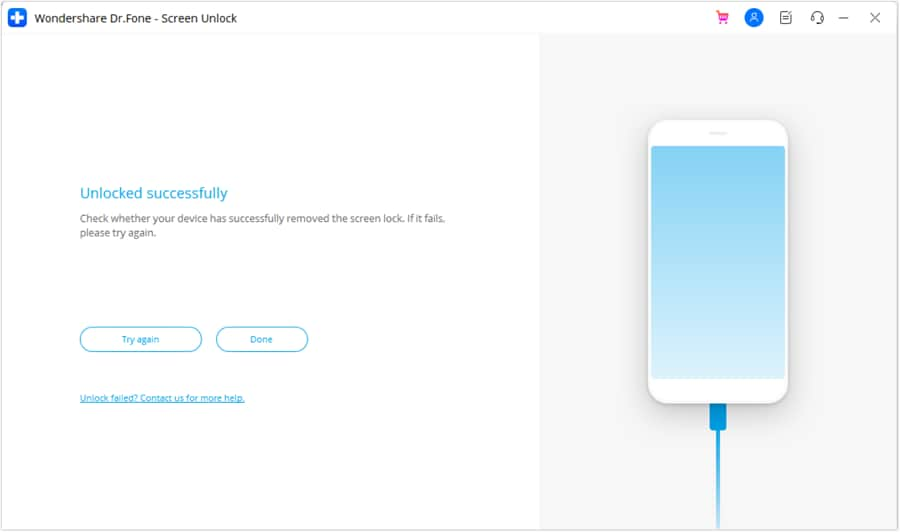
Step 3 Screen Unlocked Successfully
Wait for the unlock process to complete. If it has failed, click Try Again to make another effort. If you have successfully unlocked the screen of your Android device, tap Done.
Conclusion
The fastest path is to confirm support first, then use the right adapter or dock with a reliable external display. Once those basics are covered, desktop mode is usually straightforward to launch and use.
In practice, most Android Desktop Mode requirements come down to a compatible phone, proper USB-C or wireless display support, and a stable monitor connection.
FAQ
-
1. What are the requirements for Android Desktop Mode?
You need a compatible Android phone, an external monitor or TV, and usually a USB-C to HDMI adapter, dock, or supported wireless display method. A keyboard and mouse are optional but make the desktop experience much easier to use. -
2. How do I enable Desktop Mode on Android?
Connect the phone to a supported external display, unlock the device, and accept the desktop prompt if it appears. If nothing shows up, check Settings under Display, Connected devices, Advanced features, or brand-specific sections such as DeX or Ready For. -
3. Which Android phones support Desktop Mode?
Support depends on the brand and model. Samsung phones may use DeX, Motorola phones may use Ready For, and some other Android devices offer PC Mode or limited desktop features. The key check is support for USB-C video output or a supported wireless desktop option. -
4. Do I need a USB-C to HDMI cable for Android Desktop Mode?
For most wired setups, yes. You usually need a video-capable USB-C to HDMI adapter, hub, or dock plus an HDMI cable. A standard charging cable often cannot send video to a monitor. -
5. Why is Android Desktop Mode not working on my phone?
The most common causes are unsupported hardware, lack of USB-C display output, a charge-only cable, a dock or monitor compatibility issue, or a desktop setting that is disabled or hidden in the phone menu. -
6. Can I use Android Desktop Mode with a keyboard and mouse?
Yes. You can pair Bluetooth accessories or connect them through a dock or hub. This is one of the easiest ways to make Android desktop mode feel closer to a traditional computer workspace.
 Add Wondershare Dr.Fone as a preferred source on Google