Effortlessly manage data through preview, delete, export, etc.

 100% Security Verified | No Subscription Required | No Malware

 :
: 
 ChatGPT
 Perplexity
 Gemini
 Claude
 Grok
Grok
In this article
Before you start
If you are Switching from iPhone to OPPO foldable, the smoothest approach is to prepare your accounts, check storage, and decide in advance how each data type will move. This guide shows how to switch from iphone to oppo with the fastest transfer path first, then covers contacts, photos, messages, and WhatsApp.
A little preparation reduces the risk of missing chats, duplicate contacts, or photos that stay trapped in iCloud.
Back up your iPhone
Create a fresh backup to iCloud or a computer before you begin. If anything fails during the move, you will still have a clean copy of your contacts, photos, messages, and app data.
- A charged iPhone and OPPO foldable with stable Wi-Fi
- Your Apple ID, Google account, and OPPO setup access
- Enough free storage on the OPPO foldable for incoming data
- A USB cable or Lightning to USB adapter if a wired step is needed
Turn off iMessage and FaceTime
Disable iMessage and FaceTime on the old iPhone before the SIM fully moves over. This helps prevent future text messages from staying routed to Apple services instead of arriving on your OPPO foldable.

Prepare accounts and storage
Sign in or be ready to sign in to your Google account on the new OPPO device. Google sync is useful for contacts, calendars, and cloud photos, while your OPPO setup tools can handle a faster first pass for basic files.
Also check whether iCloud Photos is storing originals only in the cloud. If your media is not downloaded locally on the iPhone, some transfer methods may not detect everything right away.
Know what may not transfer
Most users can move contacts, photos, videos, and calendars without much trouble, but app data is less predictable. Some iPhone apps have Android versions, while others do not, and local app files often need to be restored by signing in again.
- Contacts and calendars usually transfer well
- Photos and videos may need cloud sync or computer copy if they are not local
- SMS from iPhone is more limited than Android-to-Android transfers
- WhatsApp requires its own dedicated migration flow
Method 1: Use OPPO Clone Phone for the fastest initial transfer
This is the best choice if you want the quickest way to transfer data from iPhone to OPPO foldable during setup. It works well for everyday items such as contacts, photos, videos, and calendar data.
-
Step 1 Prepare the iPhone before transfer
Back up the iPhone, update iOS if possible, and turn off iMessage and FaceTime so future texts reach your OPPO foldable correctly.
-
Step 2 Open Clone Phone on both devices
On the OPPO foldable, open the built-in transfer tool and select that this is the new phone. On the iPhone, install or open the matching transfer app if prompted, then scan the QR code shown on the OPPO device.
-
Step 3 Choose data types and start transfer
Select supported items such as contacts, photos, videos, and calendar data, then keep both phones close and unlocked until the transfer completes.
For many users who want to move from iPhone to OPPO with minimal effort, this is the fastest first step. Just remember that app-specific content and some iOS-only data may still need separate handling later.
Method 2: Sync with Google or export from iCloud
If you prefer a cleaner account-based move, this method is ideal for contacts, calendars, and cloud media. It is especially useful when you want a more controlled iPhone to OPPO data transfer instead of relying only on one-time cloning.
-
Step 1 Sync contacts and calendars to Google
Add your Google account on the iPhone, enable Contacts and Calendars sync where supported, or export contacts from iCloud as a vCard and import them into Google Contacts.
-
Step 2 Move photos and videos
Upload media from the iPhone to Google Photos or Google Drive, or copy them to a computer and then to the OPPO foldable if you want more control over albums and originals.
-
Step 3 Sign in on the OPPO foldable and restore data
During or after setup, sign in with the same Google account on the OPPO foldable and allow contacts, calendar entries, and cloud photos to sync down.
This option works well for personal data, but it usually will not bring over all messages or local app files from the iPhone.
Method 3: Transfer WhatsApp to OPPO foldable
WhatsApp is often the most sensitive part of Switching from iPhone to OPPO foldable. Because chat migration has stricter rules than photo or contact transfer, handle this part before erasing or resetting either phone.
-
Step 1 Check WhatsApp transfer requirements
Update WhatsApp on both devices, use the same phone number if possible, and confirm the OPPO foldable is ready for the official iPhone-to-Android chat migration flow.
-
Step 2 Start the iPhone to Android WhatsApp move
Follow WhatsApp's transfer prompts during Android setup or use a supported transfer workflow that reads chats from the iPhone and moves them to the OPPO foldable.
-
Step 3 Verify chats on the OPPO foldable
Open WhatsApp on the OPPO foldable, sign in with the target number, let chat import finish, and confirm that recent conversations and media appear correctly before wiping the old iPhone.
If the built-in flow does not fit your situation, a more guided WhatsApp-specific workflow may be easier than repeating a full phone clone.
Method comparison
Each option solves a different part of the migration. The best approach is often a combination rather than a single tool for everything.
| Method | Best for | Transfers | Limitations |
|---|---|---|---|
| OPPO Clone Phone | Fast first-time migration | Contacts, photos, videos, calendar, some settings | May not move all app data or iOS-only items |
| Google sync and iCloud export | Contacts, calendars, cloud media | Contacts, calendars, backed-up photos and files | Requires account setup and may not cover messages |
| Official WhatsApp migration workflow | Moving WhatsApp chats and media | WhatsApp messages, attachments, account chat data | Needs compatible setup flow and careful timing |
For most users, the easiest way to switch iPhone to OPPO phone is to start with Clone Phone, use Google for contacts and calendars, and finish with a dedicated WhatsApp migration if chats matter.
Common problems and fixes
Even when the main transfer finishes, a few common issues can still appear. These are the fastest fixes for the blockers people hit most often.
- Text messages from iPhone users still go to iMessage: Turn off iMessage and FaceTime on the old iPhone before switching, then restart both devices and ask frequent contacts to resend if needed.
- Some photos did not appear on the OPPO foldable: Check whether the photos were only in iCloud and not downloaded locally, then re-sync through Google Photos or copy them through a computer.
- WhatsApp transfer did not complete: Update WhatsApp, keep both devices charged, use a stable cable or network, and repeat the official iPhone-to-Android transfer before resetting either device.
- Apps are missing after the move: Search the Google Play Store for Android versions of your iPhone apps, then manually sign in and restore cloud data where available.
- Transfer stops midway: Keep both phones unlocked, connected to power if possible, and on stable Wi-Fi until the process ends.
Why this Wondershare tool may help
If your biggest concern in how to switch from iphone to oppo is keeping WhatsApp chats intact, Wondershare's WhatsApp-focused workflow may be more suitable than a basic phone clone. It is designed for users who need a guided iPhone-to-Android chat migration path.
You can review Dr.Fone - WhatsApp Transfer if you want a more dedicated option for messages and media, especially when the standard migration flow feels too limited.
 Transfer WhatsApp across Android & iOS.
- Backup & restore WhatsApp to PC securely.
- Preview & export chats selectively.
- Works with all iPhone & Android models.
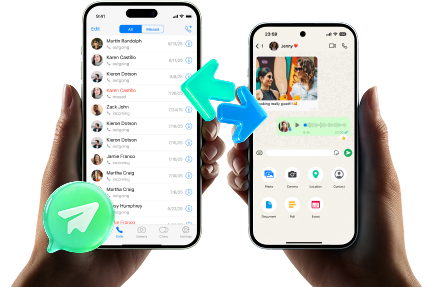
How to Use Dr.Fone - WhatsApp Transfer for how to switch from iphone to oppo?
To know whether this tool fits your case, review the matched guide steps extracted for the feature: Transfer WhatsApp From iOS to Android/iOS.
-
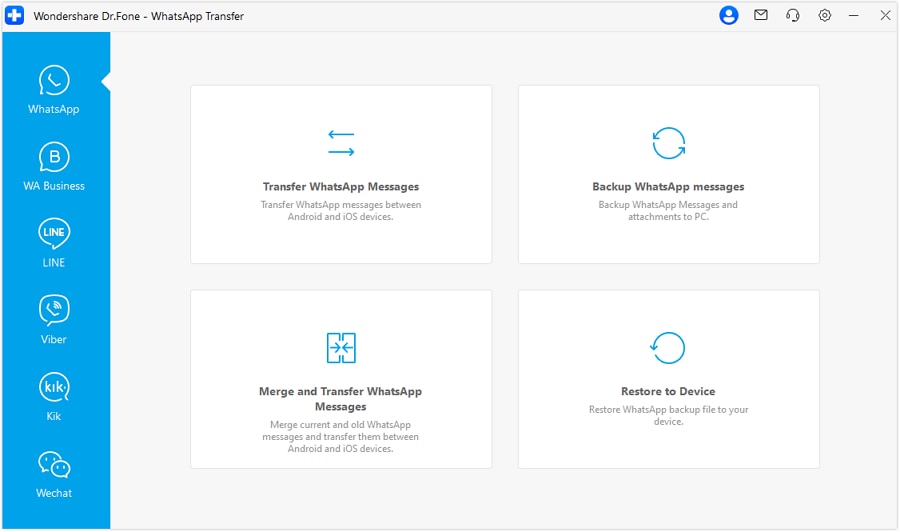
Step 1 Open WhatsApp Transfer Tool
Launch Wondershare Dr.Fone on your computer, followed by establishing a wired connection between iOS and Android devices with the computer. Once both devices are connected and detected, continue to the Toolbox > WhatsApp Transfer navigation.

-
Step 2 Start WhatsApp Transfer and Set Source and Destination
After launching the WhatsApp Transfer tool and selecting the option of Transfer WhatsApp messages, continue to set the Source and Destination device for this process. You need to put your old iPhone in the Source section and the new one in the Destination section. To alter the sides, use the Flip button in the center of the screen.

-
Step 3 Proceed To Transfer WhatsApp Messages
A new window opens, where you have to select the Transfer WhatsApp messages button while staying in the WhatsApp section on the left. Additionally, the tool supports data merging , allowing you to combine current and old WhatsApp messages before transferring them.
- Transfer WhatsApp from iOS to Android or iOS
- Back up and restore WhatsApp to a computer securely
- Preview and export chats selectively
For users Switching from iPhone to OPPO foldable who do not want to lose important conversations, this kind of tool can be worth reviewing before you wipe the old device.




Conclusion
The easiest way to move from iPhone to OPPO foldable is to combine a basic phone transfer with account sync and a dedicated WhatsApp migration step when needed. If you prepare carefully, disable iMessage, and verify your data before erasing the old phone, how to switch from iphone to oppo becomes much less stressful.
For anyone serious about Switching from iPhone to OPPO foldable, checking each data type one by one is still the safest way to avoid missing contacts, photos, or chats.
FAQ
-
1. How do I transfer everything from iPhone to OPPO foldable?
You can transfer most important data by backing up the iPhone, turning off iMessage, then using OPPO Clone Phone for supported items and Google sync or iCloud export for contacts, calendars, and photos. WhatsApp usually needs its own iPhone-to-Android transfer process. -
2. Can I move WhatsApp from iPhone to OPPO?
Yes, but WhatsApp transfer has stricter rules than regular file transfer. Use the official iPhone-to-Android migration flow or a dedicated WhatsApp transfer tool before resetting the iPhone to improve the chance of a complete chat import. -
3. What should I do before switching from iPhone to OPPO foldable?
Back up your iPhone, check available storage on the OPPO foldable, sign in to your Google account, disable iMessage and FaceTime, and decide which method you will use for photos, contacts, and WhatsApp before starting the move. -
4. What is the easiest way to switch from iPhone to OPPO?
For most users, the easiest route is to start with OPPO Clone Phone for the initial move, then use Google sync for contacts and calendars and finish with a separate WhatsApp migration if chat history matters. -
5. Can OPPO Clone Phone transfer data from iPhone?
Yes, it can usually transfer common items such as contacts, photos, videos, and some calendar data from an iPhone to an OPPO foldable. However, it may not move all app data or iOS-specific content. -
6. How do I transfer photos and contacts from iPhone to OPPO foldable?
You can use OPPO Clone Phone for a direct transfer, or sync contacts through Google and move photos through Google Photos, Google Drive, or a computer if you want more control over files and albums.
 Add Wondershare Dr.Fone as a preferred source on Google