Effortlessly manage data through preview, delete, export, etc.

 100% Security Verified | No Subscription Required | No Malware

 :
: 
 ChatGPT
 Perplexity
 Gemini
 Claude
 Grok
Grok
What if you copied the complex password on your phone and instantly pasted it into your laptop, only to find that nothing happens? For years, Android users have suffered from this broken copy-and-paste experience across multiple devices.
Nonetheless, recent rumors surrounding Android 17 suggest that Google is working on a “Universal Clipboard” feature. As a result, users wonder, “Could this upcoming update seamlessly sync your clipboard across phones, tablets, and PCs?” To answer that, this guide uncovers the rumored features of Android PC clipboard sync based on new leaks. In the event of any pitfalls, understand how phone managers like Dr.Fone - Phone Manager can fill the gap.
In this article
- Part 1. What Is a Universal Clipboard?
- Part 2. Android 17 Universal Clipboard Rumors Explained
- Part 3. Why Android Still Lacks Full Clipboard Sync?
- Part 4. Current Ways to Copy-Paste Between Android and PC
- Part 5. Limitations of Today’s Cross-Device Copy-Paste
- Part 6. Try Apps Like Dr.Fone - Phone Manager [Seamless Data Transfer Between Devices]
- Part 7. Who Will Benefit Most from Universal Clipboard (If Released)
Part 1. What Is a Universal Clipboard?
To better know the Android 17 phone to PC clipboard feature, this section explains the basic details.
Overview
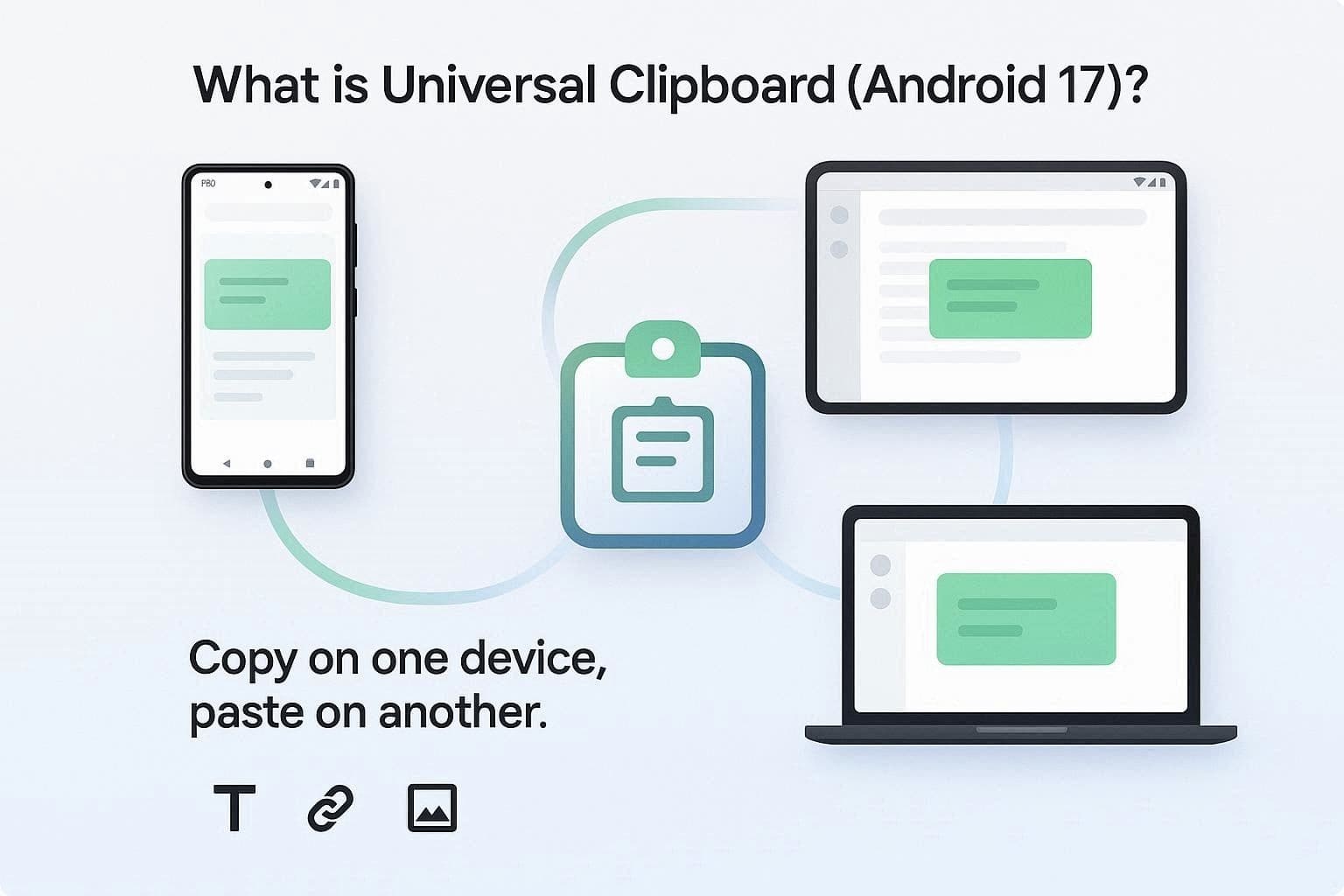
The Universal Clipboard feature in Android 17 is a cross-device continuity feature. It allows you to copy text, links, or media on one Android and paste it onto another device, such as an Android tablet, PC, or Chromebook. Sammobile says it was found in early system code as part of Google’s cross-device system. This lets devices automatically share clipboard data in the background via Google Play Services.
How It Works in Other Ecosystems
Knowing which permissions the copy-paste Android PC feature uses and how it works in other ecosystems helps determine its usage more accurately.
Core Idea in Android 17
The code called “UniversalClipboardManager” works alongside Google’s upcoming Handoff framework, says Sammobile. Additionally, the system service on Android reads the copied text in the background using the “READ_CLIPBOARD_IN_BACKGROUND” permission, as claimed in the Allmind report. It then securely sends the copied content via Google Play Services to other connected devices, such as tablets or Chromebooks, so you can paste it.
How it Works in Other Ecosystems
Right now, it mainly works for text, but it could work with Windows PCs through future partnerships. It is similar to Apple’s Universal Clipboard, but less powerful and more limited in features. Nonetheless, here is how the “Universal Clipboard” feature works in other ecosystems:
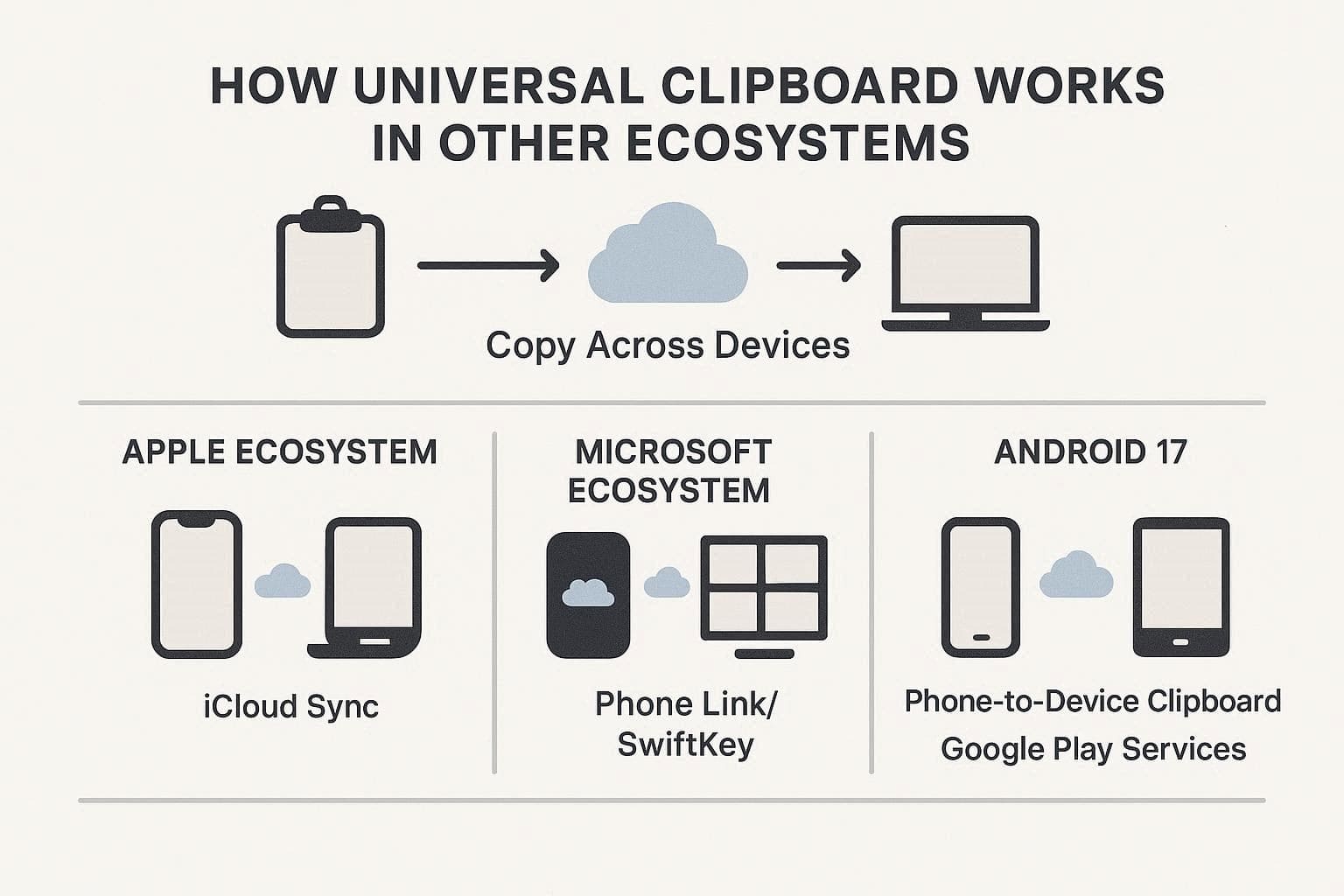
- Apple Ecosystem (iOS/macOS): Apple says the Universal Clipboard has been functioning for years and uses iCloud, Bluetooth, and Wi-Fi to share copied content across Apple devices. Unlike Android 17's version, it lets you copy text, links, images, videos, and files.
- Microsoft & Windows Ecosystem: On older Android versions, users often use Microsoft Phone Link or the SwiftKey keyboard to sync the clipboard between phone and Windows PC. Since SwiftKey is owned by Microsoft, it can send copied text through the cloud, so it works on both devices. Furthermore, some Android OEMs, like Samsung, offer built-in tools that connect directly to Windows to share clipboard data without extra apps.
Why Android Users Want It
Regardless of how the tool differs in different ecosystems, the following table explains why users want to use the Android PC clipboard sync (Android 17):
| Reasons Android Users Want It | What Changes in Real Life |
|---|---|
| Seamless Cross-Device Workflow | Copy text on Android and paste directly on Chromebook/Android PC without emailing or messaging yourself |
| No Third-Party Hacks Needed | Removes tools like Phone Link, SwiftKey, or clipboard apps, making setup simpler and more secure |
| Faster Daily Tasks | Instantly move text instead of retyping or using QR workarounds |
| Apple-Like Continuity | Bring a similar “just works” experience like Apple’s Universal Clipboard across devices |
| Less Context Switching | Let you move between phone and PC without breaking focus or manually transferring data |
Part 2. Android 17 Universal Clipboard Rumors Explained
In addition to the basics, this section explains the key aspects and current status of the Android 17 phone-to-PC “Universal Clipboard” feature.
Expected Features (If True)
Here are some rumored features you are going to have with the Android 17 update in mid-2026:
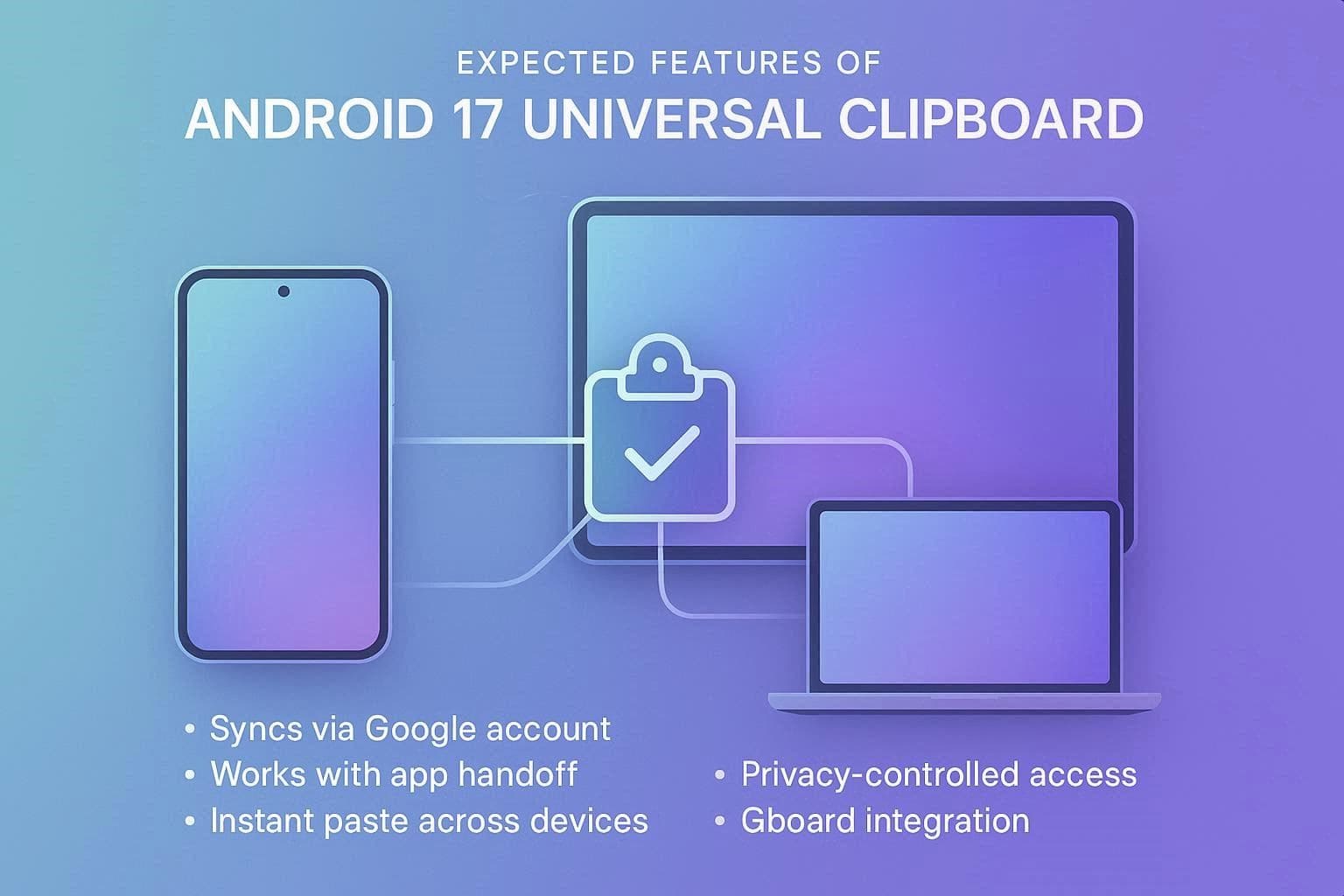
- Native Ecosystem Sync: Controlled by the UniversalClipboardManager code class, this feature works within Android’s core framework, says Allmind. Hence, it can automatically sync clipboard content between your Android device and supported Android PCs signed in to the same Google Account.
- Seamless App Handoff: The feature uses the same setup as the “Continue On” feature for low latency and background efficiency, according to the Android Police. So, it allows copied text to be transmitted securely in the background using the same localized Handoff protocols.
- Instant Paste: To bypass strict security limits in older Android versions, Google uses a trusted system service, such as the Pixel System Service. As a result, it copies text from one device using the “READ_CLIPBOARD_IN_BACKGROUND” permission and makes it immediately available for pasting on another device without manual effort.
- Privacy Controls: At launch, the feature primarily supports text and links; some say it supports only text. Nonetheless, it uses built-in privacy permissions to control which connected device can access your copied text in the background.
- Gboard Integration: When you copy text on your main phone, it is sent to Google Play Services and then securely shared to the cloud for other Android devices or ChromeOS laptops using the same account, says Allmind. This means the feature is built directly into the system architecture for faster cross-platform data transfer.
Current Status of the Feature
As of mid-2026, the Universal Clipboard copy-paste Android PC feature is still hidden in Android 17 test builds and has not been officially released. Though Google has started ruling out cross-device systems, like Continuity, the clipboard hasn’t been launched yet. However, experts expect a full public release only in later Android 17 updates.
Part 3. Why Android Still Lacks Full Clipboard Sync?
So far, it's clear that Android 17 lacks full clipboard sync functionality like Apple. This is mainly due to Android’s strict clipboard privacy rules and Google starting with a limited, text-only version. In addition to this, here are some other reasons for the limited clipboard sync:
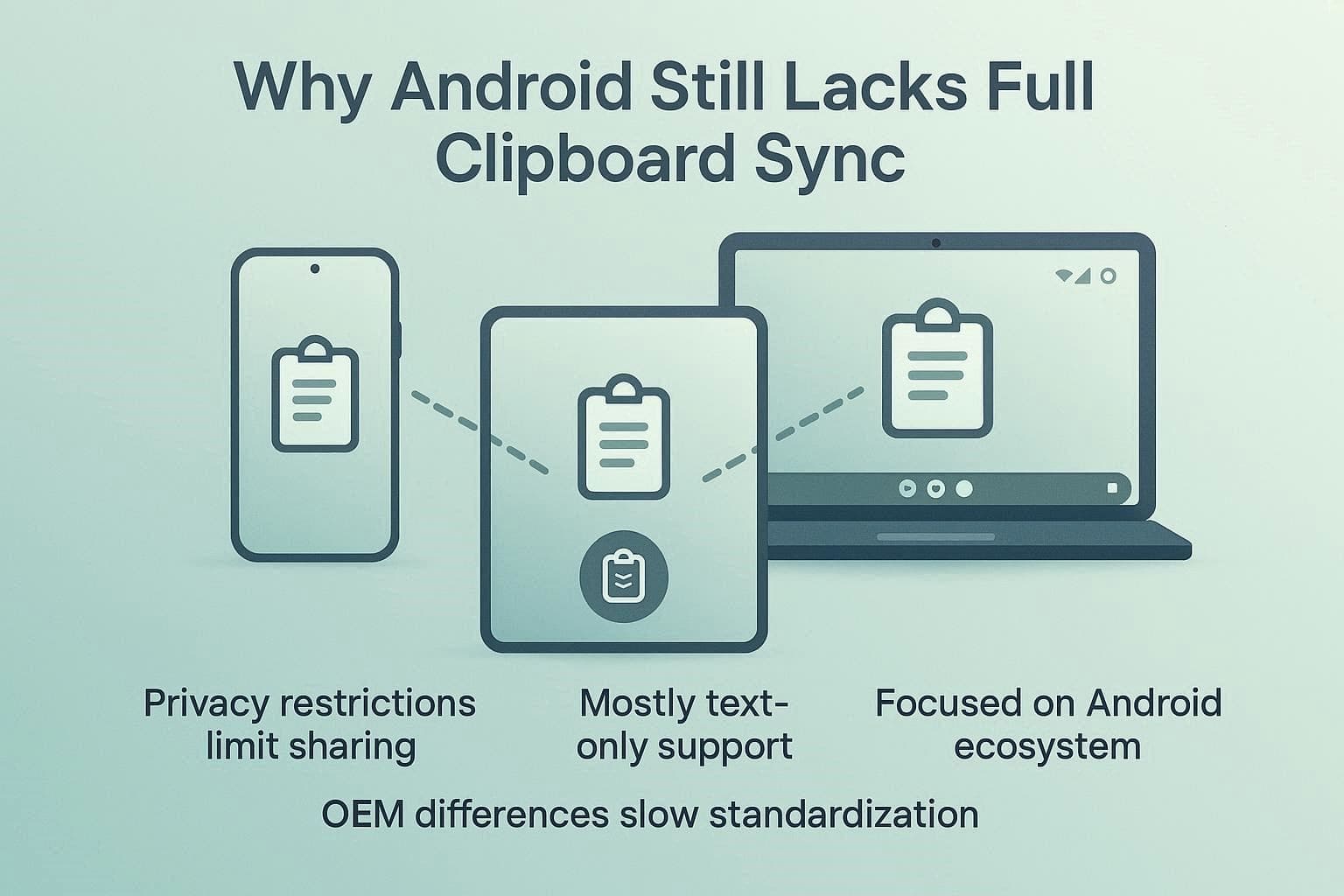
- Google System Design: Google uses Pixel System Service & Play Services to handle copied text in the background. Hence, it only shares data between the linked devices and is currently limited to text.
- Limited Content Support: As mentioned, the features are limited to text because of the system design. So, large media adds security and syncing challenges, which is why they haven’t been added yet.
- Narrow Ecosystem Focus: It is designed mainly for Android phones and Chromebooks/Android PCs, not all computers. Windows and macOS still rely on separate tools like Phone Link or SwiftKey.
- OEM Differences: Some brands, like Samsung, already have their own clipboard sync systems. Google must keep its version compatible across all Android devices, so it stays simpler and more controlled.
Part 4. Current Ways to Copy-Paste Between Android and PC
Before the Android PC clipboard sync feature in Android 17, the current ways used for copy & paste were not limited to text only. So, if you want to know about them or seek to compare them with Universal Clipboard, here is the detailed information:
1. Microsoft Phone Link (Windows Native)
You can use this method if you have a Windows PC and Android devices, like Samsung Galaxy, OnePlus, or Google Pixel. In addition, you have to enable Cross-device copy and paste in the Phone Link settings on your PC. Later, you can copy and paste text using commands like Ctrl + C, Ctrl + V, or long-press, as guided:
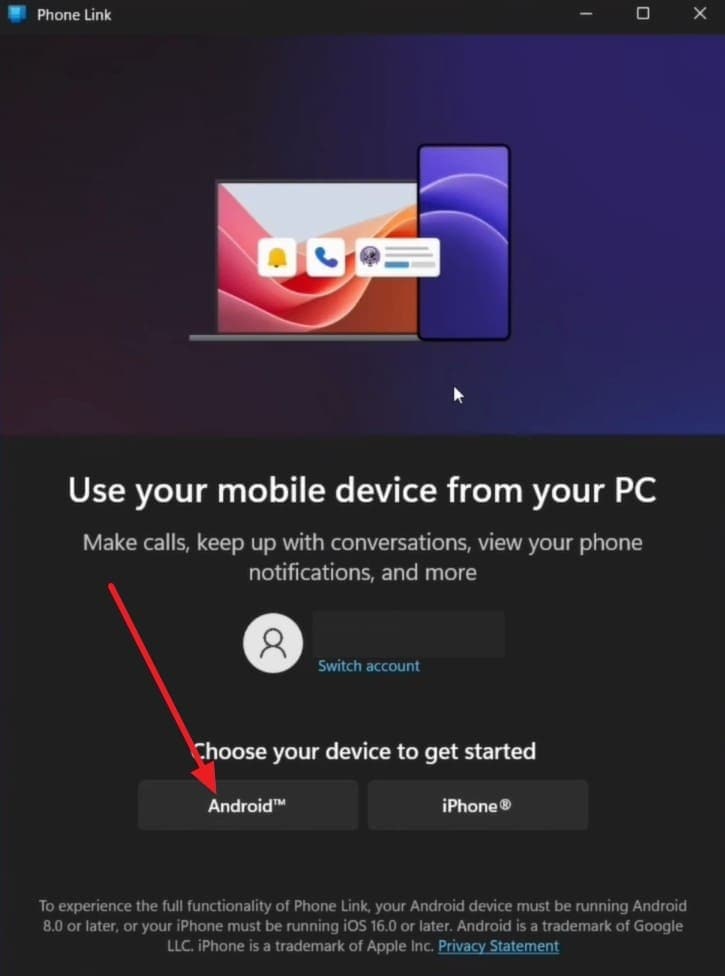
Step 1. Install the Link to Windows app on the mobile phone and open the Phone Link app on PC to choose the “Android” option.
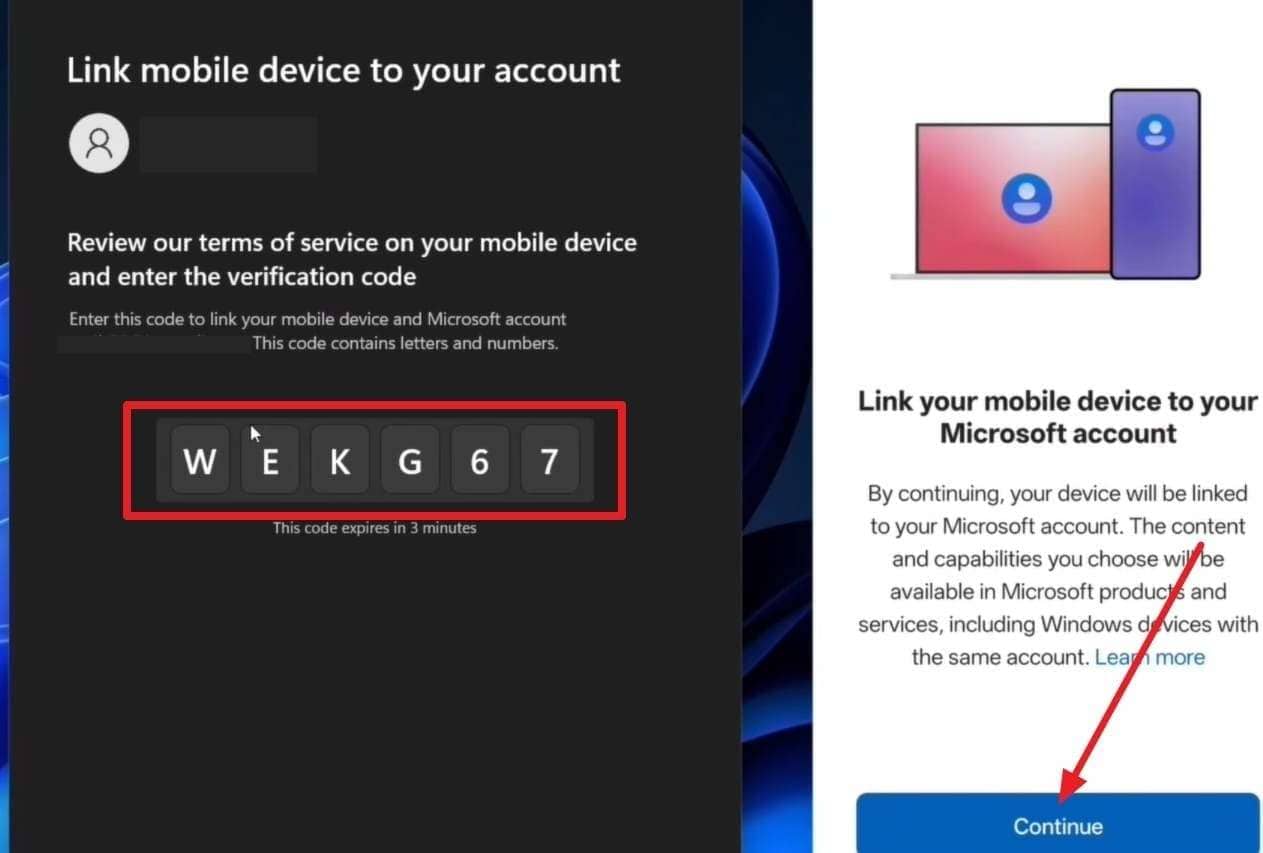
Step 2. Scan the QR code on Phone Link with the Link to Windows app and press the “Continue” button on the app to add the code you see on your PC.
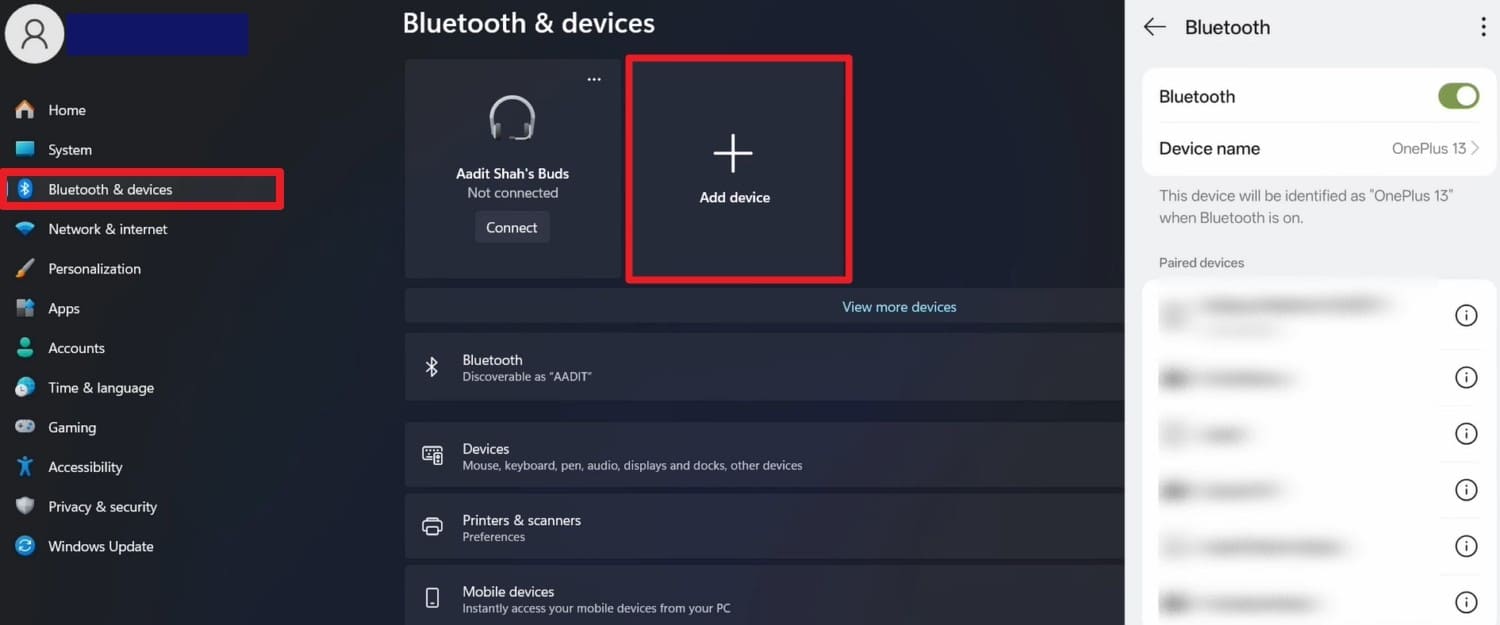
Step 3. Add the passcode to the app again, and both devices will be linked. Now, to connect both devices via Bluetooth, select the “+Add Device” and “Bluetooth” options in the “Bluetooth & Devices” tab.
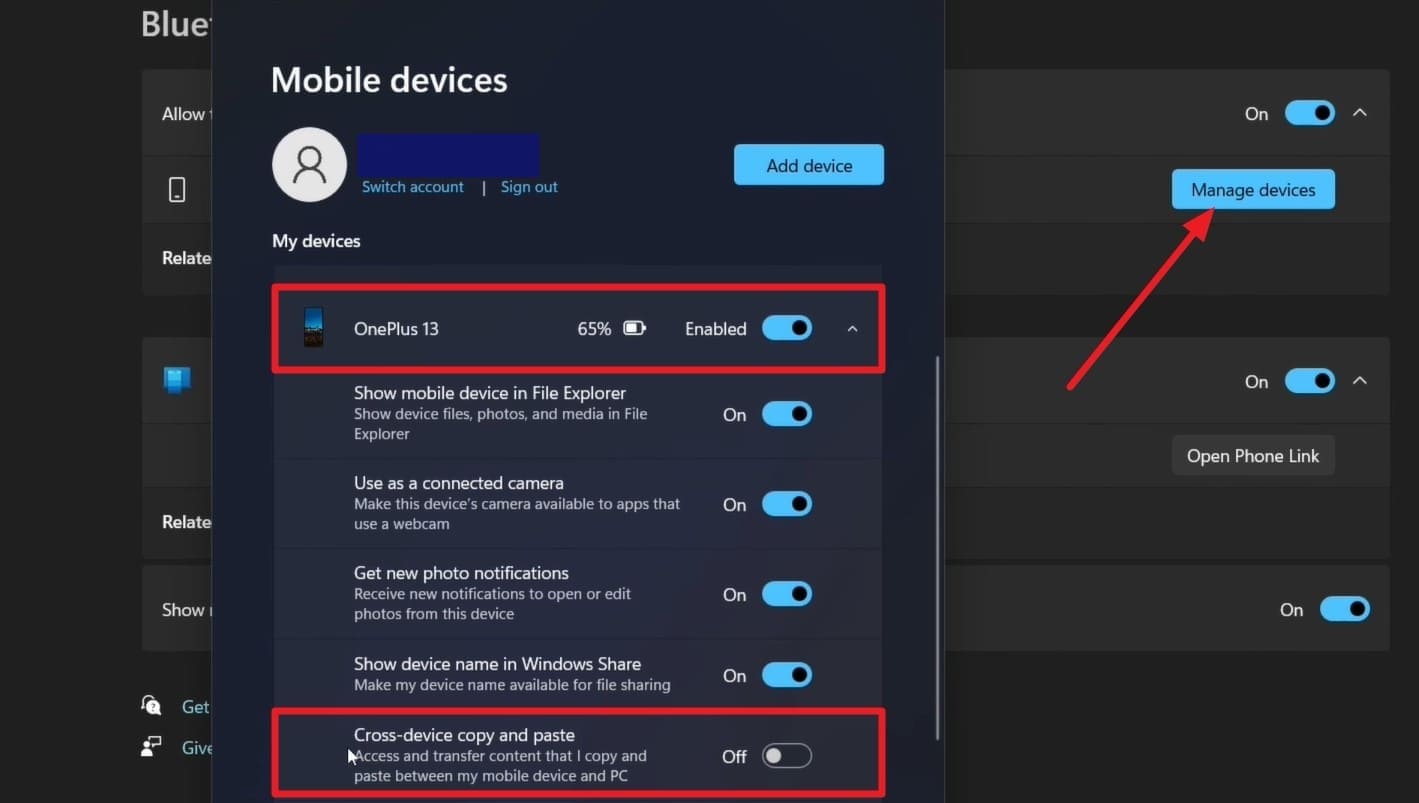
Step 4. On the same PC’s interface, pick the “Mobile Device” and “Manage Devices” option. In the popup window, enable the option for your device and scroll down to toggle on the “Cross Device Copy and Paste” option. At this point, you can test by copying and pasting to sync the changes between the phone and the PC.
2. Microsoft SwiftKey Keyboard
Other than the Android 17 phone to PC clipboard method, this method uses the SwiftKey keyboard on your Android device. So, as you turn on “Sync Clipboard History,” it features Cloud Clipboard that syncs seamlessly across devices, as demonstrated:
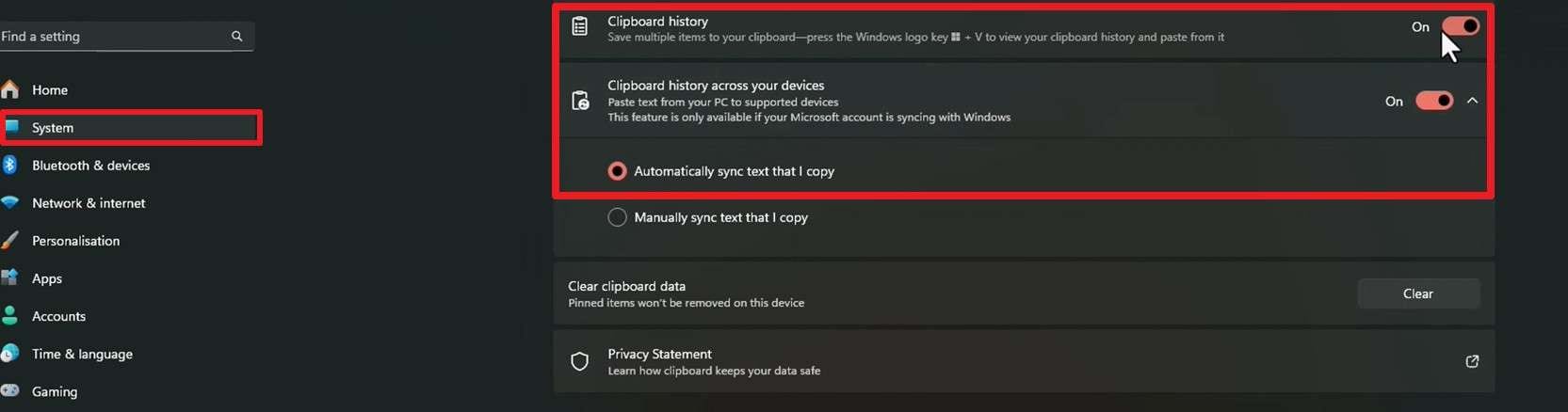
Step 1. Go to the PC's System settings and choose the “Clipboard” option to enable “Clipboard History” and “Clipboard History Across Your Devices.” For the “Clipboard History Across Your Devices” option, set the settings to “Automatically Sync Text That I Copy” and sign in to your Microsoft account.
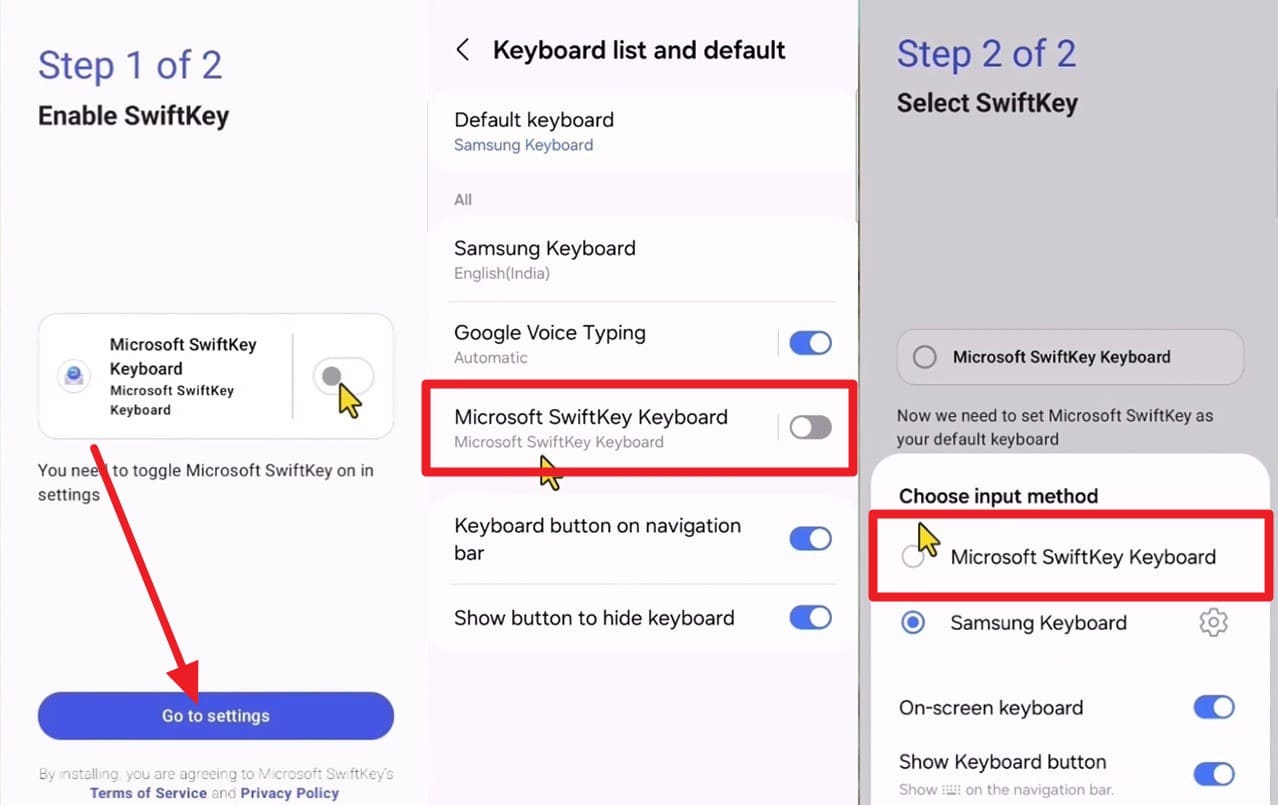
Step 2. Install the Microsoft SwiftKey app on the phone and press the “Go to Settings” option. Pick “Microsoft SwiftKey Keyboard > OK > Microsoft SwiftKey Keyboard” options and sign in to your Microsoft account.
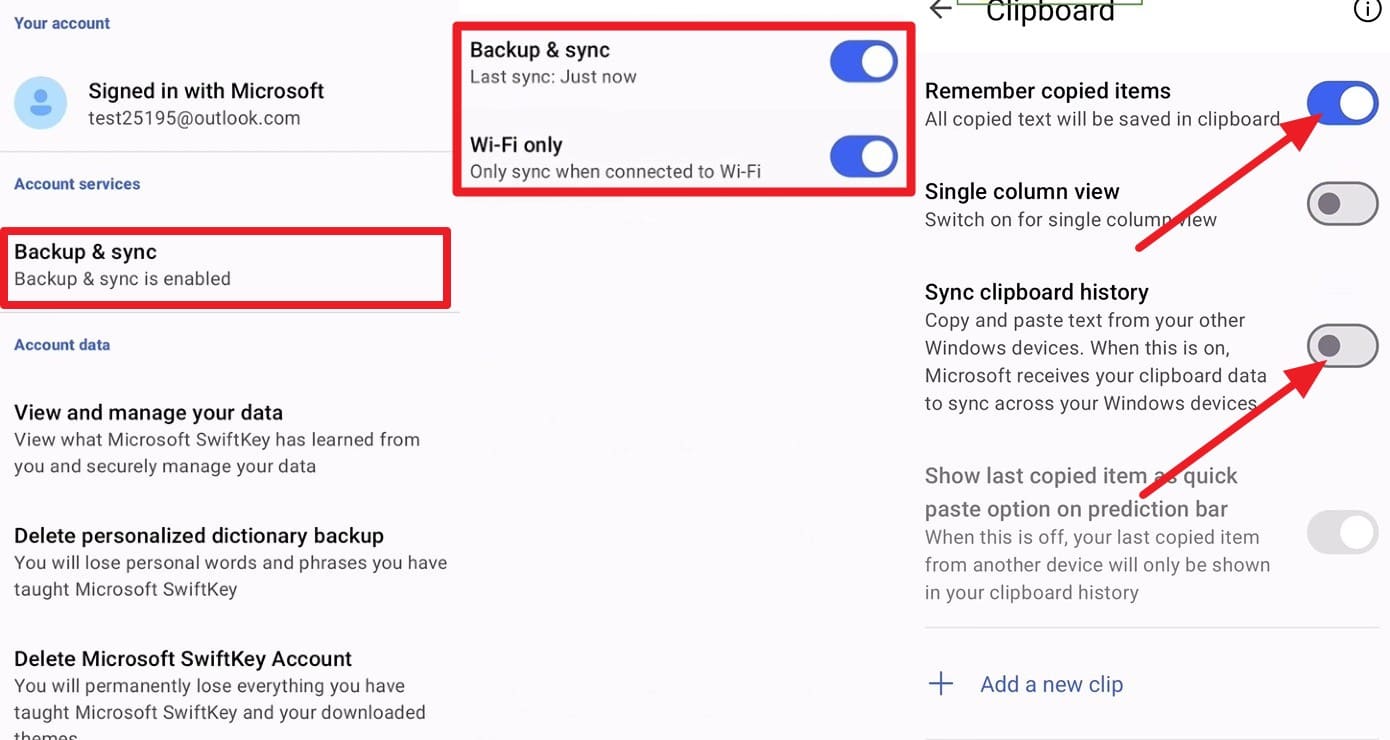
Step 3. Go to “Back & Sync” in the Accounts tab and enable the 2 options. Go to “Clipboard” settings under “Rich Input” and toggle on “Remember Copied Items” and “Sync Clipboard History” options, and add the MS account passcode.
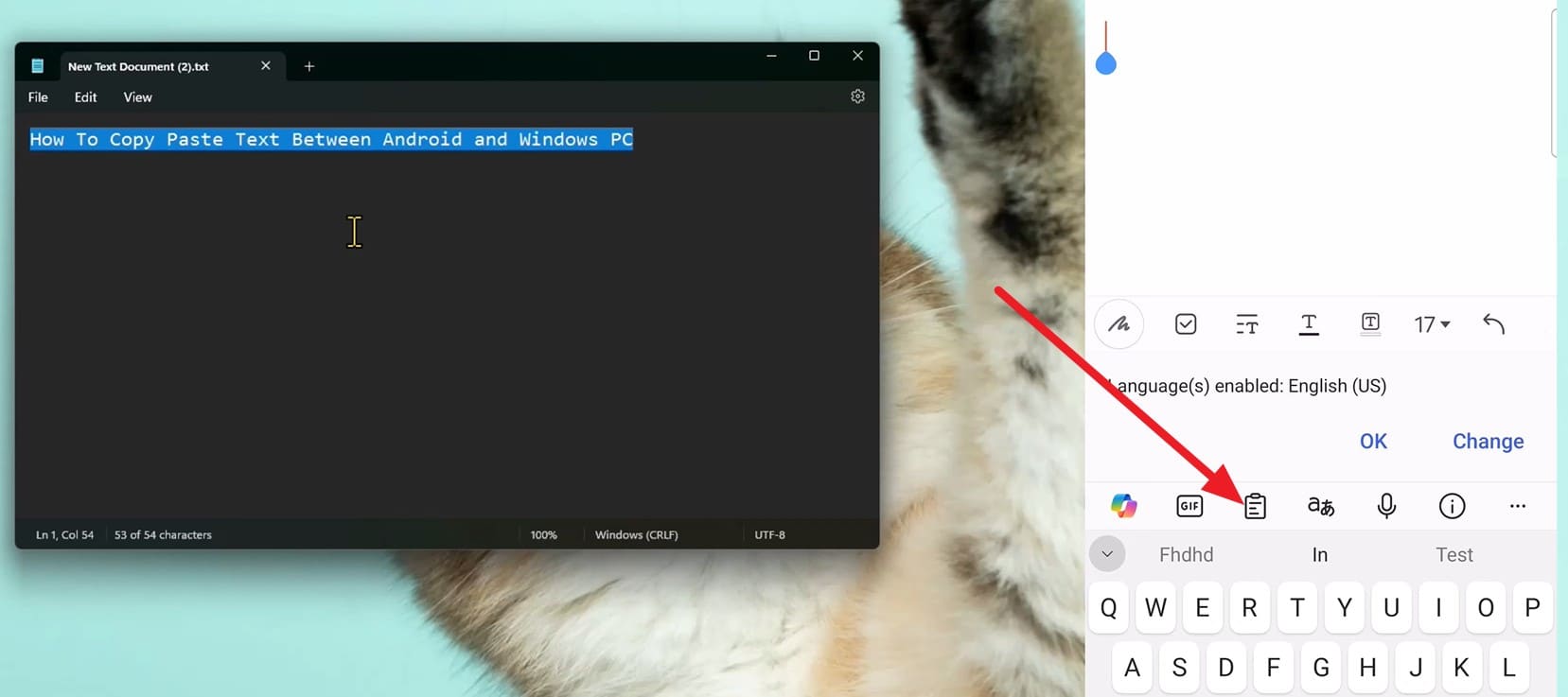
Step 4. Now, copy the text on the PC, open the Notes app on the phone, and press the “Clipboard” icon.
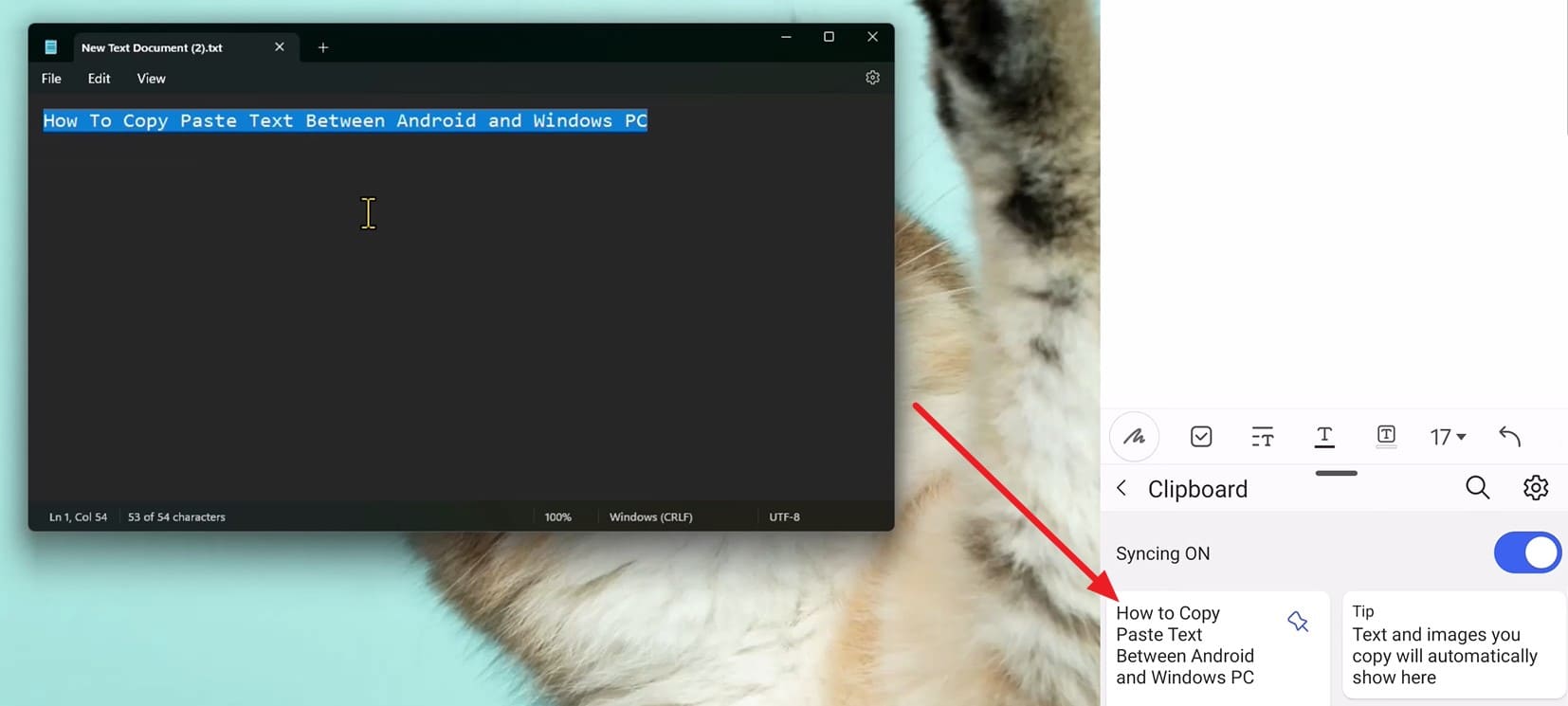
Step 5. The copied text on the computer will appear in the Clipboard section.
3. KDE Connect (Cross-Platform)
If you want something lightweight that lets you copy and paste between Android and PC or works across Windows, macOS, or Linux, KDE Connect is an open-source solution. Download KDE Connect on Android and get the desktop version from the KDE Connect Official Website, to copy and paste via the mentioned guide:
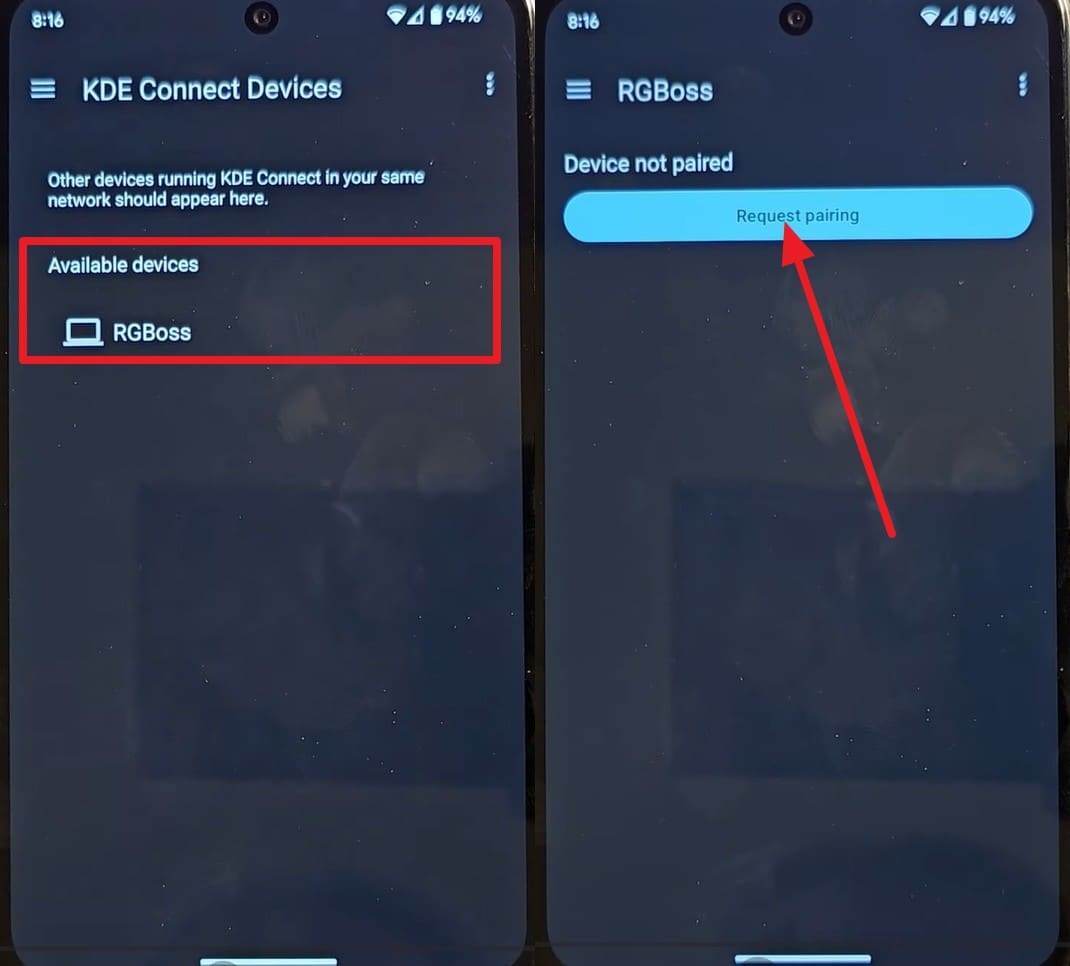
Step 1. Connect both devices to the same Wi-Fi network, and choose the PC mobile app to “Request Pairing.”
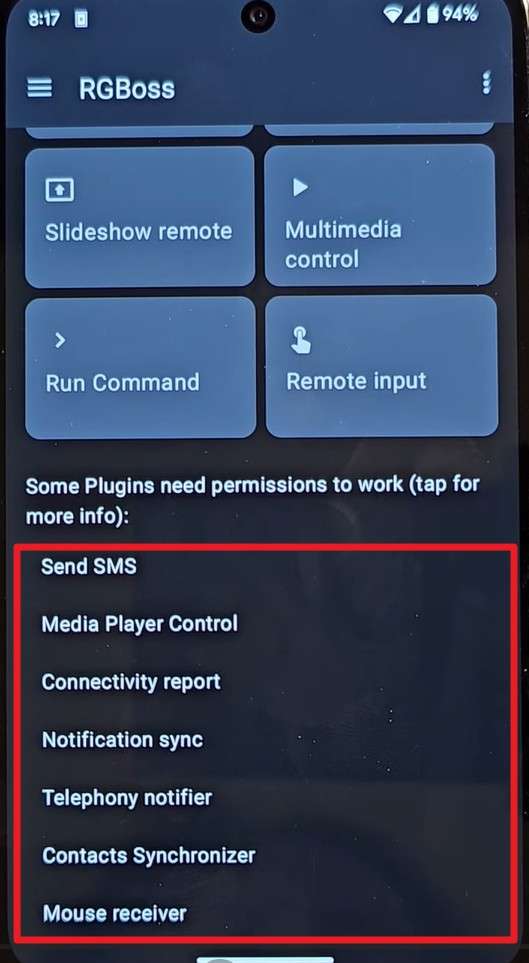
Step 2. Accept the request on the PC’s app and enable clipboard synchronization in the sharing settings one by one. After it's done, simply copy the text on the PC, and you will get a clipboard pop-up on the phone.
Part 5. Limitations of Today’s Cross-Device Copy-Paste
Though there are common Android PC clipboard sync methods, they come with certain limitations, as mentioned:
- Works only on selected Android phones and Windows devices.
- Supports text and small images, not large files.
- Sync often breaks after Windows or app updates.
- Background clipboard access is limited for privacy reasons.
- Users need many apps or manual workarounds.
Part 6. Try Apps Like Dr.Fone [Seamless Data Transfer Between Devices]
Though Wondershare Dr.Fone doesn’t support Android 17 phones to the PC Universal Clipboard, it can reduce the need for constant copy and paste. Instead of copying and pasting links, text, and media one by one, you can use it to transfer images, videos, messages, call history, WhatsApp, and files. This is, in fact, the main concern regarding the upcoming Android 17 and current methods, and Dr.Fone fills this gap.
Users can also use it to export contacts from iCloud or share media files between iTunes and Android devices. So, rather than being limited to Android, you can extract data from iOS in 2-3 steps, without needing any skills. Unlike current ways, it needs no extra setup, just the Dr.Fone Link app to connect wirelessly with the device.
 Effortlessly manage data through preview, delete, export, etc.
- Transfer all data between devices.
- Robust backup solutions for reliable data protection.
- Mirror screens to PC for meetings, teaching, and control.

Guide to Import or Export Media Files via Dr.Fone - Phone Manager
When you fail to use the copy-paste Android PC method, and Universal Clipboard falls short, review the given guide to know how Dr.Fone makes it seamless:
-
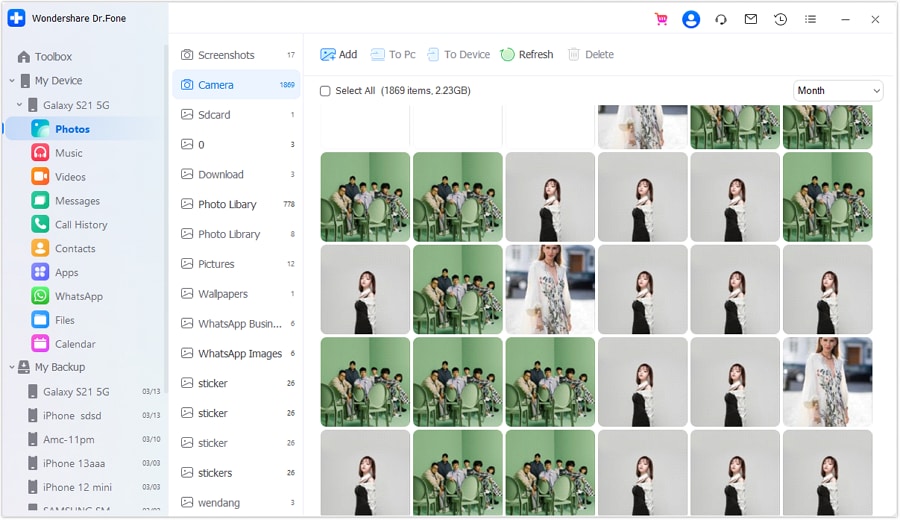
Step 1 Connect via Dr.Fone Link App to Move Data
Connect the devices with the Dr.Fone Link app, then choose the media under “My Devices” you want to transfer between Android and PC.
-
Step 2 Import or Export Data Between PC and Android
There, press the “To PC” option to export or the “Add” button to import the data. Choose to “Delete” the duplicates or preview the shared files across platforms.

Part 7. Who Will Benefit Most from Universal Clipboard (If Released)
Regardless of the text-only limitation and ongoing Beta changes, the Android 17 phone to PC feature will benefit most users. This list includes professionals, students, and multi-device users who constantly juggle tasks between a phone and a computer or tablet. In addition, it can be a game-changer for remote workers and content creators who need to seamlessly move raw text between a phone and a Chromebook or PC.
Final Verdict. Will Android 17 Fix Copy-Paste Fragmentation?
In a nutshell, the Android PC clipboard sync feature in Android 17 builds a basic system-level clipboard sync that reduces the need for third-party applications. Nonetheless, this, along with the current methods, remains limited to text. To fill this gap, you can rely on Wondershare Dr.Fone to move media files or app data in bulk without needing manual setup or system requirements.




FAQ
-
1. Does Android 17 Universal Clipboard work offline?
No, it usually needs an internet connection or a nearby device to sync clipboard data. -
2. Can I disable clipboard syncing anytime?
Yes, you can turn off clipboard sync at any time in your Google account settings. -
3. Is clipboard data stored permanently in the cloud?
No, clipboard data is temporary and removed after syncing between connected devices.
 Add Wondershare Dr.Fone as a preferred source on Google