 Effortlessly manage data through preview, delete, export, etc.

 100% Security Verified | No Subscription Required | No Malware

 :
: 
 ChatGPT
 Perplexity
 Gemini
 Claude
 Grok
Grok

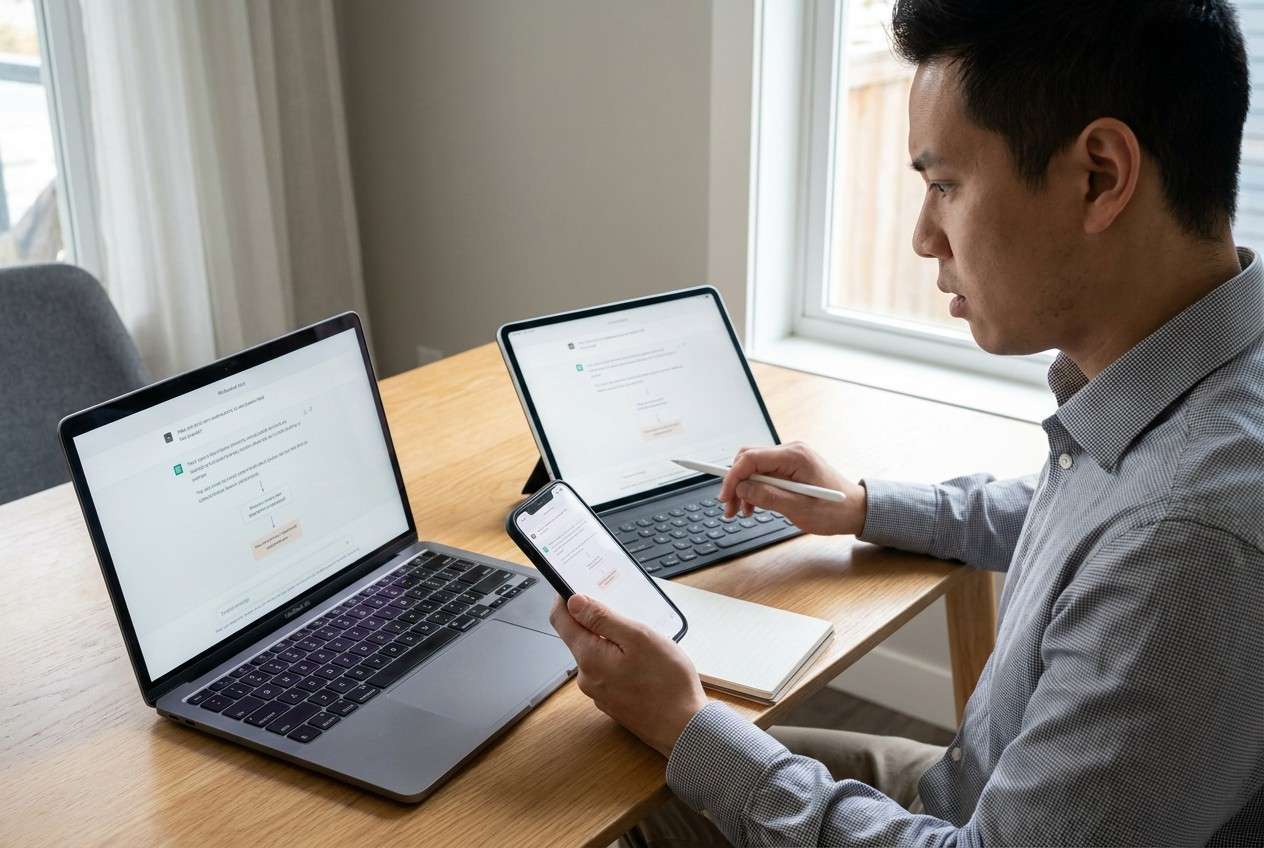
Moving data and setting up a workflow across my phone, tablet, and laptop feels easy to mess up if I miss just one dependency—accounts, backups, encryption, or a hidden sync setting.
Forum user
Moving data and setting up a reliable workflow across a phone, tablet, and laptop is easy to get wrong if you miss just one dependency (accounts, backups, encryption, or app-specific sync settings).
AI can help you map the workflow end-to-end, put steps in the right order, and define what to verify before you touch anything that could overwrite or delete data.
AI cannot access your devices, confirm what actually transferred, or run backups/transfers—so once the plan is clear, you’ll still need real tools to execute safely.
In this article
- How to plan a cross-device workflow without missing steps
- Why sequencing matters
- Sync vs. transfer (and where duplicates come from)
- Point-of-no-return risks
- What to verify before you change anything
- What the AI needs to know
- AI prompts to build a safer workflow
- When to stop planning and start execution
- Execute the workflow safely with Dr.Fone
Part 1. How to Plan a Cross-Device Workflow Without Missing Critical Steps
You’re trying to make your phone, tablet, and laptop work together without constantly re-downloading files, losing photos, or ending up with duplicates across apps. Some data will sync automatically (if configured correctly), while other data only moves via explicit backups/transfers.
The uncertainty usually isn’t “what apps exist,” but “what happens first.” For example: if you enable a new sync method after you’ve already copied files manually, you can create duplicates that are hard to unwind later.
1-1. Why sequencing matters
Missing the correct order is how people accidentally overwrite newer data with older copies, or create conflicting libraries across devices.
1-2. Sync vs. transfer (and where duplicates come from)
Sync is usually designed to keep the same dataset consistent across devices, while transfers/backups are explicit “moves” or “snapshots.” Mixing them without a single source of truth often creates duplicates.
1-3. Point-of-no-return risks
A common point-of-no-return moment is anything that overwrites a device state—like restoring a backup onto a device (which can replace existing content/settings) or factory resetting/wiping the old device before you’ve proven every critical dataset is present and usable on the new workflow.
1-4. What to verify before you change anything
Before you enable a new sync method, restore a backup, overwrite, or wipe a device, define verification checks (counts, spot-checks, and app integrity tests) so you can confidently say “this transfer worked.”
Part 2. What the AI Needs to Know
Share the details below so the AI can produce a step-by-step plan with clear verification checks.
- Devices and OS versions (e.g., iPhone iOS 17, Android tablet Android 14, laptop Windows 11/macOS 14)
- What “workflow” means to you (sync everywhere, one-way archive, or “phone is source of truth”)
- Data types to include (photos/videos, contacts, messages, notes, files, calendars, passwords/2FA, app data)
- Where data currently lives (device-only, cloud, SD card, external drive, work account)
- Apps involved (Apple/Google apps, OneDrive/Dropbox, WhatsApp/LINE, Notes apps, password manager)
- Storage constraints (free space on each device, external drive availability)
- Network constraints (slow Wi‑Fi, metered data, travel deadline)
- Security requirements (encryption, compliance, work MDM, shared family devices)
- Risk tolerance (okay with duplicates vs. must avoid duplicates; okay with downtime vs. must stay usable)
Part 3. Using AI Prompts to Build a Safer Workflow
Use the prompts below to force a clear sequence, define what to verify, and identify irreversible steps before you execute anything.
3-1. Level 1: Basic Prompt
I need a step-by-step plan to build a workflow across my phone, tablet, and laptop so my files, photos, and key apps stay consistent. Ask me the minimum questions you need, then give an ordered checklist with verification steps after each major phase. Do not include execution instructions—planning only.
3-2. Level 2: Advanced Prompt
Design a workflow plan with three sections: **Preparation**, **Execution**, and **Verification** for building a cross-device workflow (phone + tablet + laptop).
Within each section, label items as **Critical** or **Optional**, and flag any **irreversible/high-risk steps** (like restore/overwrite/factory reset) that must not happen until verification passes.
3-3. Level 3: Evidence Prompt
Here’s my context—build me a workflow plan and include checks **before**, **during**, and **after** each transfer/sync step, plus a rollback plan:
- Phone: (iPhone 14, iOS 17.5), Tablet: (Android tablet, Android 14), Laptop: (Windows 11)
- Data: photos/videos (~85GB), contacts, calendars, notes, files (Work + Personal), messages (WhatsApp), passwords/2FA
- Current state: photos mostly on phone; files split between local laptop folders and cloud; WhatsApp only on phone
- Constraints: (only 120GB free on laptop), deadline (48 hours), Wi‑Fi unstable
- Goal: laptop is main archive, phone/tablet should have “recent + essentials,” no duplicates
- Point-of-no-return to avoid: restoring anything that overwrites existing device content, or wiping the old phone
Output:
1) An ordered workflow with dependencies
2) A verification checklist with “pass/fail” criteria (example: “Photos count within ±1% and random spot-check of 20 items”)
3) A list of risks and how to mitigate each
4) A final “safe-to-wipe” gate checklist
3-4. Prompt Refinement
Convert your plan into a **single linear sequence** with no branches, and add explicit “STOP” gates before any overwrite/restore/wipe action.
For each dataset (photos, contacts, messages, notes, files), define **one source of truth** and one allowed direction of sync (one-way vs two-way).
Add **measurable verification criteria** for each dataset (counts, storage size ranges, spot-check sample size, and where to check on each device).
Identify where duplicates may be created, and rewrite the plan to include **duplicate-prevention rules** (naming, folder structure, import settings, timing).
List the **minimum viable workflow** I can finish today, and what can safely be deferred to next week without data loss risk.
Produce a **pre-flight checklist** of prerequisites (free space targets, charging, cables, account logins, encryption keys) and what happens if each is missing.
AI Plan vs. Real Device Constraints
| AI planning strengths | Real-device constraints |
|---|---|
| AI can sequence and define checks | Devices can fail mid-transfer, disconnect, or throttle |
| AI can identify overwrite/wipe risk points | Tools enforce the overwrite/wipe action for real |
| AI can propose verification criteria | Only you/tools can confirm counts, previews, and app integrity |
| AI can draft rollback options | Rollback depends on whether backups were actually created and restorable |
AI improves planning and reduces avoidable mistakes, but it cannot access your devices or perform transfers/backups—execution still requires real device tools and your confirmation at each gate.
Part 4. When to Stop Planning and Start Execution
- You have a written sequence with dependencies (what must happen first, second, third) and no “hand-wavy” steps.
- Every dataset has a named source of truth and a defined destination (and you know what should not sync).
- You have pass/fail verification checks for each phase, including a “safe-to-wipe/overwrite” gate.
- You’ve identified the irreversible step (restore/overwrite/factory reset) and placed it after all verification.
If those four conditions are true, you’re no longer missing clarity—you’re ready to run the plan on real devices.
Part 5. Execute the Workflow Safely with Dr.Fone
Execution matters because the biggest risks happen during real transfers: overwrites, partial copies, and assuming success without verification. To keep your checklist visible while you work across devices, you can mirror your phone/tablet to your computer using Dr.Fone Basic - Screen Mirroring, then follow your plan step by step.
 Easily manage data through preview, delete, export, etc.
- Transfer all data between devices.
- Robust backup solutions for reliable data protection.
- Mirror screens to PC for meetings, teaching, and control.

Use your written workflow to decide the order, the dataset boundaries, and the verification gates. Then, treat the steps below as an execution safety pattern: establish a recoverable baseline, perform controlled actions in the planned order, and only take irreversible actions after verification passes.
-
Step 1 Create a recoverable baseline
Action: Create a complete backup/snapshot of the phone/tablet data you cannot afford to lose before you attempt any major moves or sync changes.
Limitation: A backup only helps if it completes successfully and is restorable—don’t proceed to any overwrite/restore/wipe until you’ve confirmed the backup is usable.

-
Step 2 Mirror your device to follow the plan and verify in real time
Action: Mirror your phone/tablet screen to your computer so you can run your checklist, spot-check items, and confirm you’re operating on the right account/app/library before you transfer or enable sync.
Limitation: Mirroring helps you see what’s happening, but it doesn’t replace verification (counts, spot-checks, and app integrity tests).

-
Step 3 Perform controlled transfers to match your plan
Action: Transfer only the planned datasets (in the planned order) between your devices/computer, keeping the “source of truth” consistent to avoid duplication.
Limitation: Tools execute transfers, but they can’t decide your intent—if you transfer the wrong category or in the wrong order, you can still create duplicates or miss dependencies.

-
Step 4 Verify outcomes, then take the irreversible step (only if all checks pass)
Action: Use your verification checklist (counts, spot-checks, app open-tests) and only then proceed with any high-risk action like restore/overwrite operations or wiping an old device.
Limitation: Once you overwrite or wipe, recovery may be impossible without a verified backup—treat this as a hard stop until every critical check is marked “pass.”




Conclusion
Use AI to design the sequence, define verification gates, and surface irreversible-risk moments early; then use a real execution tool like Dr.Fone to perform the backups/transfers while you verify each critical checkpoint before any overwrite or wipe.
FAQ
-
What’s the most common way people lose data in a cross-device workflow?
Doing an overwrite/restore or wiping an old device before confirming that all critical datasets transferred and are usable (not just “present”).
-
How do I prevent duplicates when mixing manual transfers and cloud sync?
Pick one source of truth per dataset and decide whether sync is one-way or two-way; don’t enable a new sync method after you’ve already imported the same content manually.
-
What should I verify besides “the files are there”?
Counts (or close ranges), storage size ranges, random spot-checks (open/play items), and app integrity checks (e.g., notes render correctly, message history loads, contacts searchable).
-
When is it safe to factory reset or wipe an old phone/tablet?
Only after your “safe-to-wipe” gate passes: verified backup exists, transfers are verified, and you’ve tested access on the target devices (including logins/2FA where relevant).
-
Can AI tell me whether my transfer succeeded?
No. AI can define what to check and how to interpret results, but it cannot read your devices, inspect your libraries, or confirm transfer integrity.
 Add Wondershare Dr.Fone as a preferred source on Google





