 Effortlessly manage data through preview, delete, export, etc.

 100% Security Verified | No Subscription Required | No Malware

 :
: 
 ChatGPT
 Perplexity
 Gemini
 Claude
 Grok
Grok

I thought my setup was “basically working,” but once I pressed Go Live, I realized I had no game audio and my video started stuttering—then I spent the first minutes troubleshooting on stream.
Reddit user, r/obs
Setting up mobile gameplay on a PC for streaming is mostly about sequencing—miss one permission, cable setting, or audio route, and you can end up troubleshooting live. AI can help you turn your exact setup into a dependency-first checklist with verification gates, but execution still requires real tools and real-device testing.
In this article
- How to plan without missing critical steps
- Why sequencing matters
- Common “almost right” failure points
- The real point of no return (Go Live)
- Quick summary checklist
- What the AI needs to know
- AI prompts to build a safer workflow
- When to stop planning and start execution
- Execute the workflow safely with Dr.Fone
Part 1. How to Plan Show Mobile Gameplay on PC for Streaming Without Missing Critical Steps
You want to play on your phone, show it on your PC, and stream it with stable video, synced audio, and minimal lag—but there are multiple “almost right” setups that fail under load.
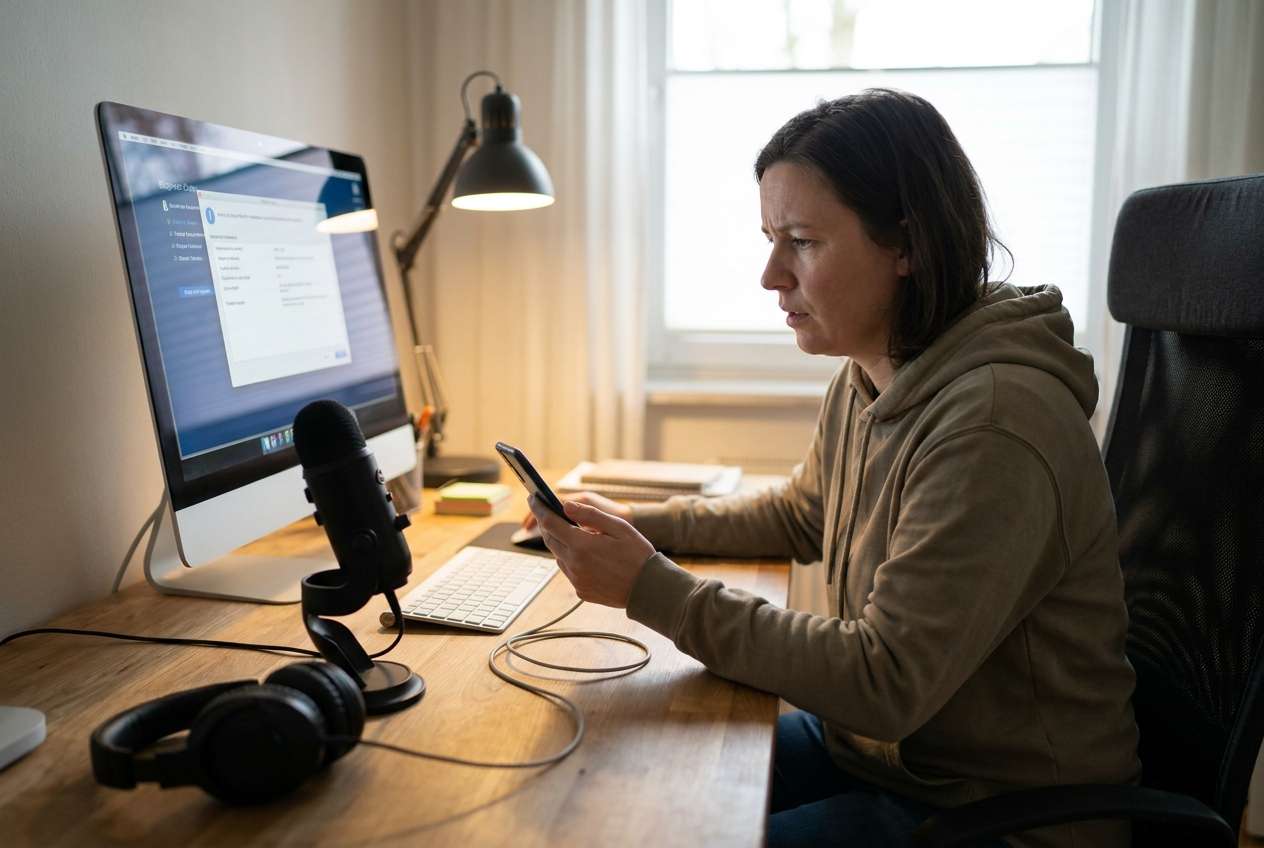
The uncertainty usually isn’t “what tools exist,” but “what order do I do this in, and what do I verify before I change something else?” Common gaps include mixing up capture vs. mirroring, missing audio routing, forgetting in-game audio permissions, or discovering HDCP/DRM limitations too late.
The real point of no return is hitting Go Live / Start Streaming before you’ve validated mirror stability, game audio capture, mic balance, and scene switching—because viewers will see the troubleshooting (and you may leak notifications or private screens).
1. Lock the order before touching settings.
Sequence it as permissions → mirroring → audio routing → OBS scenes → local test recording → private/unlisted test → public stream.
2. Add verification gates after each stage.
Don’t continue until you confirm the expected result (stable mirror, correct audio source, no echo, clean scene switching, no notifications).
3. Choose one primary path and one fallback.
Pick USB or Wi‑Fi as your primary mirroring route and define exactly when you switch to the fallback (latency, drops, instability).

Part 2. What the AI Needs to Know
Share your exact setup so the plan can be sequenced and verified correctly:
- Phone OS and model (e.g., Android 14 / Galaxy S23, or iOS 17 / iPhone 14)
- PC OS and specs (Windows/macOS, CPU/GPU, RAM)
- Streaming app (e.g., OBS Studio) and platform (Twitch/YouTube/TikTok)
- Connection preference (USB only / Wi‑Fi only / either)
- Audio goals (game audio only, mic only, both; headset on phone vs PC)
- Gameplay constraints (fast-paced games, target FPS, low-latency needs)
- Privacy constraints (hide notifications, avoid showing home screen, do-not-disturb)
- Accessories (capture card? USB-C hub? lightning adapter? wired earbuds? BT headset?)
- Network details (Wi‑Fi router quality, 5GHz availability, Ethernet on PC)
- Any prior failure symptoms (black screen, no audio, delay, stutter, crashes)
Part 3. Using AI Prompts to Build a Safer Show Mobile Gameplay on PC for Streaming Workflow
Use these prompts to force a dependency-first plan with explicit verification gates before you touch your device or go live.
3-1. Level 1: Basic Prompt
Create a step-by-step plan to show my mobile gameplay on my PC and stream it. Prioritize the safest sequence (permissions → mirroring → audio → OBS scenes → test recording). Include a short “verify before next step” check after each stage.
3-2. Level 2: Advanced Prompt
Design a structured workflow to show mobile gameplay on PC for streaming with three sections: Preparation, Execution, and Verification.
Mark each step as Critical or Optional, and include decision points for USB vs Wi‑Fi mirroring and for how to capture game audio (phone audio to PC).
Also list the top 5 failure modes and how to detect them early.
3-3. Level 3: Evidence Prompt
Here’s my setup: phone (Android 14, Pixel 7), PC (Windows 11, i5, 16GB RAM), streaming app (OBS), platform (YouTube), connection (prefer USB, can use Wi‑Fi), audio goal (game + mic), headset (USB mic on PC), privacy (hide notifications).
Build a workflow with checks before, during, and after execution.
Include example target settings (e.g., 1080p60 or 720p60, bitrate 4500–6000 kbps) and a validation plan (e.g., 60‑second local test recording, then unlisted stream).
Explicitly state what I must confirm before pressing “Start Streaming.”
3-4. Prompt Refinement
Output the workflow as a table with columns: Step, Critical/Optional, Expected Result, Verification Check, Rollback/Fallback.
Add a pre-flight checklist that prevents notification leaks and accidental account popups (DND, notification preview settings, lock screen behavior).
Give me two branches (USB and Wi‑Fi) and tell me exactly when to switch branches if latency or stability fails.
Define “acceptable” thresholds for streaming readiness (max audio delay, max dropped frames %, minimum stable minutes) and how to measure each in OBS.
3-5. AI Plan vs. Real Device Constraints
| AI can do | Reality constraint |
|---|---|
| Draft the safest step order and decision branches | It can’t grant permissions, trust the PC, or confirm what your phone actually shows |
| Suggest settings ranges (resolution/FPS/bitrate) | Your hardware, drivers, and network decide what’s stable |
| Provide a verification checklist and fallback options | Only live testing (local recording/unlisted stream) confirms sync and stability |
| Identify risk moments (privacy/audio/lag) | You must perform the final “go live” checks on your real scene and devices |
AI improves planning, but cannot execute mirroring, audio routing, permission prompts, or streaming controls on your devices.
Part 4. When to Stop Planning Show Mobile Gameplay on PC for Streaming and Start Execution
- You have chosen one primary path (USB mirroring or Wi‑Fi mirroring) and one fallback path.
- You can state exactly how you’ll capture game audio and mic audio, and where each will be monitored.
- Your privacy plan is set (Do Not Disturb, notification previews off, no sensitive apps/alerts).
- Your verification gates are written (local recording test, then unlisted stream test) and you will not go live before passing them.
Once these are true, stop adjusting the plan and move to controlled execution with real-device testing.
Part 5. Show Mobile Gameplay on PC for Streaming: Execute the Workflow Safely with Dr.Fone
Execution matters now because mirroring and permissions are where plans most often diverge from reality—so you want to validate stability before any public broadcast. For the mirroring step, you can use Dr.Fone Basic - Screen Mirroring to display your phone screen on your PC and run a closed test first.
 Easily manage data through preview, delete, export, etc.
- Transfer all data between devices.
- Robust backup solutions for reliable data protection.
- Mirror screens to PC for meetings, teaching, and control.

-
Step 1 Start a closed mirroring test on your PC
Open the mirroring feature on your PC and prepare to connect your phone (start with a private/closed test, not OBS).

-
Step 2 Choose the connection method and proceed with prompts
Select your mirroring method (USB or Wi‑Fi, depending on your plan) and follow any required permission prompts on your phone.

-
Step 3 Complete the device pairing
If your chosen method requires a pairing step, complete it (for example, scanning a QR code when using a wireless flow).

-
Step 4 Verify stability before OBS and streaming
Keep the game open for a few minutes and confirm the mirror stays stable (no drops/stutters) before you add it to OBS.

5-1. Route audio and validate sync (local recording, not live)
Set your PC streaming app to capture the mirrored video and confirm game audio + mic levels with a short local recording. Check lip-sync/impact-sound timing and avoid double-audio.
5-2. Run a private/unlisted stream rehearsal, then go live
Do an unlisted/private stream test with your final scene layout (overlays, chat, alerts) and only then start the public stream after confirming no notifications or sensitive screens appear.
Treat the first public “Go Live” click as the high-risk moment that must wait until verification passes.




Conclusion
Use AI to lock the workflow, risks, and verification gates; then rely on real tools to execute mirroring and testing—because only hands-on execution can confirm stability, audio, privacy, and readiness before the irreversible “Go Live” moment.
FAQ
-
What’s the most common reason mobile-to-PC streaming fails mid-stream?
Unverified audio routing (no game audio or echo), unstable Wi‑Fi mirroring, or a “working” mirror that drops frames under game load. -
How do I avoid leaking notifications or private screens?
Enable Do Not Disturb, disable notification previews, close sensitive apps, and rehearse scene switching in a private test before going live. -
Should I choose USB or Wi‑Fi mirroring?
USB is usually more stable and lower-latency; Wi‑Fi is more convenient but more sensitive to network quality and interference. -
What should I verify before I press Start Streaming?
Mirror stability (minutes, not seconds), correct video source, game audio present (no doubling), mic levels, sync, and a clean “no notifications” rehearsal. -
Can AI tell me the exact best OBS settings?
AI can propose safe starting ranges, but your PC, encoder, and network determine the final stable settings—you must confirm via recording and private streaming tests.
 Add Wondershare Dr.Fone as a preferred source on Google





