 Effortlessly manage data through preview, delete, export, etc.

 100% Security Verified | No Subscription Required | No Malware

 :
: 
 ChatGPT
 Perplexity
 Gemini
 Claude
 Grok
Grok

My phone gets hot fast when I mirror to my laptop and record at the same time—after 10 minutes the video starts dropping frames and audio drifts, and sometimes the phone throws a temperature warning.
Reddit user, r/Android
Phone overheating during mirroring and recording is easy to underestimate, and skipping one small check can turn into a forced shutdown, a corrupted recording, or battery/thermal damage. AI can help you plan a safer workflow by identifying likely causes (power, cable, app load, ambient heat), sequencing tests, and defining stop rules before you push the device too far. But AI can’t read your phone’s real temperature sensors or enforce thermal limits—so once the plan is clear, execution needs real tools and on-device actions.
In this article
- How to plan without missing critical steps
- Common symptoms during mirroring + recording
- Why test order matters
- Stop rules that prevent data loss
- What “safe enough” means for your session
- What the AI needs to know
- AI prompts to build a safer workflow
- When to stop planning and start execution
- Execute safely with Dr.Fone
Part 1. How to Plan Phone Overheating While Mirroring and Recording Without Missing Critical Steps
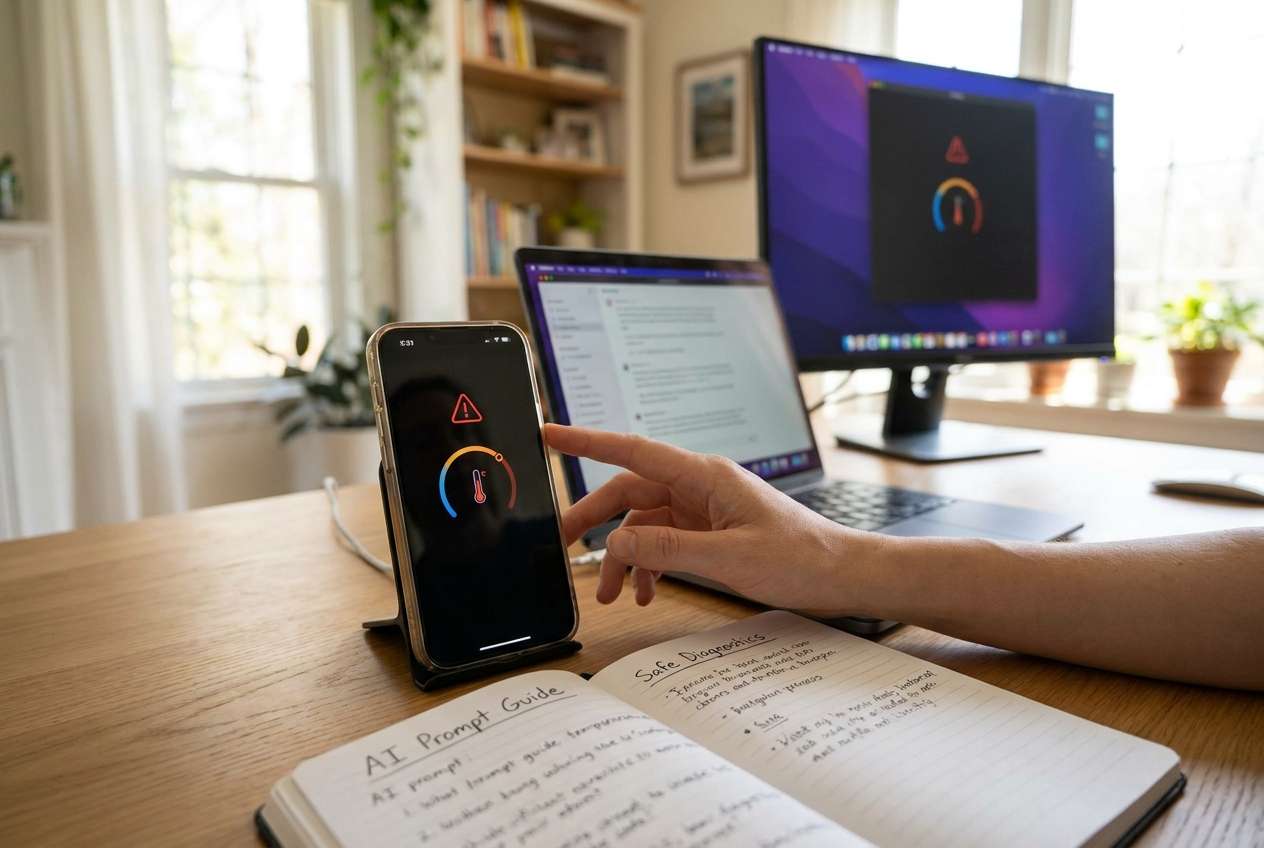
You’re mirroring a phone to a computer and recording a demo, lesson, or gameplay. After 5–15 minutes, the phone gets hot, frames drop, audio desyncs, or the device warns about temperature—sometimes it just closes apps or reboots.
Even if AI suggests “lower brightness” or “close background apps,” the uncertainty is the sequence: what to test first, what to measure, and what counts as “safe enough” to continue recording without risking a crash mid-session.
The point of no return is continuing to record through repeated thermal warnings (or repeated forced app closures). At that stage you can lose the entire take, corrupt the recording file, or accelerate battery wear—so you need clear stop conditions before you “push through.”
Part 2. What the AI Needs to Know
Answer these so the AI can build a safe, testable workflow:
- Phone model and OS version (e.g., iPhone 13 iOS 17 / Pixel 7 Android 14)
- Mirroring method (USB / Wi‑Fi) and target (Windows / macOS)
- Recording method (on-phone screen recording / computer capture / both)
- Apps involved (game, camera app, meeting app, mirroring app)
- Session goal and required quality (1080p@30, 60 fps, high bitrate, internal audio)
- Current power setup (charging? fast charger? USB port? hub/dongle?)
- Environment (room temp, case on/off, direct sunlight, airflow)
- Symptoms and timing (minutes to overheat, warning text, throttling, shutdown)
- What you’ve already tried (brightness, airplane mode, closing apps, lower fps)
- Constraints you can’t change (must be wireless, must record 60 fps, must charge)
Part 3. Using AI Prompts to Build a Safer Phone Overheating While Mirroring and Recording Workflow
Use the prompts below to force a step-by-step plan with checks, stop rules, and minimal trial-and-error.
3-1. Level 1: Basic Prompt
Draft a simple workflow to prevent phone overheating while mirroring and recording.
List the top 5 checks I should do before starting, and the top 5 changes to try in order if the phone starts heating up.
Include clear “stop recording now if…” rules.
3-2. Level 2: Advanced Prompt
Build a structured workflow to reduce overheating while mirroring and recording with Preparation / Execution / Verification phases.
Mark each step as Critical or Optional, and include an ordered troubleshooting ladder (change one variable at a time).
Define the safest fallback plan if I must finish the recording today.
3-3. Level 3: Evidence Prompt
Use my context to design a test plan with checks before / during / after recording, and give me thresholds and decision points.
Context:
- Phone + OS: (iPhone 12 iOS 17)
- Mirroring: (Wi‑Fi to Windows laptop)
- Recording: (computer capture at 1080p60, plus phone mic)
- Power: (phone charging via fast charger)
- Environment: (case on, room ~27°C)
- Failure: (thermal warning at ~12 minutes; frames drop and audio drifts)
- Non-negotiables: (must capture at least 20 minutes)
Output:
- A short risk list (what can be damaged or lost)
- A step-by-step sequence (only one change per test run)
- Checks to do at minute 0, 5, 10, 15
- A “green/yellow/red” decision table
- A final verification checklist to confirm the recording is usable before I stop the session
3-4. Prompt Refinement
Convert the workflow into a single page checklist with three sections: “Must do,” “If overheating starts,” and “Stop conditions.” Keep each line under 12 words.
Create a variable-control test matrix: list variables (brightness, fps, charging, case, Wi‑Fi vs USB) and a 6-run plan that changes only one variable per run.
Define objective pass/fail criteria for “usable recording” (sync drift limit, dropped frames tolerance, minimum continuous minutes).
Write two fallback workflows: one prioritizing device safety, one prioritizing recording quality—each with explicit trade-offs.
Ask me only the missing questions needed to remove ambiguity, grouped by: device, power, mirroring, recording settings, environment.

3-5. AI Plan vs. Real Device Constraints
| Planning element | What AI can do | What AI cannot do | What you must verify on-device |
|---|---|---|---|
| Thermal risk + stop rules | Define thresholds and decision points | Read true internal temperatures | Warnings, throttling, touch heat, battery behavior |
| Sequence + variable control | Create step order and test matrix | Enforce “one change at a time” | You follow the test discipline |
| Recording integrity checks | Suggest checkpoints for sync/frames | Confirm file integrity in real time | Playback spot-checks during/after capture |
| Power/connection strategy | Identify safer power/mirroring options | Change ports/cables/settings remotely | Cable/charger heat, port stability, Wi‑Fi stability |
Part 4. When to Stop Planning Phone Overheating While Mirroring and Recording and Start Execution
- You have one primary workflow plus one fallback (quality-first vs safety-first).
- You’ve defined red-line stop conditions (warnings, shutdown risk, charger heat, severe throttling).
- You know the first three variables you will test (and in what order).
- You have a verification method (spot playback, sync check, dropped-frame check) before ending the session.
At this point, more brainstorming adds little—what matters next is controlled execution with real checks.
Part 5. Phone Overheating While Mirroring and Recording: Execute the Workflow Safely with Dr.Fone
Execution now matters because overheating is dynamic: you need stable mirroring/recording behavior under real load, plus immediate verification before you commit to a full-length take.
5-1. Stabilize the connection and capture path
Use Dr.Fone Basic - Screen Mirroring to run the mirroring/recording setup you planned with the lowest-risk connection method you selected (for example, switching from Wi‑Fi to USB if that’s your chosen mitigation).
Limitation: Dr.Fone can’t override device thermal limits—if the phone throttles or warns, you must stop and adjust.
-
Step 1 Start mirroring setup on your computer
Open Dr.Fone and begin the screen mirroring workflow you planned before recording.

-
Step 2 Choose a stable mirroring method (Wi‑Fi/USB) for this test run
Use the method you decided to test first, and keep other variables unchanged.

-
Step 3 Pair the phone and computer to begin mirroring
Follow the pairing step (for example, scanning a QR code) to connect.

-
Step 4 Confirm the device is mirrored before recording
Confirm the phone screen appears correctly and stays stable before starting the timed checkpoints.

5-2. Run the controlled test pass (one variable only)
Execute your first test run exactly as planned (for example, remove case or stop fast charging or drop to 1080p30), and keep to your minute-by-minute checkpoints.
Limitation: Dr.Fone will not “prove” the cause by itself—you must keep other variables constant to avoid misleading results.
5-3. Verify recording integrity before committing to the full session
Immediately spot-check the captured file for audio sync, frame drops, and continuity before doing the long take.
Limitation: Verification is only as good as your checks—if you skip playback/spot checks, you can still lose a full recording to hidden corruption or drift.
Try Dr.Fone Basic to reduce mirroring instability during heat-related slowdowns
Once your AI plan defines the test order and stop conditions, the next priority is running a consistent mirroring setup and validating the capture quickly after each test pass—so you don’t discover drift or corruption after a long take.
 Easily manage data through preview, delete, export, etc.
- Transfer all data between devices.
- Robust backup solutions for reliable data protection.
- Mirror screens to PC for meetings, teaching, and control.

Use it to keep your mirroring path consistent while you run “one variable at a time” tests (power, connection method, case, brightness, fps). If the phone shows thermal warnings or you see severe throttling, stop the run and apply your planned fallback rather than pushing through.




Conclusion
Use AI to plan the safest sequence, define stop rules, and build verification checks; then use Dr.Fone to execute the mirroring/recording workflow in the real environment where thermal behavior and capture stability can be confirmed.
FAQ
-
What’s the biggest risk if I keep recording through overheating warnings?
Forced shutdown, corrupted/incomplete recordings, and faster battery degradation; repeated thermal events can also cause persistent performance throttling.
-
Is charging while recording a common cause of overheating?
Yes—especially fast charging. It adds heat while the phone is already under sustained CPU/GPU and network load.
-
Should I lower resolution or frame rate first?
If your goal allows it, reducing frame rate (e.g., 60 → 30) often cuts heat quickly. If quality is non-negotiable, test power/connection and environmental changes first.
-
How do I verify the recording won’t fail at minute 18?
Do controlled test runs with timed checkpoints (0/5/10/15 minutes), then validate playback for sync drift and stutter before attempting the full-length capture.
-
What’s the irreversible moment I should avoid until verification is done?
Don’t record the final, one-time-only take until a shorter test proves stability and the captured file passes your spot-check criteria.
-
Can AI tell me the “safe temperature” for my phone model?
AI can suggest conservative stop rules, but it can’t read your sensors or guarantee thresholds—treat device warnings and performance throttling as authoritative.
 Add Wondershare Dr.Fone as a preferred source on Google





