 Effortlessly manage data through preview, delete, export, etc.

 100% Security Verified | No Subscription Required | No Malware

 :
: 
 ChatGPT
 Perplexity
 Gemini
 Claude
 Grok
Grok

I thought phone mirroring would be quick, but one missed prerequisite (network, cable, permission, audio route) turned it into stutter, delay, and random disconnects right before a live session.
Forum user
Wireless or USB phone mirroring for low latency sounds simple, but missing one prerequisite (network, cable, permissions, audio path, display settings) can turn setup into trial-and-error and cause stutter, delay, or sudden disconnects.
AI helps by turning your situation into a clear workflow: what to decide first, what to verify next, what to avoid changing, and what “good” looks like before you start mirroring.
AI can’t actually connect your phone, approve trust prompts, or validate real-time latency on your specific hardware—so once the plan is solid, you still need real tools to execute and test on the devices.
In this article
- How to plan wireless or USB phone mirroring for low latency without missed steps
- Choose USB vs wireless first
- Run privacy and “clean screen” checks
- Verify audio/video path and acceptable latency
- Prepare a safe rollback plan
- What the AI needs to know
- Using AI prompts to build a safer workflow
- When to stop planning and start execution
- Execute the workflow safely with Dr.Fone
Part 1. How to Plan wireless or usb phone mirroring for low latency Without Missing Critical Steps
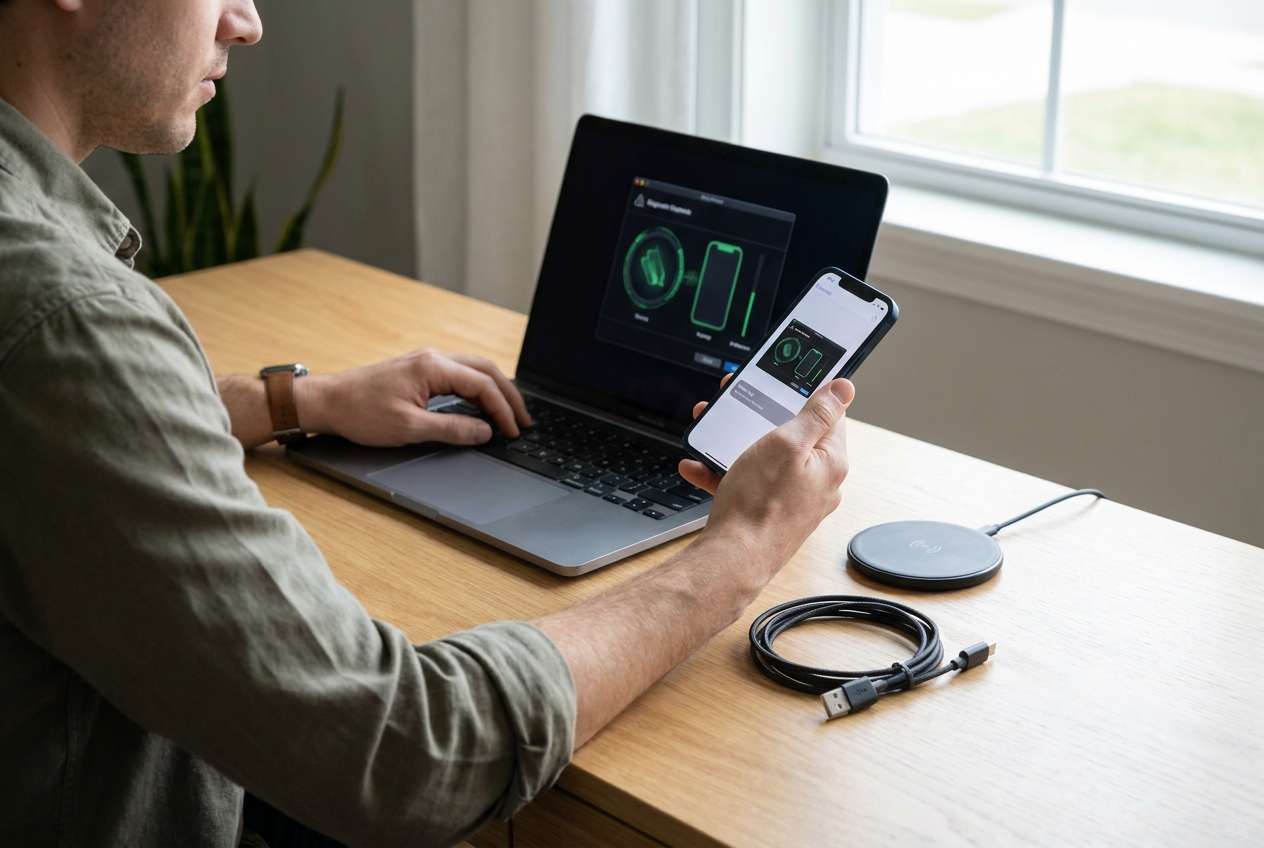
You’re about to mirror a phone to a PC for a live demo, a class, a game stream, or app testing—and you need low latency, stable input, and predictable audio/video behavior. You also may be switching between wireless and USB depending on the room, cables, or IT restrictions.
The uncertainty usually isn’t “what is mirroring,” but what order to do things in: which connection method to choose first, which permissions are required, and how to confirm latency is acceptable before you rely on it.
The point of no return is often exposure, not a setting: once you start mirroring in a meeting/stream and notifications or sensitive apps appear on the mirrored screen, you can’t take that back—so privacy checks and a “clean screen” verification must happen before you press Start mirroring.
Part 2. What the AI Needs to Know
Share your exact setup so the plan can be specific instead of generic.
- Phone OS and model (Android/iPhone; e.g., “Pixel 7 on Android 14” / “iPhone 14 on iOS 17”)
- Computer OS and hardware (Windows/macOS; GPU if relevant)
- Target display path (PC screen only, external monitor/projector, capture card, OBS, Teams/Zoom)
- Preferred connection (USB, Wi‑Fi, either) and why (latency, convenience, IT policy)
- Network details if wireless (5 GHz vs 2.4 GHz, congestion, same router, guest Wi‑Fi, hotspot)
- Cable/adapter details if USB (USB‑C/Lightning, hub/dock, cable quality/length)
- Audio requirements (phone audio to PC, mic routing, echo constraints)
- Control needs (view-only vs controlling the phone from PC)
- Privacy/security constraints (work phone, MDM, blocked developer options, sensitive notifications)
- Success criteria (acceptable latency target, resolution/FPS target, session duration)
Part 3. Using AI Prompts to Build a Safer wireless or usb phone mirroring for low latency Workflow
Use the prompts below to force a clean sequence: decide → prepare → verify → only then execute.
3-1. Level 1: Basic Prompt
Draft a step-by-step plan to mirror my phone to my computer with the lowest practical latency.
Include what I should verify before I start and the most common causes of lag or disconnects.
Do not give tool-specific clicks—just the workflow and checks.
3-2. Level 2: Advanced Prompt
Build a structured workflow for low-latency phone mirroring with two branches (USB vs wireless).
Separate it into Preparation, Execution, and Verification, and label each step as critical or optional.
Also list the top 5 failure points and how I can detect each one quickly.
3-3. Level 3: Evidence Prompt
I need low-latency mirroring for a live session and I can’t risk last-minute surprises.
Here’s my setup: phone (e.g., iPhone 14 iOS 17), computer (e.g., Windows 11 laptop), target use (e.g., Zoom screen share), connection options (USB‑C to Lightning cable available / 5 GHz Wi‑Fi available), and privacy constraints (e.g., work notifications must not appear).
Create a plan with checks before, checks during, and checks after mirroring.
Include simple pass/fail criteria (e.g., “latency feels under ~100 ms,” “no audio echo,” “no pop-up notifications during test”) and a pre-flight checklist I can run in under 3 minutes.
3-4. Prompt Refinement
Rewrite the workflow as a decision tree with IF/THEN branches for: USB not detected, wireless stutters, audio missing, and permission prompts blocked.
Give me a minimum viable low-latency setup (only critical steps) and a quality-improvement layer (optional tuning) so I know what to skip under time pressure.
Define exactly how to measure “low latency” in my context (demo/gaming/testing) and what I should observe to confirm it before going live.
Create a privacy pre-flight that prevents irreversible exposure: notifications, lock-screen previews, recent apps, message banners, and sensitive app pop-ups—include what to verify on both phone and PC.
Produce a rollback plan: if mirroring fails mid-session, what is the fastest safe fallback path (switch USB↔wireless, switch app, reduce FPS/resolution) without breaking the session.
3-5. AI Plan vs. Real Device Constraints
| AI planning help | Real device constraint |
|---|---|
| Can propose the safest sequence and checkpoints | Can’t detect your actual Wi‑Fi interference, cable quality, or GPU load |
| Can list likely permission prompts and prerequisites | Can’t approve trust dialogs, screen-capture permissions, or USB debugging prompts |
| Can suggest low-latency targets and test methods | Can’t measure your real end-to-end latency or dropped frames on-device |
| Can create a fallback/rollback plan | Can’t switch connections, reroute audio, or stabilize drivers on your machine |
AI improves planning, but it cannot execute the mirroring or validate performance on your real devices—execution and verification must happen with actual tooling and live checks.
Part 4. When to Stop Planning wireless or usb phone mirroring for low latency and Start Execution
- You have chosen the primary path (USB or wireless) and a fallback path if it fails.
- Your pre-flight checklist is ready (permissions, privacy, audio route, display target, power).
- You know your pass/fail criteria (acceptable delay, stability duration, audio behavior).
- You have identified the highest-risk moment (going live / sharing screen) and completed privacy verification before it.
At this point, planning is “good enough,” and the next uncertainty can only be resolved by real device testing.
Part 5. Wireless or usb phone mirroring for low latency: Execute the Workflow Safely with Dr.Fone
Execution now matters because latency and stability are environment-dependent—your cable, ports, Wi‑Fi conditions, and permissions will determine whether the plan holds up in real time. If you want a practical way to mirror and verify in one place, start with Dr.Fone Basic - Screen Mirroring.
 Easily manage data through preview, delete, export, etc.
- Transfer all data between devices.
- Robust backup solutions for reliable data protection.
- Mirror screens to PC for meetings, teaching, and control.

-
Step 1 Prepare and lock the environment
Action: Close heavy apps on the computer, connect power, set Do Not Disturb/focus modes, and confirm the phone and PC will stay awake for the full session.
Limitation: AI can’t confirm your system load, sleep behavior, or whether notifications are truly suppressed—verify on-screen before proceeding.

-
Step 2 Start mirroring and confirm the correct source
Action: Initiate mirroring via your chosen path (USB or wireless) and confirm you’re viewing the intended device and session (not a stale/previous pairing).
Limitation: AI can’t see which permission prompts appear or whether the connection is actually stable—only proceed once the live view is clearly updating.

-
Step 3 Complete pairing/permissions (especially for wireless)
Action: Follow the on-screen pairing and permission flow on both devices to finalize the connection (for wireless mirroring, this may include a QR-code pairing step depending on the method).
Limitation: AI can’t approve trust dialogs, screen-capture permissions, or blocked prompts—if you can’t complete this step quickly, switch to your pre-planned fallback path.

-
Step 4 Validate low-latency performance before going live
Action: Run a quick latency/stability check (tap/scroll test, audio sync check, 2–5 minute stability run) and only then start your meeting/recording/screen share.
Limitation: AI can’t measure real end-to-end delay or frame drops; if the check fails, stop and switch to your fallback path before any public sharing.




Conclusion
Use AI to structure the workflow, reduce guesswork, and define verification checkpoints; then use a real tool like Dr.Fone to execute mirroring and confirm low-latency performance on your actual devices before you share anything publicly.
FAQ
-
Is USB always lower latency than wireless?
Usually yes, but not always—bad cables, hubs, or unstable ports can introduce lag or drops. Your verification run is what decides. -
What should I verify right before I mirror in a meeting or stream?
Privacy settings (notifications/previews), the correct device/account, audio routing (no echo), and a quick latency tap/scroll check. -
What’s the highest-risk “can’t undo it” moment in mirroring?
Broadcasting sensitive content—once the mirrored screen is shared or recorded, exposure can’t be reversed. Do the privacy pre-flight first. -
How long should I test before I rely on it?
Long enough to match your risk: at least 2–5 minutes for a quick demo, longer if you expect cable movement, Wi‑Fi congestion, or long sessions. -
Can AI tell me exactly which setting will fix my lag?
AI can suggest likely causes and a safe test order, but it can’t see your interference, drivers, or real-time performance—device checks decide.
 Add Wondershare Dr.Fone as a preferred source on Google





