 Effortlessly manage data through preview, delete, export, etc.

 100% Security Verified | No Subscription Required | No Malware

 :
: 
 ChatGPT
 Perplexity
 Gemini
 Claude
 Grok
Grok

I moved my tasks between iPhone, iPad, and Mac to “clean things up,” and suddenly I had duplicates, missing items, and conflicts I couldn’t untangle. I wish I had a safe order and checks before I touched sync settings.
Forum user
Migrating or reorganizing tasks across iPhone, iPad, and Mac is easy to start—and easy to mess up if you move the wrong items first.
Missing one dependency (like where your files actually live, which device is the “source of truth,” or whether an app syncs via iCloud) can cause duplicates, missing data, or overwritten versions.
AI can help you map the workflow, set a safe sequence, and define verification checks so you don’t hit a point of no return too early.
In this article
- How to plan the device split without missing steps
- Why dependencies break after a “simple move”
- How to avoid a point of no return
- What a safe sequence looks like
- What to verify before committing
- What the AI needs to know
- Using AI prompts to build a safer workflow
- AI plan vs. real device constraints
- Execute the workflow safely with Dr.Fone
Part 1. How to Plan decide which tasks belong on iphone ipad or mac Without Missing Critical Steps
You might be trying to separate “capture on iPhone,” “deep work on iPad,” and “admin/archives on Mac,” but the reality is messy: tasks contain links, attachments, calendars, notes, and app-specific data that may not sync the way you assume.

After asking AI for a device split, you can still feel unsure about the order of operations—what to change first, what to back up, and how to confirm nothing is lost before you commit.
The point-of-no-return moment is often when you bulk delete, bulk move, or disable sync for a task database and then allow it to sync—because that can propagate deletions or overwrite records across devices before you notice.
Part 2. What the AI Needs to Know
Share your current setup so the AI can design a safe, verifiable sequence.
- Your task system(s) and where tasks live (Apple Reminders, Notes, Calendar, third-party apps, email inbox, files)
- Which devices you actively use (iPhone model/iOS, iPad model/iPadOS, Mac model/macOS)
- Sync method(s) you rely on (iCloud, Google, Exchange, app accounts) and whether multiple accounts are involved
- What “belongs” means for you (capture, planning, execution, review, archiving, notifications, automation)
- What types of tasks you manage (work/personal, projects, recurring, location-based, deadlines, shared lists)
- Any attachments or linked files (PDFs, photos, scans) and where they are stored (iCloud Drive, local, other clouds)
- Constraints (storage limits, offline needs, privacy requirements, MDM/work profiles, shared family devices)
- Your acceptable risk level and downtime window (minutes vs hours, can you pause syncing, can you tolerate duplicates)
- Your rollback options today (existing backups, exports, screenshots, second device as reference)
Part 3. Using AI Prompts to Build a Safer decide which tasks belong on iphone ipad or mac Workflow
Use these prompts to force a clear sequence, define checks, and avoid irreversible changes before verification.
3-1. Level 1: Basic Prompt
I want to decide which tasks should live on my iPhone vs iPad vs Mac based on how I actually work.
Ask me the minimum questions needed, then propose a simple split (capture / plan / do / review / archive) with a safe order to implement it.
Don’t tell me to change anything yet—just the plan and what to verify first.
3-2. Level 2: Advanced Prompt
Create a structured workflow to decide which tasks belong on iPhone, iPad, or Mac.
Preparation: list the information I must collect (accounts, sync settings, primary task source, backups) and how to document current state.
Execution (planning-only): propose a device role model (what happens on each device) and a sequence of changes with “stop points.”
Verification: define critical checks (must-pass) vs optional checks (nice-to-have), including how to detect duplicates, missing tasks, and sync conflicts.
Also highlight the top 5 mistakes that cause data loss or cross-device overwrites.
3-3. Level 3: Evidence Prompt
Here’s my context—design a safe plan with checks before/during/after, and identify irreversible moments to avoid until verification passes.
- Devices: iPhone (iPhone 14, iOS 17), iPad (iPad Air, iPadOS 17), Mac (MacBook Air, macOS 14)
- Task sources: Apple Reminders + Notes + Calendar; some tasks arrive via email
- Accounts: iCloud (primary), work Exchange (calendar/tasks if applicable), Google (personal calendar)
- Goal: iPhone = capture + quick triage; iPad = focused work + weekly review; Mac = heavy planning + archiving + file linking
- Risks I’m worried about: duplicates, shared lists, recurring tasks breaking, attachments disappearing
- Constraints: limited time (30–45 minutes), can’t lose shared family reminders, need offline access on iPhone sometimes
Deliverables I want:
- A device-role map (what each device should do and not do)
- A step-by-step sequence with explicit “do not proceed unless…” gates
- Checks for: sync status, list membership, recurrence integrity, attachments/links, and cross-account leakage
- A rollback plan if something goes wrong mid-way
3-4. Prompt Refinement
Turn this into a checklist with three gates: “Ready to change,” “Safe to continue,” “Safe to finalize,” each with pass/fail criteria.
Separate the workflow by data type (tasks, notes, calendars, attachments/links) and show dependencies between them.
Ask me exactly 10 questions that remove ambiguity (no open-ended questions), then produce the plan.
Provide a conflict-handling rulebook: what to do if I see duplicates, missing items, or “last modified” mismatches during verification.
Define the single source of truth for each list/account and how to prevent unintended cross-account syncing.
Part 4. AI Plan vs. Real Device Constraints
| Planning need | What AI can do | What AI cannot do | What you should verify |
|---|---|---|---|
| Decide device roles | Propose role split based on habits | Enforce roles on your devices | Which apps/settings actually control capture, alerts, and editing |
| Safe sequence | Draft order with stop points | Execute changes or pause sync | Your current sync state and whether changes propagate instantly |
| Risk control | List irreversible moments and mitigations | Create backups/exports itself | You have a recoverable backup/export before bulk edits/deletes |
| Verification | Define checks and pass/fail criteria | Inspect your real data stores | Counts, spot-check samples, recurrence behavior, and shared list integrity |
AI improves planning, but it cannot execute changes on your devices or confirm your real-time sync state—those require hands-on verification and real tools.
4-1. When to Stop Planning decide which tasks belong on iphone ipad or mac and Start Execution
- You have a written device-role map that includes “do” and “don’t” rules for each device.
- You’ve identified the point-of-no-return actions (bulk delete/move, disabling sync, merging lists) and put them last.
- You have pass/fail verification checks that you can complete quickly (counts + spot checks + recurrence + shared lists).
- You have a rollback option you can actually use (backup/export/snapshot) before making any irreversible changes.
At this point, the work shifts from deciding to carefully applying the plan in a controlled way.
Product Recommendation
If your plan includes any bulk changes (moves, merges, or sync-setting edits), create a recoverable baseline first. Dr.Fone Basic - Screen Mirroring can also help you keep your device view available on a larger screen while you follow a gated checklist and verify results step by step.
 Easily manage data through preview, delete, export, etc.
- Transfer all data between devices.
- Robust backup solutions for reliable data protection.
- Mirror screens to PC for meetings, teaching, and control.

Use the tool to support execution in the same gated order your AI plan recommends: baseline first, changes second, verification throughout, and irreversible cleanups last.
Part 5. Decide which tasks belong on iphone ipad or mac: Execute the Workflow Safely with Dr.Fone
Execution now matters because the safest plan still fails if changes happen out of order or without a recoverable checkpoint.
-
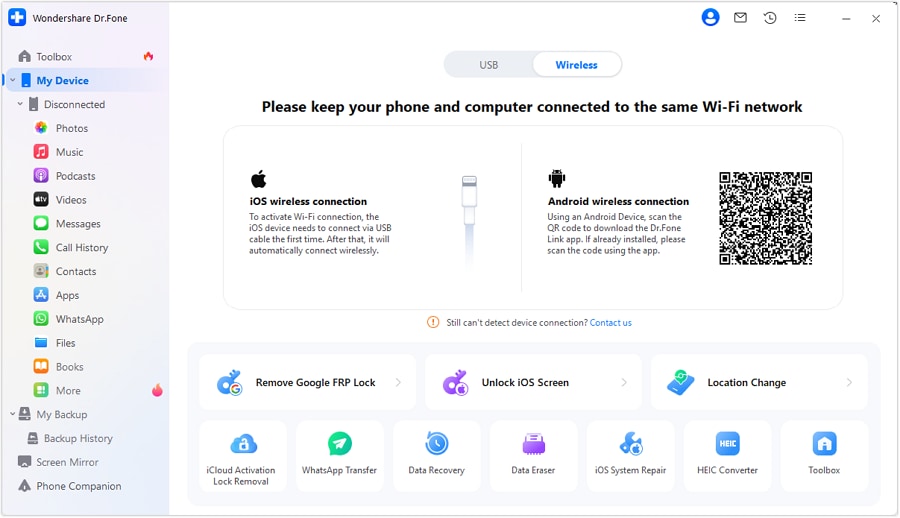
Step 1 Prepare a recoverable baseline
Action: Use Dr.Fone to create a backup of the relevant device data before you change sync settings, bulk-move items, or delete anything.
Limitation: AI can’t create backups or confirm backup integrity on your hardware.
-
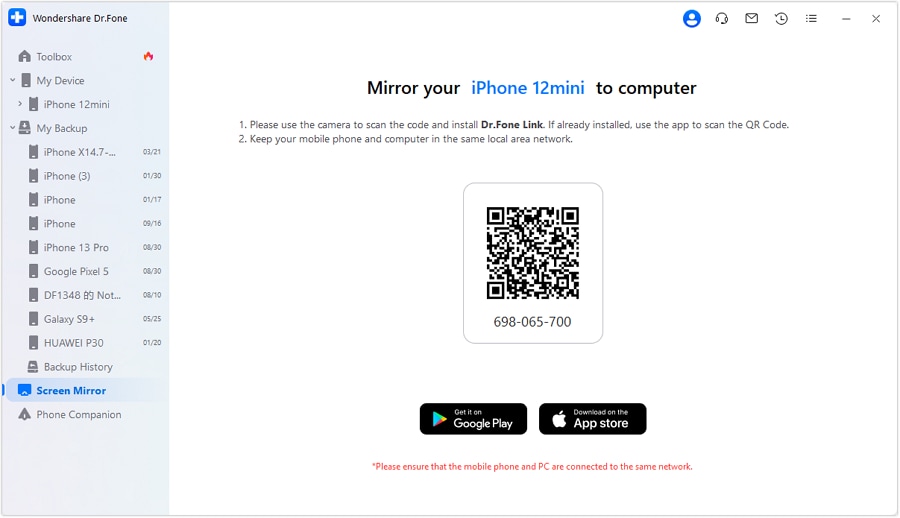
Step 2 Apply changes in a gated sequence
Action: Use Dr.Fone as needed to support the device-side steps from your plan (e.g., safeguarding data before major reorganizations).
Limitation: AI can’t perform the moves, taps, or device operations; it can only tell you what to do next and what to avoid.
-
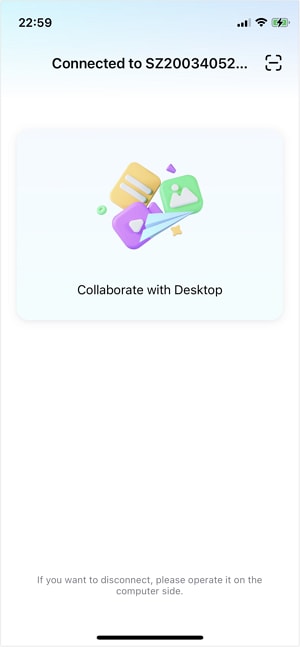
Step 3 Verify before final actions
Action: Run your verification checks (counts, spot checks, recurrence checks, shared list integrity, attachments/links) before you do any irreversible cleanup.
Limitation: AI can’t see whether deletions propagated or whether shared/recurring items remained intact; you must confirm on-device and in the relevant accounts.
-
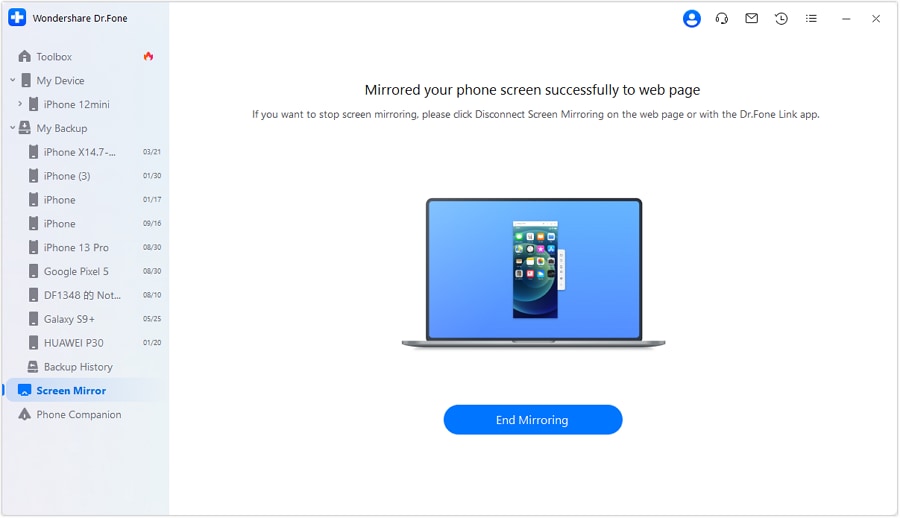
Step 4 Finalize only after checks pass
Action: After verification checks pass, proceed with any final cleanups—especially bulk deletions or merges—only when you’re sure you can recover if results differ from expectations.
Limitation: AI can’t confirm your real-time sync state; treat the final cleanup as the last step.




Conclusion
Use AI to define the device roles, sequence, risks, and verification gates—then use a real tool like Dr.Fone to carry out the backup and device-side execution safely.
FAQ
-
What’s the biggest risk when splitting tasks across iPhone, iPad, and Mac?
Accidentally changing the “source of truth” (or disabling sync) and letting deletions/overwrites propagate before you notice. -
When is the point of no return?
Bulk deletion, bulk moving/merging lists, or turning off sync for an account and then allowing the system to sync—because it can spread changes across devices. -
How do I verify safely without checking every single task?
Use counts (per list), spot-check a representative sample, confirm recurrence on a few recurring tasks, and verify shared lists/permissions still behave as expected. -
Should I decide by device or by app/account first?
Start with app/account reality (where the data actually lives and syncs), then assign device roles—otherwise the role plan may be impossible to implement safely. -
Can AI tell me exactly which tasks should be on each device?
AI can propose a logical split based on your goals, but only you can validate constraints like offline needs, notification behavior, and what actually syncs.
 Add Wondershare Dr.Fone as a preferred source on Google





