 Effortlessly manage data through preview, delete, export, etc.

 100% Security Verified | No Subscription Required | No Malware

 :
: 
 ChatGPT
 Perplexity
 Gemini
 Claude
 Grok
Grok

Mirroring an Android phone to a Mac for recording sounds straightforward, but missing one step (like the right USB mode, permissions, or audio expectations) can waste a full session or capture the wrong content.
Forum user
AI is useful for turning a vague goal (“record my phone screen on my Mac”) into a clear sequence: what to prepare, what to verify, what to do in what order, and where the common failure points are.
AI can’t connect devices, grant permissions, or run a stable mirror session on your hardware—execution still needs real device tools once the plan is verified.
In this article
- How to plan mirroring without missing critical steps
- Why the order matters
- Common “too-late” discoveries
- Privacy point-of-no-return
- What to lock down before recording
- What the AI needs to know
- Using AI prompts to build a safer workflow
- When to stop planning and start execution
- Execute the workflow safely with Dr.Fone
Part 1. How to Plan Mirror Android Phone to Mac for Recording Without Missing Critical Steps
You’re trying to record an Android screen on your Mac for a tutorial, bug report, or walkthrough—possibly under time pressure—while juggling cables, drivers, permissions, and recording settings.
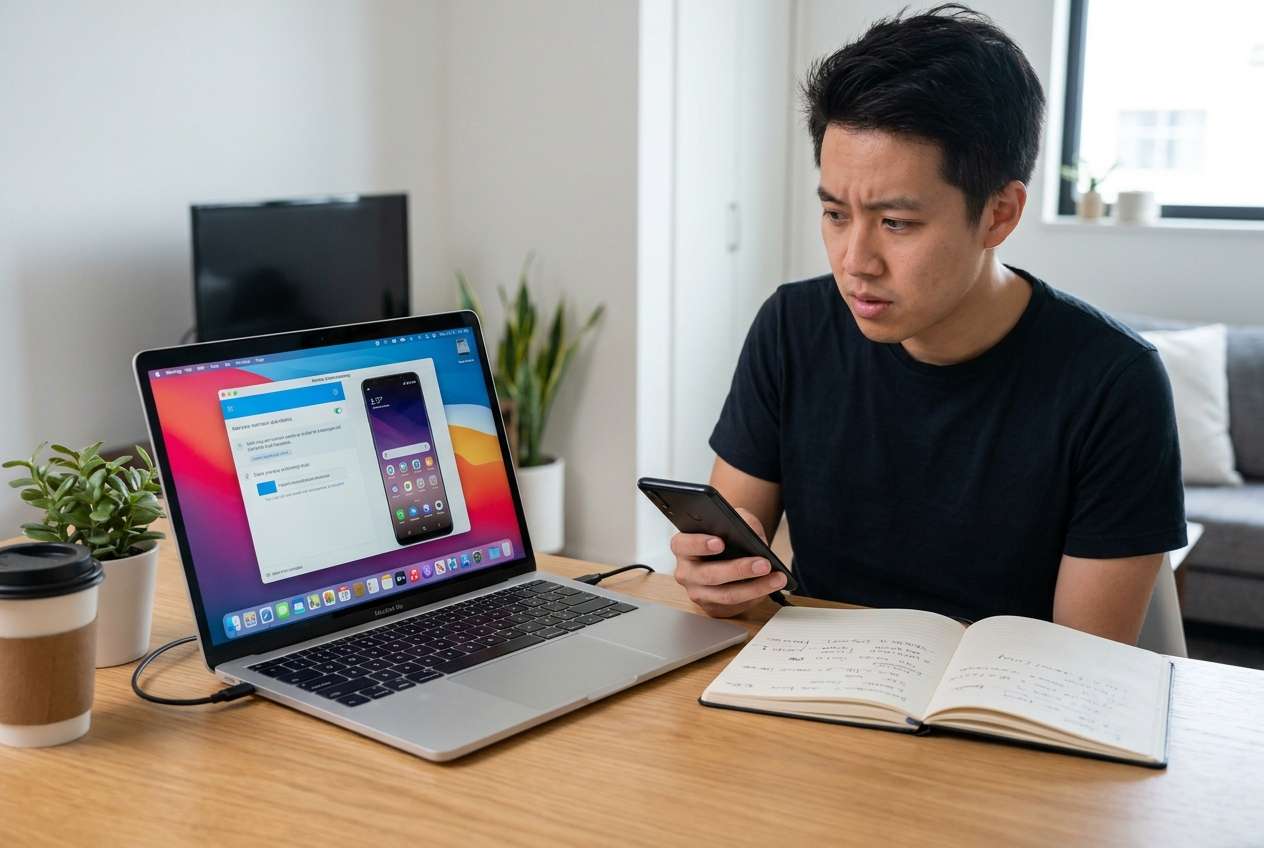
1-1. Why the uncertainty is usually about order
The uncertainty usually isn’t “can it be mirrored,” but “what exact order prevents interruptions?” People often start recording too early, then discover pop-ups, notifications, wrong orientation, low resolution, or missing audio after the fact.
1-2. The most common “too-late” discoveries
- Unexpected pop-ups or permission dialogs appearing mid-recording
- Notifications and banners covering the UI
- Wrong orientation (portrait vs. landscape) compared to your output requirement
- Text not readable due to low effective resolution
- Audio expectations not matched (e.g., no internal audio captured)
1-3. Privacy is the real high-risk moment
One high-risk moment is pressing Record (or starting a live share) before you’ve verified what will appear on-screen—because private notifications, account details, or personal messages can be captured permanently and may be impossible to “unshare” once sent.

1-4. Use AI for planning, not for execution
AI can help you plan and verify a workflow, but it can’t connect devices, grant permissions, or ensure stable mirroring on your hardware. Once your plan is clear, you still need to validate it on real devices before committing to the real recording.
Part 2. What the AI Needs to Know
Share your setup details so the workflow can be planned correctly and checked before you execute.
- Android brand/model (e.g., “Samsung Galaxy S23”)
- Android version (e.g., Android 14)
- Mac model + macOS version (e.g., “MacBook Air, macOS 14”)
- Connection preference: USB, Wi‑Fi, or either
- Recording goal: tutorial, gameplay, app demo, bug repro, call recording (if applicable)
- Audio needs: screen audio, mic, both, or none (and whether you can accept “mic only” if needed)
- Whether sensitive content may appear (notifications, 2FA codes, names, emails)
- Constraints: time limit, no admin rights on Mac, no installing extra drivers, corporate device rules
- Output requirements: resolution (e.g., 1080p), orientation, and whether you need face-cam overlay
Part 3. Using AI Prompts to Build a Safer Mirror Android Phone to Mac for Recording Workflow
Use the prompts below to force a clean sequence with verification points before any recording begins.
3-1. Level 1: Basic Prompt
Create a step-by-step plan to mirror my Android phone to my Mac and record it.
Include a short pre-flight checklist and the top 5 mistakes that cause failed mirroring or bad recordings.
Do not include execution—planning and verification only.
3-2. Level 2: Advanced Prompt
Design a structured workflow to mirror an Android phone to a Mac for recording, split into Preparation, Execution, and Verification.
Mark each step as Critical or Optional, and include “stop points” where I should confirm settings before moving on (especially before I start recording).
3-3. Level 3: Evidence Prompt
I need to record an Android screen demo on a Mac with minimal risk of capturing private info.
My devices: Android (e.g., Pixel 7, Android 14), Mac (e.g., macOS 14).
Connection: (USB preferred).
Output: (1080p landscape).
Audio: (mic only is acceptable / I need internal audio if possible).
Build a workflow with checks before, during, and after mirroring + recording.
Include:
- Permission/connection checks (USB mode, trust prompts, debugging prompts if relevant)
- A “privacy lock” checklist (notifications, banners, 2FA, account switching)
- A dry-run plan (60–90 seconds) to validate framing, resolution, and stability
- A clear point-of-no-return warning: what I must verify before hitting Record
- A short troubleshooting branch if mirroring disconnects mid-session
3-4. Prompt Refinement
Rewrite the workflow as a table with columns: Step, Goal, Exact Check, Pass/Fail criteria, If Fail then what.
Add a dedicated Privacy Verification Gate that must be completed before any recording starts; include 8–10 specific checks.
Separate the plan into two paths: USB-first and Wi‑Fi fallback, and specify when to switch paths.
Define what “good enough to record” means: minimum resolution, acceptable latency, and how long the mirror must stay stable in a dry run.
List the top 10 on-screen items I should remove/disable before recording (with Android menu areas to look in, not exact brand-specific steps).
3-5. AI plan vs. real device constraints
| AI planning output | What still depends on real devices |
|---|---|
| Workflow sequence + stop points | Requires real device behavior (prompts, cable quality, OS permissions) |
| Risk checks (privacy, stability, audio expectations) | Depends on your exact Android skin, macOS settings, and app behavior |
| Troubleshooting decision tree | Can’t detect your failure mode without your observations/screenshots |
| Verification criteria (pass/fail) | Must be confirmed by you on the actual mirrored preview and recording test clip |
AI improves planning and reduces avoidable mistakes, but it cannot grant permissions, maintain a connection, or confirm what your hardware will actually output—those must be validated on the real devices.
Part 4. When to Stop Planning Mirror Android Phone to Mac for Recording and Start Execution
- You can state your target outcome clearly (what you’re recording, length, orientation, resolution, audio requirements).
- You have a privacy decision made (what must be hidden, which accounts to use, notifications on/off).
- You have pass/fail verification criteria (what you will check in a 60–90 second dry run before recording).
- You have a fallback path ready (switch connection method, change cable/port, or reschedule if constraints block recording).
Once those are true, planning has done its job—now the next step is careful execution with real tooling, while honoring the verification gates.
Part 5. Mirror Android Phone to Mac for Recording: Execute the Workflow Safely with Dr.Fone
Execution now matters because stability and permissions are only proven in a live mirror preview—your goal is to validate first, then record only after the preview matches your requirements. For the mirroring session itself, you can use Dr.Fone Basic - Screen Mirroring.
 Easily manage data through preview, delete, export, etc.
- Transfer all data between devices.
- Robust backup solutions for reliable data protection.
- Mirror screens to PC for meetings, teaching, and control.

-
Step 1 Start a dry-run mirroring session
Initiate the Android-to-Mac mirroring session first and keep it running for a short dry run (60–90 seconds) to confirm stability before you record anything important.
 Note: AI can’t see your prompts, device trust dialogs, or connection drops—pause and resolve any unexpected permission pop-ups before proceeding.
 -
Step 2 Confirm the live preview matches your requirements
Before recording, verify what will actually appear on-screen: correct orientation, readable text, expected resolution, and your chosen audio plan (screen audio vs. mic vs. both).

-
Step 3 Complete a privacy verification gate
Run your privacy checks on the mirrored preview (notifications, banners, 2FA codes, account details, personal messages). Only proceed when the preview is “safe to capture.”
 Note: Once you press Record, sensitive content can be captured permanently—AI cannot guarantee what will appear (notifications, incoming calls, banners).
 -
Step 4 Record, then immediately review a short sample
Record the real session only after the dry run passes. Then review the first 10–20 seconds to confirm framing, legibility, and that no private data appeared before continuing or sharing.
 Note: AI cannot validate your resulting file or confirm compliance requirements—your review is the final control before sharing or continuing.




Conclusion
Use AI to design a tight workflow with verification gates and a clear point-of-no-return before recording; then use Dr.Fone for the actual mirroring execution while you validate the real device output in a dry run before capturing anything permanent.
FAQ
-
What’s the biggest mistake that ruins recordings?
Starting to record before doing a dry run and a privacy check—then discovering pop-ups, wrong orientation, unreadable text, or private notifications in the footage.
-
Is “pressing Record” really a point of no return?
It can be: once sensitive info is recorded (names, messages, 2FA codes), you may not be able to fully retract it if it’s shared or uploaded.
-
How long should the dry run be?
Long enough to catch disconnects and lag—typically 60–90 seconds, plus a quick review of the sample clip to confirm quality.
-
Can AI tell me the exact settings for my specific Android model?
AI can propose likely paths and checks, but Android skins vary; you still need to confirm the exact menus and prompts on your device.
-
What if mirroring works but the recording has no audio?
Treat audio as a requirement to verify early: define whether mic-only is acceptable, test a short clip, and only then record the full session.
 Add Wondershare Dr.Fone as a preferred source on Google





