 Effortlessly manage data through preview, delete, export, etc.

 100% Security Verified | No Subscription Required | No Malware

 :
: 
 ChatGPT
 Perplexity
 Gemini
 Claude
 Grok
Grok

My phone mirroring looks fine in quick tests, but the moment I’m presenting it starts stuttering and the audio goes out of sync. I don’t know if it’s Wi‑Fi, the adapter, the receiver, or my phone.
Forum user
Laggy phone mirroring during a live presentation is usually caused by a small missed step—wrong network band, overloaded phone, a bad adapter, or an incompatible display mode—and the failure often shows up only when you’re already on stage.
AI is useful here because it can turn scattered symptoms into a sequence: what to check first, what to change safely, what to measure, and how to confirm you actually fixed the bottleneck (instead of just “trying things”).
AI can’t touch your phone, your cable, your projector, or your meeting-room Wi‑Fi. After the plan is verified, execution needs real device tools and real testing.
In this article
- How to plan without missing critical steps
- Why sequencing matters
- Stop-gates before risky actions
- What “fixed” should look like
- Fallback readiness
- What the AI needs to know
- Using AI prompts to build a safer workflow
- AI plan vs. real device constraints
- When to start execution
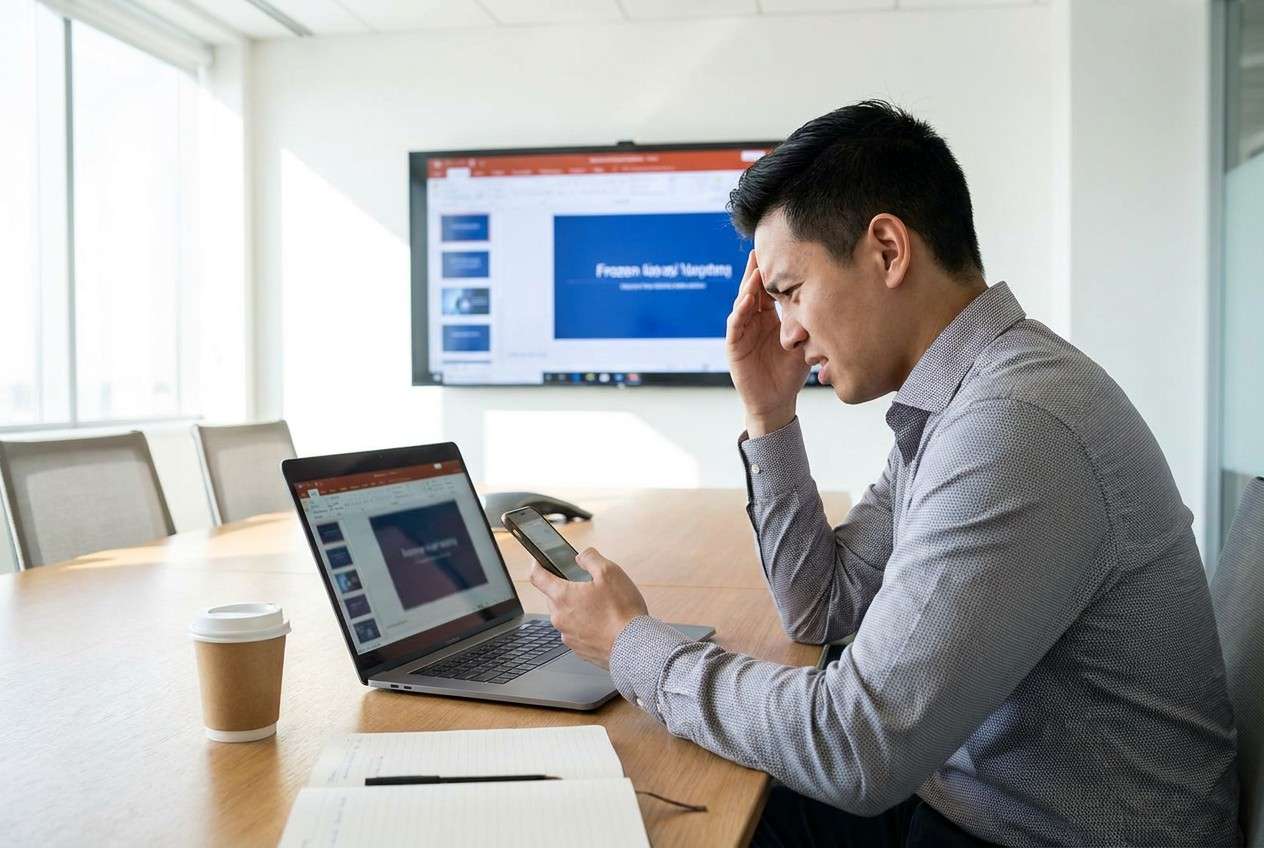
Part 1. How to Plan fix laggy phone mirroring during presentations Without Missing Critical Steps
You’re about to present and your mirrored screen stutters, drops frames, or desyncs audio. You may not know if the problem is the phone, the display receiver (Apple TV/Chromecast/projector), the adapter, the Wi‑Fi, or your presentation app.
The confusing part is that many “fixes” overlap (restart, update, switch networks), but the sequence matters: changing multiple variables at once makes it impossible to learn what actually worked—so the lag comes back at the worst moment.

Part 2. What the AI Needs to Know
Share the details below so the workflow can be accurate and low-risk:
- Phone make/model and OS version (e.g., iPhone 14 iOS 17.5 / Galaxy S22 Android 14)
- Mirroring method (AirPlay / Chromecast / Miracast / HDMI adapter / USB-C to HDMI / app-based)
- Display target (projector/TV model, Apple TV/Chromecast version, conference room system)
- Connection path (same Wi‑Fi? which band? guest network? wired via adapter?)
- Symptom pattern (constant stutter vs. spikes; audio desync; freezes on slide transitions)
- Where lag appears (home screen, videos, slides, only inside PowerPoint/Keynote/Zoom/Teams)
- Presentation deadline and testing window (e.g., “in 45 minutes” vs “tomorrow morning”)
- Any constraints (no admin access, captive portal Wi‑Fi, can’t install apps, only one cable available)
- What you already tried (restart, different cable, different Wi‑Fi, airplane mode toggle, updates)
Part 3. Using AI Prompts to Build a Safer fix laggy phone mirroring during presentations Workflow
Use the prompts below to force a clean sequence, minimize guesswork, and avoid risky changes before verification.
3-1. Level 1: Basic Prompt
Write a step-by-step troubleshooting plan to reduce lag in my phone mirroring during a presentation.
Prioritize quick, reversible checks first, then deeper changes only if needed.
Include how I can verify each step worked before moving on.
3-2. Level 2: Advanced Prompt
Build a structured workflow with Preparation / Execution / Verification to fix laggy phone mirroring during presentations.
Mark each action as Critical or Optional, list the risk level (low/medium/high), and specify what variables must remain constant so I can isolate the cause.
3-3. Level 3: Evidence Prompt
I’m mirroring (iPhone 14, iOS 17.5) to (Apple TV 4K) on (conference Wi‑Fi, unknown band) and seeing (frame drops + 1–2s audio delay) mainly during (slide transitions and embedded videos).
The presentation is in (60 minutes).
Create a plan with checks before, during, and after changes, including: network tests (5 GHz vs 2.4 GHz), device load checks (battery mode, thermal throttling), receiver/display settings, and a fallback plan (HDMI adapter).
Include explicit “stop” gates before any irreversible step like reset/erase/restore.
3-4. Prompt Refinement
Output the workflow as a table with columns: Step, Goal, Exact action, What to observe, Pass/Fail criteria, Rollback.
Separate causes into buckets (Network, Phone performance, Receiver/display, Adapter/cable, App/content) and give a fastest-first test for each bucket.
Define a minimum viable fix for “present in 15 minutes” vs a stable fix for “present tomorrow,” and show which steps change between them.
Add a verification script I can run in 3 minutes: (open X, play Y, toggle Z) and record results so I can compare before/after.
Part 4. AI Plan vs. Real Device Constraints
| Planning element (AI) | What AI can clarify | What you must confirm on real devices |
|---|---|---|
| Variable control | Prevents changing Wi‑Fi, app, and adapter all at once | Which exact network/band you’re on; whether the receiver is wired/bridged |
| Risk gating | Flags high-risk steps (reset/erase/deep repair) | Whether your data is backed up and recoverable before any destructive action |
| Verification criteria | Defines pass/fail (e.g., “no drops for 2 minutes”) | Actual observed performance on the projector/TV in the same room |
| Fallback readiness | Plans a Plan B (wired, different device, local playback) | Whether you physically have the adapter/cable, permissions, and ports available |
AI improves planning, sequencing, and verification logic—but it cannot run tests, change settings, or stabilize your mirroring session for you.
Part 5. When to Stop Planning fix laggy phone mirroring during presentations and Start Execution
- You can describe the setup in one sentence (phone + method + target + network) and you’ve picked one hypothesis to test first.
- You have pass/fail criteria (what “fixed” looks like) and a quick test clip/slide deck to replay consistently.
- You have a fallback path that you can switch to fast (e.g., HDMI adapter, local playback, second device).
- You have explicitly ruled out (or scheduled later) any high-risk step (factory reset, erase/restore, deep system repair) until backups are verified.
Once those are true, the next move is execution—with measured changes and checks after every change.
Fix laggy phone mirroring during presentations: Execute the Workflow Safely with Dr.Fone
Execution matters now because stability comes from controlled changes you can validate on the actual phone and display, not from more guesses. If you need a practical tool to help you mirror and manage devices during prep, start with Dr.Fone Basic - Screen Mirroring.
 Easily manage data through preview, delete, export, etc.
- Transfer all data between devices.
- Robust backup solutions for reliable data protection.
- Mirror screens to PC for meetings, teaching, and control.

5-1. Quick execution setup: get mirroring running and verify stability
-
Step 1 Start the screen mirroring workflow on your computer
Open the mirroring feature and prepare your computer to receive a mirrored screen so you can run consistent tests on the same display path.

-
Step 2 Choose wireless mirroring and confirm the connection requirements
Keep your variables controlled (same app, same slide deck/video clip, same receiver/display) so you can isolate whether changes reduce lag.

-
Step 3 Pair your phone to the computer (QR code pairing if prompted)
Complete pairing, then run your 60–120 second repeatable test (slide transitions + embedded video segment) to establish a baseline.

-
Step 4 Confirm the device is mirrored, then re-test after each controlled change
After each single change (e.g., Wi‑Fi band switch, receiver restart, closing background apps), re-run the same test and record pass/fail results.

5-2. Execute your plan with verified gates (data, load, repair)
Step: Protect your data before any deep changes
Action: Use Dr.Fone to create a backup of important content so you can safely proceed if later steps require system-level fixes.
Limitation: AI can tell you what to back up and when, but it cannot confirm the backup is complete or restorable on your devices.
Step: Reduce device-side load that can cause stutter
Action: Use Dr.Fone to manage and offload large files (photos/videos) to free storage and reduce background strain before retesting mirroring performance.
Limitation: AI can prioritize what to offload and what to keep for the presentation, but it can’t measure your phone’s real-time thermal throttling or background processes.
Step: Apply system-level repair only after verification gates pass
Action: If the lag appears across apps and persists after network/receiver checks, use Dr.Fone’s system repair capabilities to address OS-level instability, choosing the least destructive mode available first.
Limitation: Some repair paths can be high-risk and may lead to data loss; AI can warn you, but only you can confirm backups and accept the irreversible point-of-no-return.




Conclusion
Use AI to design a controlled, verifiable workflow with clear stop-gates before any irreversible action; then use real tools like Dr.Fone to execute backups, device management, and any required repair steps on the actual device setup.
FAQ
-
How do I know if the lag is network-related or phone-related?
If the lag changes dramatically when switching to a different Wi‑Fi/band or going wired, it’s likely network/receiver path; if it persists across networks and apps, suspect phone load or OS instability. -
What’s the fastest verification test I can repeat after each change?
Use the same 60–120 second test: open your deck, run 10 rapid slide transitions, then play the same embedded video segment; pass if stutter/audio delay is gone or consistently below your threshold. -
When is a factory reset or erase/restore justified?
Only when you’ve confirmed the lag persists across receivers/networks/apps and you have a verified backup you can restore—because it’s an irreversible, high-risk step. -
Should I update iOS/Android right before presenting?
Not unless you have time to test end-to-end afterward; updates can fix issues but can also introduce new display compatibility problems minutes before showtime. -
What if the room setup is the real bottleneck (projector/receiver)?
Your plan should include a fallback that bypasses it (e.g., wired HDMI, local playback on a laptop, or presenting from a different device) and a quick test to prove the bottleneck is external.
 Add Wondershare Dr.Fone as a preferred source on Google





