 Effortlessly manage data through preview, delete, export, etc.

 100% Security Verified | No Subscription Required | No Malware

 :
: 
 ChatGPT
 Perplexity
 Gemini
 Claude
 Grok
Grok

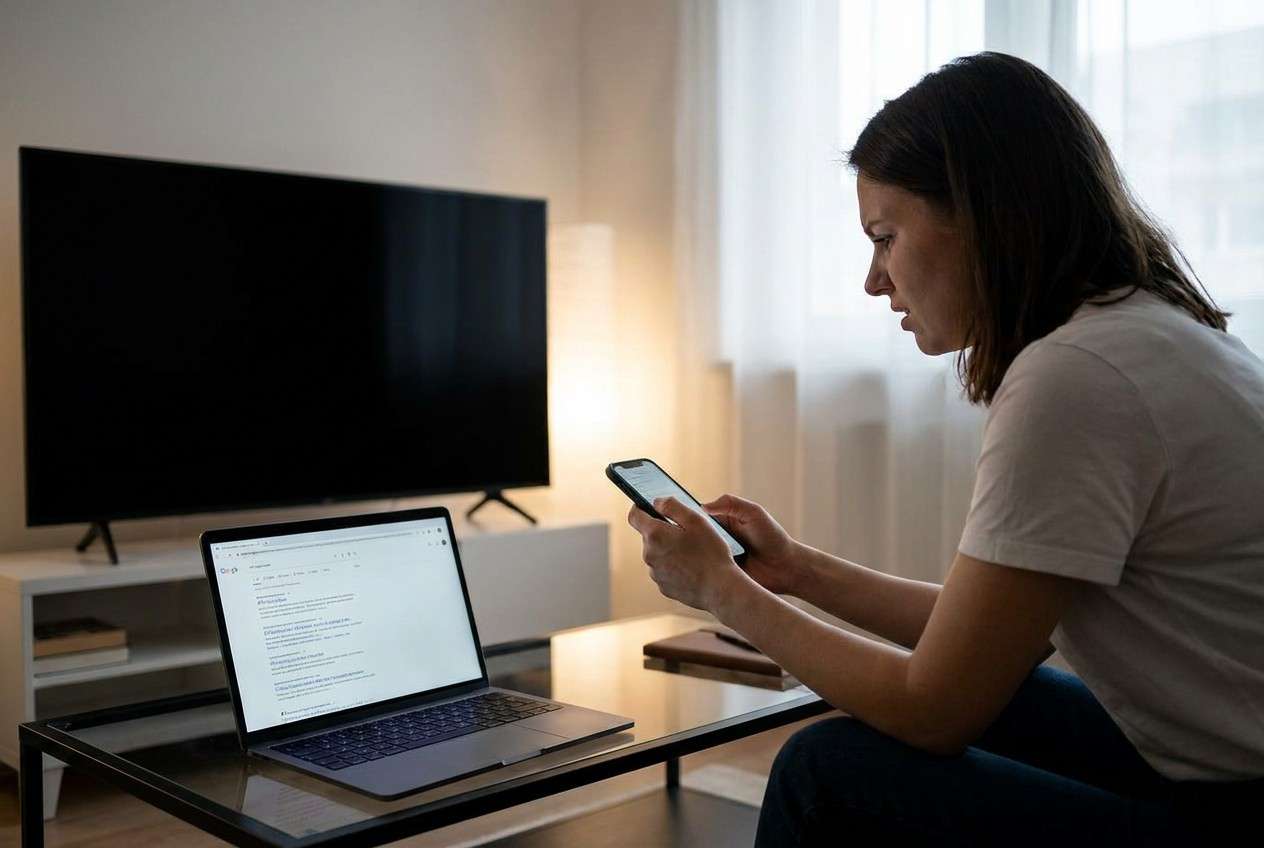
My TV says screen mirroring is connected and I can even hear audio sometimes—but the screen stays completely black. I don’t want to randomly toggle settings and make it worse. What should I test first, and what should I avoid changing until I’m sure?
Forum user
When screen mirroring connects but the TV only shows a black screen, it’s easy to spiral into random toggles, resets, and “try everything” changes that make the root cause harder to isolate.
AI can help you plan a clean, minimal-change workflow: gather facts, test in the right order, and verify each dependency (network, DRM/HDCP, cables/ports, device permissions) before moving on. But AI can’t see your devices or apply changes—so once the plan is verified, you still need your real hardware to execute safely.
In this article
- How to plan a safe troubleshooting sequence
- Define the symptom precisely
- Protect “no-return” actions
- Use baseline tests to separate causes
- Lock a one-change-at-a-time rule
- What the AI needs to know (inputs checklist)
- AI prompts: basic, advanced, evidence, and refinement
- AI plan vs. real device constraints (comparison table)
- When to stop planning and start execution
Part 1. How to plan a safe troubleshooting sequence
You’re trying to mirror a phone or laptop to a TV. The TV shows the session as “connected,” audio might even play, but the screen stays black. You’ve restarted once, and now you’re unsure what to test next without wasting time.
The hard part usually isn’t brainstorming causes (there are many). It’s choosing the safest sequence: what to check first, what to change last, and how to know you’ve proven (or ruled out) a cause rather than just getting lucky.

Part 2. What the AI needs to know (inputs checklist)
Give the AI the following details so it can produce a workflow that’s specific and low-risk (instead of generic “try everything” advice):
- Your source device type and OS version (e.g., iPhone iOS 17 / Samsung Android 14 / Windows 11 / macOS 14)
- TV brand/model and OS (e.g., Samsung Tizen / LG webOS / Android TV / Roku)
- Mirroring method (AirPlay / Chromecast / Miracast / HDMI adapter / third-party app)
- Where the black screen appears (TV black while phone shows “connected,” or source also black)
- Whether audio plays on the TV while video is black
- Exact app/content involved (e.g., YouTube, Netflix, Photos, home screen)
- Network setup (same Wi-Fi SSID? guest network? mesh? VPN on?)
- Any adapters/cables/AV receivers in the chain (HDMI dongle, hub, soundbar passthrough)
- Error messages, if any (even partial wording)
- What you already tried (restart, different port, toggled HDCP, changed resolution, etc.)
- Your constraints (can’t change router settings, can’t update TV, time limit)
Part 3. AI prompts: basic, advanced, evidence, and refinement
Use prompts that force the AI to produce a test order, decision points, and verification checks—not a pile of unrelated fixes.
3-1. Level 1: Basic prompt
I’m screen mirroring to my TV but it connects and shows a black screen. Build a minimal-change troubleshooting plan with the correct sequence of checks and the safest actions first. Include what I should verify after each step before moving on.
3-2. Level 2: Advanced prompt
Create a structured workflow to fix “screen mirroring shows black screen on TV.”
Separate it into Preparation, Execution, and Verification, and clearly mark Critical vs Optional steps.
Include decision branches for (a) audio works but video is black, (b) black screen only in specific apps, and (c) black screen across the entire device screen.
3-3. Level 3: Evidence prompt (example filled in)
Here’s my setup: source device (Android 14, Samsung S23), TV (LG webOS, 2022 model), method (Miracast / built-in screen share), symptom (TV shows connected, audio sometimes plays, video is black), content (Netflix and YouTube; home screen sometimes works), network (same Wi-Fi SSID, no VPN), chain (TV direct, no receiver), tried (restart phone/TV, toggled Wi-Fi, changed HDMI ports—none, since wireless).
Build a step-by-step plan with checks before, checks during, and checks after each action.
Add a “Stop—verify first” gate before any high-impact steps (factory reset, clearing app data, router changes).
Include example outputs for what “success” and “failure” look like (e.g., “TV shows mirror with motion,” “TV stays black but audio continues”).
3-4. Prompt refinement (follow-up prompts)
Turn this into a decision tree with yes/no questions, and stop after the first 3 most likely causes based on my details.
List the exact evidence I should collect at each step (photos of TV state, status icons, app behavior, timestamps) so I can compare results.
Identify which steps could cause data loss or setup loss, and move them into a “last resort” section with prerequisites.
Produce a “one-change-at-a-time” checklist that prevents me from stacking multiple changes before verification.
Add a branch for DRM/HDCP restrictions: how to confirm it’s protected content vs a general mirroring failure without resetting anything.
Part 4. AI plan vs. real device constraints (comparison table)
| Planning task | AI can help by | Real constraint | What you must do on device |
|---|---|---|---|
| Identify likely causes | Ranking causes from symptoms and setup | AI can’t observe your TV/session state | Confirm symptoms and capture evidence (screens/photos) |
| Choose safest sequence | Ordering low-risk checks first | Device menus differ by model/OS | Find the matching setting paths on your TV/phone |
| Define verification gates | Writing pass/fail criteria per step | Results vary by network/app versions | Run the tests and record outcomes |
| Avoid high-impact mistakes | Flagging resets/clears as last resort | Only you can authorize destructive actions | Pause before factory reset/clear data and verify prerequisites |
AI improves the plan, reduces guesswork, and clarifies what “done” looks like—but it cannot execute mirroring changes, apply updates, or validate outcomes on your hardware.
Part 5. When to stop planning and start execution
Stop planning and switch to controlled execution when:
- You can describe the symptom precisely (when it happens, which apps, audio vs video) in one sentence.
- You have a single testing order with one-change-at-a-time rules and clear pass/fail checks.
- You’ve identified your “no return” actions (factory reset, clear data, router reconfig) and set prerequisites for them.
- You have a quick baseline test defined (e.g., mirror the home screen or a non-DRM local photo/video) to separate DRM issues from general mirroring issues.
Once those are true, continuing to brainstorm usually adds noise rather than clarity—so you shift from ideas to controlled execution.
Use Dr.Fone to execute the workflow safely
Once your sequence is locked, you need consistent, repeatable testing to confirm what actually fixes the black-screen behavior. If you want a dedicated execution layer to manage device-side actions while you follow your verified plan, try Dr.Fone Basic - Screen Mirroring.
 Easily manage data through preview, delete, export, etc.
- Transfer all data between devices.
- Robust backup solutions for reliable data protection.
- Mirror screens to PC for meetings, teaching, and control.

Keep your workflow evidence-driven: run a baseline, apply only one change, then verify with the same pass/fail criteria. Don’t “stack” multiple changes before you retest.
-
Step 1 Lock in a baseline test (non-DRM)
Run a baseline mirror test first (home screen + local photo/video) and record whether the TV shows motion video or stays black. This baseline helps separate DRM restrictions from a general mirroring failure.

-
Step 2 Apply planned changes one at a time
Carry out only the device-side actions you already selected in your plan, then re-test after each single change. Your plan should control the order and stopping points.

-
Step 3 Verify, then consider last-resort actions
Confirm the fix using the same baseline plus your real target app/content. Only consider high-impact steps (factory reset, clearing app data, router changes) if your collected evidence still points there.

-
Step 4 Record the outcome and keep a repeatable checklist
Capture the “working” state (what you changed, what you did not change, and what success looked like) so you can reproduce the fix later and avoid regression after updates or network changes.




Conclusion
Use AI to build a minimal-change, evidence-driven workflow with clear verification gates and a strict “no reset before proof” rule, then use Dr.Fone as the execution layer once the sequence is locked and the risks are controlled.
FAQ
-
Why does mirroring connect but the TV stays black?
Common causes include DRM/HDCP restrictions (especially in streaming apps), incompatible mirroring protocol behavior, resolution/refresh mismatches, permission issues, or network instability that breaks the video channel while leaving the session “connected.” -
How do I tell if it’s DRM vs a general mirroring problem?
Mirror a non-DRM baseline (home screen, settings screen, local photo/video). If those work but Netflix/other protected apps show black, that strongly suggests DRM restrictions rather than a broken connection. -
What should I avoid changing first?
Avoid factory resets, clearing app data, router reconfiguration, and bulk “optimize/clean” actions until you’ve documented symptoms, confirmed a baseline test, and proven the issue persists across controlled checks. -
How many changes should I make before re-testing?
One. Stacking changes makes it impossible to know which change mattered and increases the chance of introducing a new problem. -
Can AI tell me the exact setting path on my TV/phone?
It can suggest likely paths based on your model/OS, but menus vary. Use AI for the checklist and verification gates; rely on the device UI (and your evidence) for final confirmation.
 Add Wondershare Dr.Fone as a preferred source on Google





