 Effortlessly manage data through preview, delete, export, etc.

 100% Security Verified | No Subscription Required | No Malware

 :
: 
 ChatGPT
 Perplexity
 Gemini
 Claude
 Grok
Grok

Setting up a tablet as a second display for mobile creation can feel simple—until a missed step causes lag, lost files, broken pairing, or overwritten projects.
Forum user
AI helps you map the workflow in the right order, surface device/app constraints early, and define verification checks before you touch anything risky.
AI can’t change device settings, install drivers, move real files, or confirm what your devices actually do in the moment—execution still requires real tools and hands-on confirmation.
In this article
- How to plan without missing critical steps
- Clarify the goal and workflow layer
- Choose a stable connection path (and a fallback)
- Define what “good enough” looks like before you start
- Delay any point-of-no-return actions
- What the AI needs to know
- Using AI prompts to build a safer workflow
- When to stop planning and start execution
- Execute the workflow safely with Dr.Fone
Part 1. How to Plan Use Tablet as a Second Display for Mobile Creation Without Missing Critical Steps
You’re trying to use a tablet as a second screen while creating on a phone (editing video, drawing, music, photo work), but you’re unsure which connection method will be stable (wired vs Wi‑Fi), whether your devices support the same standard, and what to verify before you start moving assets around.
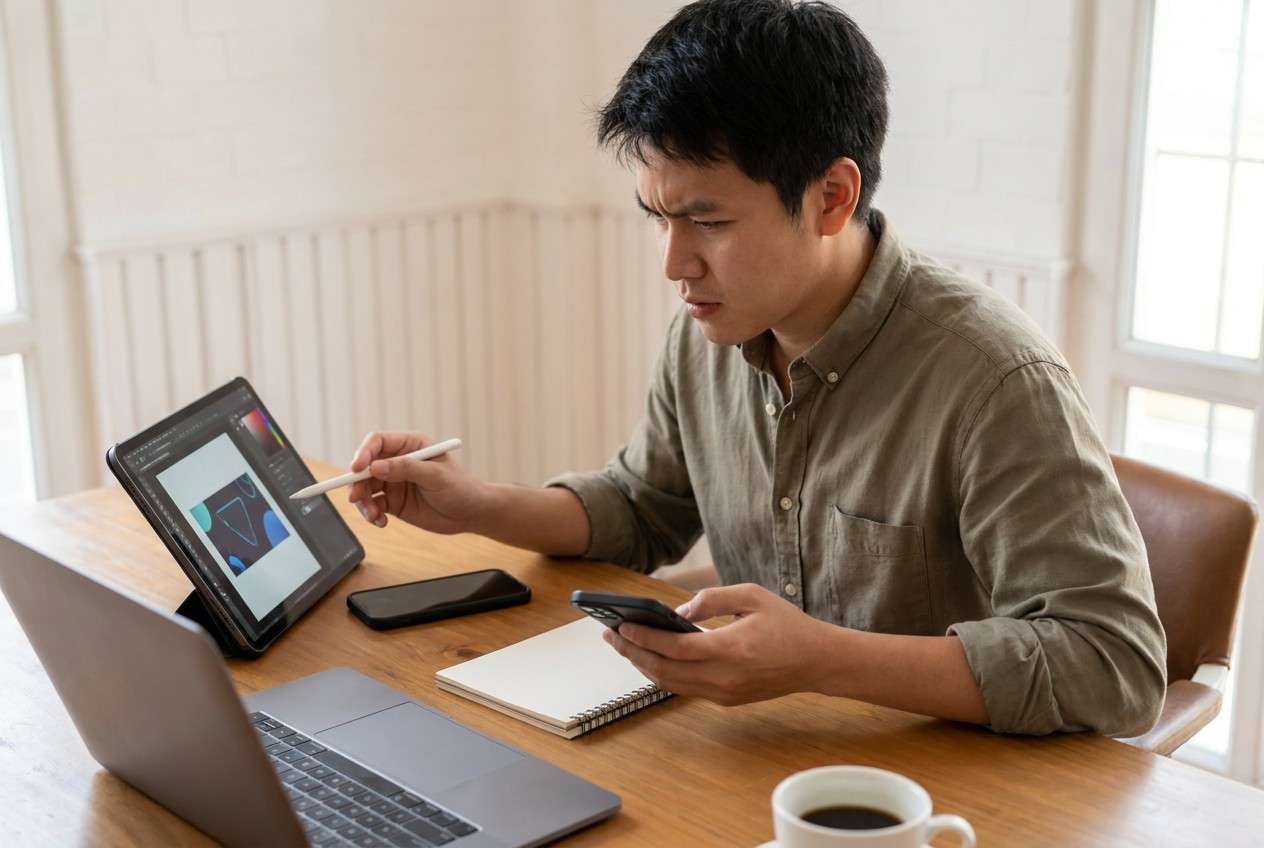
1-1. Clarify the goal and workflow layer
The uncertainty usually isn’t “what app should I use?”—it’s the sequence: what to check first (OS versions, ports, cables, permissions), what to set up second (pairing method, display mode), and what to test last (latency, color, touch/stylus behavior) so you don’t waste time troubleshooting the wrong layer.
1-2. Choose a stable connection path (and a fallback)
Decide on one primary method (wired or Wi‑Fi) and one fallback method based on what your devices can actually support (ports, adapters, OS features, and network conditions).
1-3. Define what “good enough” looks like before you start
Set pass/fail checks for your use case (latency threshold, stability duration, scaling/aspect ratio, and whether touch/stylus input behaves as needed). Test those before you touch storage or reorganize projects.
1-4. Delay any point-of-no-return actions
There’s also a point-of-no-return moment people hit too early: deleting source files to “save space,” restoring a backup onto the wrong device, or replacing a project folder with an older copy.

Part 2. What the AI Needs to Know
Answer these so the plan matches your exact devices and your tolerance for risk.
- Your main creation device (phone model + OS version)
- Your tablet model + OS version
- Your goal for the second display (timeline preview, reference monitor, drawing input, chat/notes, file browser)
- Connection options you can use (USB‑C to USB‑C, USB‑C to Lightning, HDMI adapter, same Wi‑Fi network, hotspot only)
- The apps/workflow involved (e.g., CapCut, LumaFusion, Lightroom Mobile, Procreate, FL Studio Mobile)
- Whether touch/stylus input is required on the “second display” side
- Your performance constraints (acceptable latency, resolution needs, color sensitivity)
- Where your project files live now (on-device storage, SD card, iCloud/Google Drive, external SSD)
- Your backup status (last backup date, where it’s stored, whether it was tested)
- What you’re willing to change (install apps, OS updates) and what you’re not
Part 3. Using AI Prompts to Build a Safer Use Tablet as a Second Display for Mobile Creation Workflow
Use the prompts below to force a clean sequence, reduce guesswork, and define checks before you touch files or settings.
3-1. Level 1: Basic Prompt
Help me plan a safe, step-by-step workflow to use my tablet as a second display for mobile creation.
Include what to verify first (compatibility, connection, latency) and what to test before I move or delete any project files.
Keep it planning-only and list the top failure points.
3-2. Level 2: Advanced Prompt
Design a structured workflow to set up a tablet as a second display for mobile creation with **Preparation / Execution / Verification** phases.
Mark each step as **critical** or **optional**, and include a rollback plan if pairing fails or performance is unusable (latency, disconnects, wrong aspect ratio).
Add a “do-not-cross” checkpoint before any irreversible action (overwriting folders, restoring backups, deleting files, factory reset).
3-3. Level 3: Evidence Prompt
Here’s my context: phone (**Android 14, Pixel 7**), tablet (**iPadOS 17, iPad Air 4**).
Goal: use tablet as a second display for editing and reference while working on the phone, with low lag over Wi‑Fi (same network) and a wired fallback (USB‑C).
My projects are stored in (**/Movies/Edits/**) and (**Google Drive/Projects/**).
Build a plan with checks **before/during/after** each phase, and include exact verification items like:
- Before: confirm OS support, cable type, free storage (e.g., **10–20 GB**), battery level (e.g., **50%+**), and backup freshness (e.g., **backup from today**)
- During: confirm pairing method, permissions, and stability test (e.g., **10-minute playback + scrub test**)
- After: confirm no missing media, no duplicate overwrite, and a rollback path if quality is unacceptable
Also list the specific “stop” conditions that mean I should not proceed to cleanup or file consolidation.
3-4. Prompt Refinement (Follow-up Prompts)
Convert the workflow into a **single checklist** with three gates: **Compatibility Gate → Stability Gate → Data-Safety Gate**, and list pass/fail criteria for each gate.
Give me **two alternative sequences**: one optimized for **lowest risk** and one optimized for **fastest setup**, then compare tradeoffs.
Identify the **top 7 mistakes** people make in this setup and add a prevention check for each (including “accidental overwrite” and “wrong device backup restore”).
Ask me **10 clarifying questions** in the exact order you need them, and explain how each answer changes the plan.
Produce a **rollback plan** that assumes the second-display setup fails: what settings to revert, what files to restore, and what evidence to capture (screenshots, logs, timestamps).
3-5. AI Plan vs. Real Device Constraints
| AI can plan | Real constraint you must verify on devices |
|---|---|
| A best-practice sequence and decision gates | Actual OS feature availability varies by model/region/version |
| Risk flags (overwrite, deletion, restore) | One tap can permanently delete/overwrite data if not backed up |
| Test criteria (latency, stability, color) | Your Wi‑Fi interference/cable quality determines real performance |
| A rollback strategy | Rollback is only possible if backups and file copies truly exist |
AI improves planning and reduces avoidable mistakes, but it cannot perform pairing, move real project folders, confirm device prompts, or validate the live result—those require real execution and verification.
Part 4. When to Stop Planning Use Tablet as a Second Display for Mobile Creation and Start Execution
- You’ve chosen one primary connection method and one fallback (wired vs Wi‑Fi), based on compatibility—not guesses.
- You’ve defined pass/fail checks (latency threshold, stability duration, display scaling, input needs) that tell you whether to continue.
- You have a verified data-safety stance: what gets backed up, where it lives, and what must never be overwritten.
- You’ve identified your “no return” actions (delete/replace/restore/reset) and placed them after verification gates.
At this point, the remaining work is real-device setup and careful execution—not more theory.
Part 5. Use Tablet as a Second Display for Mobile Creation: Execute the Workflow Safely with Dr.Fone
Execution now matters because the main risks show up when real files are copied, storage is cleaned up, or a restore overwrites newer work. If you want a more controlled way to mirror for checks and manage data movement/backup, Dr.Fone Basic - Screen Mirroring can be used alongside your second-display setup to verify what you’re seeing and keep files handled deliberately.
 Easily manage data through preview, delete, export, etc.
- Transfer all data between devices.
- Robust backup solutions for reliable data protection.
- Mirror screens to PC for meetings, teaching, and control.

-
Step 1 Lock in a recoverable baseline

Action: Use Dr.Fone to create a current backup and/or export a separate copy of your critical project folders before changing anything major.
Limitation: Dr.Fone can’t decide what’s “critical” for your workflow—you must confirm the exact folders/files and validate the backup location.
-
Step 2 Set up mirroring for a controlled stability check

Action: Use screen mirroring as a practical verification step (e.g., confirm scaling/aspect ratio behavior, observe latency, and run a continuous playback + scrub test) before you do any cleanup or consolidation.
Limitation: Real performance still depends on your Wi‑Fi interference, device load, and cable/network quality—confirm stability with a long enough session to reveal drops.
-
Step 3 Execute controlled file movement (only if needed)

Action: Use Dr.Fone to transfer or consolidate creation assets (projects, media, reference files) in a controlled way so your second-display workflow isn’t blocked by missing media.
Limitation: It won’t automatically detect every app’s internal dependencies—verify inside your creation apps that projects open and media relinks correctly.
-
Step 4 Verify, then avoid irreversible cleanup until proven stable

Action: After you confirm the second-display setup is stable (latency/stability tests passed) and your projects are intact, use Dr.Fone to manage remaining copies and reduce duplication without losing originals.
Limitation: Deletions/overwrites can be irreversible—do not remove source files or replace folders until you’ve confirmed the backup restores correctly and the working copy is complete.




Conclusion
Use AI to structure the sequence, define verification gates, and identify risks before you touch files—then rely on real tools like Dr.Fone to execute backups and transfers safely on actual devices.
FAQ
-
What’s the biggest risk in this workflow?
Accidentally overwriting or deleting project media while “organizing for the new setup,” especially if you haven’t validated a restorable backup. -
When is the point-of-no-return moment?
When you restore data onto a device (overwriting newer content) or delete/replace the only copy of a project folder to free space—delay those until verification is complete. -
What should I verify before I try to optimize latency or quality?
Compatibility (OS/features), connection method (cable/network), permissions, and a stability test long enough to reveal drops (e.g., a 10–15 minute continuous session). -
Can AI tell me which exact method will work best for my devices?
AI can propose options and checks, but it can’t confirm feature availability, driver behavior, or real-world performance on your specific network and hardware. -
How do I know my backup is actually usable?
A backup isn’t “verified” until you’ve confirmed it contains the right folders/files and you can restore or access them in a meaningful way (not just that the backup completed).
 Add Wondershare Dr.Fone as a preferred source on Google





