 Effortlessly manage data through preview, delete, export, etc.

 100% Security Verified | No Subscription Required | No Malware

 :
: 
 ChatGPT
 Perplexity
 Gemini
 Claude
 Grok
Grok

I tried mirroring Shorts to a TV to review edits, but the audio lag and random notifications made me doubt everything I was seeing. I needed a clear order of steps—privacy first, then connection, then a quick quality check—before doing a full review.
Forum user
Mirroring your phone to a bigger screen sounds simple, but missing one step can lead to no audio, choppy playback, the wrong screen being shared, or accidentally exposing private notifications.
AI is useful for turning a vague goal (“mirror my phone”) into a clear sequence: what to check first, which choices to make based on your devices, and how to verify quality before you commit to a longer review session.
AI can’t access your devices, confirm what’s actually on-screen, or change system settings for you—so once the plan is solid, you still need real tools to execute the mirroring reliably.
In this article
- Plan a mirroring workflow without missing steps
- Why short-form review mirroring fails
- The correct order to prepare
- The privacy “point of no return”
- What to verify before you proceed
- What the AI needs to know
- AI prompts to build a safer workflow
- AI plan vs. real device constraints
- Stop planning and start execution
Part 1. Plan a mirroring workflow without missing steps
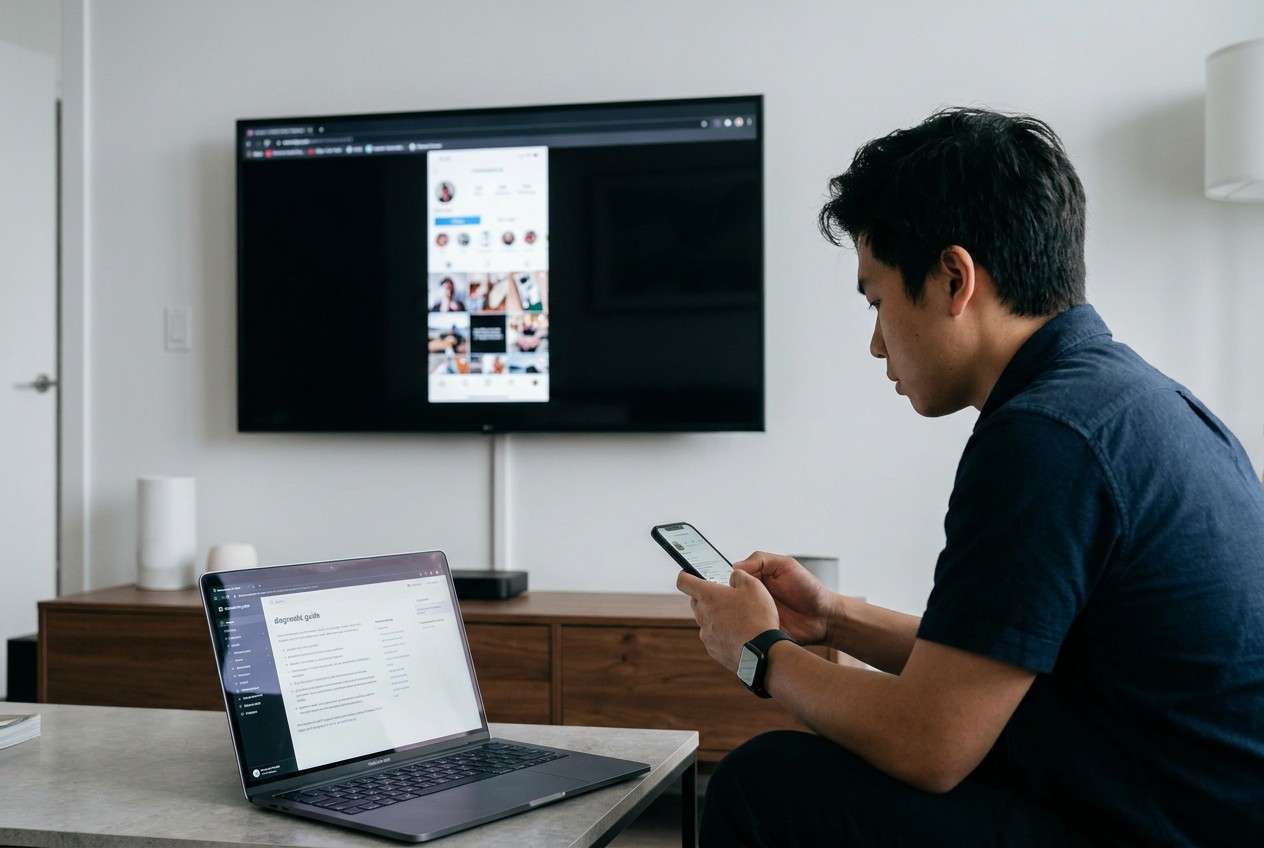
You want to review Instagram Reels/YouTube Shorts/TikTok content on a larger display to judge edits, captions, pacing, and color—without straining your eyes on a small phone screen.
1-1. Why short-form mirroring is unforgiving
The catch is that short-form video is unforgiving: small sync issues (audio delay, frame drops) can make you “fix” a video that was actually fine on-device.
1-2. The planning problem is usually the order
Even after an AI answer, it’s easy to feel unsure about the correct order: should you change orientation first, disable notifications first, connect to Wi‑Fi first, or test audio first? If you mirror first and only then notice issues, you may waste time troubleshooting mid-review.
1-3. The privacy “point of no return”
Your point-of-no-return moment is starting the mirroring session while notifications, message previews, or screen recording are still enabled—because a single pop-up can reveal private information on a big screen in front of others, and you can’t “unshow” it once it’s displayed.
Part 2. What the AI needs to know
Share your device and viewing setup details so the workflow can be sequenced correctly and verified step-by-step.
- Phone model + OS version (e.g., iPhone 14 iOS 17 / Galaxy S23 Android 14)
- Target screen type (smart TV, monitor, laptop, projector) and brand/model if known
- Connection options available (same Wi‑Fi, USB cable, HDMI adapter, Chromecast/AirPlay/Miracast)
- Where you’re reviewing (solo, client meeting, classroom) and privacy needs
- Apps you’ll review (Instagram, YouTube, TikTok) and whether you need in-app audio
- Whether you need to interact live (pause/seek, scrub frame-by-frame, open comments)
- Acceptable quality threshold (e.g., “must be smooth 60fps feel” vs “ok at 30fps”)
- Any constraints (corporate Wi‑Fi blocks casting, no admin access, older TV, etc.)
Part 3. AI prompts to build a safer workflow
Use the prompts below to force a clean preparation → execution → verification sequence before you touch device settings.
3-1. Level 1: Basic prompt
Help me plan the safest, simplest way to mirror my phone to a bigger screen so I can review Reels/Shorts with accurate audio and smooth playback.
Ask me only the minimum questions needed, then give a short checklist in the correct order.
Do not give troubleshooting until after verification steps.
3-2. Level 2: Advanced prompt
Design a structured workflow to mirror my phone to a bigger screen for reviewing short-form videos.
Split the plan into Preparation, Execution, and Verification, and label items as Critical vs Optional.
Include a “stop and verify” gate before any step that could expose private notifications or share the wrong screen.
3-3. Level 3: Evidence prompt
Here’s my context: phone (iPhone 14, iOS 17), target (Samsung smart TV), network (same home Wi‑Fi), audience (client sitting with me), apps (Instagram + YouTube), must-have (audio in sync, no stutter), privacy (no message previews).
Create a workflow with checks before, during, and after mirroring.
Include exact verification criteria (e.g., “play a 10–15s Reel and confirm lip-sync,” “check that notification banners are off,” “confirm TV shows only the intended app”).
If there are multiple connection paths, rank them and explain the tradeoffs.
3-4. Prompt refinement (follow-ups)
Ask me to choose one primary goal: privacy-first, quality-first, or speed-first—then rewrite the workflow with that priority and a verification gate before starting mirroring.
Produce a decision tree based on my device types (iPhone/Android + TV/monitor/laptop) that ends in one recommended method, plus one fallback method.
Add a pre-flight checklist that I can complete in under 2 minutes, and a separate quality checklist that I complete after the first test clip.
Define “acceptable playback” for my use case with measurable signals (audio delay, dropped frames, resolution) and tell me exactly how to test each one quickly.
Part 4. AI plan vs. real device constraints
AI improves sequencing, risk checks, and decision logic—but it cannot connect devices, change settings, or confirm what is actually being displayed on your screen.
| Planning element (AI) | What can go wrong on real devices | What to verify before proceeding | What the tool must do (execution) |
|---|---|---|---|
| Pick best connection method | TV/OS doesn’t support your casting protocol | Confirm compatible method exists on both devices | Establish the actual mirror connection |
| Privacy safeguards | Notifications still appear; wrong app/account is open | Do a privacy check before mirroring starts | Apply mirroring without exposing unintended content |
| Quality expectations | Audio lag, frame drops, scaling/cropping | Test with a known clip for 10–15 seconds | Stream video/audio in real time |
| Fallback plan | Corporate Wi‑Fi blocks discovery; pairing fails | Confirm you have cable/alt network or second method | Switch methods and reconnect |
Part 5. Stop planning and start execution
Once your plan is explicit and testable, the remaining risk is mostly in execution details (network stability, protocol support, and audio routing), not in brainstorming.
- You can name the exact mirroring method you’ll use first, plus one fallback method.
- You have completed a privacy pre-check (notifications, message previews, correct account/app open).
- You have a short test clip ready to validate sync and smoothness in under 30 seconds.
- You know what “good enough” looks like for your review (audio sync, no stutter, correct aspect).
Recommended: Execute mirroring reliably for review
If you want a more controlled execution layer after planning, Dr.Fone Basic - Screen Mirroring can help you initiate screen mirroring and then run a fast verification clip before you commit to a longer reels/shorts review session.
 Easily manage data through preview, delete, export, etc.
- Transfer all data between devices.
- Robust backup solutions for reliable data protection.
- Mirror screens to PC for meetings, teaching, and control.

To keep the review accurate, treat mirroring like a short “launch procedure”: lock privacy, start the connection, then pass a quick quality gate (audio sync + smooth playback + correct app on screen) before doing any serious feedback.
-
Step 1 Lock down privacy and context first
Turn on Do Not Disturb (or disable notification previews), close unrelated apps, and open the exact app/account you intend to review. This prevents private banners or the wrong content from appearing on the big screen.

-
Step 2 Start the mirroring session from your computer
Launch the mirroring feature and choose the connection method that matches your setup (same Wi‑Fi, USB, or another supported path). Keep your “fallback method” ready in case discovery/pairing fails.

-
Step 3 Pair your phone to the screen (confirm you’re sharing the right display)
Complete the pairing step and confirm the target screen is showing only what you intend (the correct app, the correct account, and the correct orientation) before you play any sensitive content.

-
Step 4 Run a 10–15 second verification clip (quality gate)
Play a short clip with clear speech or beats, scrub once, and watch for lip-sync drift, delayed audio, frame drops, and scaling/cropping. If it fails, switch to your fallback method before you continue the review.




Conclusion
Use AI to build a careful, verification-first workflow (privacy checks, method choice, and pass/fail criteria), then use a real execution tool to perform the actual mirroring and validate quality before you review reels and shorts at scale.
FAQ
-
What’s the biggest risk when mirroring short-form video for review?
Judging content based on mirroring artifacts (lag, dropped frames, audio delay) instead of the video itself—plus accidental exposure of private notifications. -
What should I verify before I start mirroring (the “don’t cross this line yet” moment)?
That notification previews are disabled (or Do Not Disturb is on), the correct app/account is open, and no sensitive content is in recent apps—because once mirroring starts, pop-ups can appear publicly. -
How do I quickly verify audio sync and smoothness?
Play a 10–15 second clip with clear beats or speech, scrub back and forth once, and watch for lip-sync drift, delayed audio, or visible stutter during scroll. -
Should I plan for a fallback method?
Yes—have one alternate route (different protocol, different screen, or a wired option) so you don’t troubleshoot under time pressure. -
Can AI tell me the exact settings on my phone/TV?
AI can suggest where to look and what to change, but it can’t see your menus, confirm compatibility, or validate what’s actually being mirrored.
 Add Wondershare Dr.Fone as a preferred source on Google





