 Effortlessly manage data through preview, delete, export, etc.

 100% Security Verified | No Subscription Required | No Malware

 :
: 
 ChatGPT
 Perplexity
 Gemini
 Claude
 Grok
Grok

I thought screen mirroring would make my phone tutorial easy, but I missed a couple of setup details—notifications popped up and the audio wasn’t right—so I had to re-record the whole walkthrough.
Reddit user, r/VideoEditing
Recording phone app tutorials with screen mirroring sounds simple, but missing one step (audio routing, notification control, orientation, privacy masking) can force a full re-record. AI helps by turning “I need to record this” into a sequenced workflow with dependencies, checks, and a clear definition of “done” before you hit record—but AI can’t access your phone, mirroring session, or capture settings, so execution and confirmation still require real tools.
In this article
- How to plan a mirrored phone tutorial without missing critical steps
- Choose where you record (phone vs computer)
- Lock down notifications and privacy
- Decide audio routing and testing order
- Define a “do not proceed” gate
- What the AI needs to know (your constraints)
- AI prompts to build a safer workflow
- AI plan vs. real device constraints
- When to stop planning and start execution
Part 1. How to Plan record phone app tutorials with screen mirroring Without Missing Critical Steps
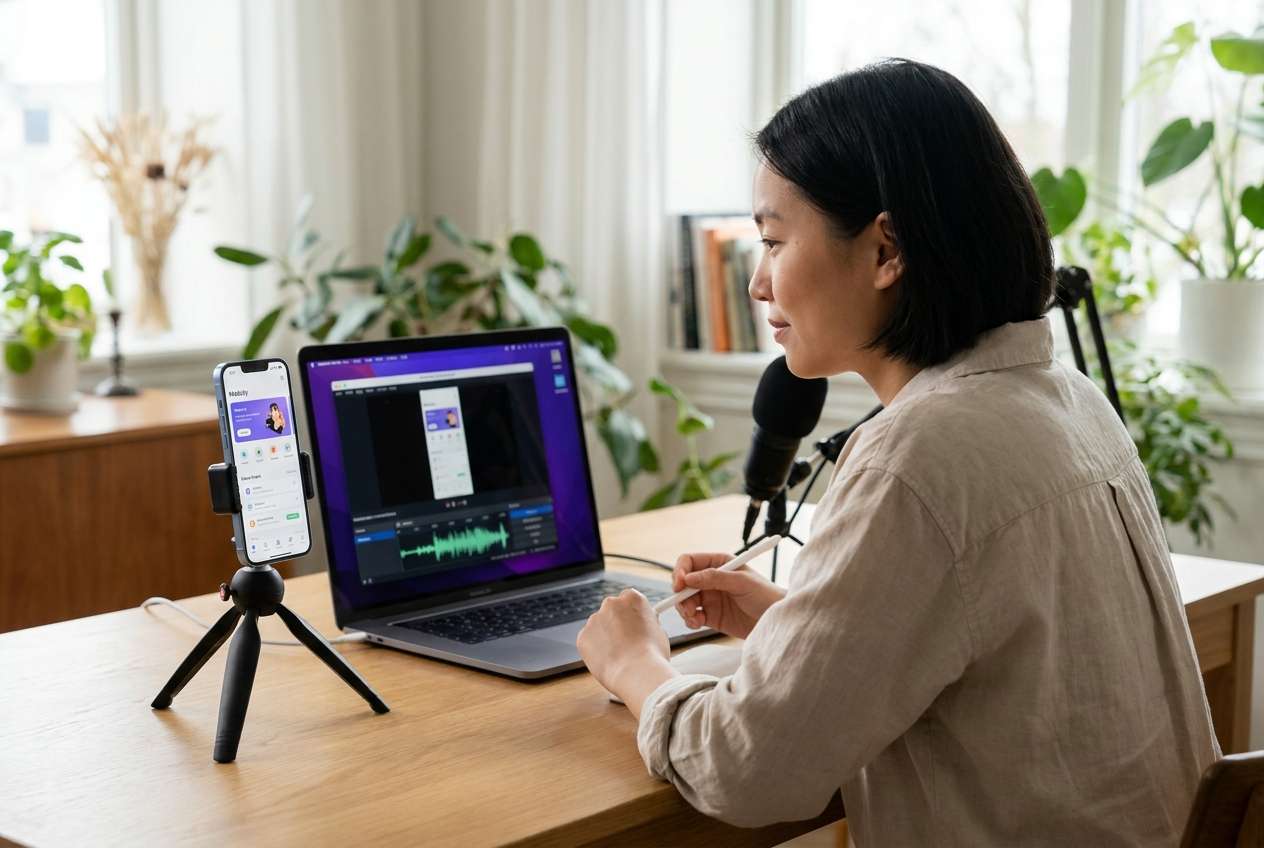
You’re preparing a tutorial for an app flow (login, settings, purchase, etc.) and want the phone screen mirrored to a computer for a clean recording and easier narration. You’re unsure whether to record on the phone or on the computer, how to capture internal audio, and what to do about pop-ups and private data.
Even after you ask AI for “the best way,” the answer often becomes a list of options without a firm sequence: what to lock first, what to test first, what to capture, and how to validate that audio and visuals are actually usable.
The point-of-no-return moment is pressing Record and completing the full walkthrough—only to discover afterward that notifications appeared, audio was missing/echoing, taps weren’t visible, or sensitive data was captured and can’t be safely edited out.
Part 2. What the AI Needs to Know
Share the constraints so the workflow can be sequenced safely and verified before recording.
- Phone OS and model (iOS/Android; e.g., iPhone 14 / Pixel 7)
- Computer OS (Windows/macOS) and whether you’ll record on the computer
- Tutorial type (demo, training, bug repro, onboarding) and target audience
- App type and sensitivity (banking, health, internal tools; any PII shown)
- Audio needs (voiceover live vs added later; internal app audio needed or not)
- Orientation and format (portrait/landscape; 16:9 vs 9:16; platform: YouTube/TikTok/LMS)
- Whether you need tap indicators, cursor, or on-screen annotations
- Length and complexity (number of screens, branching paths, retries)
- Environment constraints (quiet room, headset available, second device for monitoring)
- Approval requirements (legal, brand, client review) and required disclaimers
Part 3. Using AI Prompts to Build a Safer record phone app tutorials with screen mirroring Workflow
Use the prompts below to force a step-by-step plan with explicit checks before you mirror and record.
3-1. Level 1: Basic Prompt
Draft a minimal workflow to record a phone app tutorial using screen mirroring to a computer.
Include the key prep steps, the order to test audio/video, and the final pre-record checklist so I don’t have to redo the recording.
3-2. Level 2: Advanced Prompt
Create a structured workflow to record a phone app tutorial with screen mirroring.
Split it into Preparation, Execution, and Verification, and label each step as critical or optional.
Call out common failure points (notifications, orientation changes, audio echo, privacy leaks) and how to detect them before recording the full walkthrough.
3-3. Level 3: Evidence Prompt
I’m recording an app tutorial with phone-to-computer screen mirroring. My context:
- Phone/OS: (iPhone 14, iOS 17)
- Computer/OS: (Windows 11 laptop)
- Output: (16:9 landscape for YouTube, 1080p)
- Audio: (live voiceover via USB mic; no internal app audio needed)
- Sensitivity: (must not show emails, names, payment info)
- Flow: (login → change setting → demonstrate feature → logout; ~4 minutes)
Build a checklist-driven workflow with:
1) checks before mirroring/recording (privacy, notifications, display, orientation, battery/storage),
2) checks during a 20-second test capture (what exactly to verify in the file),
3) checks after the final recording (QC review criteria and red flags).
Also add a “do not proceed to record” gate if any critical check fails.
3-4. Prompt Refinement
Rewrite the workflow as a two-column table: “Step” and “Proof it worked (what I should see/hear).”
Give me a pre-flight checklist that takes under 3 minutes, with pass/fail criteria for each item.
Identify every place private data could appear in my flow, and add mitigations (dummy account, airplane mode, cleared notifications) plus a verification step for each.
Create a single-page run-of-show script: exact on-screen actions + exact narration lines, and mark where I should pause to avoid mistakes.
Add a rollback plan: if I notice an error mid-recording, tell me whether to restart the whole take or which segments can be safely re-shot without continuity issues.
Part 4. AI Plan vs. Real Device Constraints
| AI can help you plan | What only real devices/tools can confirm |
|---|---|
| Sequence tasks and define dependencies (prep → test → record → QC) | Whether mirroring is stable, low-latency, and actually captures the right resolution |
| Identify risks (privacy leaks, notifications, audio echo) and add gates | Whether your audio device is selected correctly and recorded without clipping |
| Produce checklists, scripts, and QC criteria | Whether the captured file plays back correctly and matches your platform requirements |
| Reduce rework by forcing test recordings and verification steps | Whether the app UI behaves as expected under recording conditions |
AI improves planning and reduces avoidable mistakes, but it cannot operate your phone, run mirroring, or validate your recorded files—execution and confirmation must be done with real tools.
Part 5. When to Stop Planning record phone app tutorials with screen mirroring and Start Execution
- You have a single, unambiguous recording plan (what device records, what audio source, what format).
- You have a privacy strategy (dummy account, hidden notifications, clean home screen) and a QC rule for what must not appear.
- You can complete a test capture plan and know exactly what “pass” looks like (video sharp, no pop-ups, audio clean).
- You’ve defined the point-of-no-return: you will not record the full walkthrough until the test file passes review.
If those are true, planning is “done enough,” and the next step is controlled execution with verification.
Record phone app tutorials with screen mirroring: Execute the Workflow Safely with Dr.Fone
Execution now matters because the only way to confirm mirroring stability, capture quality, and privacy outcomes is to run a short test and review the actual recording before committing to the full take. To mirror your phone to a computer for tutorial recording, you can use Dr.Fone Basic - Screen Mirroring.
 Easily manage data through preview, delete, export, etc.
- Transfer all data between devices.
- Robust backup solutions for reliable data protection.
- Mirror screens to PC for meetings, teaching, and control.

-
Step 1 Start a mirroring session on your computer
Open the mirroring feature and confirm you’re ready to run a short test capture first (15–30 seconds) before recording the full walkthrough.

-
Step 2 Choose the correct connection method and keep conditions stable
Use a stable connection and keep your phone and computer in a consistent environment (network, orientation, and notification/privacy settings) so your test matches the final recording conditions.

-
Step 3 Pair your phone for mirroring
Complete the pairing step (for example, scanning a QR code) and confirm you’re mirroring the correct device before you begin any tutorial flow.

-
Step 4 Run a short test, then record the full tutorial and verify the deliverable
Record a brief test that includes taps, a transition, and a few seconds of narration, then review the file for resolution/readability, lag, audio issues, and unexpected pop-ups. Only after the test passes should you record the full tutorial (in one planned pass or defined segments), then play it back end-to-end against your QC checklist (no private data, no notifications, correct orientation, clear audio, readable UI).




Conclusion
Use AI to design a checklist-driven workflow with clear gates and verification, then use Dr.Fone to execute the mirroring and recording once your plan is locked and your test capture passes.
FAQ
-
What’s the most common reason people have to re-record mirrored phone tutorials?
Audio problems (wrong mic, echo, clipping) and unexpected on-screen interruptions (notifications, banners, low battery alerts). -
Should I record internal app audio or just voiceover?
If internal audio isn’t essential to the learning goal, voiceover-only is simpler and reduces failure points; if internal audio is required, add an explicit test that proves it’s captured. -
How do I reduce the risk of capturing private information?
Use a dummy account, disable notifications, remove sensitive widgets, and run a full dry-run while watching for names/emails/payment screens before the final recording. -
What should I verify in the test recording before doing the full take?
Resolution/readability, orientation stability, tap visibility (if needed), sync between audio and video, and whether any pop-ups appear. -
Can AI tell me if my mirrored recording is “good enough”?
AI can define QC criteria and a pass/fail checklist, but it can’t view your device output or verify the actual captured file unless you provide the recording for review.
 Add Wondershare Dr.Fone as a preferred source on Google





