 Effortlessly manage data through preview, delete, export, etc.

 100% Security Verified | No Subscription Required | No Malware

 :
: 
 ChatGPT
 Perplexity
 Gemini
 Claude
 Grok
Grok

I’m mirroring my phone to my computer to record content, but the video looks fine while the audio is delayed—and sometimes it drifts more the longer I record.
Reddit user, r/OBS
Missing one small step while fixing audio sync during phone mirroring can waste hours of recordings—or lock in desynced audio that’s hard to repair later.
AI is useful here for turning a messy situation (“why is my audio late?”) into a structured workflow with the right order: isolate the cause, reduce variables, test, then lock settings. But AI can’t change device settings, drivers, capture apps, or mirroring behavior on your hardware—so once the plan is verified, you still need real tools to run the workflow and apply changes reliably.
In this article
- How to Plan Audio Sync Fixes Without Missing Critical Steps
- Why sync fixes fail (sequence problems)
- Define the “point of no return”
- Reduce variables before testing
- Lock a verified baseline
- What the AI Needs to Know
- Using AI Prompts to Build a Safer Workflow
- AI Plan vs. Real Device Constraints
- When to Stop Planning and Start Execution
Part 1. How to Plan Audio Sync Fixes Without Missing Critical Steps
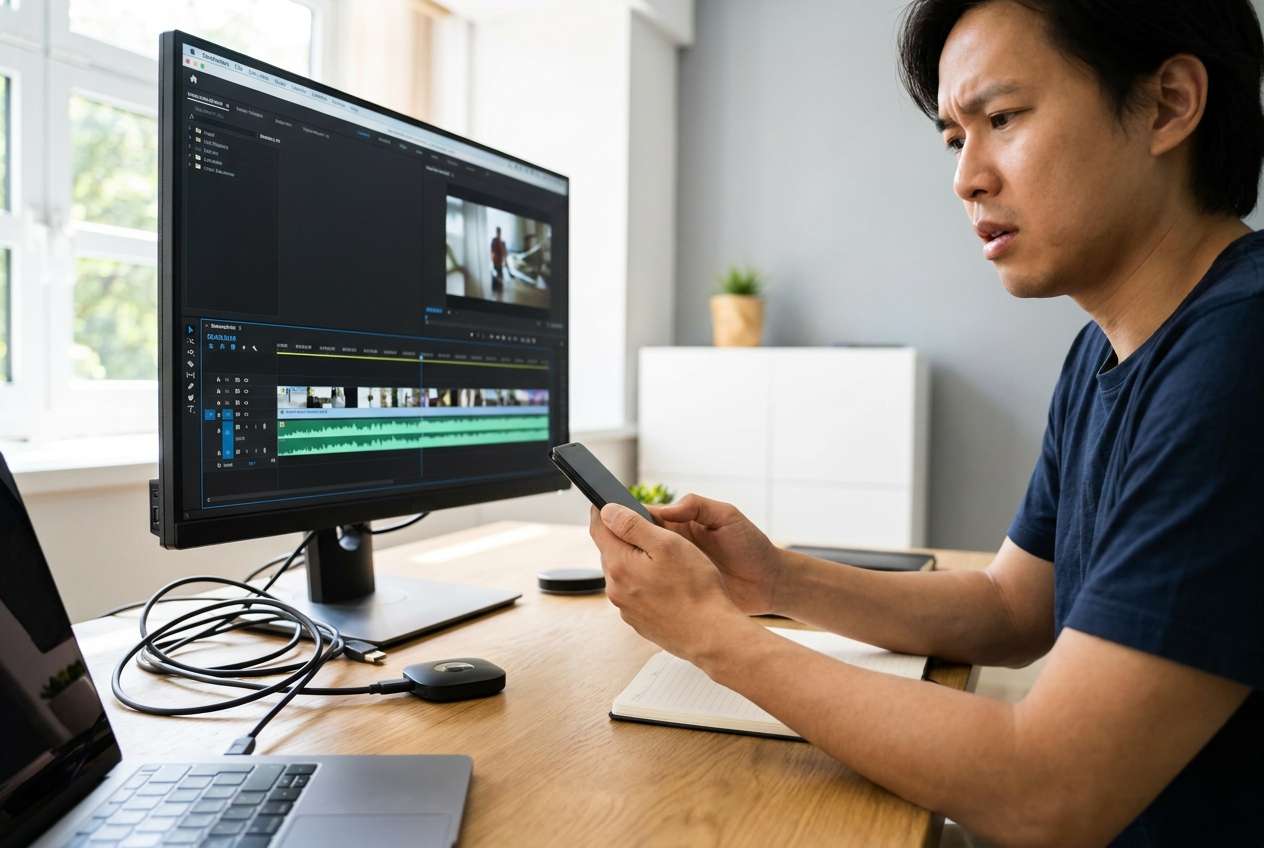
You’re recording content from a phone while mirroring to a PC/Mac (gameplay, tutorials, reactions), and the audio drifts or arrives late compared with video. You’ve already tried “quick fixes” (changing cables, restarting apps), but the delay keeps coming back.
The confusing part is the sequence: do you fix the phone, the mirroring method, the capture app, or the audio input first? Without a clean order, you can “fix” it temporarily while introducing a new delay somewhere else.
Your point-of-no-return moment is when you record a long session (or go live) before confirming sync under the exact same conditions (same mirroring path, same audio source, same frame rate, same capture settings). After that, the content is effectively baked-in and may be impossible to perfectly realign if the delay drifts.
Part 2. What the AI Needs to Know
Share your setup so the workflow can isolate the likely sync-break points without guesswork:
- Phone OS and model (e.g., iPhone 14 iOS 17 / Pixel 8 Android 14)
- Mirroring method (USB vs Wi‑Fi; app/protocol if known)
- Where audio comes from (phone internal audio, mic on phone, USB mic on computer, Bluetooth headset, audio interface)
- Recording/streaming app on computer (and whether it’s recording separate tracks)
- Target output (short clips, long-form recording, livestream)
- Typical symptom (constant delay vs drifting out of sync over time)
- Current video settings (resolution + FPS like 1080p60) and audio settings (sample rate like 48 kHz)
- Any adapters in use (USB hub, capture card, dongles) and whether Bluetooth is involved
- Your acceptable “tolerance” (e.g., must be within 1–2 frames, or “close enough”)
Part 3. Using AI Prompts to Build a Safer Workflow
Use these prompts to force a clean sequence, reduce variables, and confirm sync before you record anything important.
3-1. Level 1: Basic Prompt
I’m getting audio/video sync issues while mirroring my phone for content creation. Create a step-by-step plan to isolate whether the delay comes from mirroring, capture settings, or my audio source, and tell me what to test first. Keep it planning-only and include quick pass/fail checks after each test.
3-2. Level 2: Advanced Prompt
Design a structured workflow to fix audio sync while mirroring my phone for recording/streaming.
Break it into **Preparation**, **Execution**, and **Verification** stages; label each step as **critical** or **optional**. Include decision branches for (a) constant delay vs (b) drifting desync, and specify what I should change only one-at-a-time to avoid masking the real cause.
3-3. Level 3: Evidence Prompt
Here’s my exact setup: phone (e.g., iPhone 14 iOS 17), mirroring (USB), recording app (e.g., OBS), audio source (e.g., USB mic at 48 kHz), output (e.g., 1080p60 recordings), symptom (e.g., audio lags by ~200 ms and sometimes worsens over 10 minutes).
Create an evidence-based troubleshooting plan with **checks before**, **checks during**, and **checks after** testing. Include a simple sync test I can repeat (e.g., “clap test” + on-screen timer), and tell me what results would confirm each root cause (sample-rate mismatch, Bluetooth latency, buffer settings, Wi‑Fi jitter, dropped frames, etc.).
3-4. Prompt Refinement
Put the workflow into a table with columns: **Step**, **Change one thing**, **Expected outcome**, **If not**, **Rollback**.
Ask me exactly 8 questions maximum, only the ones that change the troubleshooting path, then output the updated plan.
Separate fixes into **no-risk changes** (safe to try) vs **high-risk changes** (could break audio routing or cause data loss), and gate the high-risk changes behind verification.
Give me a “minimum viable stable setup” for recording today (lowest latency, most stable), plus a “quality-optimized setup” I can tune later.
Provide a checklist that must be true before I record a long session (sample rates aligned, sync test passes for 10 minutes, no drift, CPU/GPU headroom).
Part 4. AI Plan vs. Real Device Constraints
| Planning task (AI) | What AI can do | What AI cannot do | What you must verify on the device |
|---|---|---|---|
| Diagnose likely causes | Map symptoms to root causes | Inspect your actual settings/logs live | Actual audio source, routing, and delay behavior |
| Build a safe sequence | Order tests to reduce variables | Enforce that you changed only one thing | You truly changed one variable and recorded results |
| Define verification checks | Provide repeatable sync tests | Measure your real latency precisely without your data | Sync stability over time (e.g., 10–20 min) |
| Risk-gate “point of no return” actions | Warn before irreversible moves | Prevent you from recording/going live prematurely | You passed the final checklist before recording |
AI improves planning, but cannot execute. You still need to apply settings, run mirroring, and record tests on real hardware to confirm the fix holds.
Part 5. When to Stop Planning and Start Execution
- You can describe your full signal chain clearly (phone → mirror path → capture app → audio source → output).
- You have a repeatable sync test and a definition of “pass” (e.g., within 1–2 frames, no drift for 10 minutes).
- You’ve selected a single “baseline configuration” you will return to if a test fails.
- You’ve identified the no-return moment: recording long takes or going live before verification is complete.
Once those are true, planning should pause so you can run controlled tests and confirm results under real conditions.
Fix Audio Sync While Mirroring: Execute the Workflow Safely with Dr.Fone
Execution matters now because sync problems are often caused by small, interacting settings—only real tests can confirm whether the delay is constant, drifting, or dependent on a specific path. If you need a consistent mirroring path to run repeatable tests, Dr.Fone Basic - Screen Mirroring can help you mirror your device while you validate the plan you built with AI.
 Easily manage data through preview, delete, export, etc.
- Transfer all data between devices.
- Robust backup solutions for reliable data protection.
- Mirror screens to PC for meetings, teaching, and control.

-
Step 1 Stabilize the mirroring connection first
Run mirroring using your chosen connection method (USB or Wi‑Fi) and keep it stable and repeatable before you adjust capture/audio settings. Limitation: the tool can execute mirroring, but it can’t decide your best settings without the plan and your test results.

-
Step 2 Start mirroring and confirm the device is detected correctly
Keep the mirroring path consistent (same cable/port or same network conditions) to avoid introducing new variables mid-test.

-
Step 3 Pair/authorize if required (e.g., QR or permission prompts)
Complete any pairing steps before recording so the mirroring handshake doesn’t change latency during your test run.

-
Step 4 Run a controlled sync test recording, then lock the verified configuration
Record a short clip under the exact intended conditions (same FPS, same audio source, same routing) and check for constant vs drifting delay. Only after the test passes should you keep the same mirroring path and audio routing and proceed to long takes or live output. If you change any variable (Bluetooth on/off, sample rate, FPS, Wi‑Fi/USB path), re-verify.




Conclusion
Use AI to plan a strict, testable sequence with clear pass/fail checks and a no-return gate before long recordings; then execute mirroring consistently and verify the fix holds under real conditions.
FAQ
-
Is a constant delay different from drifting desync?
Yes. Constant delay is usually fixable by consistent offset/routing; drifting often points to dropped frames, unstable connection, or sample-rate mismatch. -
What’s the fastest way to verify sync before recording real content?
Use a repeatable sync cue (clap + on-screen timer) and test for at least 10 minutes to detect drift, not just initial alignment. -
Why does Bluetooth make sync worse?
Bluetooth often adds variable latency and can change buffering over time, which can look like drift or inconsistent offset. -
Should I change multiple settings at once to “find what works”?
No. Change one variable per test, document the result, and keep a rollback baseline—otherwise you can’t tell what actually fixed it. -
Can AI tell me the exact offset value I need?
AI can suggest starting ranges (e.g., 100–300 ms) based on symptoms, but only your real recordings can confirm the correct value and whether it stays stable.
 Add Wondershare Dr.Fone as a preferred source on Google





