 Effortlessly manage data through preview, delete, export, etc.

 100% Security Verified | No Subscription Required | No Malware

 :
: 
 ChatGPT
 Perplexity
 Gemini
 Claude
 Grok
Grok

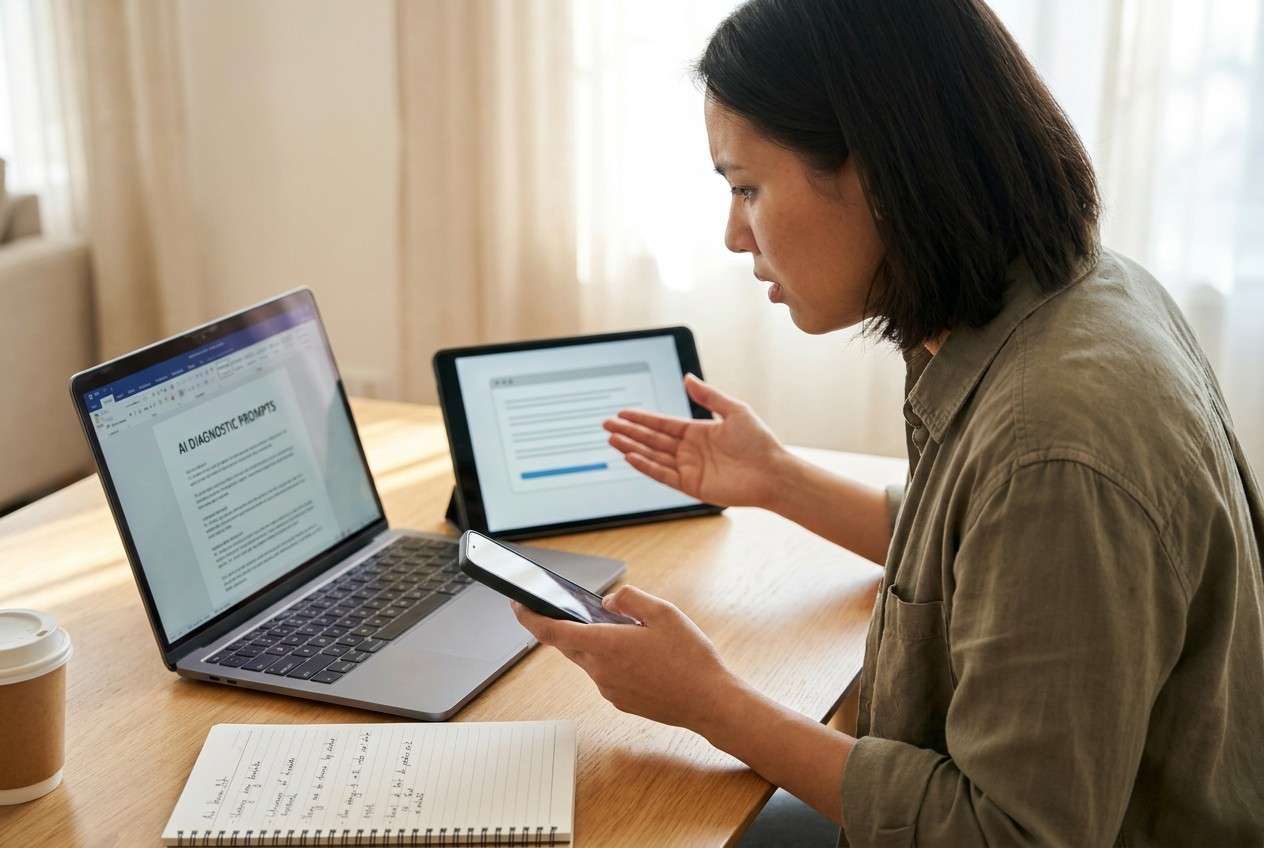
I keep seeing “best device for remote work” lists, but my week is a mix of calls, chat, email, docs, and deep-focus writing. I’m stuck between a phone-first setup that’s always with me and a tablet-first setup that might turn into a keyboard-and-stand project.
Forum user
Remote work isn’t one task—it’s a workflow. A device that feels perfect for meetings can be frustrating for long writing sessions, and vice versa.
AI can help by turning vague preferences (like “portable” or “good for multitasking”) into clear trade-offs: screen vs pocketability, camera vs typing comfort, battery vs weight, simplicity vs workstation-style setups.
In this article
- How to compare phone vs tablet based on real priorities
- Mobile-first vs desk-work reality
- Portability vs sustained productivity
- Accessory tolerance (simple vs gear-heavy)
- Define your must-not-fail constraint
- What the AI needs to compare
- AI prompts to evaluate more clearly
- AI recommendation vs real-world fit
- When to stop researching and make the call
Part 1. How to Compare Best Phone or Tablet for Remote Work Based on Real Priorities
Remote work often starts “mobile-first” (messages, quick edits, calls), then collides with “desk-work reality” (documents, spreadsheets, long replies, file handling). That’s why the phone vs tablet choice is less about specs and more about where your work time actually goes.
The common uncertainty: you want the convenience of a phone, but you’re worried about fatigue from long typing and cramped multitasking. Or you like the idea of a tablet’s bigger screen, but you’re unsure if you’ll end up needing a keyboard, mouse, and stand—turning “simple” into “gear-heavy.”
The practical tension is portability versus sustained productivity: will you mostly work in short bursts anywhere, or do you need a dependable mini-workstation you can set up quickly?
Part 2. What the AI Needs to Compare
Give the AI your real workflow inputs so it can map the trade-offs to how you actually work.
- Your top 5 remote-work tasks (in order) and how many hours/week each takes
- Where you work (desk, couch, bed, train/plane, client sites) and how often you move locations
- Typing volume (messages only vs long emails vs doc writing) and whether you use voice dictation
- Meeting needs: camera quality, mic reliability, screen sharing, note-taking style
- Multitasking needs: split-screen, referencing docs while replying, calendar + chat + docs flows
- File handling: downloads, PDF markup, cloud drives, scanning, signatures, photo/video handling
- Accessories tolerance: willingness to carry keyboard, mouse, stand, hub, charger
- Your “must-not-fail” constraint (battery, portability, distraction control, app compatibility)
- Budget range and replacement cycle (keep for 2+ years vs upgrade often)
Part 3. Using AI Prompts to Evaluate Best Phone or Tablet for Remote Work More Clearly
Use these prompts to force a decision based on workflow friction and daily habits, not generic “best device” lists.
3-1. Level 1: Basic Prompt
I’m choosing between doing remote work mainly on a phone vs mainly on a tablet.
Ask me the minimum questions you need, then recommend one and explain the main trade-off in plain language.
3-2. Level 2: Advanced Prompt
Compare “phone-first remote work” vs “tablet-first remote work (optionally with a keyboard)” for my situation.
Score each option (1–10) for: typing comfort, meeting reliability, multitasking, focus/distraction control, portability, file handling, and total carry burden—then explain which option fits me better and why.
3-3. Level 3: Evidence Prompt
Here’s my context:
- Work tasks: [list top tasks + hours/week]
- Typical work locations: [where + frequency]
- Meetings per week + tools: [Zoom/Teams/etc.]
- Typing volume: [short/medium/long]
- File workflow: [PDFs, signatures, cloud drives, etc.]
- Accessories I will/won’t carry: [keyboard/mouse/stand]
Recommend phone or tablet for remote work and justify it.
For each option, state what I gain and what I give up, and name one assumption about my habits that would flip your recommendation.
3-4. Prompt Refinement
If I choose a phone-first setup, what are the top 3 friction points I’m most likely to regret after 30 days—and what workarounds actually reduce those regrets?
If I choose a tablet-first setup, what accessories or setup steps become “secret requirements,” and which ones are optional based on my tasks?
Based on my weekly schedule, which device choice reduces context switching the most (calls → notes → doc edits → follow-ups), and why?
What’s the cheapest way to test the losing option’s upside for one week (without fully committing), and what should I measure daily?
Identify the single task where screen size matters most for me, and the single task where pocketability matters most—then tell me which one dominates my outcomes.
If my goal is fewer distractions, which choice is more likely to help in real life—and what settings or habits would I need either way?
Part 4. AI Recommendation vs Real-World Fit
AI can clarify likely fit and trade-offs, but hands-on use, workflow friction, and your daily habits ultimately decide whether the choice feels effortless or annoying.
| Likely AI recommendation or conclusion | What real-life use may change or reveal |
|---|---|
| “Choose a tablet-first setup because you write, edit, or review docs for long stretches.” | The keyboard/stand you tolerate (or hate) determines whether the tablet becomes a real workstation or sits unused. |
| “Choose a phone-first setup because you’re always moving and work in short bursts.” | You may hit a ceiling on long-form typing and multi-window work, causing more laptop dependence than expected. |
| “Tablet is better for meetings + note-taking because of the bigger screen.” | Camera angle, mic pickup, and awkward handoffs (screen share, switching apps) may feel smoother on a phone in practice. |
| “Phone is better for simplicity and carry burden.” | Notification overload and constant context switching can be worse on a phone unless you actively control focus settings. |
Part 5. When to Stop Researching Best Phone or Tablet for Remote Work and Make the Call
- You can name your top 3 weekly tasks and clearly explain which device makes each one easier with fewer workarounds.
- You’ve identified the one deal-breaker you won’t tolerate (e.g., long typing pain, carrying accessories, meeting reliability) and chosen the option that avoids it.
- You can articulate “what I gain / what I give up” for both options without reaching for specs to justify uncertainty.
- You have a realistic plan for the weak spot of your chosen option (e.g., keyboard plan for tablet, focus controls for phone, or a fallback device for rare tasks).
Once you can predict your first month of friction points, you’re no longer guessing—you’re choosing.
Product Recommendation: Switch or Prepare Smoothly After You Choose
After the decision, the biggest productivity win is starting clean: getting your work accounts and files in place, moving what matters, and removing what doesn’t—especially if you’re switching devices or preparing an old one for resale. If you need a straightforward transfer workflow, Dr.Fone - Phone Transfer can help you move essential data and reduce setup friction.
 Move data between iOS to Android and vice versa.
- Transfer contacts, SMS, photos, videos, music, and more types.
- Available with all phones with Android and iOS versions.
- Simple, click-through process.
Below is a simple “essentials-first” approach: move what you truly need for remote work, back up before you optimize, then clean up the old device for handoff.
-
Step 1 Launch the transfer tool and start a new transfer
Open the transfer feature so you can move work-critical items first (for example: contacts and key photos/files) instead of rebuilding everything from scratch.

-
Step 2 Set the correct source and destination device path
Select which device you’re moving data from and which device you’re moving data to. Getting this right avoids transferring the wrong direction.
-
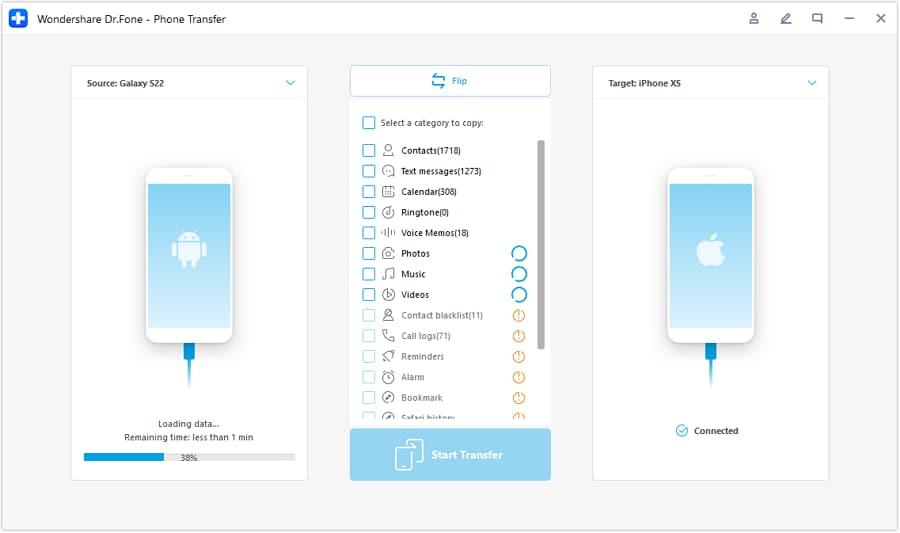
Step 3 Choose data types and start transferring the essentials
Transfer the core data you actually use for remote work, then sign back into apps and re-sync where needed (some apps restrict full migration).
-
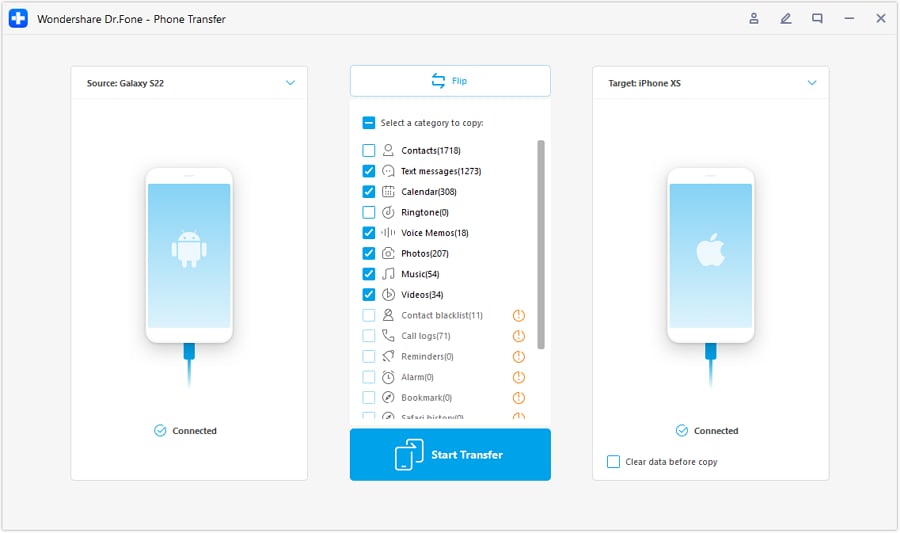
Step 4 Monitor progress, then back up before you optimize and clean up
Once your essentials are in place, create a backup so you can safely reorganize storage and remove clutter. If you’re handing off the old device, also confirm sign-outs, account removals, and activation-lock steps in system settings before any erase/cleanup actions.




Conclusion
AI is best used here as decision support: it turns “phone or tablet?” into a clear set of trade-offs tied to your real workflow. Real use is the final proof—comfort, friction, and habits decide satisfaction. Once you’ve chosen, a clean transfer/backup/cleanup process (with Dr.Fone if you’re switching or selling) helps your new remote-work setup start smoothly.
FAQ
-
Can I trust AI to tell me whether a phone or tablet is “best” for remote work?
You can trust it to structure the decision and highlight trade-offs based on your inputs. You shouldn’t trust it to predict comfort, accessory tolerance, or daily friction without you testing those in real life. -
What’s the single most important trade-off in phone vs tablet for remote work?
Sustained productivity vs carry simplicity: tablets usually win for long reading/writing and split-screen work, while phones usually win for always-with-you responsiveness and minimal setup. -
How do I avoid a generic spec-based decision?
Force the comparison through your top tasks and failure points: “Where do I lose time weekly?” and “What will I refuse to carry or set up?” Specs matter only after workflow fit is clear. -
What assumption most commonly flips the recommendation?
Typing volume and accessory tolerance. If you think you’ll type a lot but end up using voice notes and short replies, phone-first becomes more viable. If you think you won’t carry accessories but later accept a keyboard/stand, tablet-first becomes much stronger. -
What should I prepare right after choosing?
A short migration plan: the accounts you’ll sign into first, the files you need offline, your meeting apps, and a backup/transfer step so you don’t lose important work data during setup. -
If I’m switching devices, what’s the easiest way to reduce setup pain?
Back up first, transfer only essentials, then validate your remote-work flow (meetings → chat → docs → file access) before wiping or selling the old device. Tools like Dr.Fone can help with the transfer/backup/cleanup parts once you’re committed.
 Add Wondershare Dr.Fone as a preferred source on Google





