 Effortlessly manage data through preview, delete, export, etc.

 100% Security Verified | No Subscription Required | No Malware

 :
: 
 ChatGPT
 Perplexity
 Gemini
 Claude
 Grok
Grok

I keep seeing “best tablet for students” lists, but they all pick one “winner” and ignore what I actually do every week—notes, PDFs, submissions, and the apps my school forces us to use.
Reddit user, r/college
Generic “best tablet” answers usually collapse very different student needs into one winner, which is why they often feel wrong in real use.
AI helps you turn vague preferences (like “good for notes” or “lasts all day”) into a clearer set of trade-offs between a few realistic options.
AI still can’t validate hands-on feel (pen latency, glare, keyboard comfort), nor can it perform your actual school workflow—so after you decide, the practical setup/switching steps still matter.
In this article
- Part 1. How to compare tablets based on real student priorities
- Why “best tablet” lists fail
- The real tension: light daily use vs assignment capability
- Compare your week, not specs
- What “fit” looks like in practice
- Part 2. What the AI needs to compare options accurately
- Part 3. AI prompts to evaluate tablets more clearly
- Part 4. AI recommendation vs real-world fit
- Part 5. When to stop researching and make the call
Part 1. How to compare tablets based on real student priorities

1-1. Why “best tablet” lists fail
Most students aren’t just picking a tablet—they’re picking a study setup: handwritten notes vs typed notes, reading-heavy vs creation-heavy, and how often you’ll live in a learning platform (Google Classroom, Microsoft 365, LMS portals).
1-2. The real tension: light daily use vs assignment capability
The main tension is usually this: you want something lightweight and simple for daily classes, but you also don’t want to hit “I can’t do this assignment on my tablet” moments later.
1-3. Compare your week, not specs
A useful comparison doesn’t start with specs. It starts with your actual week: lecture note-taking, PDFs, group work, file submissions, and whether you already own a phone/laptop that you want the tablet to complement.
1-4. What “fit” looks like in practice
When you frame the decision around workflow, the choice between an iPad, an Android tablet, and a Windows 2‑in‑1 becomes a set of trade-offs you can actually live with—not a spec race.
Part 2. What the AI needs to compare options accurately
Give the AI enough context to compare options like an iPad, an Android tablet, and a Windows 2‑in‑1 in your real study workflow.
- Your study tasks (handwritten notes, typed essays, PDFs, spreadsheets, coding, design, video editing, etc.)
- Your “must-have” apps and platform (Google Workspace, Microsoft 365, Apple-only apps, school LMS)
- How you take notes (pen-first, keyboard-first, or mixed)
- Portability vs screen comfort (commuting, long reading sessions, dorm desk use)
- Accessory expectations (stylus, keyboard case) and whether you’ll actually carry them
- File workflow (AirDrop-style sharing, USB/drive needs, cloud-first, printing)
- Your current devices (phone + laptop) and what you want the tablet to replace (if anything)
- Budget range and how long you need it to last (one year vs whole degree)
- Any constraints (school IT rules, exam proctoring requirements, required software)
Part 3. AI prompts to evaluate tablets more clearly
Use these prompts to force trade-offs into the open and get to a decision you won’t regret later.
3-1. Level 1: Basic Prompt
I’m choosing a tablet for school between an iPad, an Android tablet, and a Windows 2‑in‑1.
I mainly use it for [notes/PDFs/essays/etc.] and I care most about [top 3 priorities].
Compare which option fits best and why.
3-2. Level 2: Advanced Prompt
Act like a decision assistant and compare iPad vs Android tablet vs Windows 2‑in‑1 for a student with my workflow.
My context:
- Major / typical assignments: [ ]
- Note style: [handwritten/typed/mixed]
- Must-use apps/services: [Google/Microsoft/LMS/other]
- What I already own: [phone/laptop model + OS]
- Priorities (ranked): 1) [ ] 2) [ ] 3) [ ] 4) [ ]
- Dealbreakers: [ ]
Output:
1) A ranked recommendation with reasoning tied to my priorities (not specs).
2) “Best fit for me” and “best fit for someone else” for each option.
3) The top 3 trade-offs I’m accepting if I choose each option.
3-3. Level 3: Evidence Prompt
Here’s my real week of school use:
- Classes: [e.g., 3 lectures/day], commute: [yes/no]
- Notes: [handwritten on slides / typed outlines / both]
- Reading: [how many PDFs/pages per week]
- Assignments: [essays, group slides, spreadsheets, coding, etc.]
- Submitting work: [Google Drive / OneDrive / LMS uploads / printing]
- Current devices: [phone + laptop + OS]
- Budget: [ ]
- Time horizon: [1 year / 3–4 years]
Based on this, recommend iPad vs Android tablet vs Windows 2‑in‑1.
For each option, clearly state:
- What I gain / what I give up in daily student use
- The most likely “regret point” after 30 days
- One key assumption you’re making about my habits or requirements—and how the recommendation changes if that assumption is wrong
3-4. Prompt Refinement (follow-ups)
If I choose the “best note-taking” option, what’s the most common way students get blocked when they need to submit, format, or multitask—and how do I avoid that?
Which option minimizes friction for my file workflow (sharing, exports, printing, LMS uploads)? Explain the exact friction points you expect.
If I unexpectedly need to run a Windows-only app (or a specific required program), which choice is safest—and what’s the backup plan for the other choices?
Identify the single accessory decision (stylus vs keyboard vs neither) that most changes the recommendation, and tell me what to pick based on my described week.
Give me a “regret audit”: list 5 reasons I might dislike each option after a semester, based on my priorities.
Part 4. AI recommendation vs real-world fit
| Likely AI recommendation or conclusion | What real-life use may change or reveal |
|---|---|
| “Choose iPad if you’re pen-first and want a streamlined study device.” | Stylus feel, palm rejection comfort, and whether your specific note/PDF app workflow clicks day-to-day. |
| “Choose a Windows 2‑in‑1 if you need laptop-style software or heavy multitasking.” | Whether it feels too bulky for lecture-only days, and whether you actually use it as a tablet (vs a small laptop). |
| “Choose Android if you want good value and flexible daily media + notes.” | App-by-app friction (your exact LMS, annotation tools, and export formats) and consistency of your preferred accessories. |
| “Avoid over-optimizing specs; prioritize your workflow.” | Screen glare, battery anxiety in real classes, keyboard comfort, and how often you’re without Wi‑Fi/outlets. |
AI can clarify likely fit and trade-offs, but hands-on use, workflow friction, and daily habits still decide satisfaction.
Part 5. When to stop researching and make the call
- You can describe your top 3 priorities in one sentence and name the option that best serves each priority (even if it’s not the same option).
- You’ve identified your most likely regret point—and you’re comfortable with it (or have a workaround).
- You’ve validated app compatibility and submission workflow (LMS, file formats, cloud drives) enough to feel confident.
- Your decision is now about trade-offs, not uncertainty (you’re choosing what to give up, not guessing what will happen).
Once you’re here, more research usually adds noise—your next move is to commit and set up your workflow cleanly.
Product recommendation: Switch or prepare smoothly after you choose
After the decision, the highest-impact step is reducing switching friction: moving files/photos, cleaning old devices, and avoiding “my stuff is everywhere” chaos during the semester. If you’re moving data between phones as part of your setup, Dr.Fone - Phone Transfer can help you transfer key items without bouncing between multiple apps.
 Move data between iOS to Android and vice versa.
- Transfer contacts, SMS, photos, videos, music, and more types.
- Available with all phones with Android and iOS versions.
- Simple, click-through process.
Move the data you’ll actually need: transfer key photos/videos/contacts (and other supported data) from your current phone so your essentials show up without manual hopping between apps.
-
Step 1 Launch the phone transfer tool
Open the transfer feature so you can start a phone-to-phone move.

-
Step 2 Set the source and destination devices
Choose the correct transfer direction (for example, Android to iOS or iOS to Android) before proceeding.
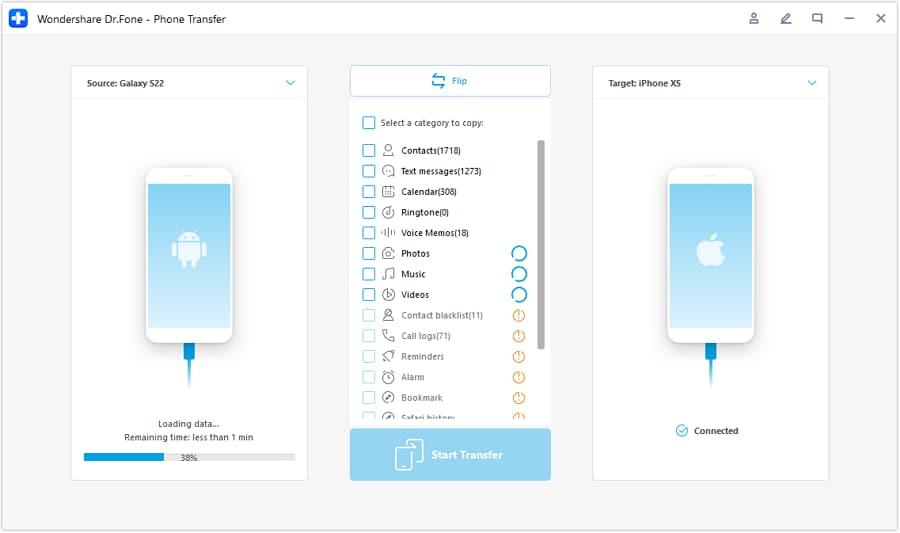
-
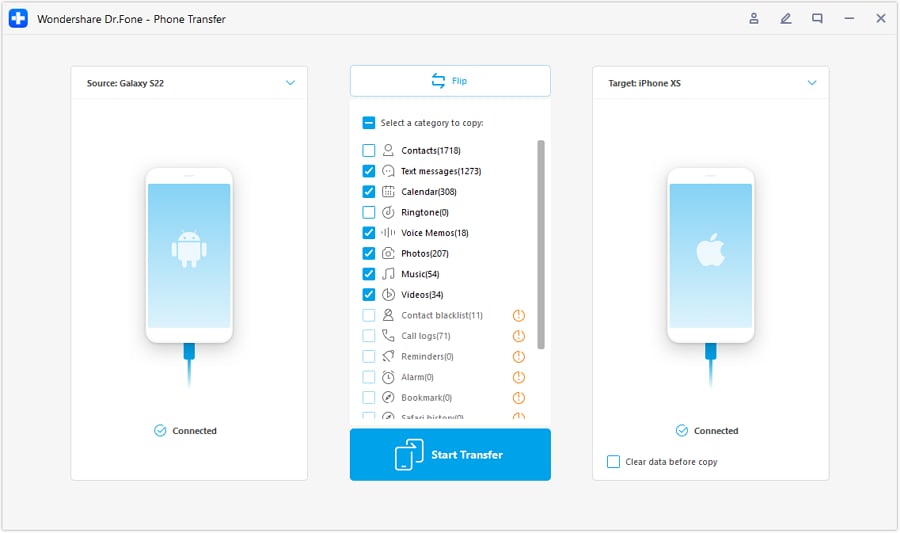
Step 3 Select what to transfer and start
Pick the data types you want to move, then begin the transfer.
-
Step 4 Monitor progress and finish setup
Let the transfer complete, then verify your essentials are in place for school.


Do a pre-semester cleanup to reduce clutter: remove junk/duplicate-heavy storage patterns so your device stays fast and you don’t hit storage limits mid-term.
If you’re selling or handing down a device, prepare it safely: back up what you need, then clear personal traces before resale or gifting.




Conclusion
AI is best used as decision support to clarify priorities and trade-offs; real-life use is the final proof of fit, and once you’ve chosen, tools like Dr.Fone help execute the practical switching, cleanup, or resale steps smoothly.
FAQ
-
Can I trust AI to tell me which tablet is “best”?
Trust it to structure trade-offs and highlight likely fit based on your inputs—not to guarantee satisfaction. It can’t feel the pen, keyboard, or day-to-day friction for you. -
What’s the single most important trade-off for students?
Whether your tablet is primarily a notes-and-reading companion or a laptop replacement. That choice affects app needs, accessory needs, and “blocked assignment” risk. -
How do I avoid a generic spec-based decision?
Force the comparison to follow your weekly tasks: note capture → PDF annotation → file export → submission. If a choice is shaky at any step, that’s a real red flag. -
What should I prepare before I buy?
A short list of must-use apps, your submission workflow (Drive/OneDrive/LMS), and whether you’ll realistically carry a keyboard and/or stylus daily. -
If I’m switching ecosystems, what’s the biggest risk?
Underestimating friction: file sharing habits, note app exports, and how your phone/laptop fits in. Plan the transfer and setup so you don’t lose a week rebuilding your workflow.
 Add Wondershare Dr.Fone as a preferred source on Google





