 Effortlessly manage data through preview, delete, export, etc.

 100% Security Verified | No Subscription Required | No Malware

 :
: 
 ChatGPT
 Perplexity
 Gemini
 Claude
 Grok
Grok

I keep switching between Apple Maps and Google Maps for walking—one route looks great on screen, but then I’m dealing with weird detours, reroutes, or streets that don’t feel walkable.
Reddit user, r/iPhone
Trying to “pick the best” way to create a realistic walking route on iPhone often fails because the right choice depends on why you’re walking (errands, sightseeing, training, accessibility) and what “realistic” means to you.
AI helps by turning vague preferences (“safer,” “more scenic,” “won’t get me lost”) into concrete trade-offs you can compare across options like Apple Maps, Google Maps, and walking-focused route planners.
AI can’t verify how a route feels on your streets, whether sidewalks are actually usable, or how often you’ll reroute in real life—so the final proof still comes from a quick test walk and your day-to-day habits.
In this article
- How to compare walking-route options based on real priorities
- Pick a route-creation style (not “best app”)
- Where friction actually shows up
- Compare by the moments that matter
- Validate with a short test walk
- What the AI needs to compare
- AI prompt guide (Level 1–3 + refinement)
- AI recommendation vs real-world fit
- After choosing: test routes and prep your iPhone with Dr.Fone
Part 1. How to compare walking-route options based on real priorities
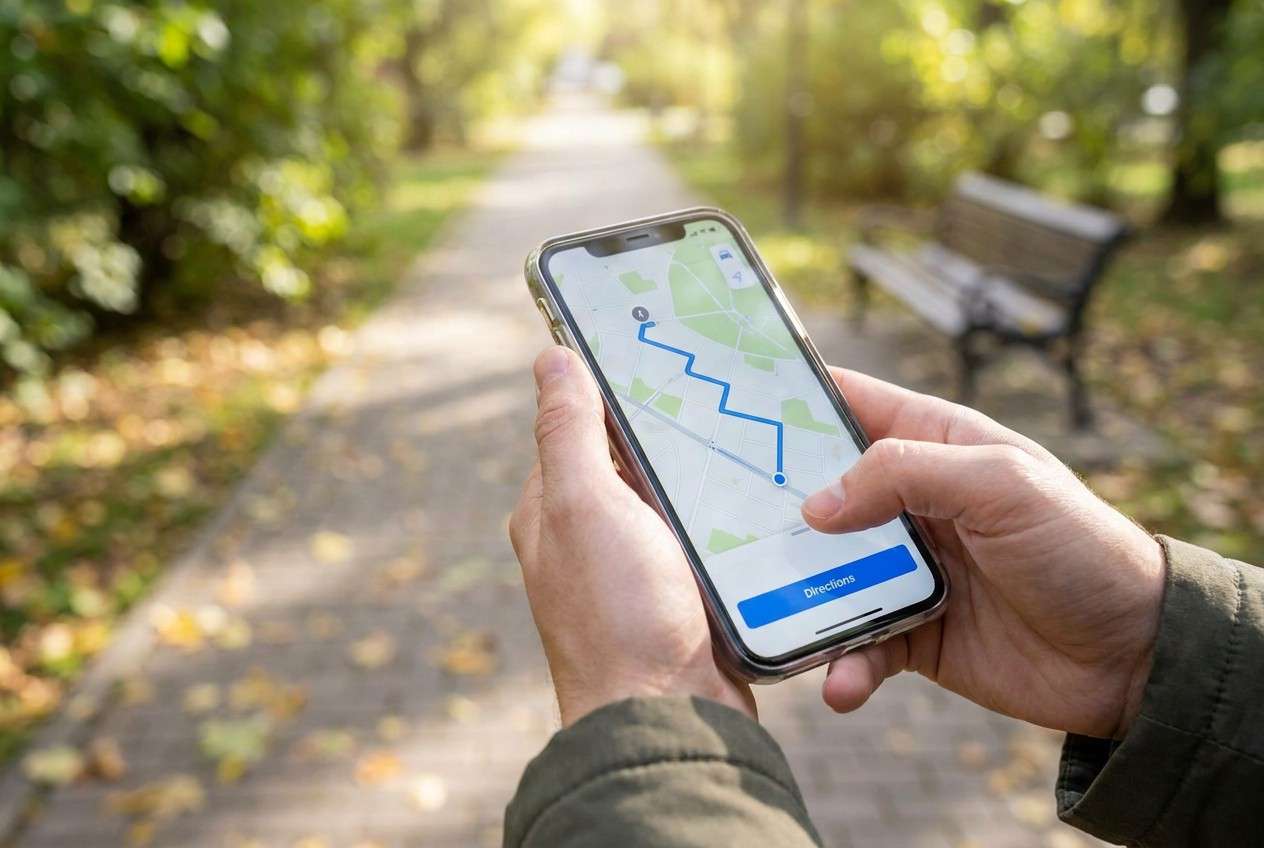
You’re not just choosing an app—you’re choosing a route-creation style: fastest A→B, multi-stop errands, scenic wandering, or fitness-oriented planning. Different tools excel at different intents.
The uncertainty usually shows up as tension between what looks good on a screen and what works on-foot: “Will this path be walkable?”, “Will it keep rerouting?”, “Can I add stops easily?”, “Will it drain battery or require signal?”
A practical way to decide is to compare options by the moments that cause friction: adding stops, avoiding certain areas, handling poor signal, and whether you want turn-by-turn directions or a flexible walking plan.
Part 2. What the AI needs to compare
Share the details below so the AI can compare options based on your real use case.
- Your goal: errands, commute, sightseeing, training, accessibility, or “explore”
- Route type: point-to-point vs loop vs multi-stop
- “Realistic” to you: safer streets, sidewalks, low hills, scenic, well-lit, less traffic, fewer crossings, etc.
- Constraints: time limit, distance range, pace, elevation tolerance
- Where you’ll walk: dense city, suburbs, trails/parks, mixed areas
- Data needs: offline use, low battery mode, limited signal
- Your tolerance for rerouting: strict directions vs flexible wandering
- Whether you’re switching devices soon or planning to clean up data before resale
Part 3. AI prompt guide (Level 1–3 + refinement)
Use these prompts to force a decision based on priorities and trade-offs, not vague “best app” answers.
3-1. Level 1: Basic Prompt
I want to create a realistic walking route on my iPhone. Compare Apple Maps vs Google Maps vs a walking-focused route planner app for my situation, and tell me which is the best fit and why. Focus on planning style (multi-stop, scenic, safety, rerouting), not specs.
3-2. Level 2: Advanced Prompt
Act as a decision assistant. Compare these options for creating realistic walking routes on iPhone: Apple Maps, Google Maps, and a walking-focused planner (e.g., Komoot/AllTrails-style).
1) Ask up to 5 clarifying questions.
2) Build a priority list from my answers.
3) Rank the options for my priorities.
4) Explain the trade-offs and who each option fits best (errands vs sightseeing vs training vs accessibility).
5) Recommend one default choice and one backup choice.
3-3. Level 3: Evidence Prompt
Context: I’ll be walking in [city/area type], usually for [errands/sightseeing/training]. I need [multi-stop/loop/point-to-point]. “Realistic” means [your definition: sidewalks, safety, lighting, hills, scenic]. I often have [good/spotty] signal and I [hate/ don’t mind] rerouting.
Based on this, recommend whether I should use Apple Maps, Google Maps, or a walking-focused planner.
For each option, list what I gain and what I give up in daily use.
Then name one key assumption you’re making that—if wrong—would flip your recommendation.
3-4. Prompt Refinement
If I can only test one thing this week to validate your recommendation, what should I test during a 15-minute walk, and what result would change the decision?
Rank my priorities explicitly (1–5). Then show how the ranking changes if I value “scenic” more than “fastest.”
What’s the most likely regret for choosing each option in my scenario (e.g., too much rerouting, awkward multi-stop planning, not enough context for walkability)?
Give me a “decision rule” in one sentence (e.g., “If you do X more than twice a week, pick Y; otherwise pick Z.”).
Tell me what would make the second-best option better than the best option for me (the flip factor), and how I can check it quickly.
If I’m walking with someone else (kids, visitors, group), how does that change the recommendation and why?
Part 4. AI recommendation vs real-world fit
| Likely AI recommendation or conclusion | What real-life use may change or reveal |
|---|---|
| “Choose the app that matches your main intent: errands vs scenic vs training.” | You may switch intents often, and a single-tool approach might be less satisfying than a primary + backup workflow. |
| “Multi-stop planning matters most; pick the option that handles stops cleanly.” | Stop order, entrance points, and indoor/outdoor transitions can be more annoying than the app’s stop feature suggests. |
| “Your ‘realistic’ priority is safety/sidewalks, so prefer routes on main streets.” | Main streets can be loud/unpleasant, crossings can be slow, and a quieter parallel street may feel more ‘realistic.’ |
| “If signal is spotty, prioritize offline reliability and simple navigation.” | Battery drain, GPS jitter, and how often you check your phone can matter more than offline capability in practice. |
AI can clarify likely fit, but hands-on use, workflow friction, and daily habits still decide satisfaction—especially for walking where comfort and micro-decisions (crossings, sidewalks, detours) add up.
4-1. When to stop researching and make the call
- You can state your top 2 priorities (e.g., “multi-stop errands” and “least rerouting”) and you know which option best supports them.
- You can name the biggest trade-off you’re accepting (what you gain / what you give up) and you’re okay with it.
- You have a backup plan (a second app/workflow) for the one situation your main choice handles poorly.
- You’ve done one short real-world test walk or simulated route and nothing “deal-breaking” showed up.
At this point, you’re not missing information—you’re ready to commit and refine through use.
Part 5. After choosing: test routes and prep your iPhone with Dr.Fone
Once you’ve chosen your routing workflow, the practical step is making sure your iPhone setup matches it—especially if you’re switching phones, consolidating apps, or preparing a device for resale. If you also want a controlled way to test a planned path (for example, to validate “rerouting sensitivity” or timing), tools like Dr.Fone - Virtual Location can help you simulate movement for workflow checks.
 Set your map route to simulate GPS movement.
- Set your wanted movement speed.
- HD and large map view to check location.
- Fake GPS location to anywhere.
5-1. Simulate a walking route for a quick “realism” check
-
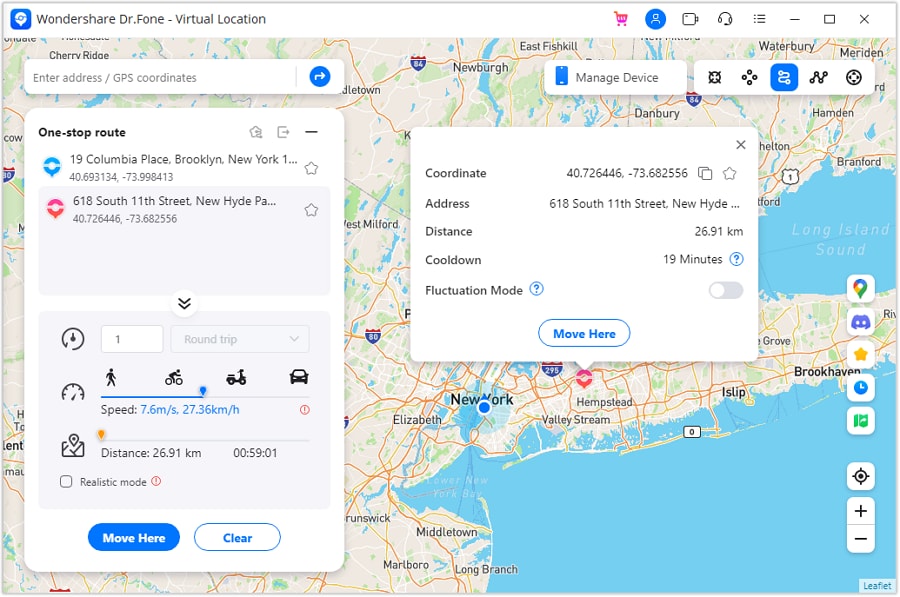
Step 1 Activate One Stop Route mode
Open the route simulation feature and choose the mode designed for a single A→B walk.
-
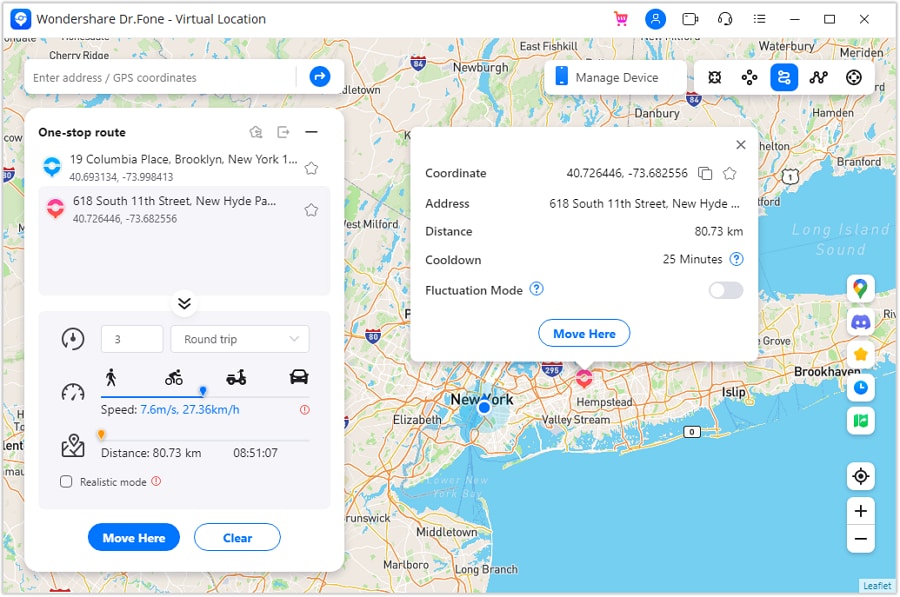
Step 2 Set route parameters
Adjust the route and movement settings (such as speed) so the simulation matches how you actually walk.
-
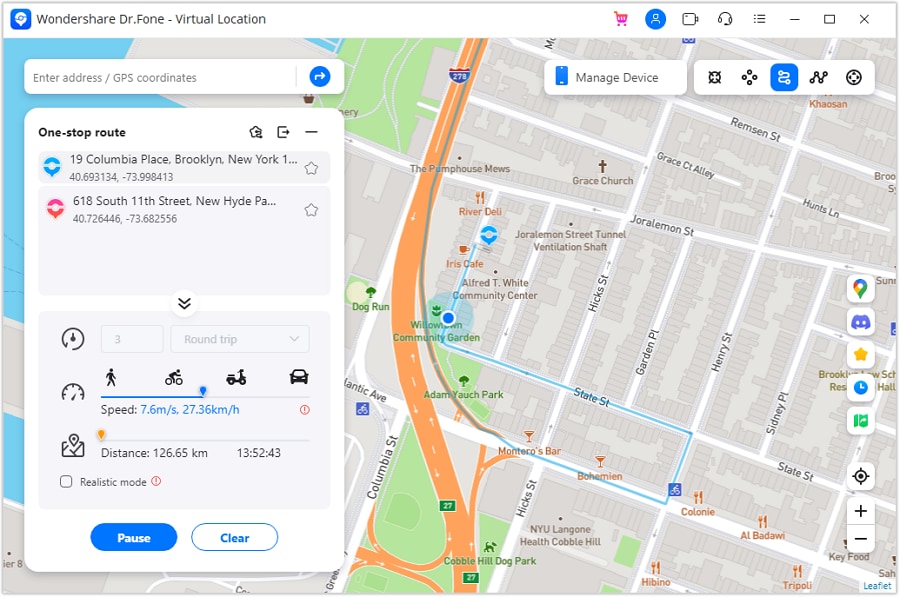
Step 3 Start the one-stop simulation
Run the simulation and observe where your mapping workflow tends to reroute or become annoying.
-
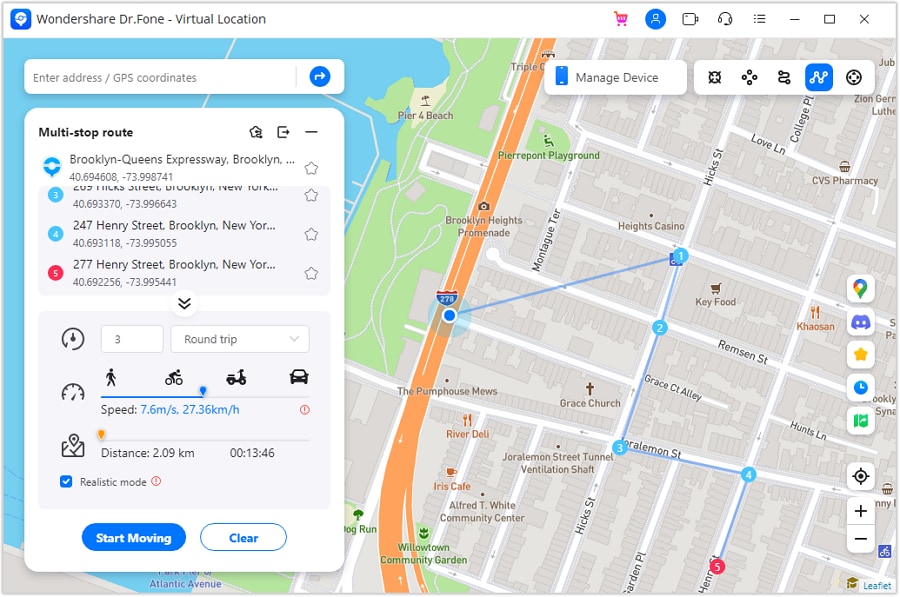
Step 4 Try a multi-stop simulation when errands matter
If your “realistic” walk includes multiple stops, switch to a multi-stop mode and test whether your plan stays usable.
5-2. Switch or prepare smoothly after you decide
-
Step 1 Switch to a new iPhone without losing essentials
Action: Use Dr.Fone to transfer key data to your new device so your everyday setup (contacts, photos, and other personal data you rely on while out) is intact before you rebuild your walking-route habits.
Limitation: Route history and app-specific settings may still need to be reconfigured inside each map app.
-
Step 2 Clean up location traces before resale or handoff
Action: Use Dr.Fone to help erase personal data on the old phone after you’ve confirmed your new device is working, reducing leftover personal information risk.
Limitation: You should still sign out of Apple ID and follow iOS reset steps; erased app data can’t be recovered.
-
Step 3 Reduce clutter from “trying everything”
Action: Use Dr.Fone to manage and remove unneeded files so your device stays lightweight after installing/testing multiple navigation apps.
Limitation: It won’t decide which apps you should keep—only you can judge which workflow you actually use.




Conclusion
AI is best used here to turn your preferences into explicit trade-offs and a clear “fits me” recommendation; real walking is the final proof, and once you’ve decided, Dr.Fone can help with the practical follow-through—switching devices, cleaning up, and preparing a phone for handoff.
FAQ
-
Can I trust AI to pick the best walking route app for iPhone?
Trust it to structure trade-offs and highlight fit; don’t trust it to confirm sidewalk quality, safety feel, or how often you’ll reroute on your exact streets. -
What’s the single most important trade-off in “realistic walking routes”?
Flexibility vs predictability: the more you want “walkable/scenic/safe,” the more you may accept detours, longer time, or occasional reroutes. -
How do I avoid a generic, spec-based decision?
Decide based on moments of friction: adding stops, handling poor signal, how you recover from a wrong turn, and whether you want strict turn-by-turn or a looser plan. -
What should I prepare before I choose?
Define your “realistic” criteria in one sentence and run one test route (15–30 minutes) that includes the conditions you care about (crossings, hills, low signal, nighttime, etc.). -
If I’m switching iPhones, what changes in my decision?
Your best choice is the one you can set up and stick with quickly; after you choose, focus on transferring your essentials and cleaning up old-device data before resale.
 Add Wondershare Dr.Fone as a preferred source on Google





